
Schools, users and sign-in
Everyone signs in at vocationallms.com/login with their email and a password they chose themselves. No administrator ever creates, sees or types anyone else's password. New people get an invitation link, and anyone who forgets their password gets a reset link.
Add a person (Super Admin or School Admin)
- Open Users and click + Add a person.
- Enter their name and email, and choose a role: School Admin, Director, Instructor or Student. A Super Admin also chooses the school.
- Click Add and send invitation. They receive a one-time link that works for 72 hours, open it, and choose their own password.
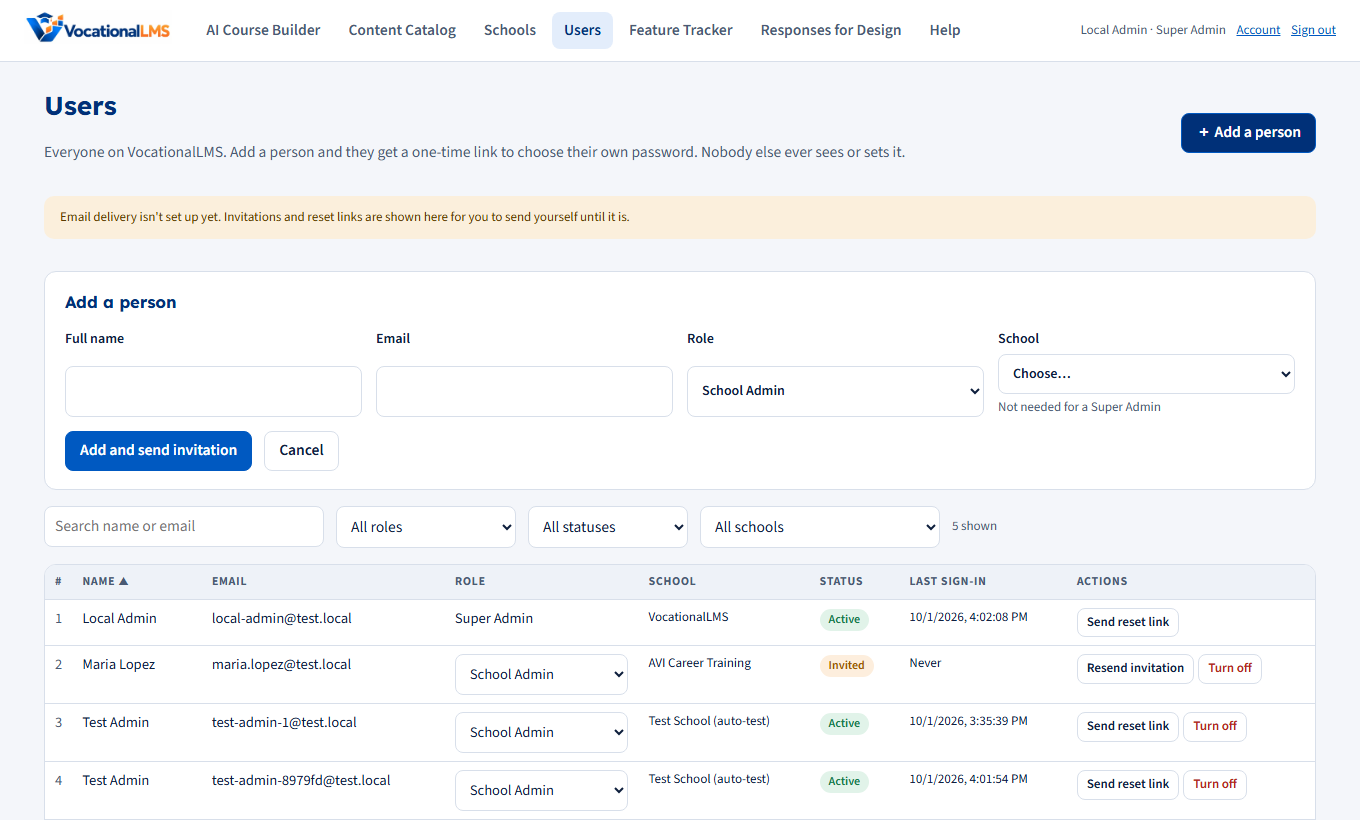
Until email delivery is set up, the link appears on screen instead. Copy it and send it to the person yourself. It's a link, not a password, and it works only once.
Students: mobile number, address and registration
- When the role is Student, the Add and Edit forms have Mobile number and Address (both optional). They also show on the student's profile.
- A student whose record exists can register themselves: on the student sign-in page they click Register here, type the email the school put on file, get a 6-digit code by email or by text message (their choice), and choose their own password. They then see every course assigned to them. See S-19 and A-04.
- Text message is offered only when text messages are switched on and the record has a mobile number. A code by text also confirms that number for the student.
- Only an email address the school added can register, and only once. A code works for 15 minutes and 5 tries; a student can ask for 6 codes in 24 hours. The invitation link still works as before.
Instructors: the license your state board asks for
- When the role is Instructor, the Add and Edit forms have a box 🪪 Instructor's license: the license or certificate number, the kind of license, the state that issued it, the expiration date, and a photograph or scan of the license (JPEG, PNG, WebP or PDF, up to 10 MB).
- The form needs the number or the photograph; one of the two is enough, both are best.
- The Users list shows each instructor's license under the role, with View license. Nothing on file shows ⚠ License missing; a past date shows Expired.
- Only the School Admin can change it; a Director of the school can read it; VocationalLMS can see it. Instructors, students and other schools cannot. See A-25.
Manage people
- Status: Invited means they haven't chosen a password yet, Active means they can sign in, and Off means sign-in is blocked.
- Resend invitation sends a fresh invitation; the old link stops working.
- Send reset link lets an active person choose a new password. The link works for 1 hour.
- Turn off blocks sign-in immediately and signs them out everywhere. Nothing is deleted, and Turn on restores access.
- Change a role with the drop-down on their row.
- Programs for an instructor: when you add an instructor (or click Edit), tick the programs this instructor teaches. One instructor can have several programs. An instructor sees only the students in their programs: on course student lists, student profiles, time logs and in Messages. An instructor with no program sees no students (the list shows No program yet). A student who was given their own instructor is seen by that instructor instead.
- Programs for a student: when you add a student (or click Edit), tick the programs to enroll them in. Unticking a program takes the student out of it; their records are kept. You can still add students from a course's Students area.
- Edit changes a person's name, email address or role (the role can also be changed with the drop-down in the table). They sign in with the new address; their password stays the same.
- Archive is for a student who has left. Click 📦 Archive on the student's row (twice to confirm). The student can no longer sign in and leaves the everyday list; every record (hours, tests, messages, transcript) is kept, and they stay on their course lists marked Archived. To see archived students choose Archived in the status filter or click "N archived"; ↩ Restore brings a student back with the same password.
- Delete removes a person for good. Student records are kept for audits, so deleting a student is controlled:
- Only the VocationalLMS Super Administrator can delete a student record.
- A School Admin who clicks Delete on a student is asked for an authorization code. Call VocationalLMS support to ask for it. The Super Administrator issues a code for that one student; it works once, for 24 hours, and only at that student's school. Five wrong tries cancel it.
- With the right code, the student and all of the student's records (hours, tests, messages) are deleted for good.
- Every code and every deletion is kept in the Student deletion log (Super Admin, bottom of the Users page): who the student was, who issued the code and why, who deleted, when, and what was erased.
- Super Admin: use Deletion code on the student's row to make a code, or Delete to remove the student yourself (you are shown what would be lost first).
- Staff with no records are deleted straight away (two clicks). Staff who have messages, notes or course work are turned off, not deleted.
- You can't delete your own account.
- A School Admin sees and manages only their own school's people, and can't create Super Admins.
Create a school (Super Admin)
- Open Schools and click + New school.
- Enter the school name, state and letterhead line. Add the first School Admin's name and email to invite them right away.
- Use Manage people on a school's row to see and invite its people, and Open dashboard to see the school exactly as its admin does.
Invitations and reset links are emailed once email is set up; until then the link appears on screen. See Email settings: every school can use VocationalLMS email or its own domain.
Forgot your password?
On the sign-in page, click Forgot password? A short screen opens with one box: type your email address and click Send me a reset link. The answer is the same whether or not the address has an account. Back to sign in returns to the sign-in form. A new student who has never chosen a password registers instead (S-19).
On the sign-in page, type your email and click Forgot password?. If the email has an account, a reset link is sent. If it doesn't arrive, ask your administrator to click Send reset link for you.
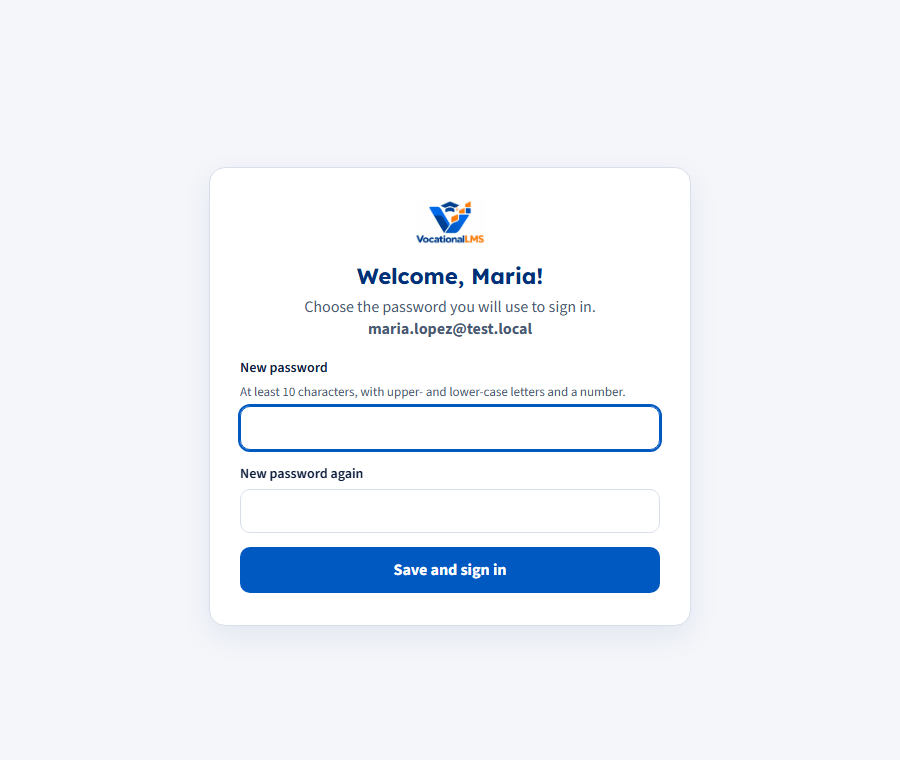
Passwords need at least 10 characters, with upper- and lower-case letters and a number. After 8 wrong attempts, sign-in pauses for 15 minutes. Choosing a new password signs you out of every other device.