
I-01For instructors
Sign in and find your way around the Studio
The Client login, the menu on the left, tooltips on every button, and changing your password.
How-to video I-01 · 1:21
Read the words of this video
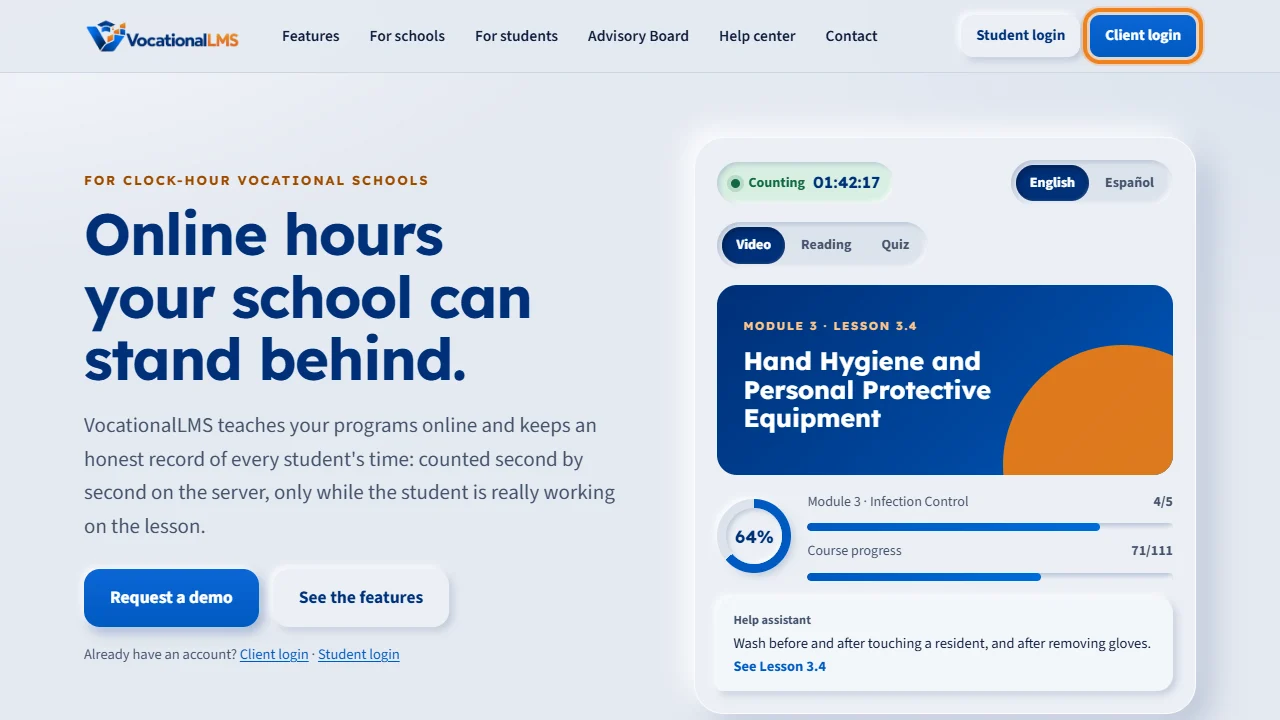
School staff work in the Studio. Go to vocationallms.com and click Client login. Student login is only for students.
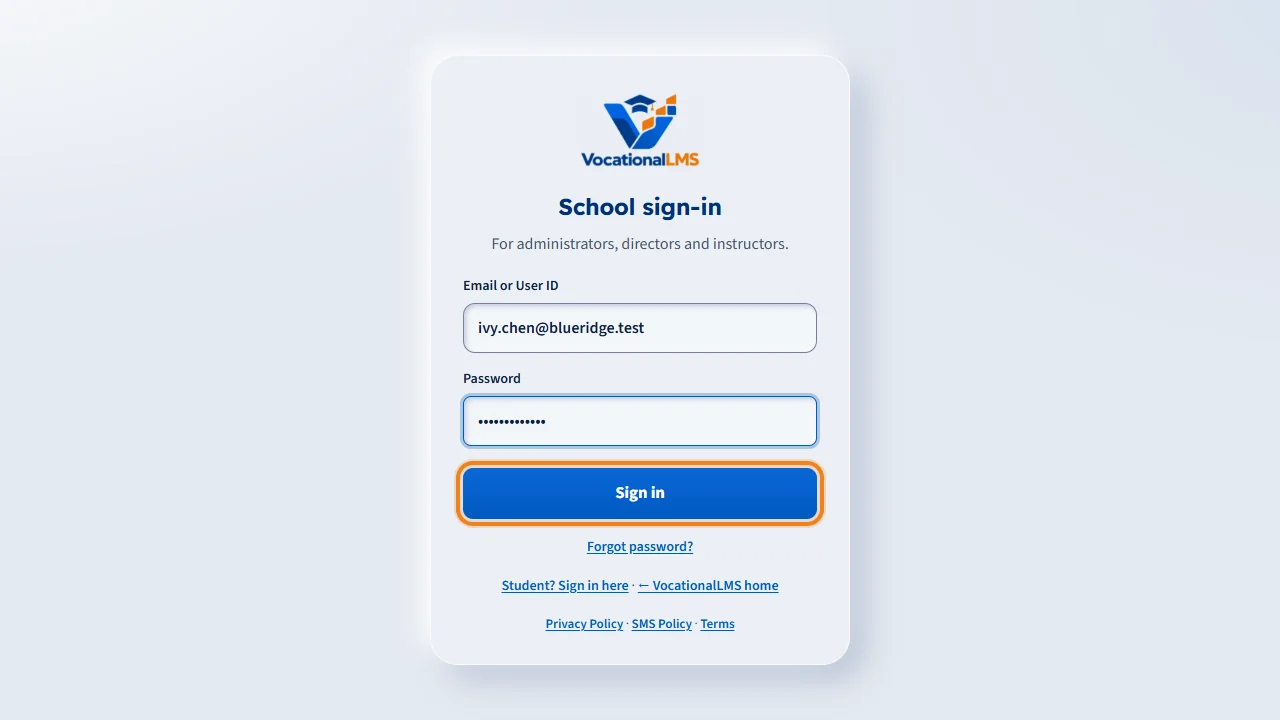
Type your email or your User ID, and the password you chose from your invitation link, and click Sign in. If you forget it, click Forgot password to get a reset link by email.
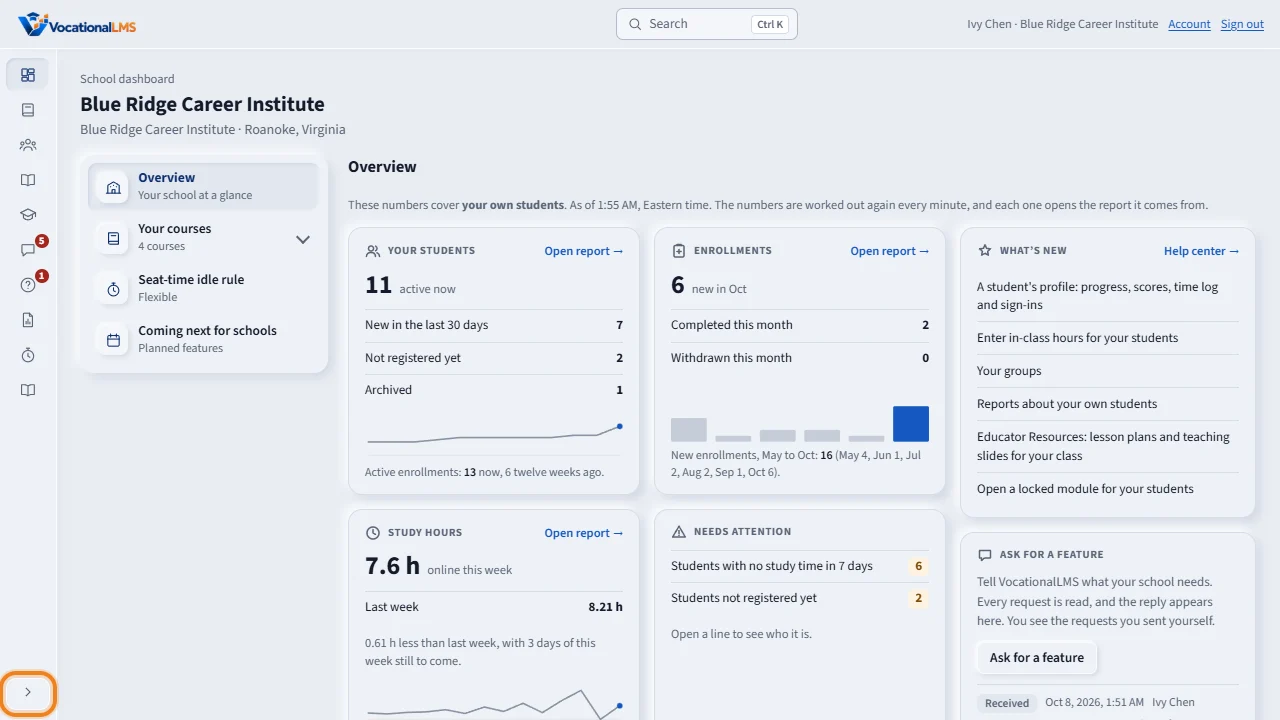
Your menu is on the left of every page. For instructors it starts as a narrow strip of icons, so the page has the room. Rest the mouse on an icon to read its name, or click Expand at the bottom to show the names: Dashboard, My Courses, Content Catalog, Messages, Help assistant and Help. A red number on Messages or Help assistant means something is waiting for you.
The dashboard has its own section menu, beside the tiles. Your courses lists every course your school has. Every button in the Studio has a tooltip: hold the mouse over a button to read what it does and what happens next.
Account, at the top right, is where you see your User ID and change your password. Sign out is beside it. Users and Settings are not in your menu; those belong to the School Admin.
Open this in VocationalLMSAccount
What it is for
School staff work in the Studio. You sign in with the Client login, with your email or your User ID and the password you chose from your invitation link. What you see depends on your role; an instructor sees the school's courses and the students of the programs they teach.
Steps
- Go to vocationallms.com and click Client login.
- Type your email or User ID and your password and click Sign in. The first time, open your invitation link and choose a password (10 characters or more, with upper-case and lower-case letters and a number).
- Use the menu on the left: Dashboard, My Courses, Groups, Content Catalog, Educator Resources, Messages, Help assistant, Reports, Hours and Help. For instructors it starts as a narrow strip of icons: rest the mouse on an icon to read its name, or click Expand at the bottom to show the names. Your choice is remembered on this computer.
- Not sure what a button does? Hold the mouse over it. Every button has a short tooltip that says what it does and what happens next.
- To see your User ID or change your password click Account at the top right. To leave, click Sign out.
What happens next
A red number beside Messages or Help assistant means something is waiting for you. Help opens this Help center on the Instructors tab.
Common problems
| # | Problem | What to do |
|---|---|---|
| 1 | You do not see Users or Settings. | Those belong to the School Admin. Instructors do not manage people or settings. |
| 2 | You forgot your password. | On the sign-in page click Forgot password?, type your email or User ID and click Send me a reset link. The link goes to your email address. Or ask your School Admin for a reset link. |
| 3 | You were sent to the student pages. | You used the Student login. Use Client login. |