
S-01For students
Sign in and choose your password
Open your invitation, choose your own password, and sign in with your email or your User ID. What to do if you forget it.
How-to video S-01 · 1:37
Read the words of this video
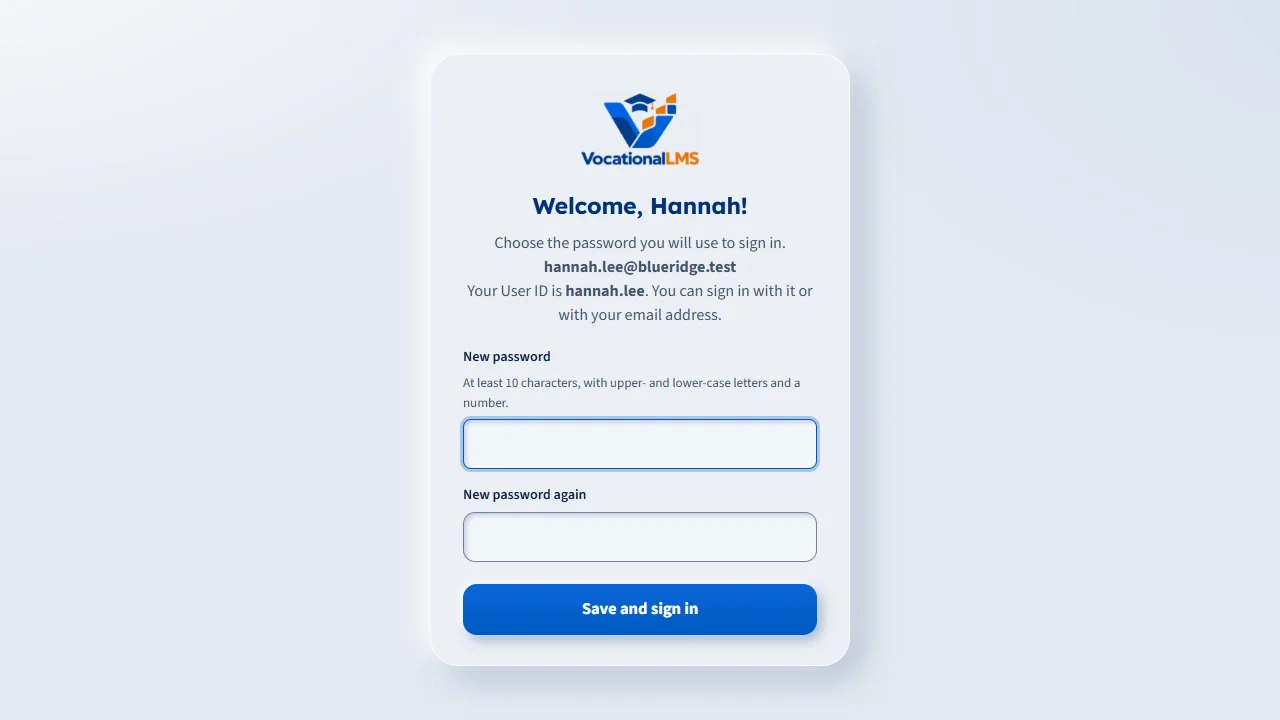
Your school adds you to VocationalLMS and sends you an invitation link. The link works once, for seventy-two hours. Open it and choose your own password: at least ten characters, with upper-case and lower-case letters and a number. Nobody at the school can see your password.
After that, go to vocationallms.com and click Student login at the top right. Client login is for school staff, so students always use Student login.
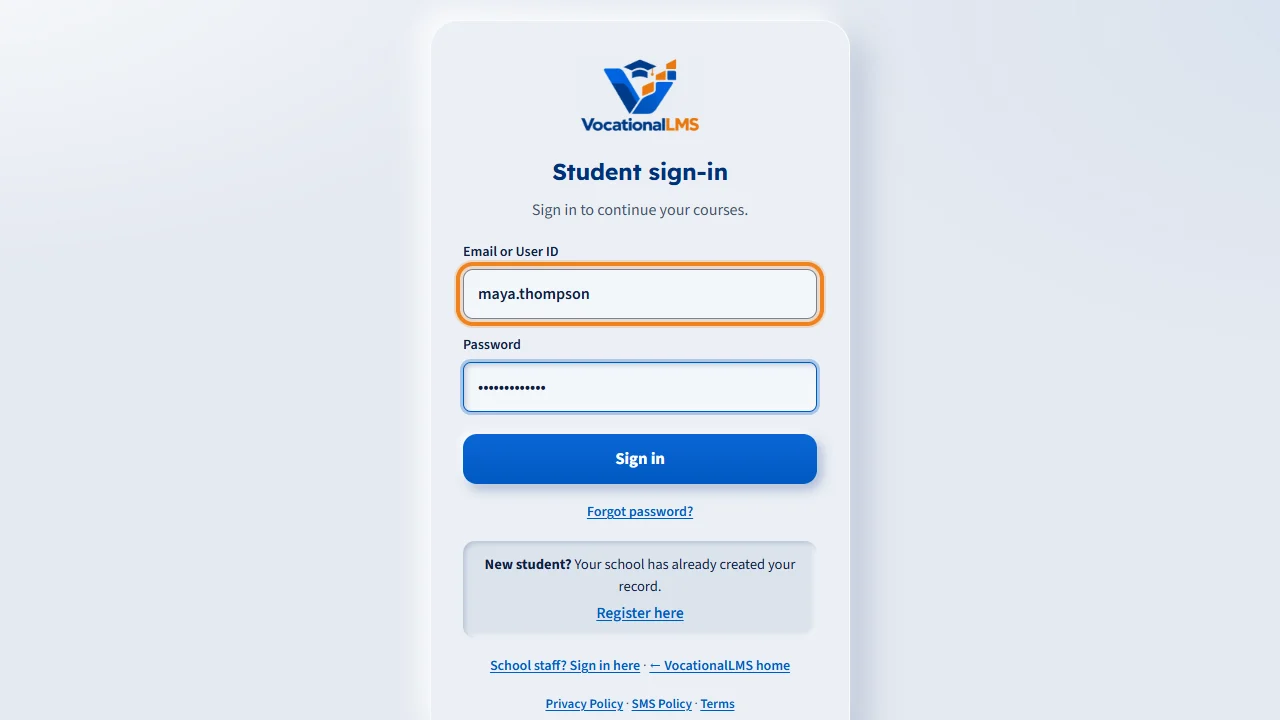
In the first box, type the email your school has for you, or your User ID. Your User ID is a short name your school gave you. Either one works. Then type the password you chose and click Sign in. After eight wrong tries, sign-in pauses for fifteen minutes.
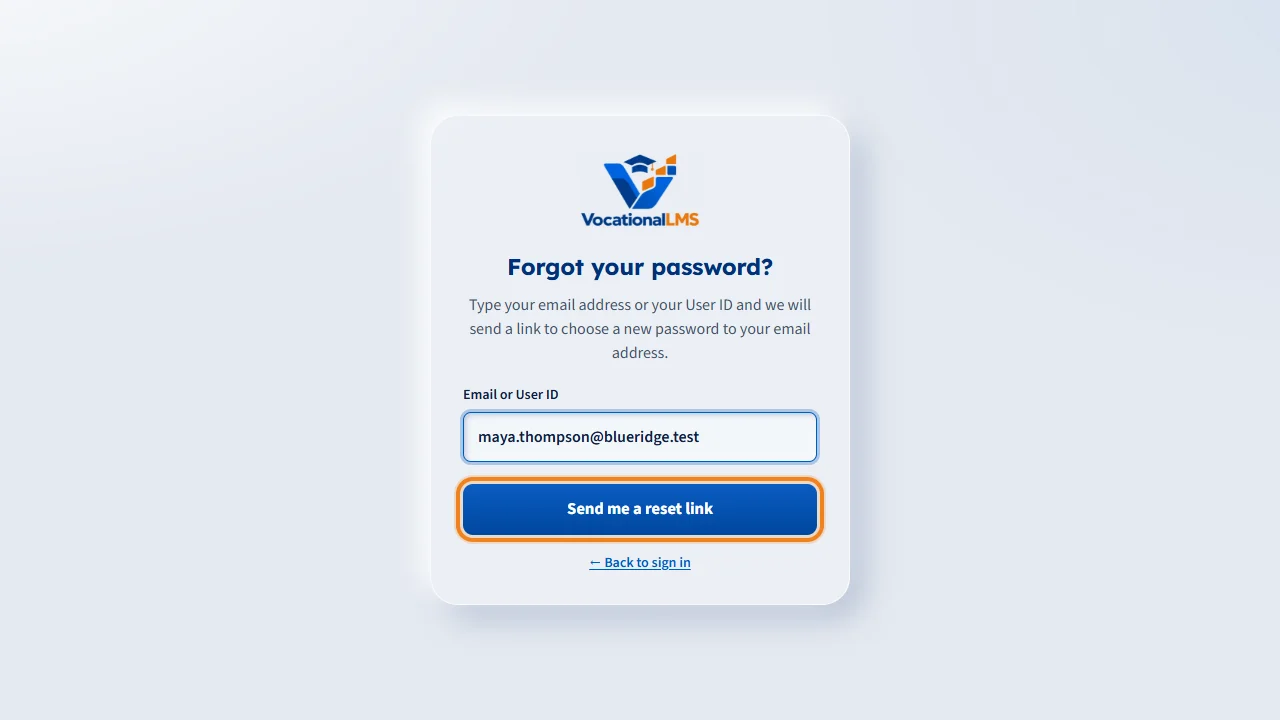
If you forget your password, click Forgot password. A short screen opens with one box. Type your email address or your User ID and click Send me a reset link. You get an email with a link that works for one hour. Open it and choose a new password. If no email arrives, check your spam folder, or ask your School Admin to send you a reset link.
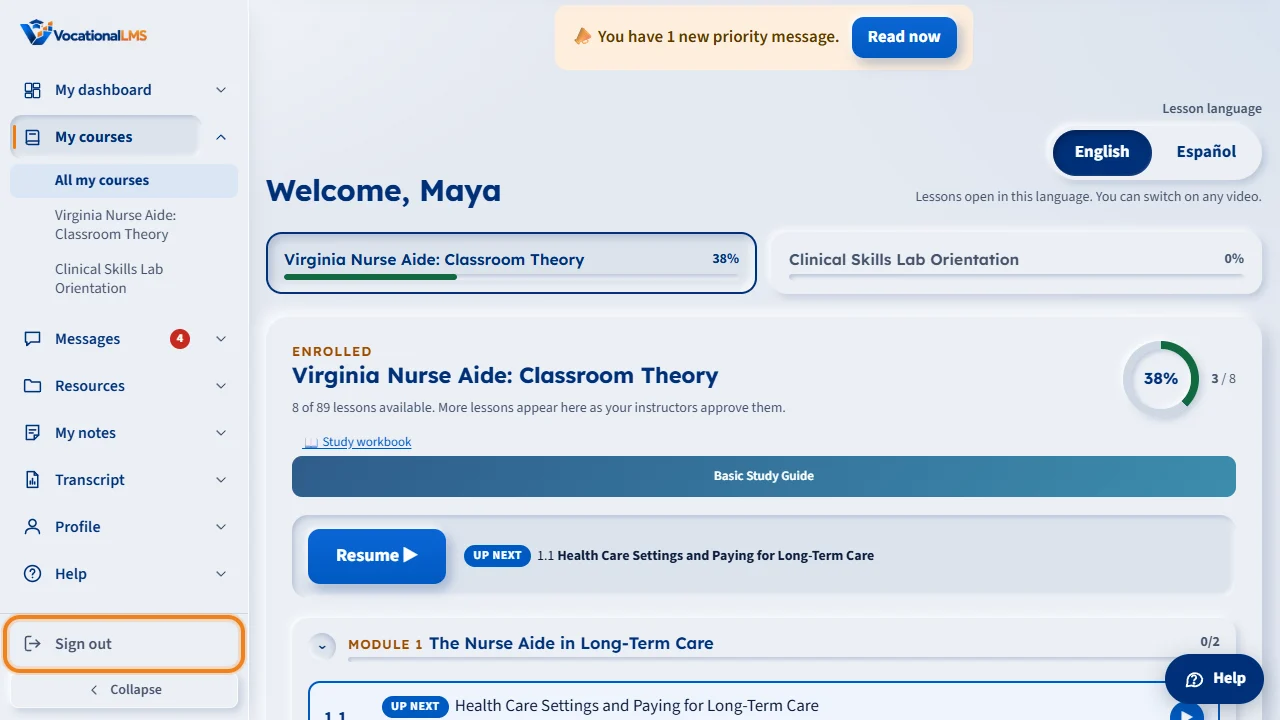
When you are signed in, you land on My courses, with your courses and your next lesson. Your menu is on the left. To leave, click Sign out at the bottom of the menu, especially on a shared computer.
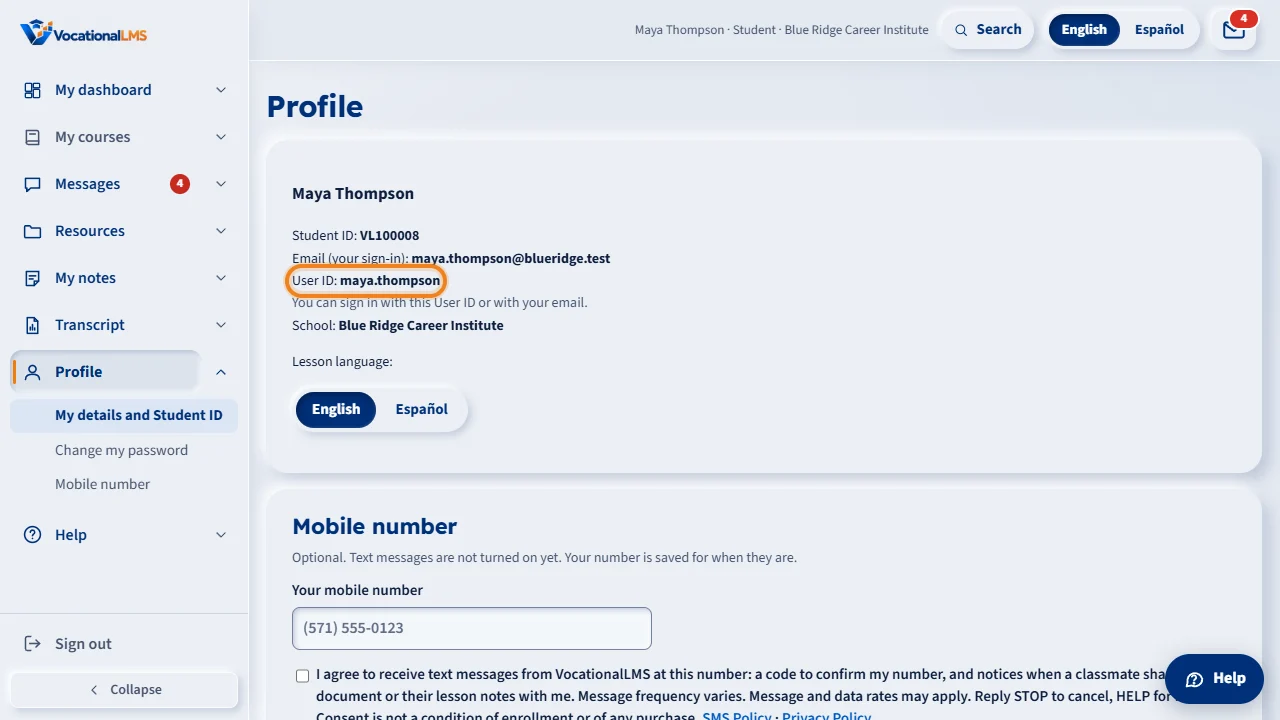
Your Profile page shows your User ID. You can sign in with it or with your email. Only your school can change it.
Open this in VocationalLMSProfile
What it is for
Your school adds you to VocationalLMS and you get an invitation link. You choose your own password; nobody at the school ever sees it. After that you sign in with your email or your User ID and that password, on a computer or a phone. Your User ID is a short name your school gave you, such as maya.thompson. It is in your invitation email and on your Profile page.
Steps
The first time
- Open the invitation email from your school and click the link. If your school gave you the link another way, open that link. It works once, for 72 hours.
- Type a password in New password and again in the box under it. It needs at least 10 characters, with upper-case and lower-case letters and a number.
- Click the button to save it. You are taken to the sign-in page.
Every time after that
- Go to vocationallms.com and click Student login.
- In the box Email or User ID type your email, or your User ID. Either one works. Capital letters make no difference.
- Type your password and click Sign in. Your page My courses opens.
If you forget your password
- On the sign-in page click Forgot password? A short screen opens with one box.
- Type your email address or your User ID and click Send me a reset link.
- Open the email you get and click the link (it works for 1 hour). Choose a new password. The email always goes to the email address your school has for you, and it tells you your User ID.
- Back to sign in returns to the sign-in form. A new student who has never chosen a password does not get a reset email: click Register here (S-19).
If your school gave you a temporary password
- If your school gave you a temporary password, sign in on the website with your email or your User ID and that password. The page Choose your own password opens: type a new password two times and click Save my password. The temporary password works for a short time only (72 hours at most schools), and the phone app accepts your password only after you have chosen your own on the website.
What happens next
You land on My courses. Your menu is the column on the left (on a phone, tap the menu button, three lines, at the top left). To leave, click Sign out at the bottom of the menu. Choosing a new password signs you out of every other device.
Common problems
| # | Problem | What to do |
|---|---|---|
| 1 | The invitation link says it has expired or was already used. | Ask your school for a new one. A School Admin clicks Resend invitation. |
| 2 | No reset email arrives. | Check the spam folder. If it is not there, ask your School Admin to click Send reset link for you. |
| 3 | Sign-in says to wait. | After 8 wrong tries, sign-in pauses for 15 minutes. Wait, or use Forgot password? |
| 4 | “That email or User ID and password don't match.” | Check all of them. The page says the same sentence whichever one is wrong. You can use your email instead of your User ID, or the other way round. |
| 5 | You do not know your User ID. | Sign in with your email. Your User ID is then on your Profile page. Only your school can change it. |
| 6 | You clicked Client login by mistake. | Students use Student login. Client login is for school staff. |