
S-19For students
Register for the first time with your school email
No invitation link? Register on the sign-in page: your email or User ID, a 6-digit code by email or text, then your own password.
How-to video S-19 · 1:20
Read the words of this video
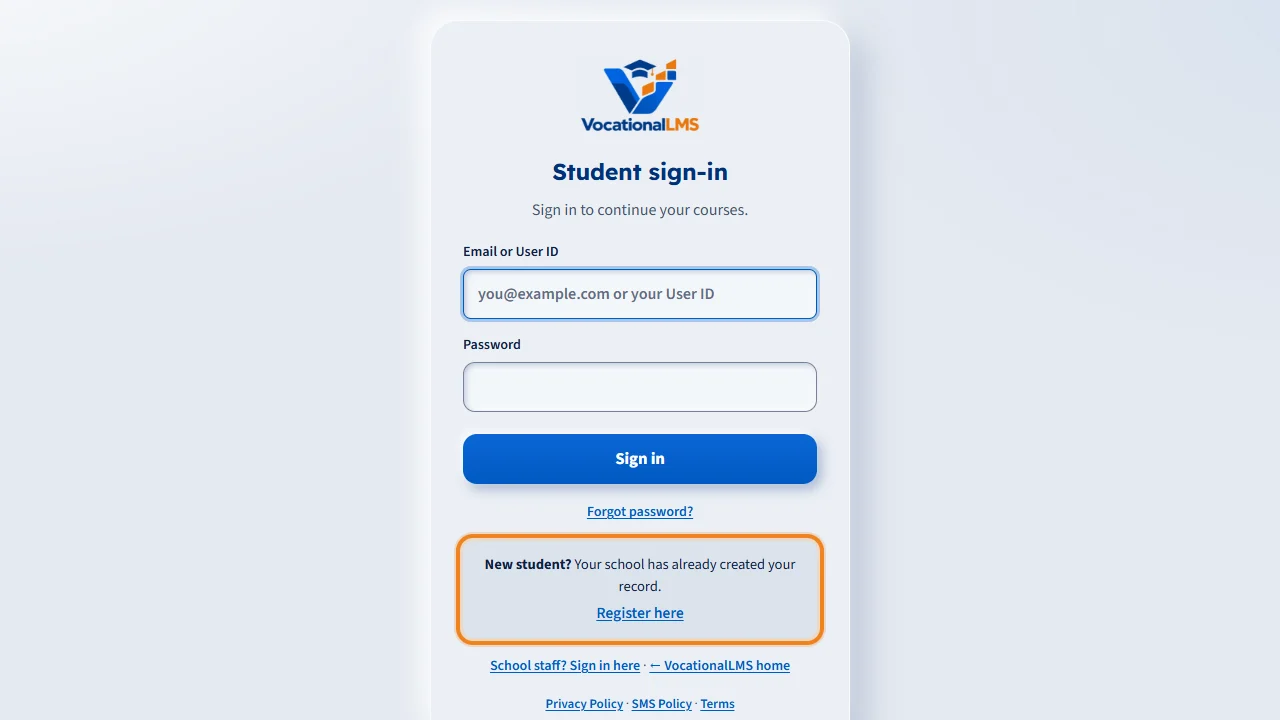
Your school creates your student record with your email address. If you have not chosen a password yet, you can register yourself. Go to vocationallms.com, click Student login, and under the sign-in form click Register here.
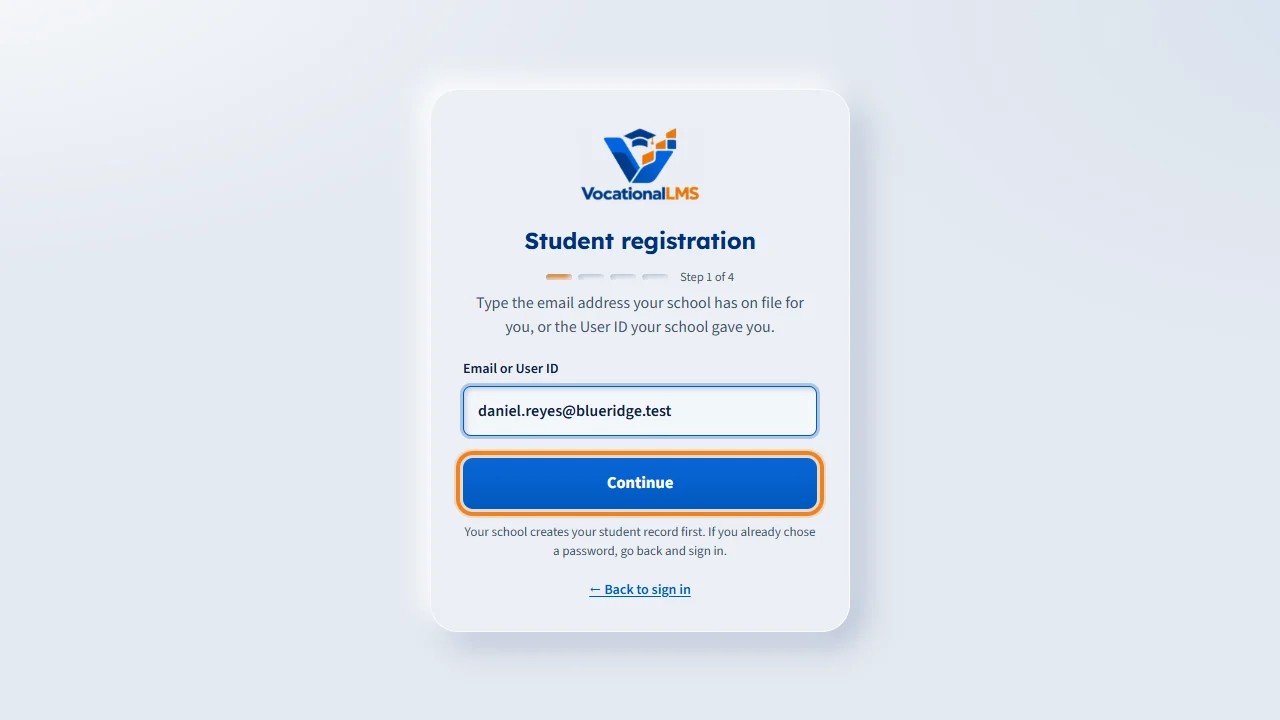
Step one. Type the email address your school has on file for you, or the User ID your school gave you, and click Continue. The email must be the same one you gave your school.
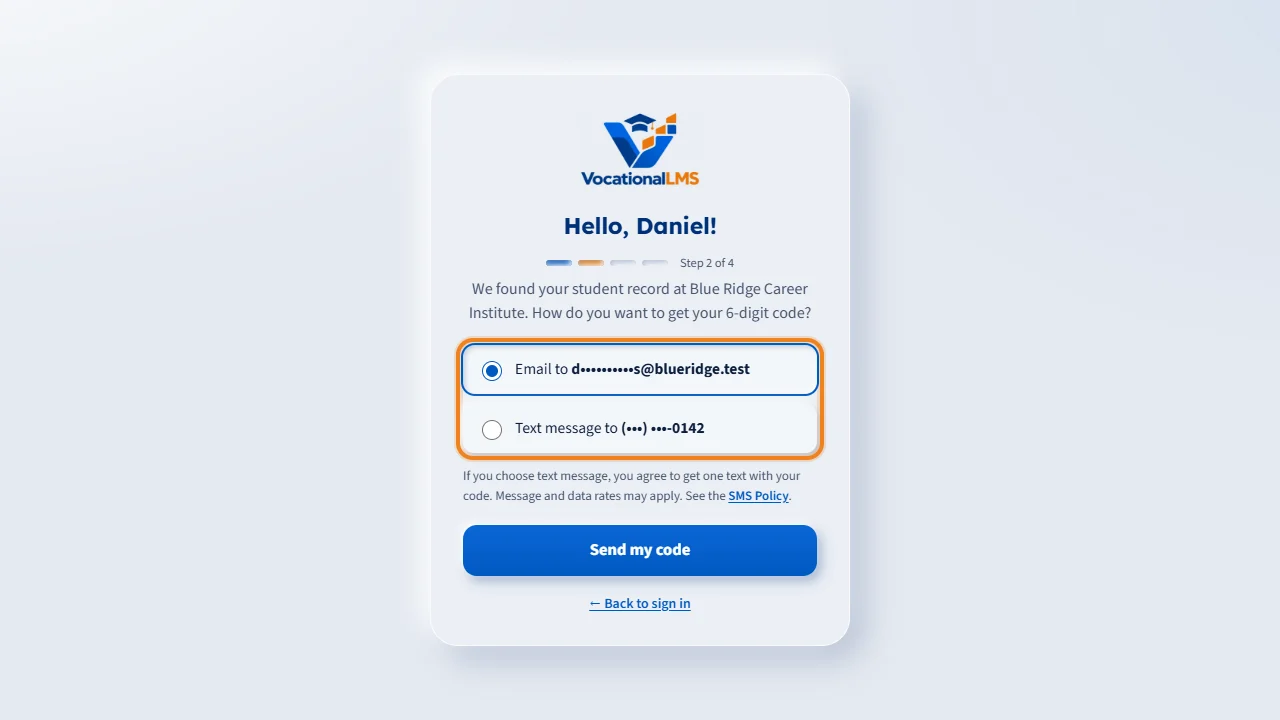
Step two. Choose how you want to get your six-digit code: by email, or by text message to the mobile number your school has for you. Only the last four digits are shown. Then click Send my code.
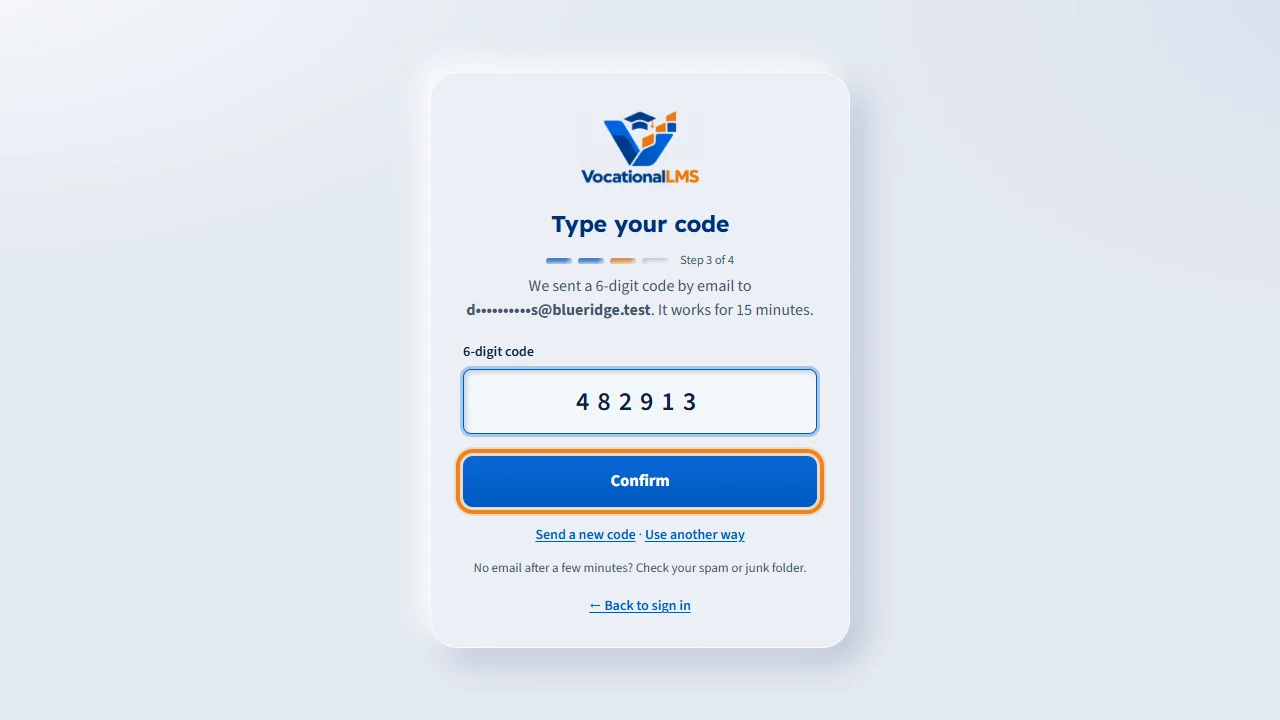
Step three. Type the six-digit code and click Confirm. The code works for fifteen minutes. If it does not arrive, check your spam folder, or click Send a new code.
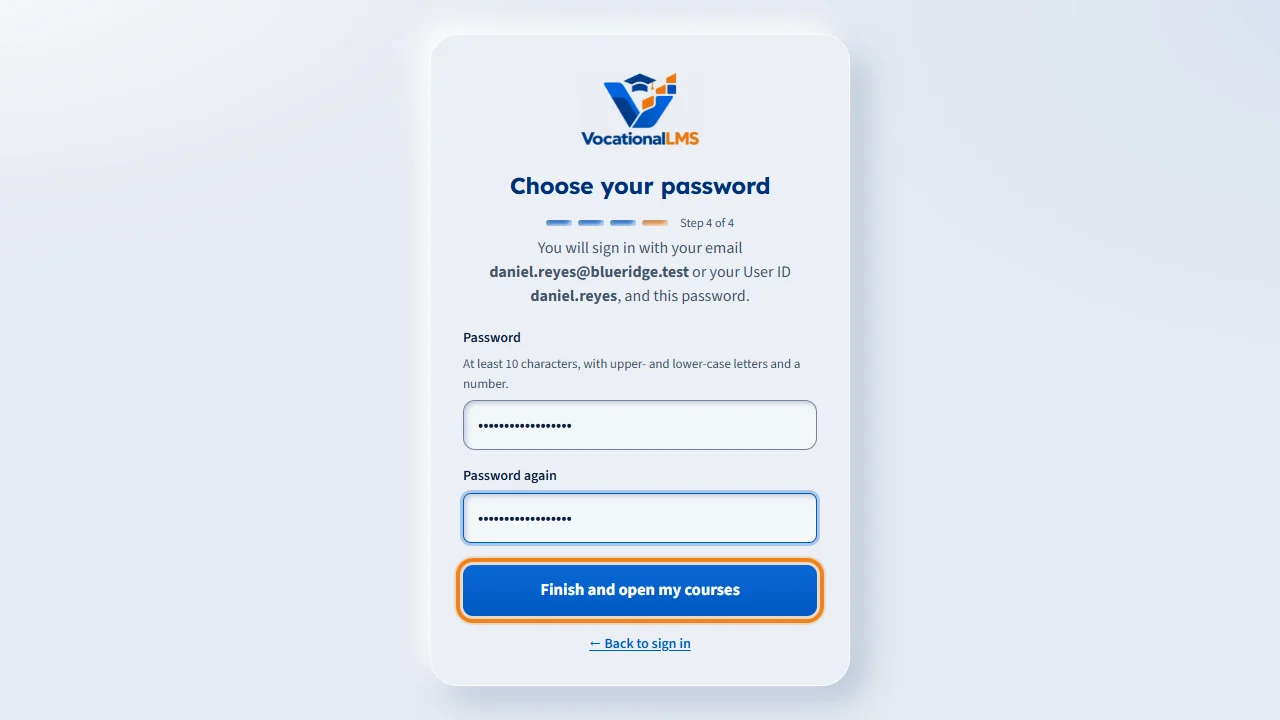
Step four. Choose your own password: at least ten characters, with upper-case and lower-case letters and a number. The page shows the email and the User ID you can sign in with from now on. Type the password twice and click Finish and open my courses. You are signed in, and My courses shows every course your school assigned to you.
Open this in VocationalLMSProfile
What it is for
Your school creates your student record with your email address. You can then register yourself on the student sign-in page: you type that email address, or the User ID your school gave you, you prove the record is yours with a 6-digit code, sent by email or by text message, and choose your own password. Nobody at the school ever sees it.
Steps
- Go to vocationallms.com and click Student login.
- Under the sign-in form, click Register here.
- Type the email address your school has on file for you, or the User ID your school gave you, and click Continue.
- Choose how to get your code: Email, or Text message to the mobile number your school has for you. Click Send my code.
- Type the 6-digit code and click Confirm. The code works for 15 minutes.
- Choose your password (at least 10 characters, with upper-case and lower-case letters and a number), type it again, and click Finish and open my courses. This page also shows the email and the User ID you can sign in with.
What happens next
You are signed in and My courses opens with every course your school assigned to you. Next time, sign in with your email or your User ID and that password (S-01). If you chose a text message, that mobile number is now confirmed on your profile (S-18).
Common problems
| # | Problem | What to do |
|---|---|---|
| 1 | “We could not find a student record with that email address or User ID.” | Use the exact email you gave your school, or the User ID your school gave you. If it still fails, ask your school to add you or to correct the email. |
| 2 | “This student is already registered.” | You already chose a password. Go back and sign in, or click Forgot password? |
| 3 | Text message is not offered. | Your school has no mobile number on file for you, or text messages are not switched on yet. Use email, or ask your school to add your number. |
| 4 | No code arrives. | For email, check the spam or junk folder. Then click Send a new code; the earlier code stops working. You can ask for 6 codes in 24 hours. |
| 5 | “That code no longer works.” | It is older than 15 minutes, or it was typed wrong 5 times. Click Send a new code. |
| 6 | You have an invitation link from your school. | That works too (S-01). Use either one; you only need to do it once. |