
A-25For School Admins and Directors
Record an instructor's license for your state board
When you add an instructor, type the license number or add a photograph of the license. See at a glance who has none.
How-to video A-25 · 1:38
Read the words of this video
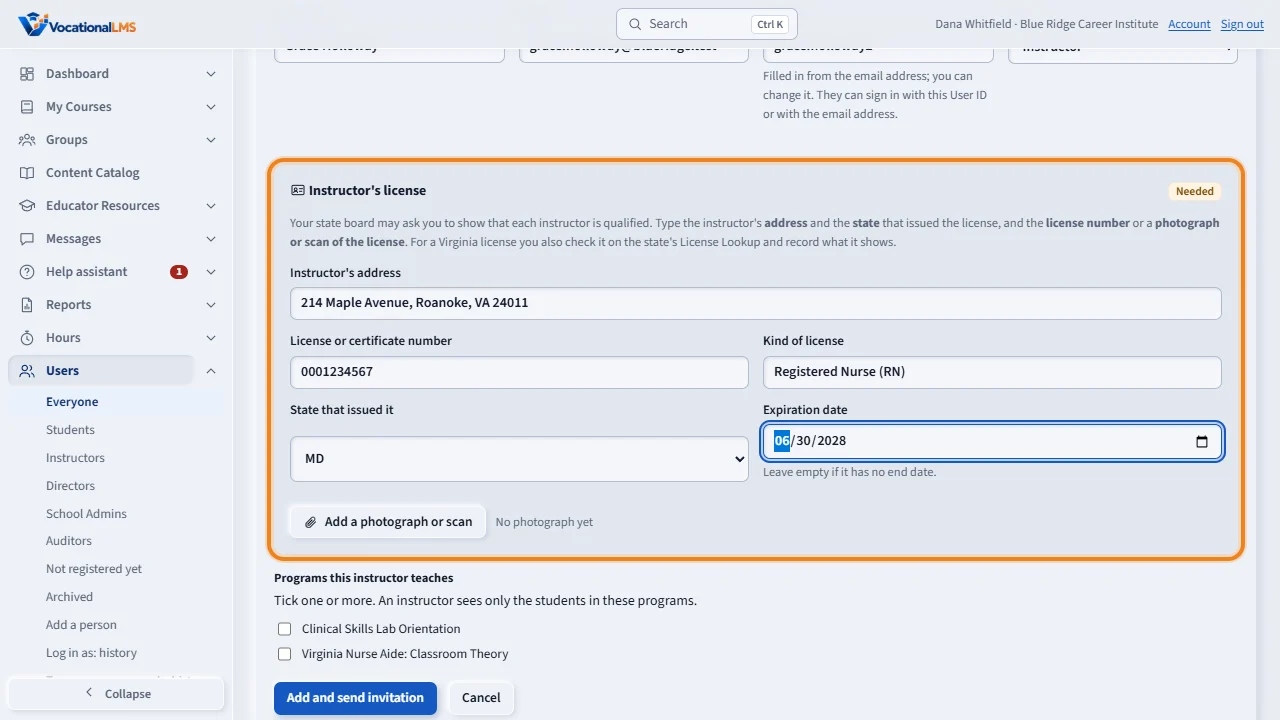
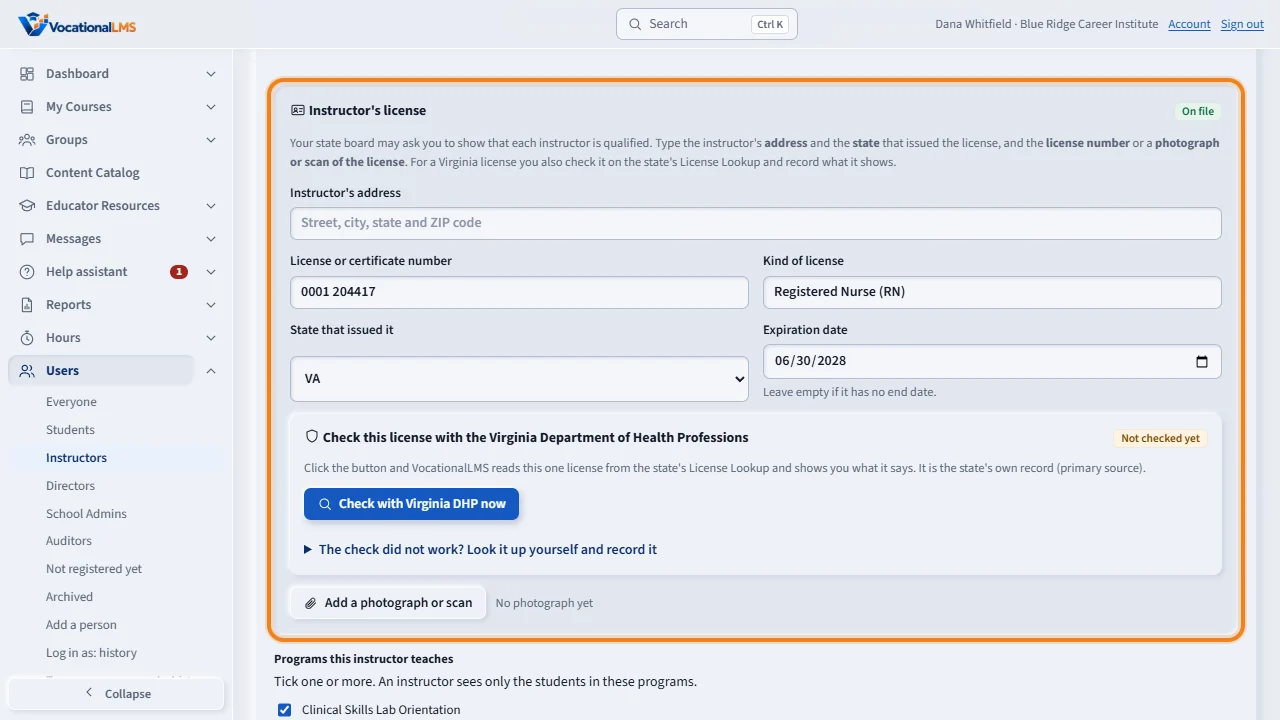
A state board, such as the Board of Nursing, may ask your school to show that its instructors are qualified. When you add a person with the role Instructor, the Instructor's license box appears. Type the instructor's address, the license or certificate number, the kind of license, the state that issued it, and the expiration date. The address and the state are needed.
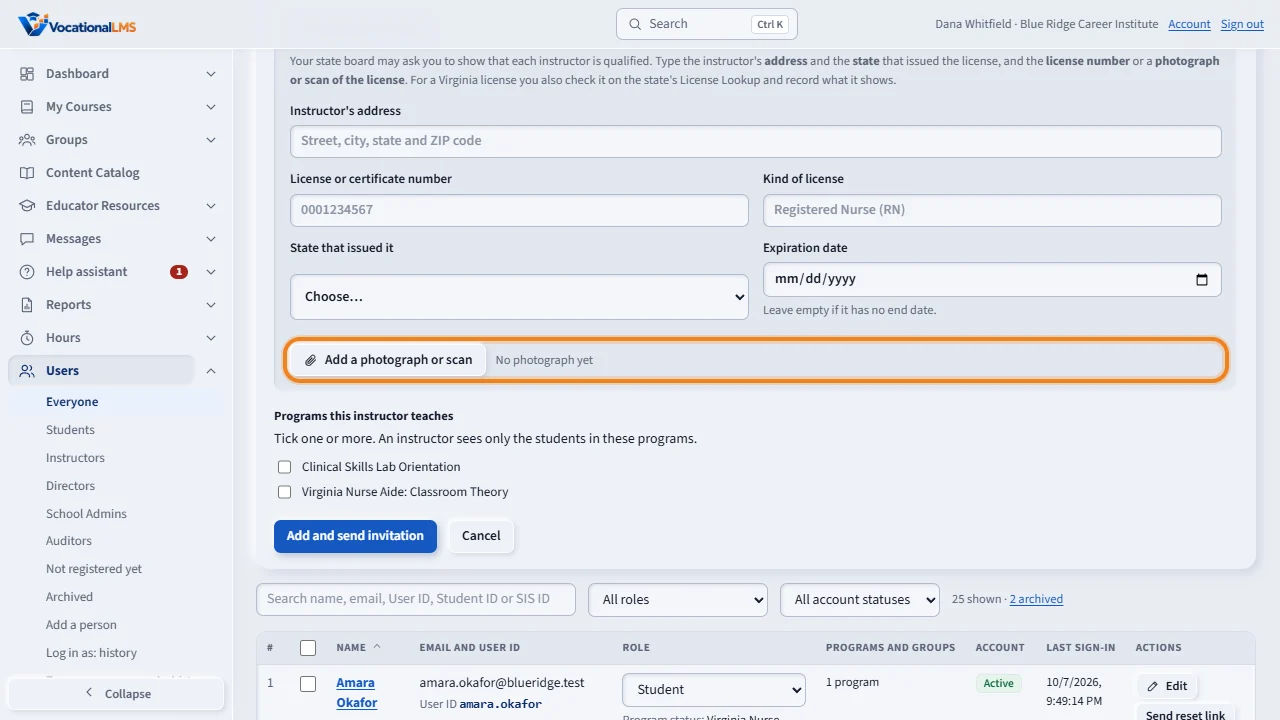
Click Add a photograph or scan, and choose a picture or a PDF of the license. The form needs the number or the photograph. One of the two is enough to add the instructor, and both are best.
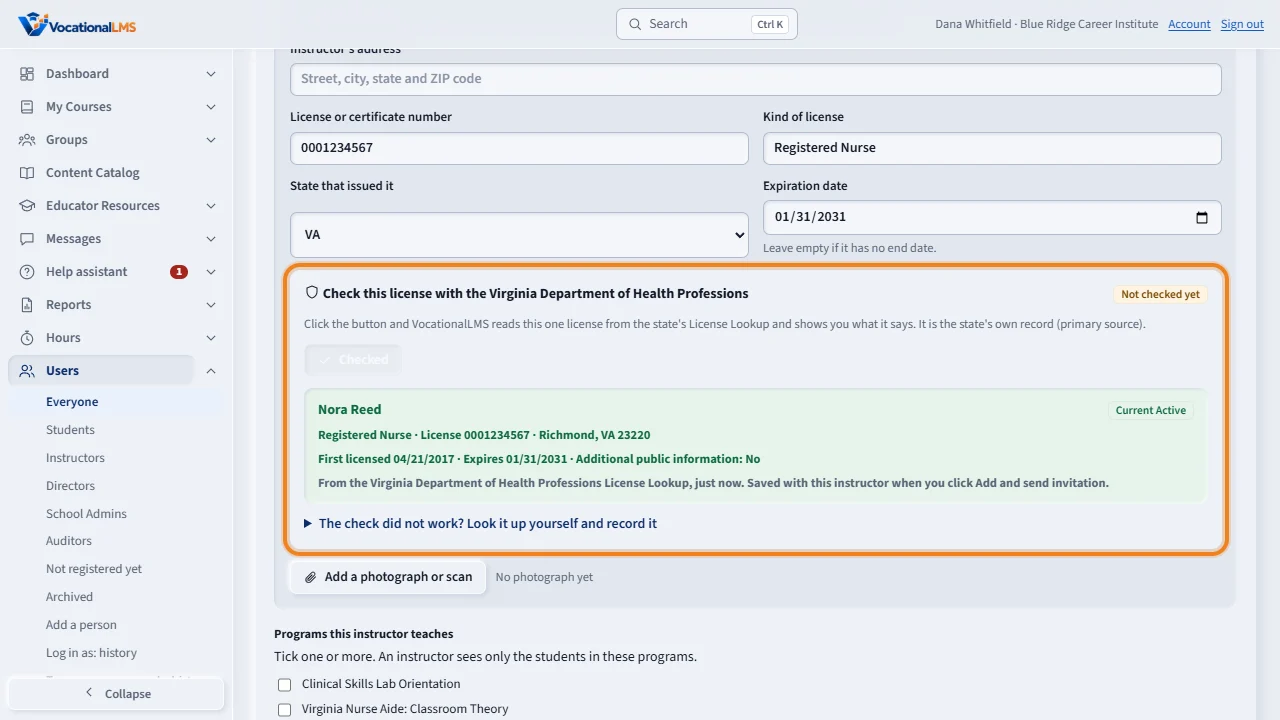
For a Virginia license there is one more step. Type the license number and click Check with Virginia D H P now. The system reads that license from the state's License Lookup and shows the name, the occupation, the status and the expiration date. A status other than Current Active, or a name that does not match, is pointed out. The Users list then shows the result, with who checked it and when.
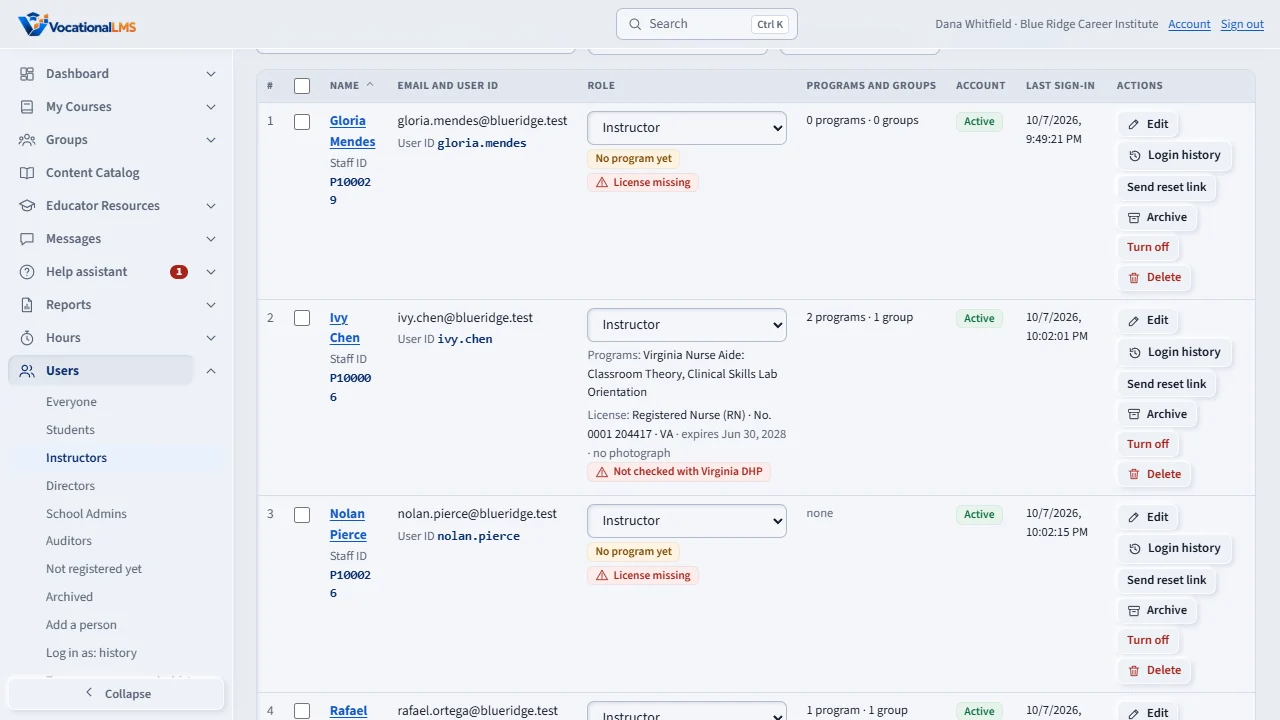
On the Users list, each instructor shows the license under the role, with View license to open the photograph. An instructor with nothing on file shows License missing in red, and a license past its date shows Expired. Click Edit on a row to add or change it.
Only the School Admin can change a license. A Director can read it. Instructors, students and other schools never see it. Deleting an instructor also deletes the stored photograph.
Open this in VocationalLMSUsers > Instructors > Edit
What it is for
A state board, such as the Board of Nursing, may ask your school to show that the people who teach a program are qualified. For each instructor you keep the license or certificate number, the kind of license, the state that issued it, its expiration date, and a photograph or scan of the license.
Steps
- Click Users, then Add a person, and set the role to Instructor. The box Instructor's license appears.
- Type the License or certificate number, or click Add a photograph or scan and choose a picture (JPEG, PNG, WebP) or a PDF, up to 10 MB. One of the two is needed; both are best.
- Type the Instructor's address and choose the State that issued it; both are needed. Fill in the Kind of license (for example Registered Nurse (RN)) and the Expiration date.
- Virginia licenses: when the state is VA, the box Check this license with the Virginia Department of Health Professions appears. Type the license number and click Check with Virginia DHP now. VocationalLMS reads that one license from the state's License Lookup and shows the name, occupation, status, expiration date and whether there is additional public information; it also fills in the expiration date. If the check cannot be made, open The check did not work?, look the number up yourself with Open the Virginia License Lookup, and record the status and the name the page showed.
- Tick the programs the instructor teaches (A-03) and click Add and send invitation.
- To add or change a license later, click Edit on the instructor's row. Replace the photograph swaps the file; Remove photograph deletes it and keeps the number.
- On the Users list, each instructor shows their license under the role, with View license to open the photograph. To see only instructors, open Users in the menu on the left and choose Instructors.
What happens next
An instructor with no number and no photograph shows a red License missing. A license past its expiration date shows Expired. A Virginia license shows Virginia DHP: Current Active (green) with who checked it and when, a red chip for any other status, or Not checked with Virginia DHP. If the license number is changed later, the check is asked for again. The check reads one license at a time, only when you click the button, and keeps the answer for 12 hours; it is never run in bulk or in the background, because the state's site is for individuals and employers checking a license, not for bulk use. A name on the license that does not match the name you typed, a status other than Current Active, and additional public information are each pointed out. Only the School Admin, a Director of the school (read only) and VocationalLMS can see a license; instructors, students and other schools cannot. Deleting an instructor deletes the stored photograph.
Common problems
| # | Problem | What to do |
|---|---|---|
| 1 | The form will not add the instructor. | It needs the license number or a photograph of the license. Add one of them. |
| 2 | “Choose a photograph or scan of the license.” | The file is not a JPEG, PNG or WebP picture or a PDF. Take a photograph of the license with a phone, or scan it to PDF. |
| 3 | An instructor added earlier shows License missing. | Click Edit on their row and add the number or the photograph. |
| 4 | A license has been renewed. | Click Edit, change the expiration date, and replace the photograph with the new license. |
| 5 | The Virginia License Lookup shows nothing for the number. | Check the number with the instructor. If it is right and nothing is found, choose Not found; the instructor is flagged in red until it is sorted out. |
| 6 | The instructor's license is from another state. | Choose that state. The Virginia check is asked for only when the state is VA; keep the number and a photograph on file. |