
A-04For School Admins and Directors
Add a student and enroll them in programs from Users
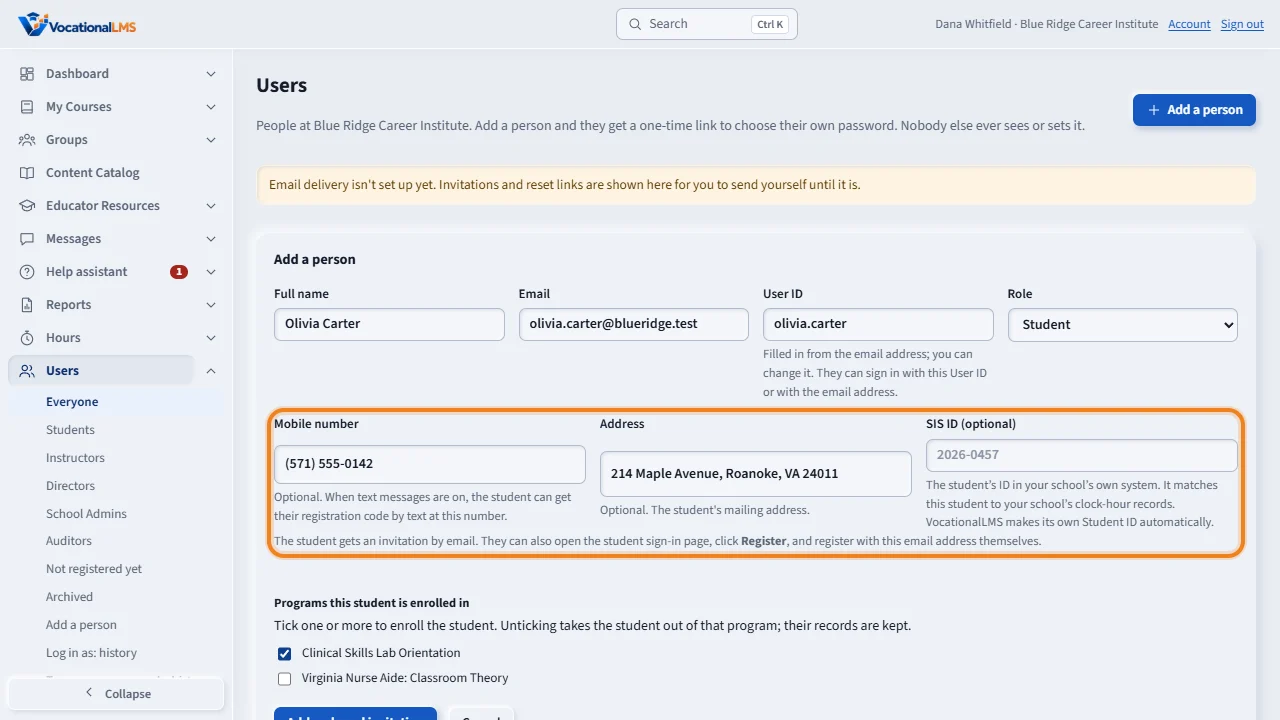
Add the student with email, mobile number and address, and tick their programs. The student can then register with that email or their User ID. Each student gets a Student ID.
How-to video A-04 · 1:09
Read the words of this video
You can create a student's record right from the Users page. Click Add a person, type the name and email, and leave the role on Student. Add the student's mobile number and address. Under Programs this student is enrolled in, tick one or more programs. Then click Add and send invitation. The student can use the invitation, or register on the student sign-in page with the same email or their User ID.
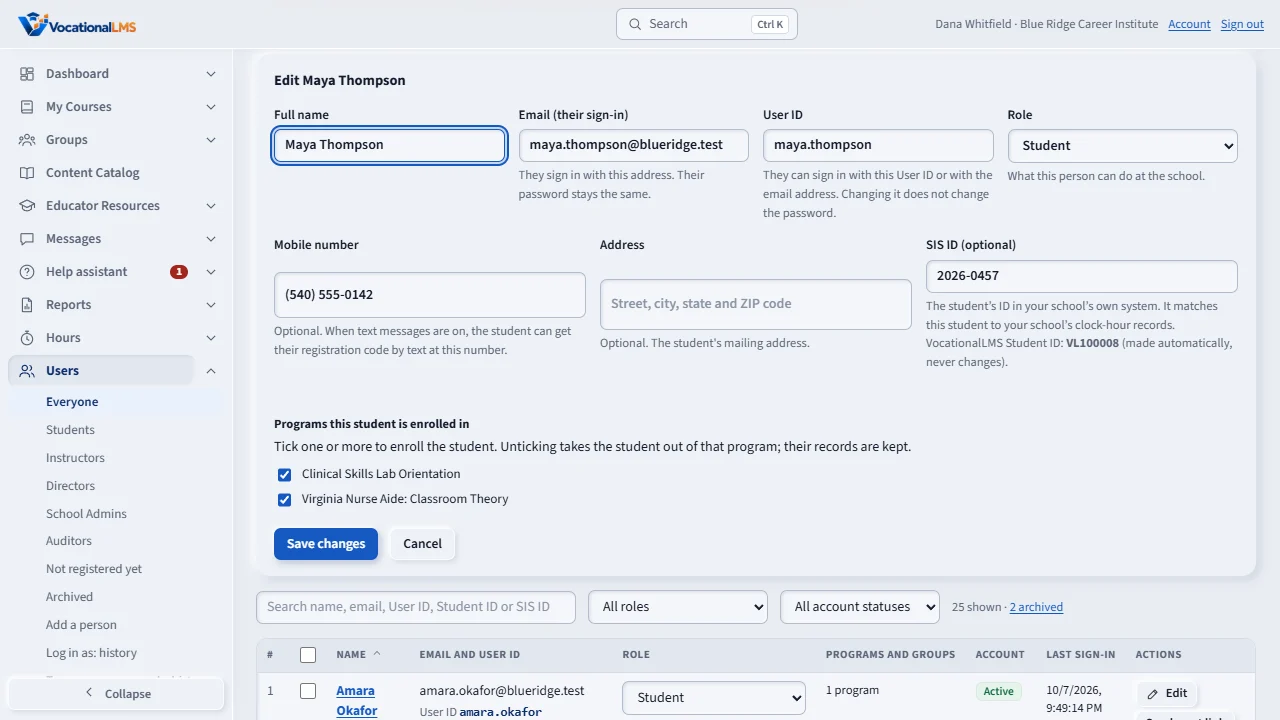
To change a student later, click Edit on their row. Tick a program to enroll the student. Untick it to take the student out of that program. Their hours, tests and messages are kept.
The list shows each student's programs under their role, or Not enrolled yet.
Every student gets a Student ID, the letters V L and a number. It is on the student's profile, on rosters and on the transcript, and you can search by it. If your school uses seats, each program you tick uses one open seat.
Open this in VocationalLMSUsers > Students
What it is for
You can enroll a student in one or more programs right from the Users page. Every student gets a Student ID (VL and a number) that appears on rosters, profiles and transcripts.
Steps
- Click Users, then Add a person.
- Type the name and email and leave the role on Student.
- Type the student's Mobile number and Address (both optional). The mobile number lets the student get their registration code by text message when text messages are on.
- Under Programs this student is enrolled in, tick one or more programs.
- Click Add and send invitation. The student can use the invitation link, or open the student sign-in page, click Register here and register with the same email or their User ID (S-19).
- To change a student later: click Edit on their row and tick or untick programs. Unticking takes the student out of that program; their records are kept.
What happens next
The list shows each student's programs under their role, or Not enrolled yet. If your school uses seats, each program you tick uses one open seat (A-20).
Common problems
| # | Problem | What to do |
|---|---|---|
| 1 | “No seats left for this program.” | Request more seats (A-20), then tick the program again. |
| 2 | “That doesn't look like a mobile number.” | Type it with the area code, for example (571) 555-0123. |
| 3 | A student says registration can't find their email. | Check the email on their row in Users. Click Edit to correct it; they register with the corrected address. |
| 4 | A student's status stays Invited. | They have not registered or used the invitation yet. It changes to Active once they choose a password. |
| 5 | You have a whole class to add. | Paste the list on the course page instead (A-09). |