
A-02For School Admins and Directors
Add people and send invitations
Add a School Admin, Director, Instructor or Student. They get a one-time link and choose their own password.
How-to video A-02 · 1:01
Read the words of this video
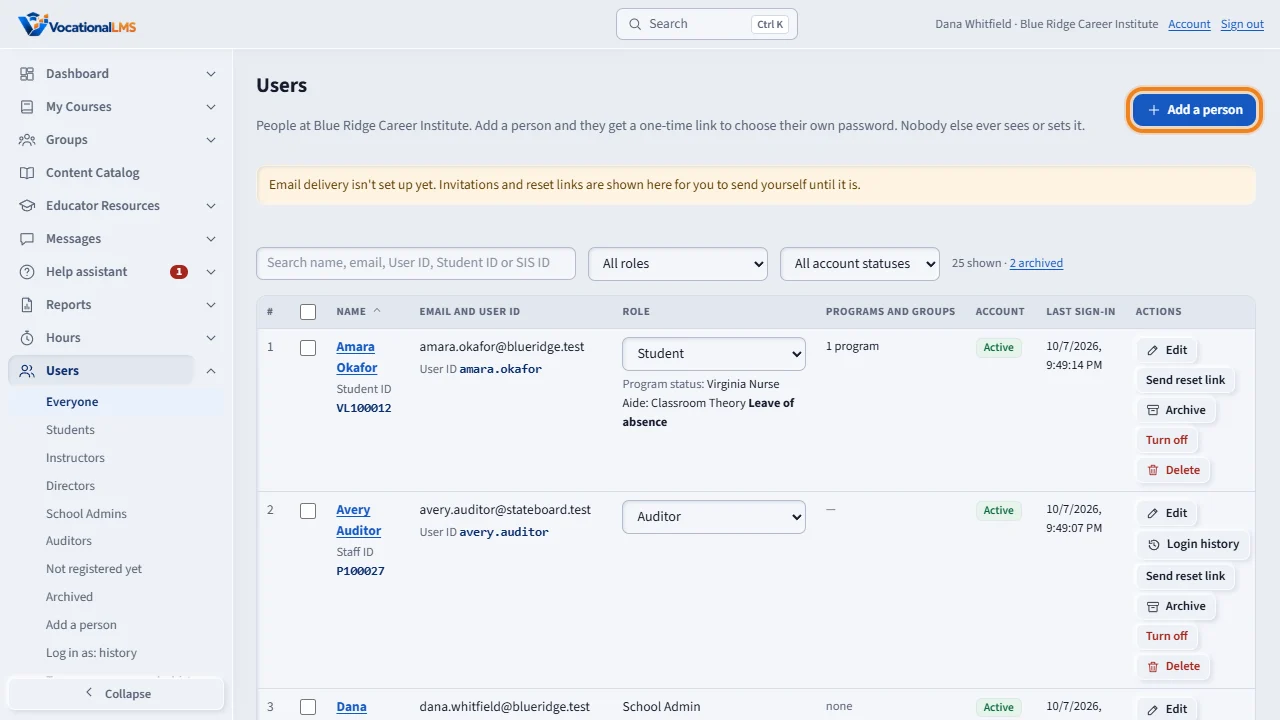
People never get a password from you. Click Users, then Add a person.
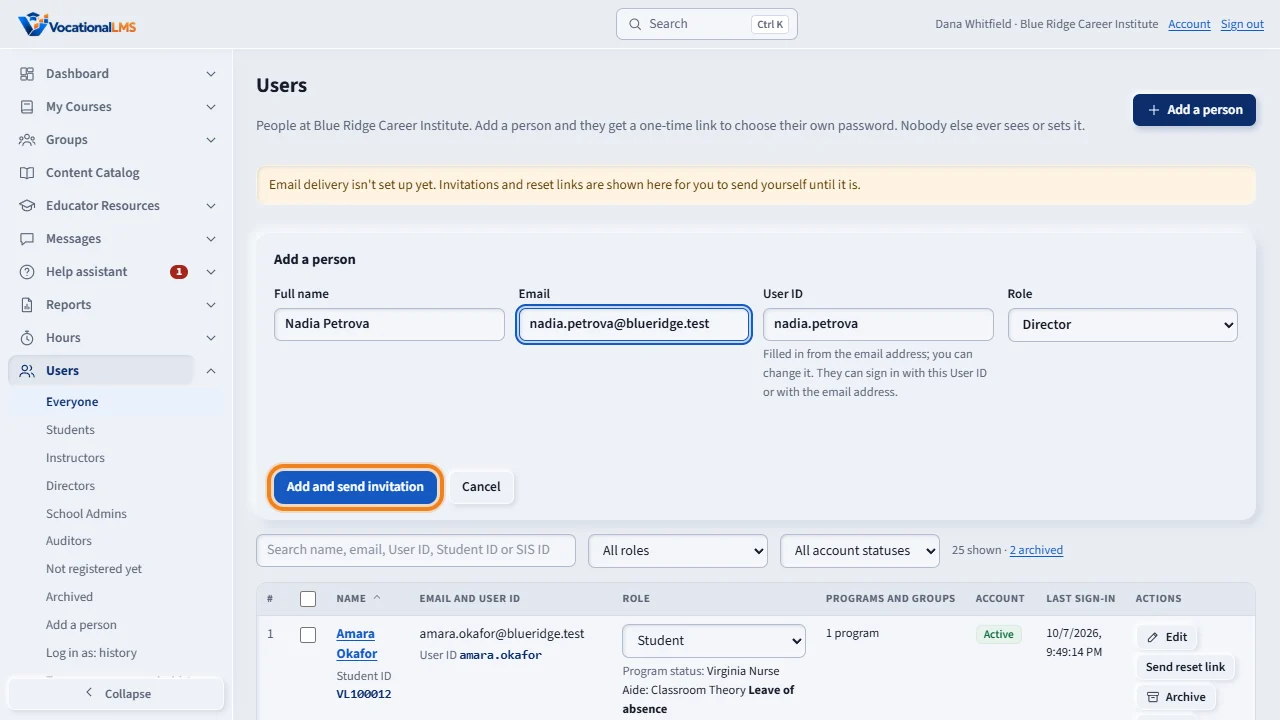
Type the full name and email, and choose the role: School Admin, Director, Instructor or Student. The User ID fills in by itself from the first part of the email, and you can change it. Then click Add and send invitation.
The person gets a one-time invitation link that works for seventy-two hours, and chooses their own password. After that they sign in with their email or their User ID. If your school's email is not set up yet, the link appears on the screen for you to send yourself. It is a link, not a password.
The Account column shows Invited until the person chooses a password, then Active. Resend invitation makes a new link, and the old one stops working. Only a School Admin has the Users page. Directors and Instructors do not.
Open this in VocationalLMSUsers > Everyone
What it is for
People never get a password from you. You add them with their name, email and role, and VocationalLMS gives them a one-time invitation link that works for 72 hours. They choose their own password. Each person also gets a User ID automatically, made from the first part of their email; you can change it (A-66). They sign in with their email or their User ID.
Steps
- Click Users, then Add a person.
- Type the Full name and Email, and choose the Role. The box User ID fills in by itself from the first part of the email: leave it as it is, or type the one you want (A-66).
- For an Instructor or a Student, tick their programs (A-03, A-04).
- Click Add and send invitation.
- If your school's email is set up, the invitation is emailed. If not, the link appears on the screen: copy it and send it yourself. It is a link, not a password, and it works once.
What happens next
The person shows as Invited until they choose a password, then Active. From then on they sign in with their email or their User ID. Resend invitation makes a new link; the old one stops working.
What each role can do
| # | Role | Can do |
|---|---|---|
| 1 | School Admin | Everything for the school: people, enrollment, courses, messages, seats and billing, settings. |
| 2 | Director | Build and edit the school's own courses, choose class instructors, read every student conversation, send announcements to any group, look at seats and billing. Cannot manage people, enroll students, change seats, the idle rule or settings. |
| 3 | Instructor | See the students of their programs, profiles and time logs, notes, lesson plans, messages, announcements to students, Help assistant questions. |
| 4 | Student | The student pages only. Never the Studio. |
Common problems
| # | Problem | What to do |
|---|---|---|
| 1 | “This email belongs to someone else.” | Each email can have one account. Search the Users list for it. |
| 2 | The person never got the email. | Click Resend invitation and send them the link shown on screen, or set up email (A-23). |
| 3 | You picked the wrong role. | Change it with the drop-down on their row. |