
Seats and billing
A seat is one student in one program at one school. This page explains how a school gets seats, the 10-day window, requests and payments, and the own-course module.
Who can do what: the School Admin sees the school's seats, sends requests and gives a seat to another student. A Director can look but not change. Instructors and students do not see seats or billing. Only the VocationalLMS Super Admin gives or takes back seats, sets prices, records payments and approves requests. A school never sees another school's numbers.
How-to video
The rules in short
| # | Rule | What it means |
|---|---|---|
| 1 | One seat = one student in one program | A student in two programs uses two seats. Seats for one program can't be used for another. |
| 2 | Price | $100.00 a seat, unless VocationalLMS set a different price for your school or program. The price is shown before you send a request. |
| 3 | No open seat = no enrollment | When your school needs seats, you can enroll a student in a program only if it has an open seat. |
| 4 | The 10-day window | For 10 days after a student is put in a seat, you can give the seat to a different student. Each new student in the seat gets a fresh 10 days. |
| 5 | After day 10 | The seat is locked to that student for good. It can't be given to anyone else. |
| 6 | Archiving | Archiving a student keeps all records and does not free the seat. Restoring the student uses the same seat; no new seat is needed. |
| 7 | Deleting | Deleting a student frees the seat only inside the 10 days. After the lock the seat stays used. |
| 8 | Seats never expire | Open seats stay yours until you use them. Refunds are not automatic; ask VocationalLMS. |
For schools
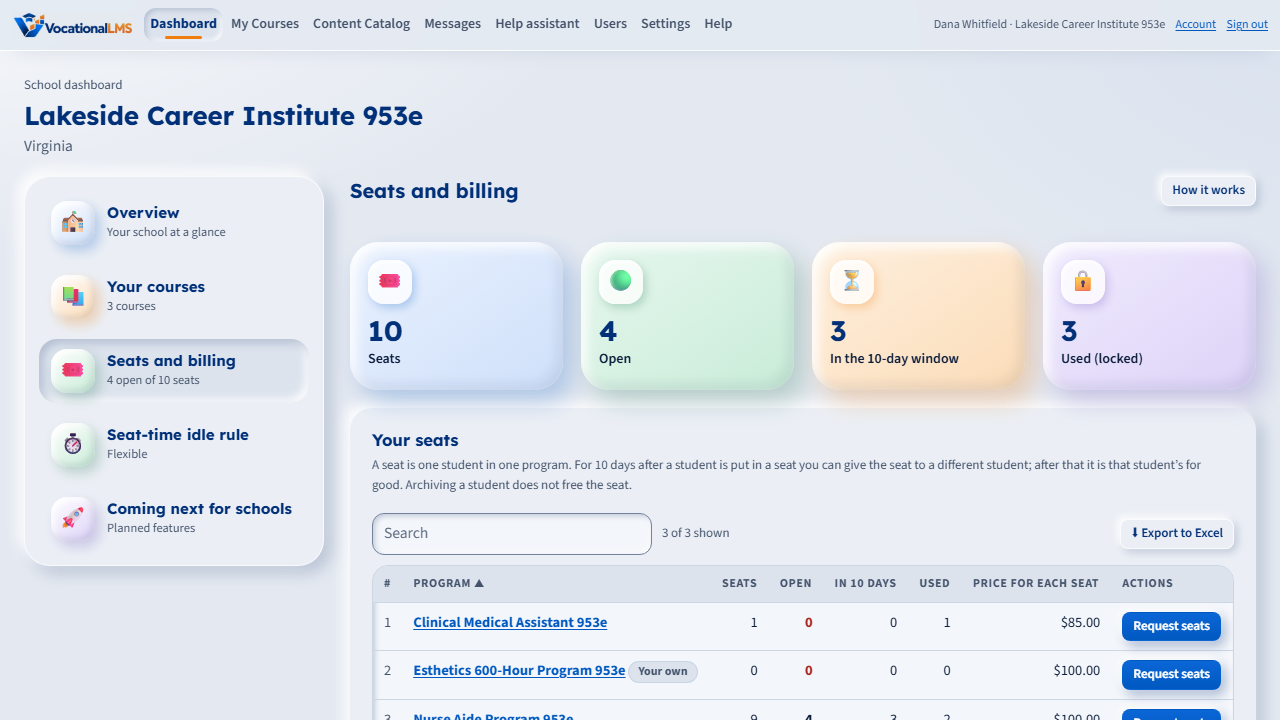
1. See your seats
- Open Dashboard and click Seats and billing in the left menu.
- Your seats lists each program: seats, open, in the 10-day window, used, and the price of a seat.
- Students still in their 10 days shows the last day each of those seats can be given to someone else.
2. Request seats
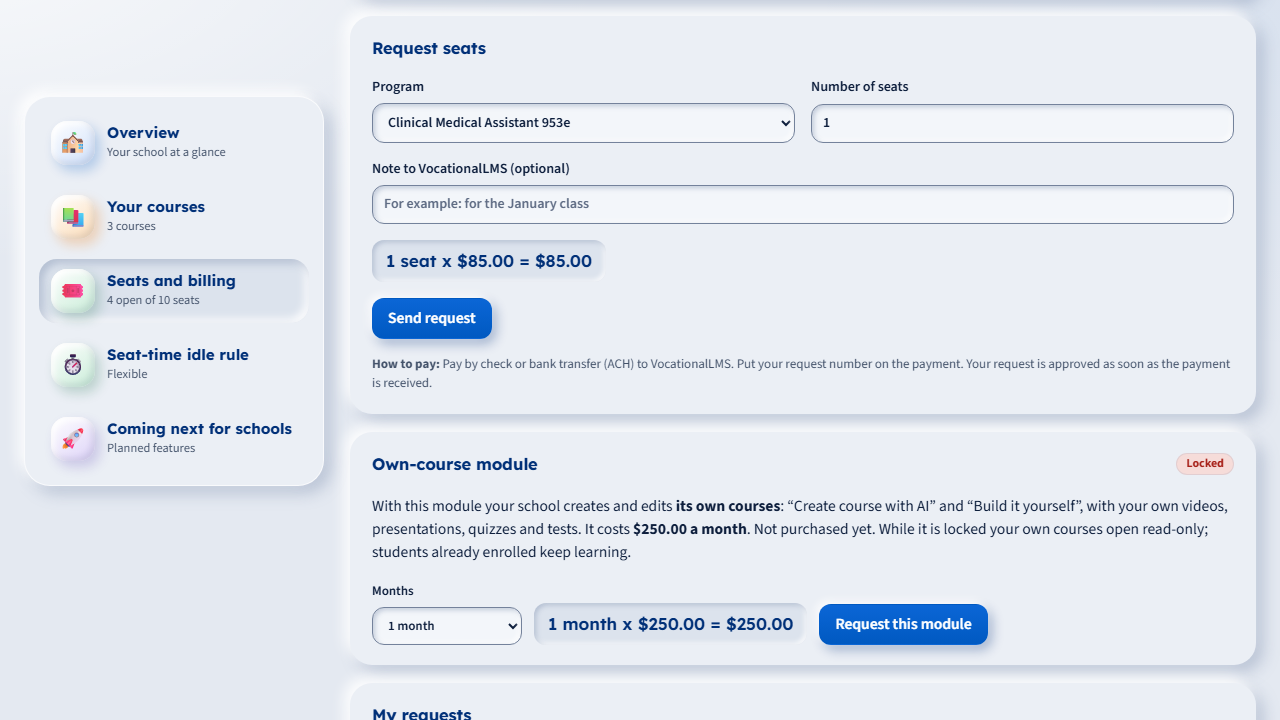
- In Request seats choose the Program and type the Number of seats. The page shows seats x price = total.
- Click Send request. VocationalLMS is told at once.
- Pay as described under How to pay and put your request number on the payment.
- When the payment arrives, VocationalLMS approves the request and the seats are added right away. You get a message and an email.
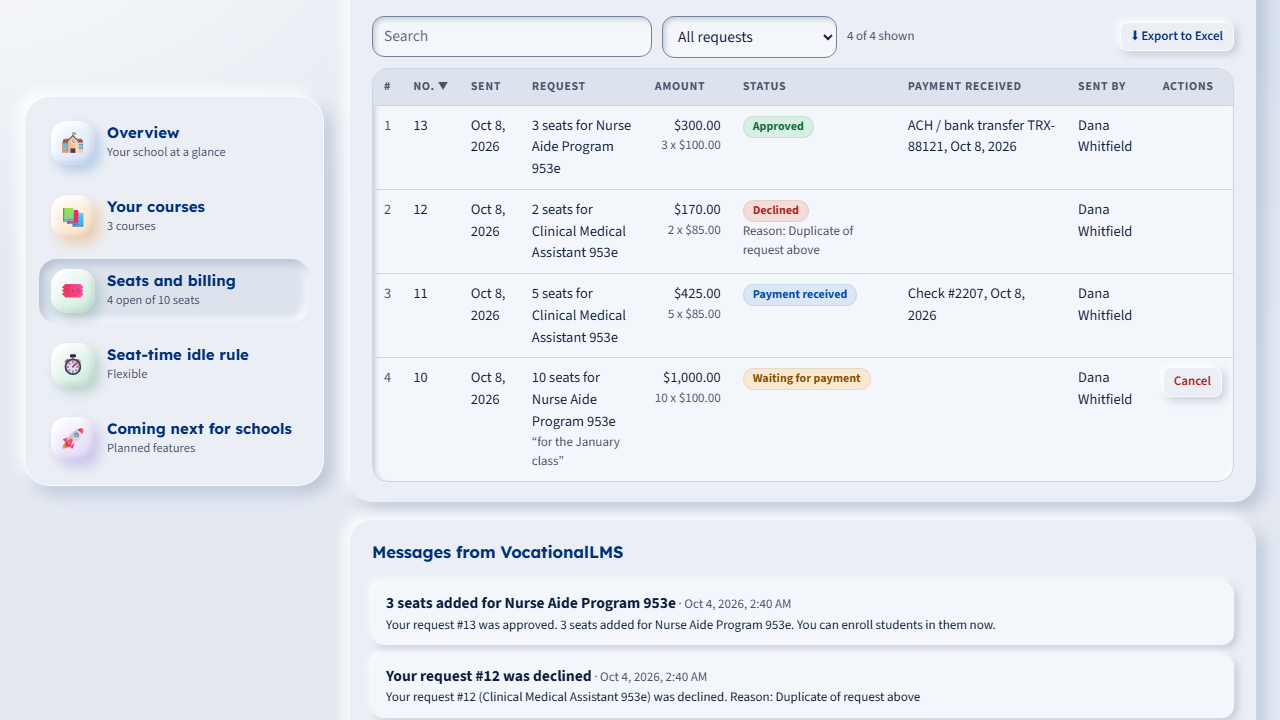
My requests shows every request and where it stands:
| # | Status | Meaning |
|---|---|---|
| 1 | Waiting for payment | Sent. You can still Cancel it (click twice). |
| 2 | Payment received | VocationalLMS recorded your payment (with the check number or transfer ID). |
| 3 | Approved | The seats were added. |
| 4 | Declined | Not approved; the reason is shown. |
| 5 | Cancelled | You cancelled it before paying. |
3. Enroll students into seats
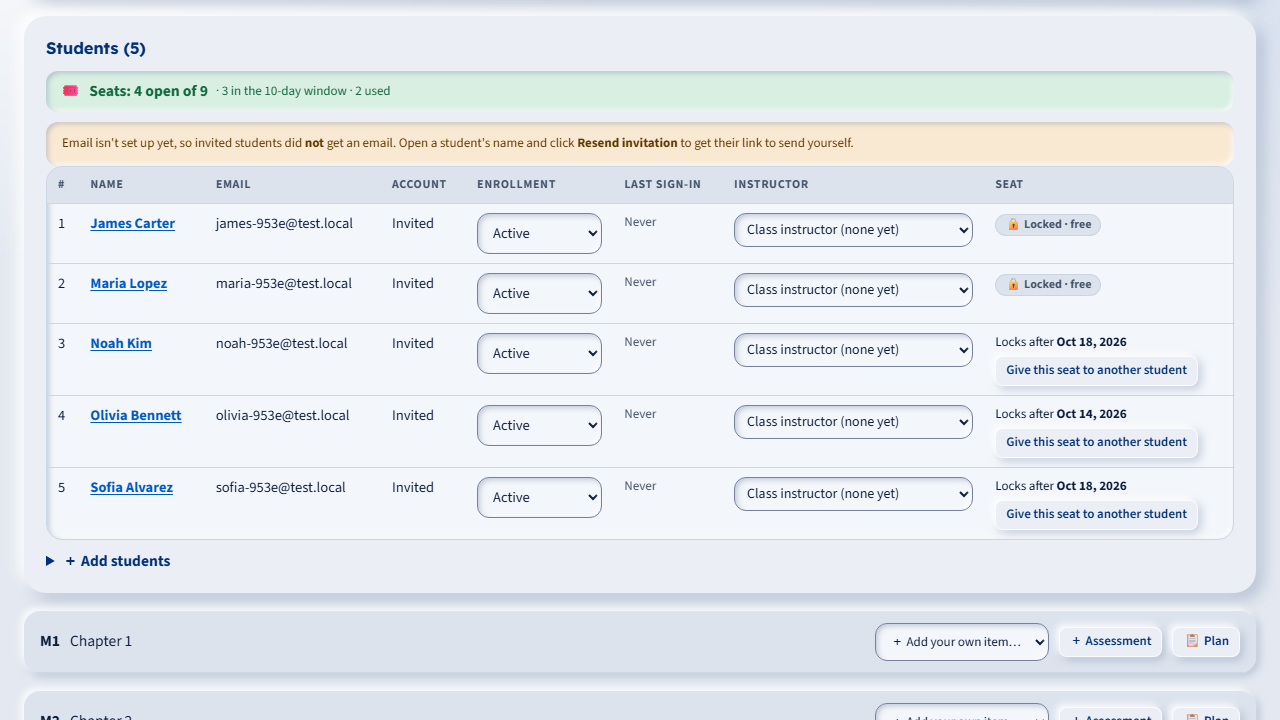
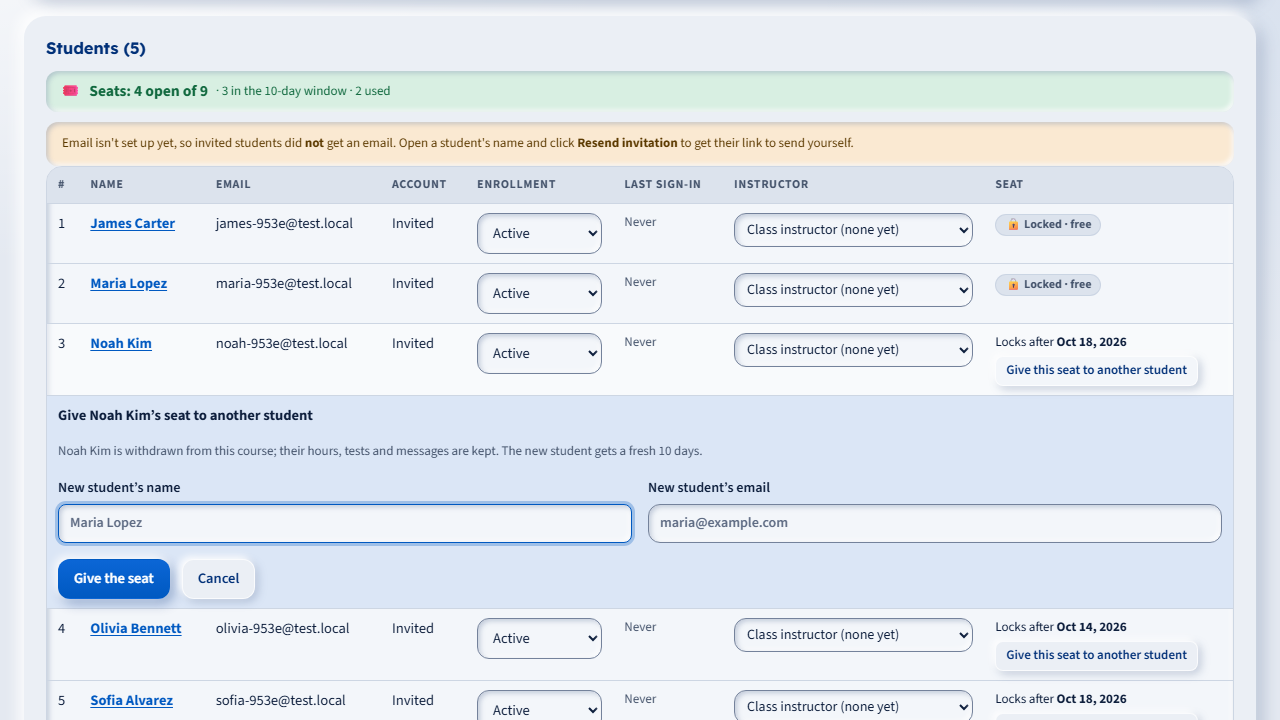
Enroll students the usual way: open the course, + Add students. Above the list you see Seats: 4 open of 9. Each new enrollment uses one open seat. If no seat is open you see No seats left for this program and a Request more seats button; the student is not added.
4. Give a seat to another student (first 10 days)
- Open the course. In the Seat column a new student shows Locks after and a date.
- Click Give this seat to another student.
- Type the new student's name and email, click Give the seat, then click again to confirm.
The first student is withdrawn from that program; their hours, tests and messages are kept. The new student gets a fresh 10 days. Every change is written to the history. After the date shown, the seat says Locked and can't be changed.
Own-course module ($250.00 a month)
With this module a school creates and edits its own courses: Create course with AI and Build Course for (your school's name). It applies to a school only when VocationalLMS has turned on Own-course module enforced for it.
| # | When the module is | Your school can |
|---|---|---|
| 1 | Unlocked (paid through a date) | Create and edit its own courses. |
| 2 | Past the paid-through date, first 7 days | Still create and edit (grace period). You get a message to renew. |
| 3 | Locked | Open its own courses to read only. Students already enrolled keep learning. Courses VocationalLMS gave you are not affected, and you can still add your own items to them. |
- To get or renew it, open Dashboard > Seats and billing > Own-course module, choose the months and click Request this module (or Renew this module).
- Pay as described under How to pay. It unlocks as soon as VocationalLMS approves the request.
- You get a reminder 7 days before the paid-through date, and again on the day the paid time ends.
While it is locked, Create course with AI and Build Course for (your school's name) show this page with the same button:
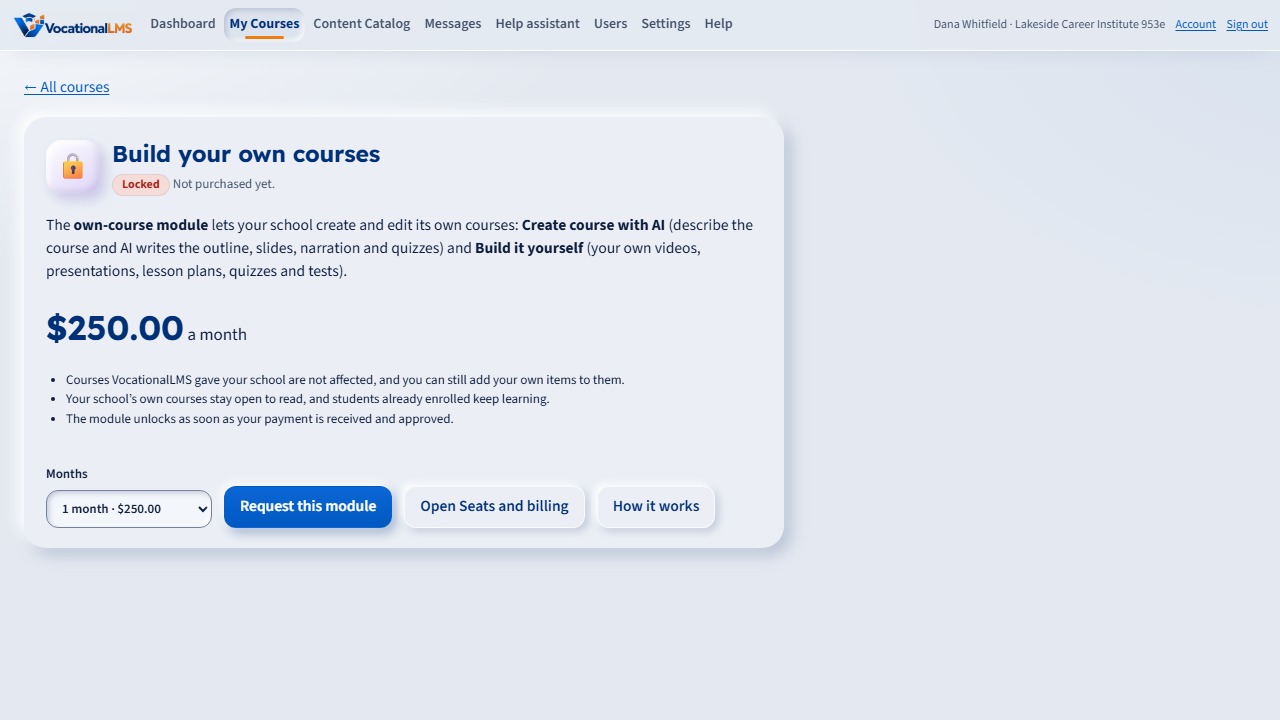
Students in a school's own courses need seats too. VocationalLMS can set that price to $0.00.
For the VocationalLMS Super Admin
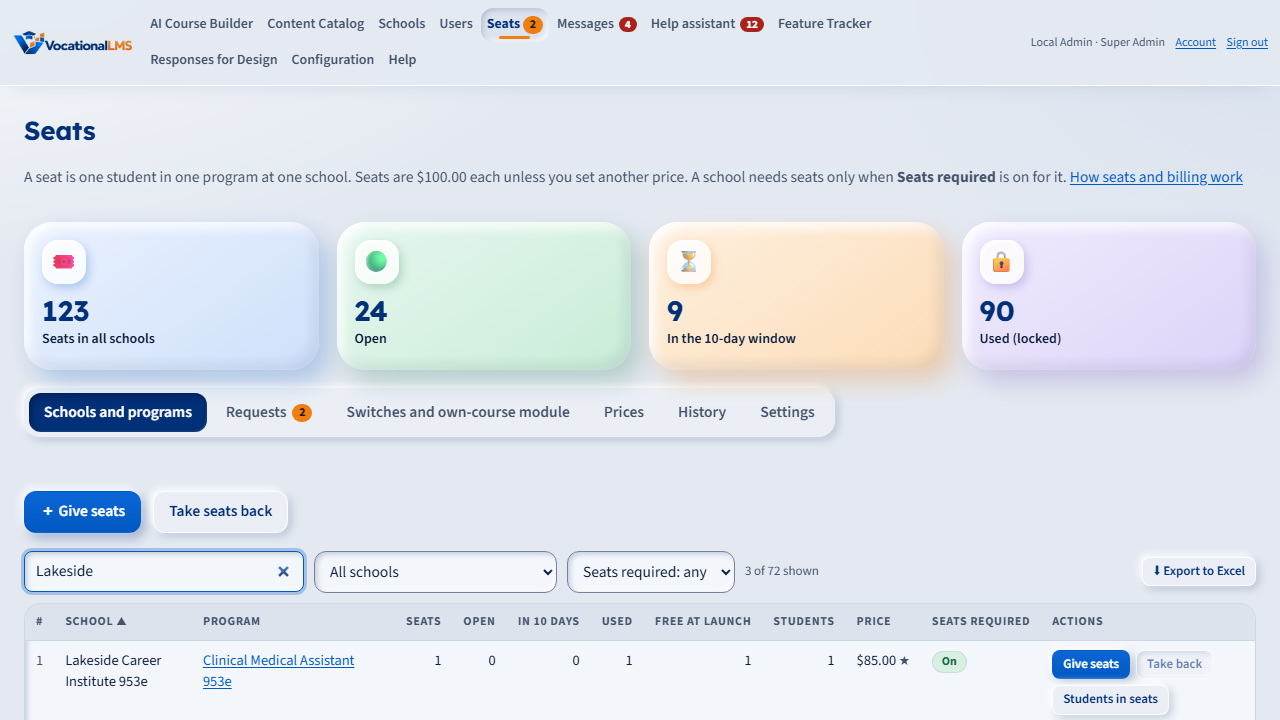
Open Seats in the top menu. Every table sorts by its headings, has a search box and filters, and Export to Excel.
| # | To do this | Do this |
|---|---|---|
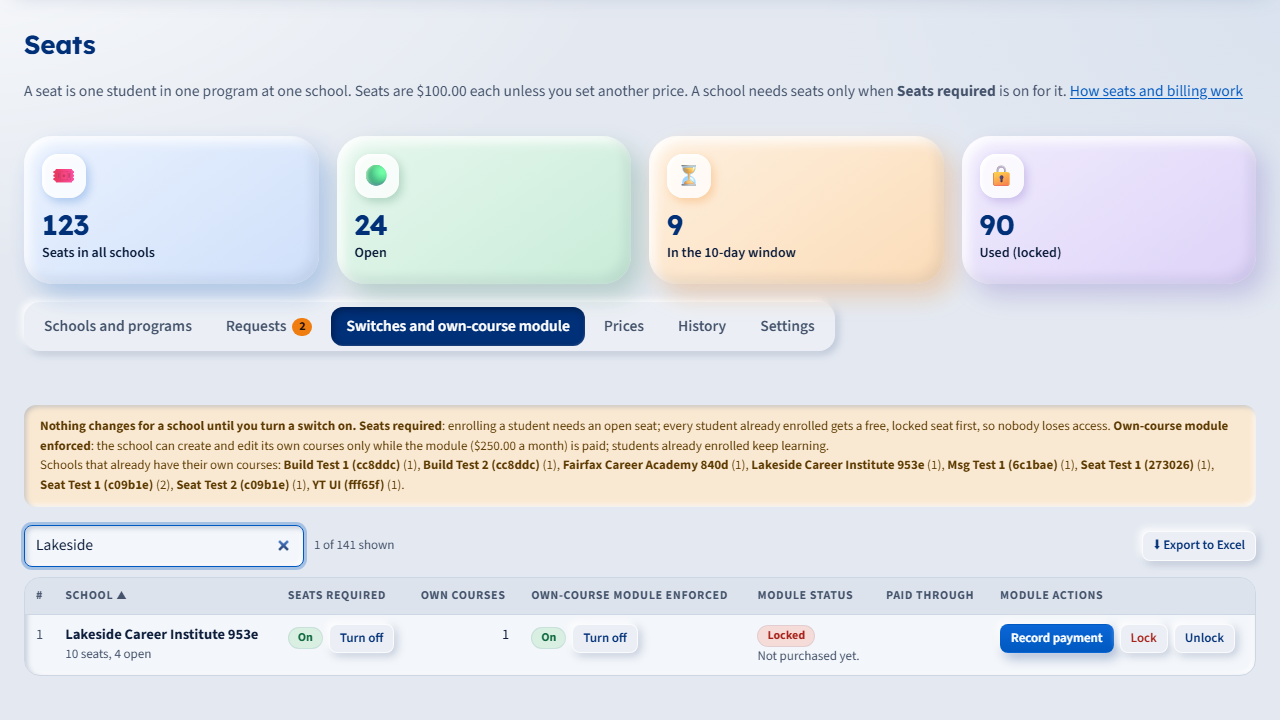
| 1 | Turn seats on for a school | Switches and own-course module > Seats required > Turn on, click again. Every student already enrolled gets a free, locked seat first. The school starts with 0 open seats. |
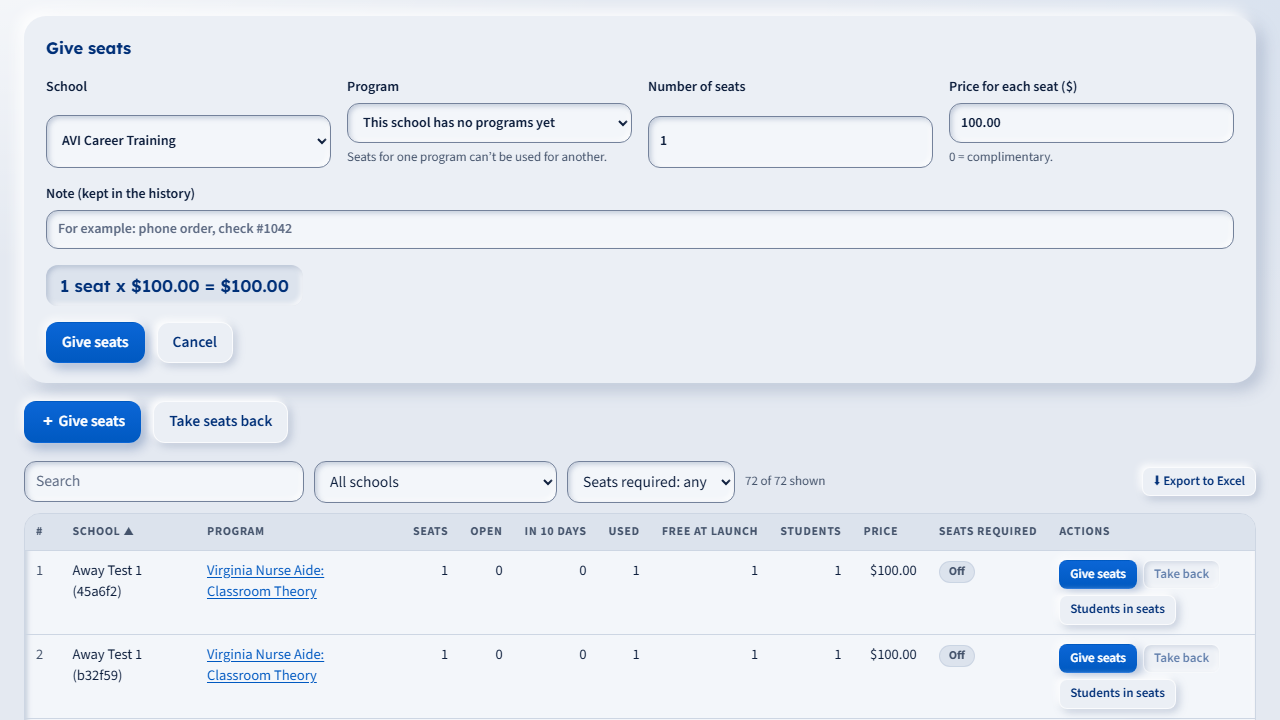
| 2 | Give seats (phone order) | Schools and programs > + Give seats: school, program, number, price for each (0 = complimentary) and a note such as "check #1042". |
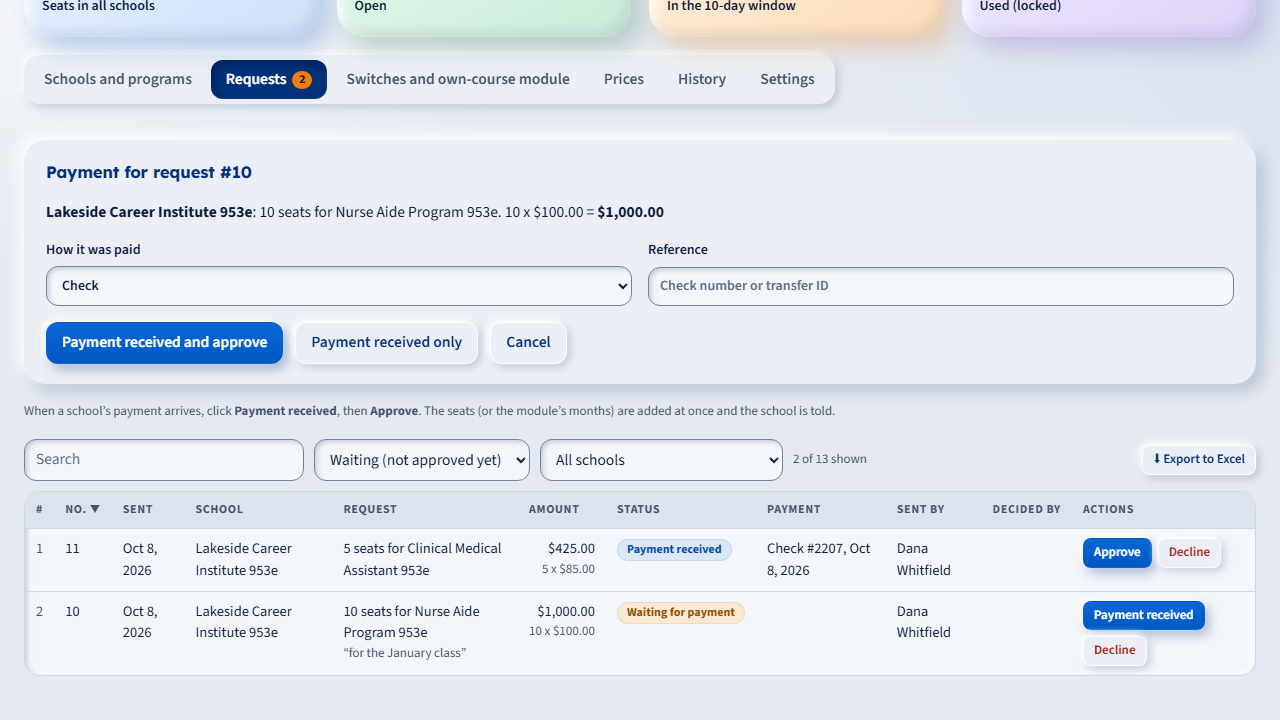
| 3 | Approve a school's request | Requests > Payment received: choose how it was paid and type the reference, then Payment received and approve (or record the payment first and click Approve later). |
| 4 | Decline a request | Requests > Decline, with a reason the school sees. |
| 5 | Take seats back | Schools and programs > Take back: only open seats, with a reason. Send any refund yourself. |
| 6 | See who is in the seats | Schools and programs > Students in seats on a row. |
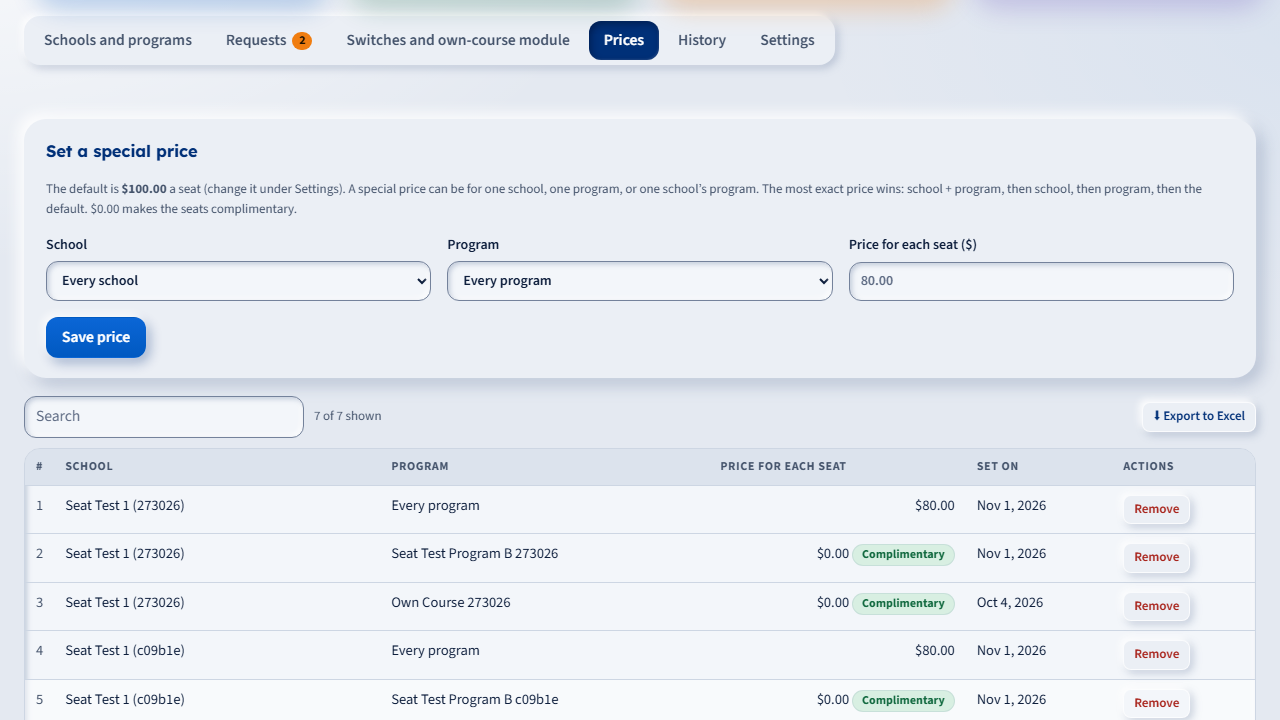
| 7 | Set a price | Prices: for a school, a program, or one school's program. The most exact price wins. The default is under Settings. |
| 8 | Own-course module | Switches and own-course module: Turn on enforcement for a school, Record payment (months x price), Lock, Unlock or Follow the date. The notice at the top lists the schools that already have their own courses. |
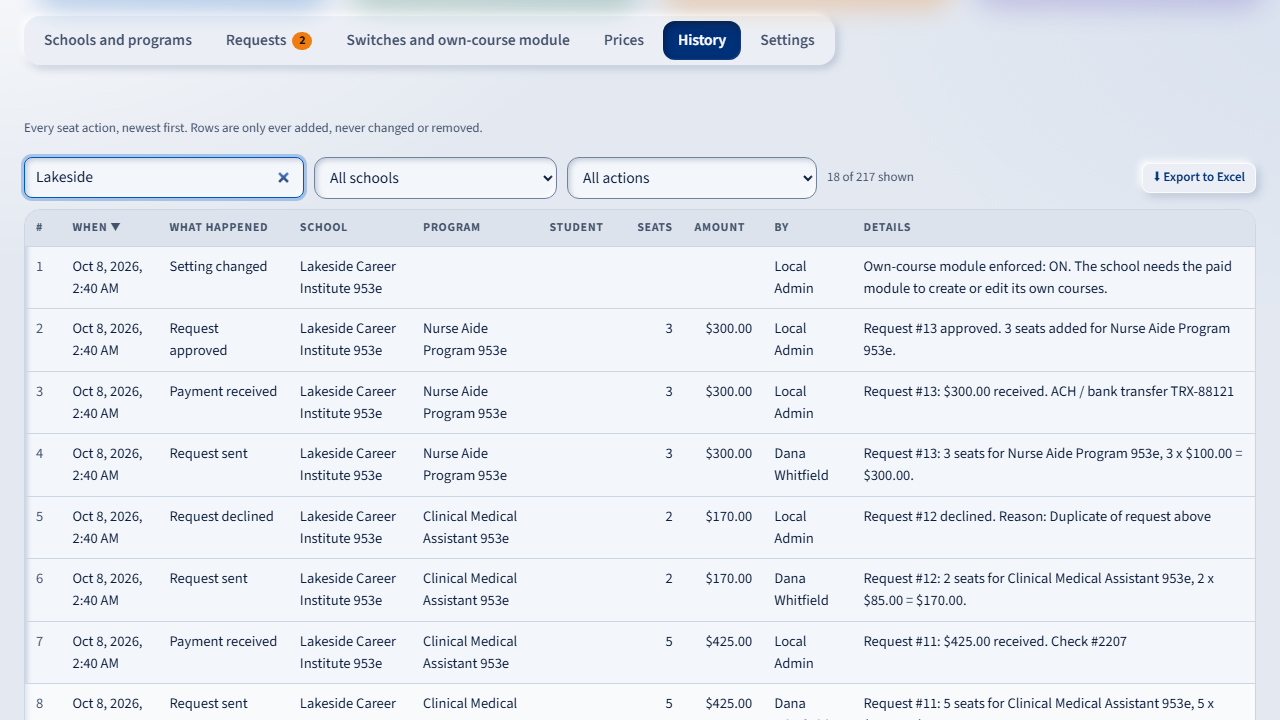
| 9 | Look something up | History: every grant, request, payment, approval, enrollment into a seat, change of student, lock and removal, with who and when. |
Settings
| # | Setting | Starts at |
|---|---|---|
| 1 | Default price of a seat | $100.00 |
| 2 | Days a seat can be given to another student | 10 |
| 3 | Most times one seat can be given to another student | 0 (no limit) |
| 4 | Warn the school at this many open seats or fewer | 2 |
| 5 | Own-course module, price for each month | $250.00 |
| 6 | Grace period after the paid-through date | 7 days |
| 7 | Reminder before the paid-through date | 7 days |
| 8 | Time zone for counting days | America/New_York |
| 9 | How schools pay (shown beside every request) | Check or bank transfer |
Changing the number in a request
- School Admin: while your request is Waiting for payment, click ✏️ Change number on its row in My requests, type the new number (for example 2 instead of 5) and click Save. The amount is worked out again and VocationalLMS is told. After a payment is recorded, call VocationalLMS support to change it.
- Super Admin: on Seats > Requests, click ✏️ Change number on the request (or Change number first in the payment form), save the new number, then record the payment and approve. You can change it until the request is approved; the school is told.
- The price for each seat stays as it was when the request was sent. Every change is kept in the history with who made it.