
A-61For School Admins and Directors
Pay a request with PayPal
Pay for seats or a paid module with PayPal. The request is approved at once, with no waiting for a check to arrive.
How-to video A-61 · 1:26
Read the words of this video
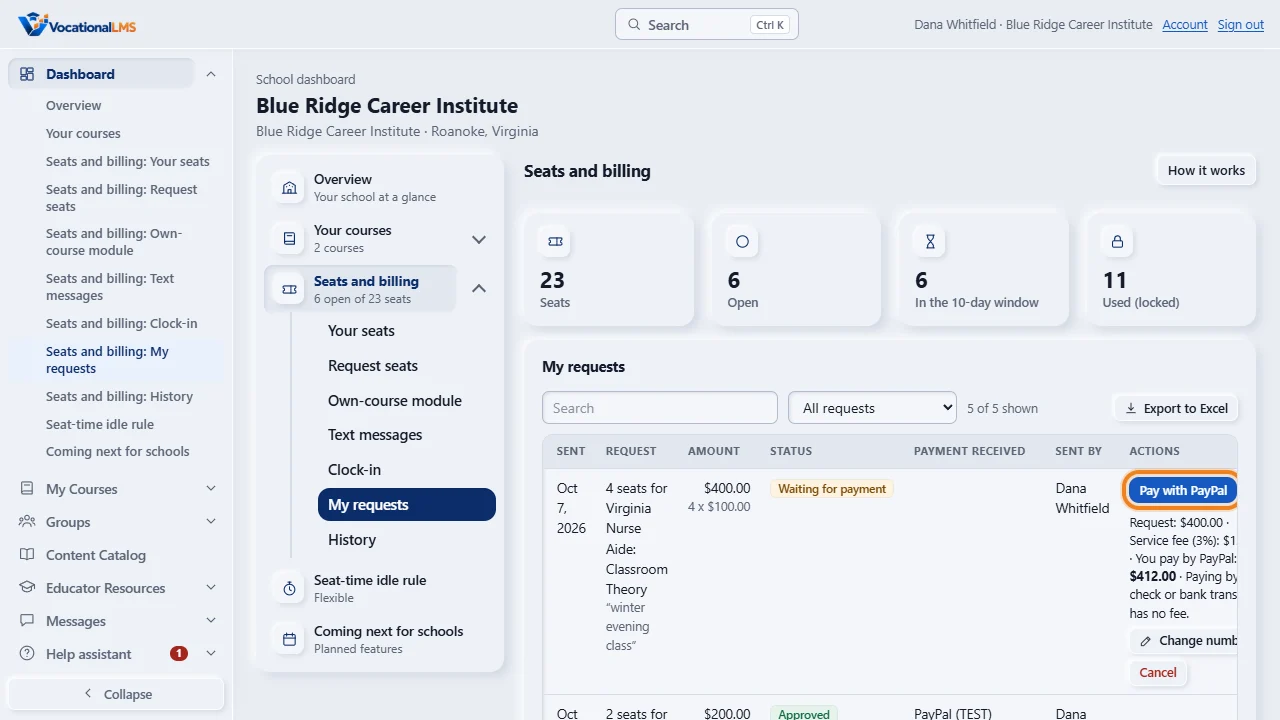
When VocationalLMS has turned PayPal on, every request that is waiting for payment has a Pay with PayPal button. Open the Dashboard, then Seats and billing, then My requests.
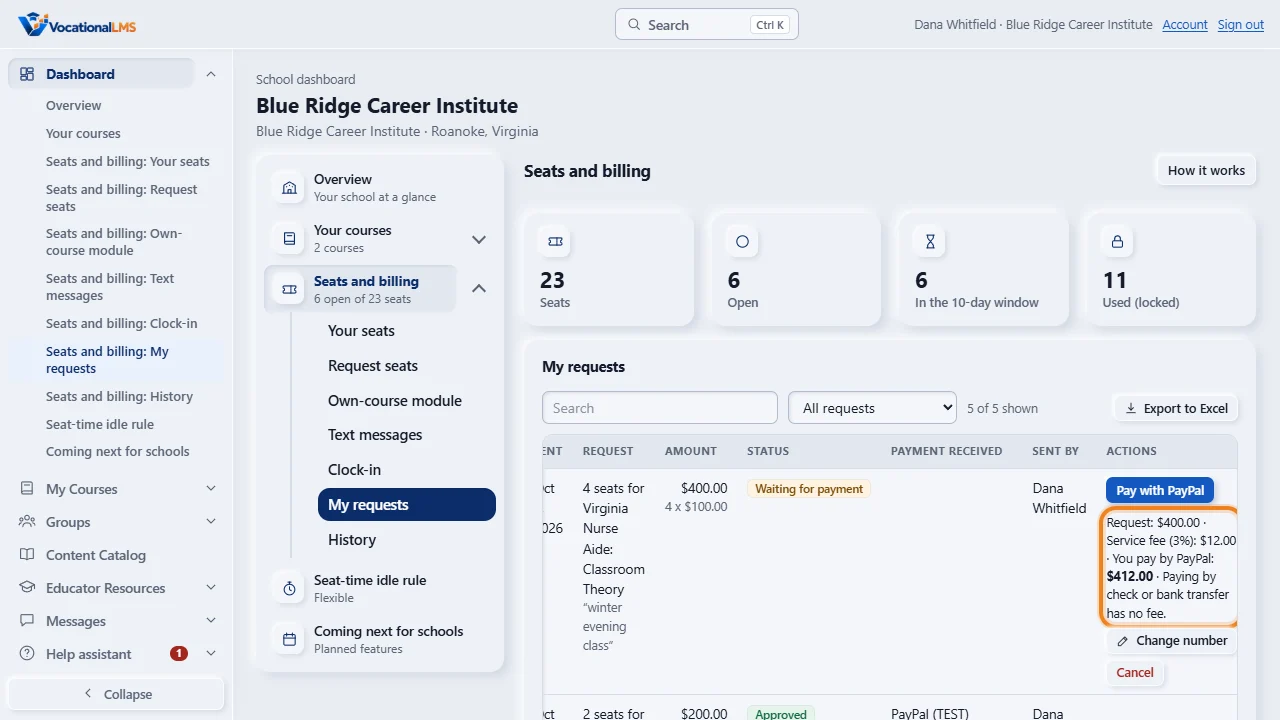
VocationalLMS may add a service fee to a payment made by PayPal, for example three percent of the request's amount. Then a line beside the button shows three amounts before you pay: the request, the service fee, and what you pay by PayPal. Paying by check or bank transfer has no fee.
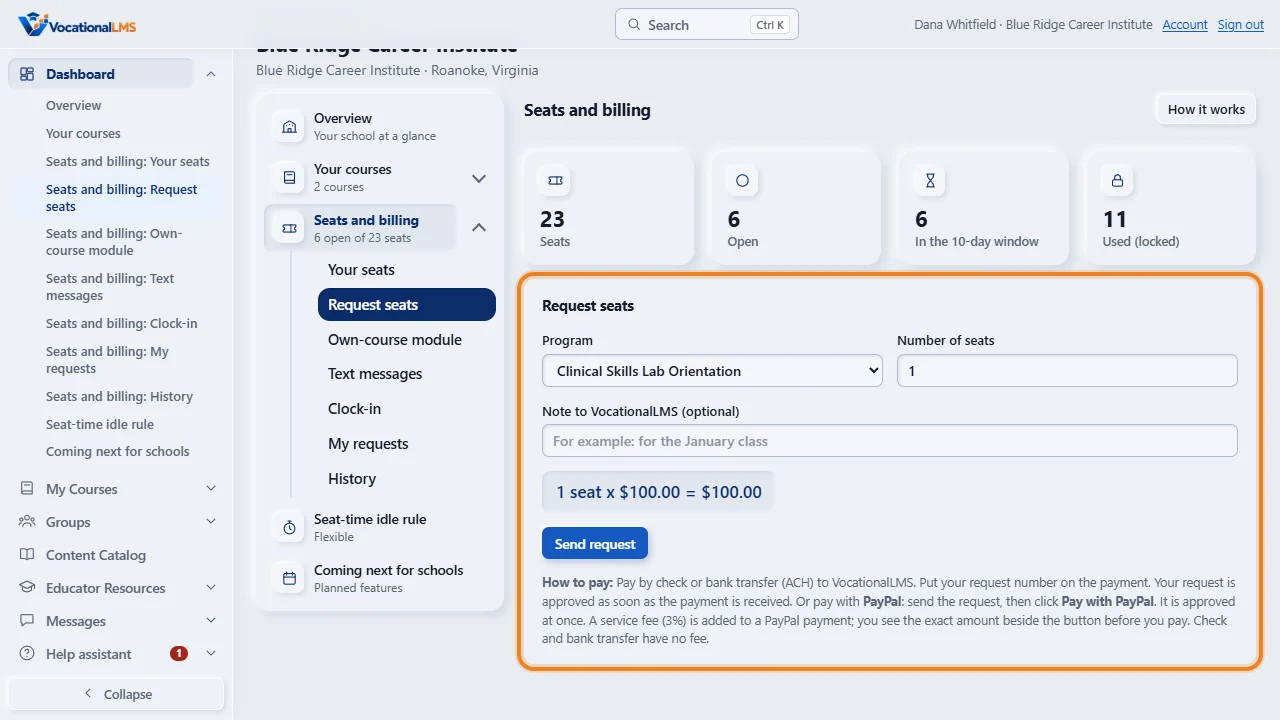
You can also start from a new request: send it, then click Pay with PayPal. Your browser goes to PayPal. Check the amount: it is the amount after You pay by PayPal. Sign in to PayPal or choose to pay with a card, and click Pay Now.
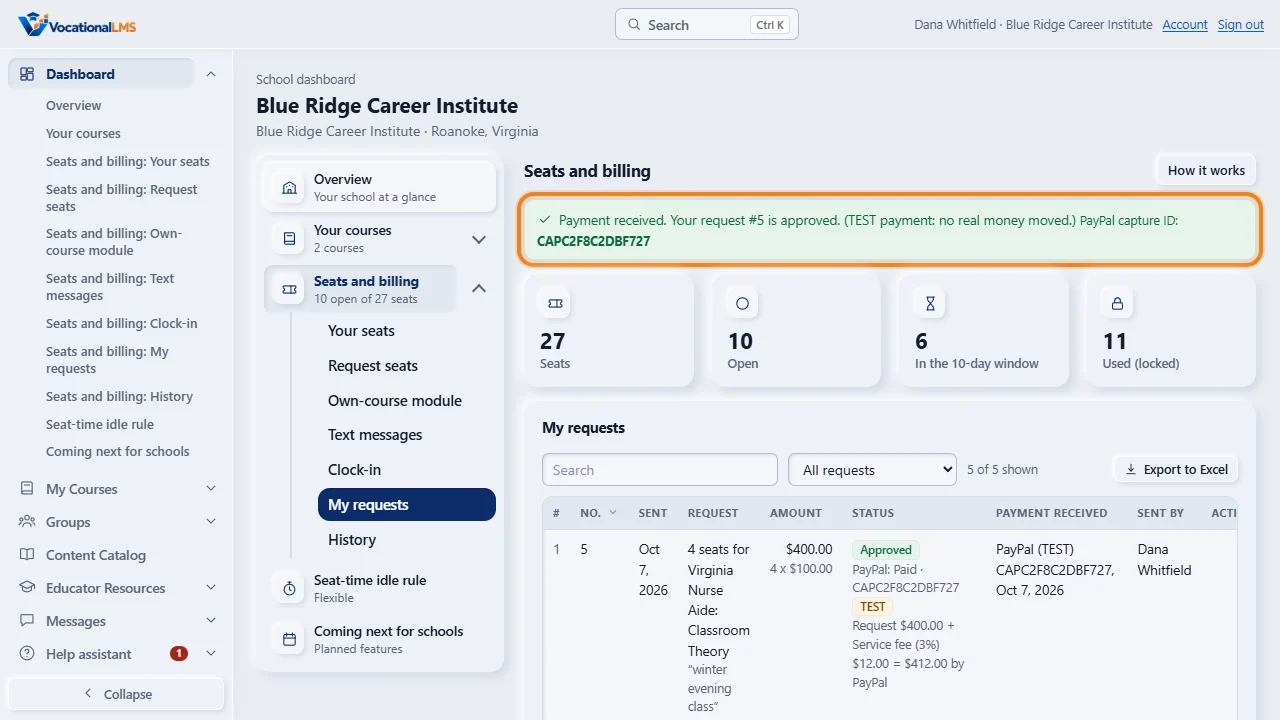
PayPal sends you back to Seats and billing. Wait a few seconds and do not close the page. It then says Payment received, your request is approved, and shows the PayPal capture I D. Keep it as your reference.
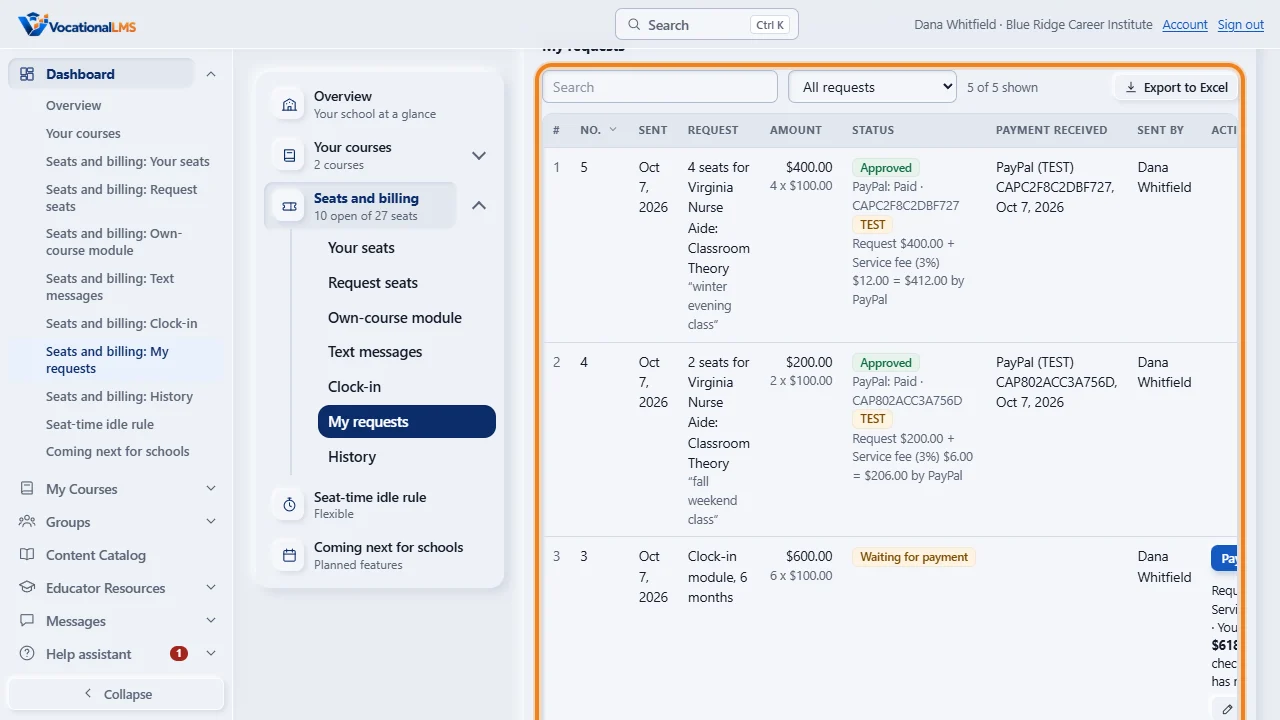
The seats are in your program at once. My requests shows the PayPal payment with the request's amount, the service fee, and the total. Your request is approved for its own amount. A row marked TEST means VocationalLMS is testing PayPal, and no real money moved.
Open this in VocationalLMSDashboard > Seats and billing > My requests
Who can do this: Only a School Admin can send a request and pay it.
What it is for
When VocationalLMS has turned PayPal on, every request that is waiting for payment has a Pay with PayPal button: seats for a program, the own-course module, the Text messages module and the Clock-in module. You pay at PayPal, with your PayPal account or a card, and come back. Your request is approved at once and the seats or the module's months are added. Paying by check or bank transfer still works exactly as before. The service fee. VocationalLMS may add a service fee to a payment made by PayPal, usually a percentage of the request's amount. When it does, a line beside the button shows the three amounts before you go to PayPal, for example: Request: $400.00 · Service fee (3%): $12.00 · You pay by PayPal: $412.00 · Paying by check or bank transfer has no fee. The amounts on your page are the ones that count. Your request is approved for its own amount; the fee is on top and is shown separately everywhere.
Steps
- Open the Dashboard, then Seats and billing.
- Send your request as usual: Request seats, or Request this module under Own-course module, Text messages or Clock-in.
- Read the line beside Pay with PayPal, if there is one: Request, Service fee and You pay by PayPal. If you would rather pay no fee, pay by check or bank transfer as the page says under How to pay.
- Click Pay with PayPal. It is in the green line right after you send the request, beside the request under My requests, and in a module's “waiting for payment” line.
- Your browser goes to PayPal. Check the amount: it is exactly the amount after You pay by PayPal on our page (the amount of your request when no fee is added). PayPal may show the service fee on a line of its own, named handling. Sign in to PayPal, or choose to pay with a card, and click Pay Now.
- PayPal sends you back to Seats and billing. Wait a few seconds while the page says Finishing your PayPal payment. Do not close the page.
- The page says Payment received. Your request is approved. and shows the PayPal capture ID. Keep it: it is the reference of your payment.
What happens next
The seats are in your program at once, or the module is on through its new paid-through date. You also get the usual approval message and email, with the PayPal capture ID. The payment is listed under My requests and in History. When a service fee was added, the approval message, the email and the row under My requests state the request's amount, the service fee and the total you paid by PayPal. When no fee line shows, you pay the amount of the request and VocationalLMS pays PayPal's fee. For a refund, write to VocationalLMS: refunds are made by VocationalLMS in PayPal, and seats or months are not taken back automatically.
Common problems
| # | Problem | What to do |
|---|---|---|
| 1 | There is no Pay with PayPal button. | VocationalLMS has not turned PayPal on, or is still testing it with other schools, or the request is not waiting for payment any more, or it costs $0.00. Pay by check or bank transfer as the page says. |
| 2 | You do not want to pay the service fee. | Pay by check or bank transfer: they have no fee. The request waits until VocationalLMS records your payment. |
| 3 | “The amount changed: you pay … by PayPal.” | VocationalLMS changed the fee setting after your page was opened. The line beside the button now shows the new amounts. Click Pay with PayPal again to go on, or pay by check or bank transfer. |
| 4 | You came back and the page says nothing was charged. | You left PayPal without paying, or the request changed after you started. Click Pay with PayPal again. |
| 5 | You closed the page right after paying. | Open Seats and billing again in a few minutes. If PayPal took the payment, the request is approved by itself. Do not pay a second time. |
| 6 | “PayPal is still processing this payment.” | PayPal has not finished (this happens with some bank payments). The request is approved by itself when PayPal finishes. Do not pay again. |
| 7 | “VocationalLMS is checking this PayPal payment.” | PayPal took a payment that did not match the request, so nothing was approved automatically. VocationalLMS has been told. Do not pay again. |
| 8 | The row says TEST. | VocationalLMS is testing PayPal. No real money moved. |
See also
- A-20 See your seats, request more, and change a request
- A-22 The own-course module: price by students, request or renew it, pay, upgrade, and what locked means
- A-28 Text messages module: let students share by text message
- A-54 The Clock-in module: price, request and renewal
- Seats and billing (full guide)