
A-30For School Admins and Directors
Send text messages from your school's own Twilio account
Optional: type your school's Twilio Account SID, Auth Token and sending number so texts come from your own number.
How-to video A-30 · 1:26
Read the words of this video
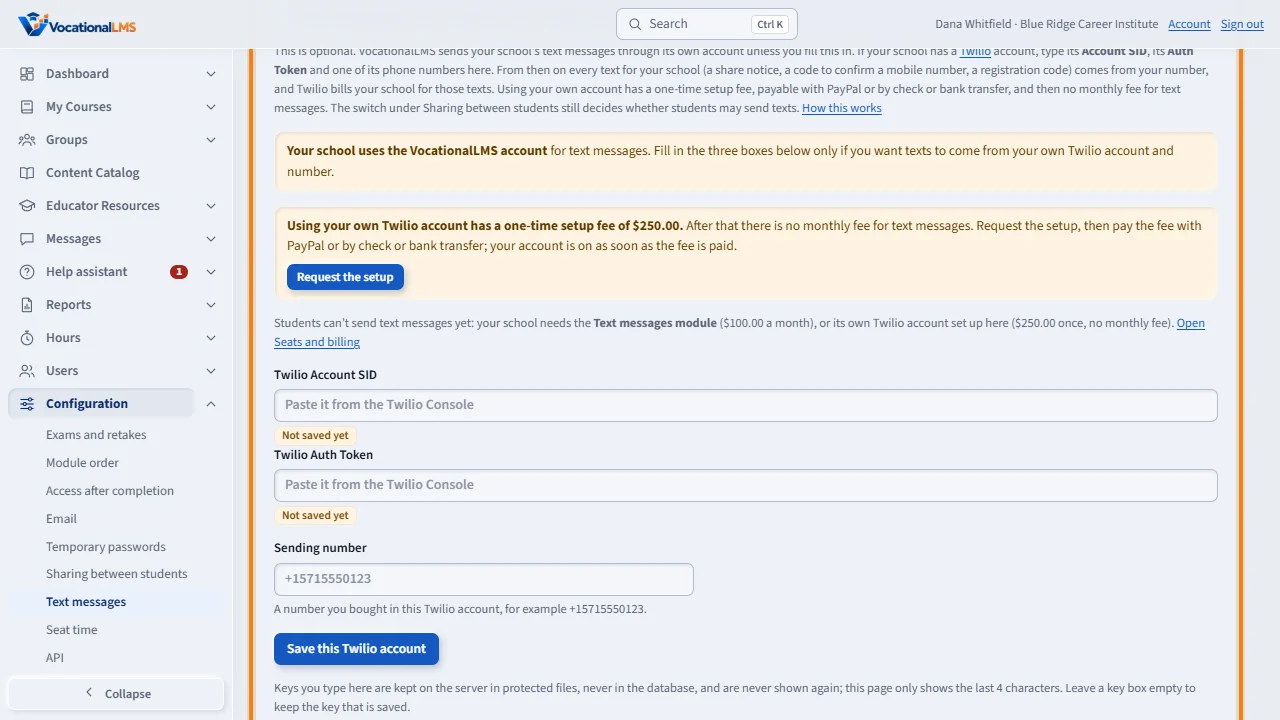
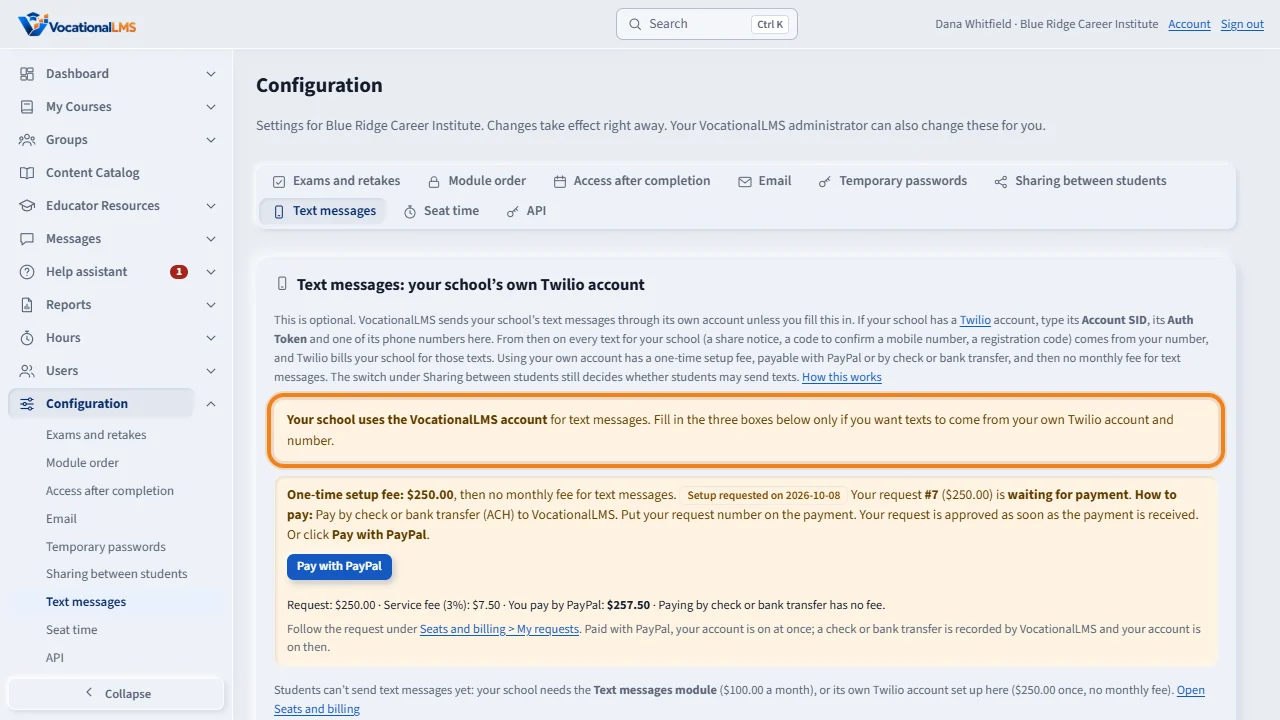
VocationalLMS sends your school's text messages through its own account. If your school has a Twilio account, you can use it instead. This is optional. Open Configuration, then Text messages. The line at the top says which account your school uses now.
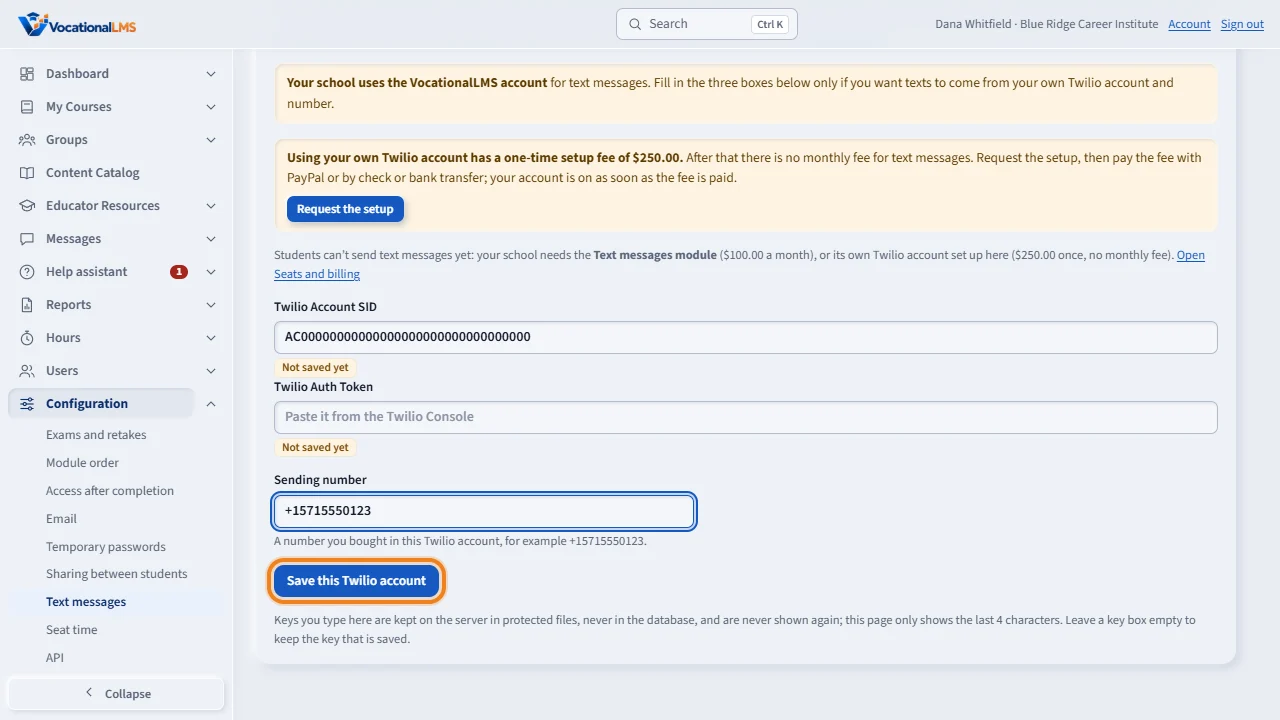
Copy the Account S I D and the Auth Token from your Twilio Console and paste them here. Type one of your Twilio phone numbers as the sending number. Then click Save this Twilio account. Your keys are kept on the server in protected files. The page never shows them again, only their last four characters.
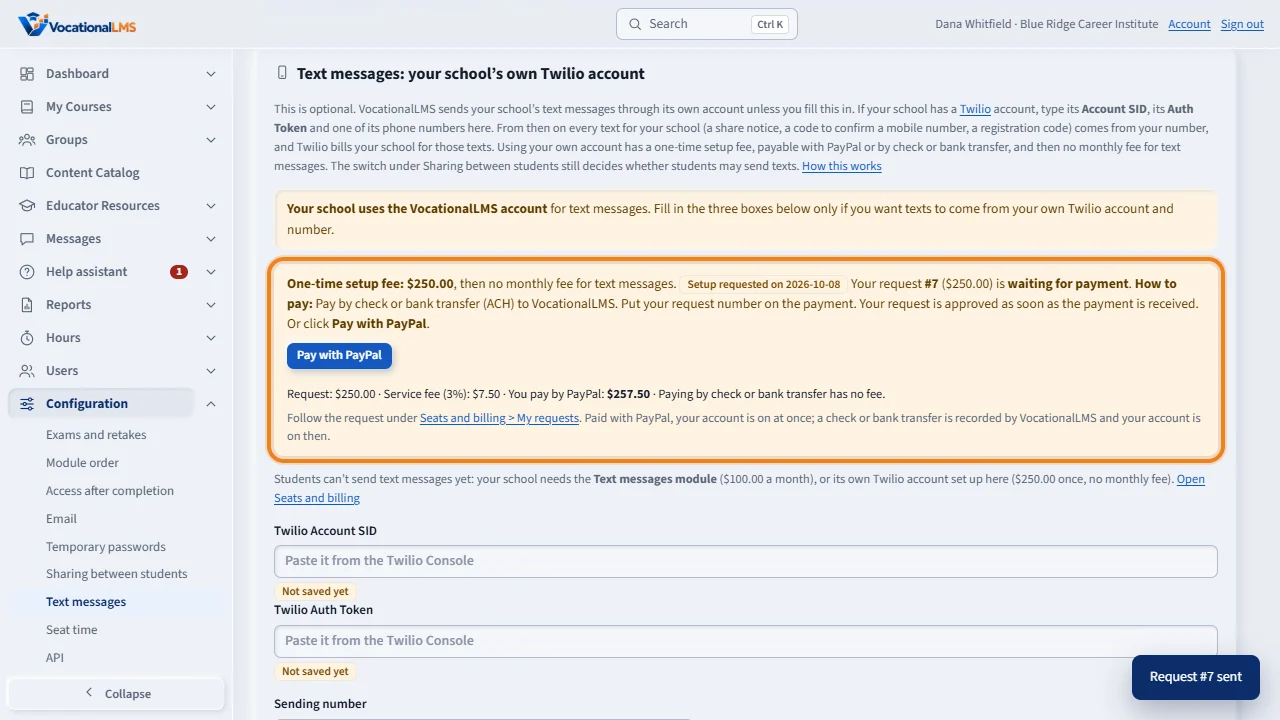
Using your own account has a one-time setup fee of two hundred fifty dollars, and then no monthly fee for text messages. Click Request the setup. The page shows your request, waiting for payment, and how to pay it. Click Pay with PayPal: the exact amount, with the service fee, is shown before you go to PayPal, and your account is on as soon as it is paid. Or pay by check or bank transfer; VocationalLMS records the payment and turns your account on. The request is also under Seats and billing, My requests.
When all three are saved and the fee is paid, the green line says your school uses its own Twilio account. Every text for your school then comes from your number, and Twilio bills your school. Send a test text to check it works.
Open this in VocationalLMSConfiguration > Text messages
What it is for
VocationalLMS sends your school's text messages through its own account. If your school has a Twilio account, you can use it instead: texts then come from your own number and Twilio bills your school for them. This is optional. It has a one-time setup fee, which you request here and pay with PayPal or by check or bank transfer, and then no monthly fee.
Steps
- Open Configuration > Text messages.
- Sign in to your Twilio Console in another tab. Copy the Account SID and paste it into Twilio Account SID.
- In the Twilio Console click Show beside Auth Token, copy it, and paste it into Twilio Auth Token.
- Type one of your Twilio phone numbers in Sending number, for example +15715550123.
- Click Save this Twilio account.
- Using your own account has a one-time setup fee of $250.00, and then no monthly fee for text messages. Click Request the setup. The page then shows your request, waiting for payment, and how to pay it: click Pay with PayPal when VocationalLMS takes PayPal (the exact amount, with the service fee, is shown before you go to PayPal; paid, your account is on at once), or pay by check or bank transfer as described under How to pay (VocationalLMS records the payment and approves the request). The request is also under Seats and billing > My requests and on the Text messages panel there; you can cancel it while it waits. Once the fee is paid, the green line says Your school uses its own Twilio account.
- Type your own mobile number beside Send a test text and click it. You get one text from your number.
- A saved key shows only as Saved •••• and its last 4 characters. To change one, paste the new key and save; leave a box empty to keep the saved key. Remove (click twice) deletes a key.
What happens next
With all three saved, every text for your school comes from your number: share notices, the code that confirms a student's mobile number, and registration codes. Those texts do not count toward your school's monthly limit of texts. If anything is missing, your school uses the VocationalLMS account as before. After the one-time setup fee your school pays no monthly fee for text messages and does not need the Text messages module (A-28). The switch under Sharing between students must be on before students can send texts. Your keys are kept on the server in protected files and are never shown again, to you or to anyone else.
Common problems
| # | Problem | What to do |
|---|---|---|
| 1 | “A Twilio Account SID starts with AC and has 34 characters.” | Copy the Account SID again from the Twilio Console; it is not the phone number. |
| 2 | “A Twilio Auth Token has 32 characters.” | In the Twilio Console click Show beside Auth Token, then copy all of it. |
| 3 | It says your school uses the VocationalLMS account for now. | Your own account is not complete. The line names what is still needed. |
| 4 | The test text does not arrive. | Check that the sending number belongs to this Twilio account and can send texts to U.S. numbers. Twilio's own log shows why a text was refused. |
| 5 | Students still can't send texts. | The lines under the first one say why: the one-time setup fee is not paid yet, or the switch under Sharing between students is off. |
| 6 | I want to go back to the VocationalLMS account. | Click Remove beside a saved key, then click again. |
| 7 | I asked for the setup but want to wait. | Cancel the request under Seats and billing > My requests; Request the setup comes back on this page. |