
A-28For School Admins and Directors
Text messages module: let students share by text message
Request the module, and turn the school's text-message switch on or off.
How-to video A-28 · 0:49
Read the words of this video
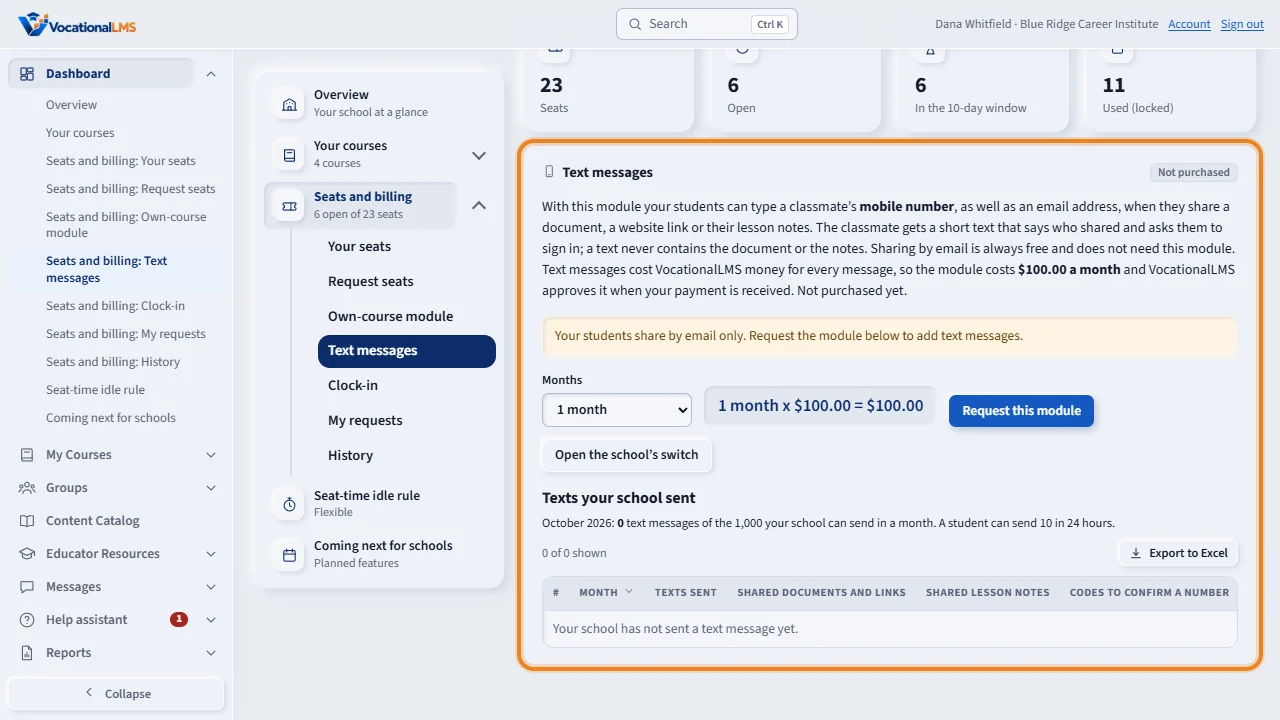
Text messages cost money to send, so a school needs the Text messages module before its students can share by text. Open Seats and billing, then Text messages. Choose the months, click Request this module, and pay: with PayPal under My requests, the request is approved at once; by check or bank transfer, VocationalLMS approves it when the payment arrives. The status then changes to Active.
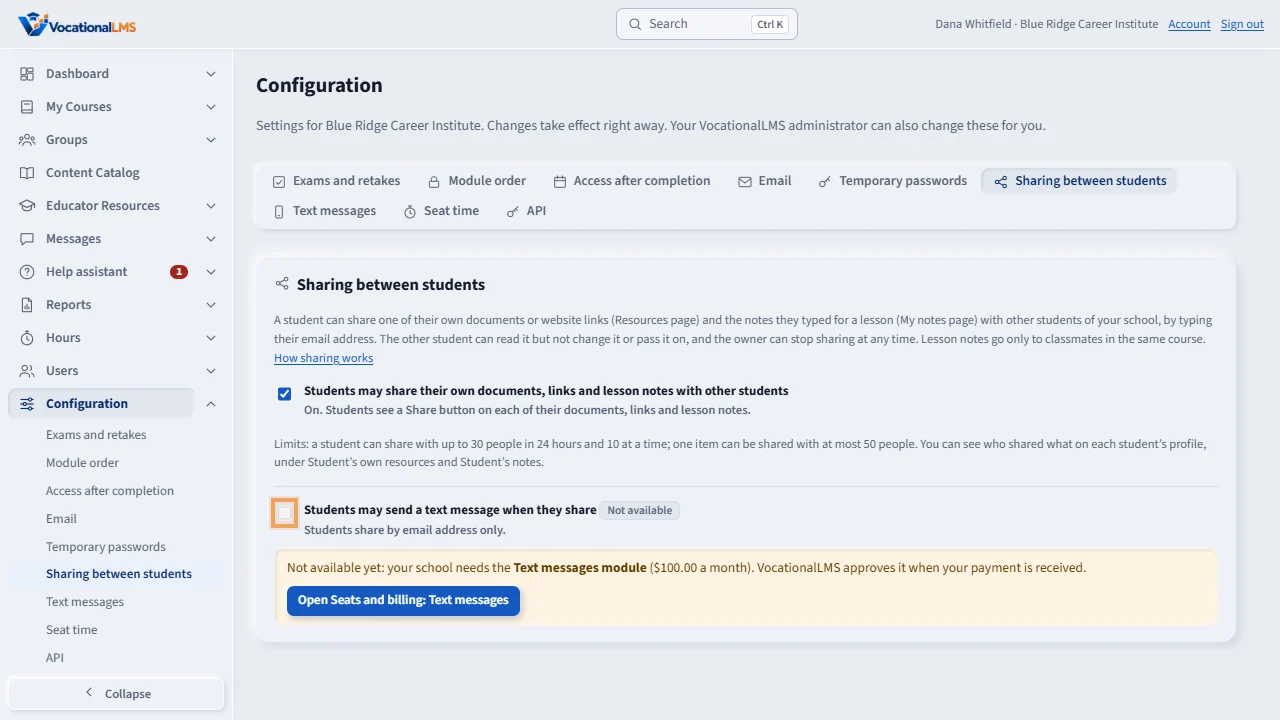
The school's switch is in Configuration, under Sharing between students. It is on by itself once the module is active, and you can turn it off. A text never contains the document or the notes, and every text is counted for the school. Email sharing is always free.
Open this in VocationalLMSDashboard > Seats and billing > Text messages
What it is for
Text messages cost money to send, so a school needs the Text messages module before its students can share by text message. You request it and pay: with Pay with PayPal under My requests the request is approved at once (a service fee may be added, shown beside the button); by check or bank transfer, VocationalLMS approves it when the payment arrives. Email sharing is always free. A school that sends texts through its own Twilio account pays a one-time setup fee instead and does not need this module (A-30).
Steps
- Open Dashboard > Seats and billing > Text messages.
- Choose the months and click Request this module. Then pay: Pay with PayPal under My requests approves the request at once (A-61), or pay by check or bank transfer as shown under How to pay, with no fee, and VocationalLMS approves it when the payment arrives.
- When VocationalLMS approves it, the status changes to Active.
- Open Configuration > Sharing between students. The switch Students may send a text message when they share is on by itself once the module is active; untick it to turn texts off for your school.
- The same pages show how many texts your school sent this month.
What happens next
Students see the mobile-number option only when three things are true: VocationalLMS's text service is set up, your module is active, and your switch is on. A text never contains the document or the notes, only a notice to sign in. A student receives texts only at a mobile number they confirmed and agreed to. There is a monthly limit of texts for each school; when it is reached, students are told and email still works.
Common problems
| # | Problem | What to do |
|---|---|---|
| 1 | The text switch is gray. | The line under it says what is missing: the module, or VocationalLMS's text service. |
| 2 | “Your school has used all its text messages for this month.” | Use email until next month, or ask VocationalLMS to raise the limit. |
| 3 | The module ran out. | Open Seats and billing > Text messages and click Renew. |