
A-20For School Admins and Directors
See your seats, request more, and change a request
One seat is one student in one program. Request seats, pay, and change the number before it is approved.
How-to video A-20 · 1:20
Read the words of this video
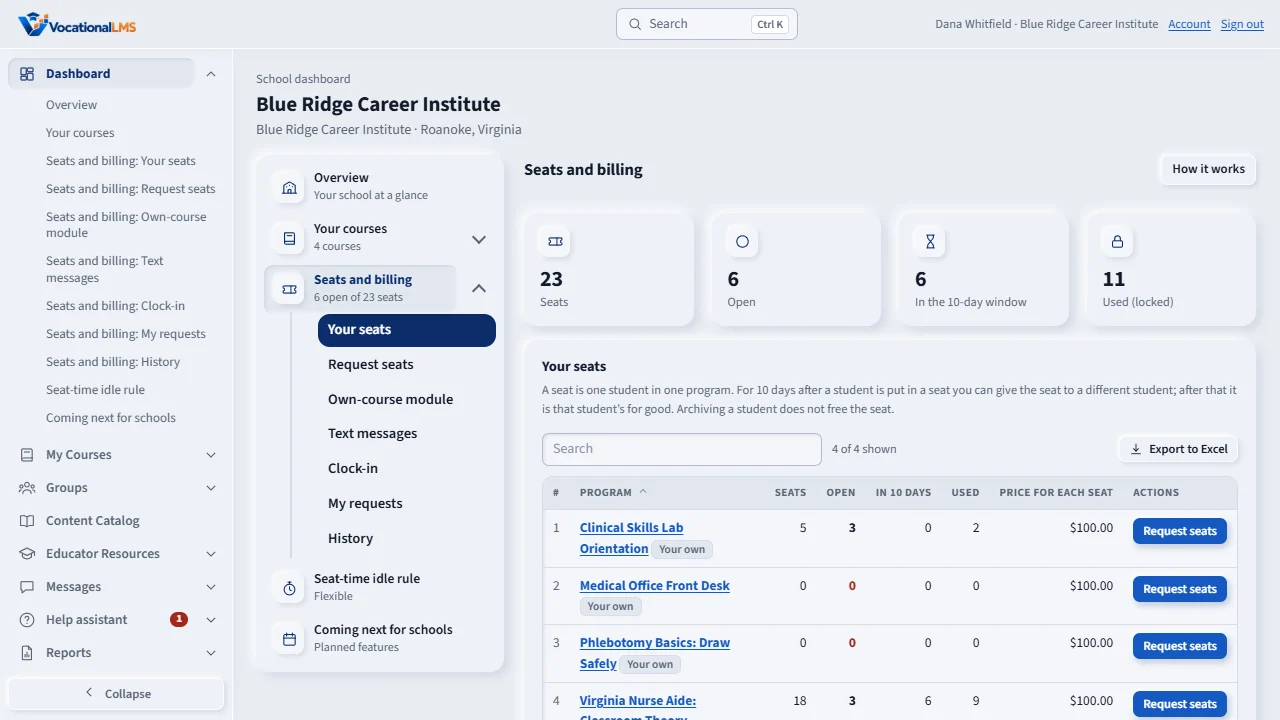
A seat is one student in one program at your school. Open the Dashboard and click Seats and billing. The tiles show your seats: open, in the ten-day window, and used. Your seats lists each program with the price of a seat.
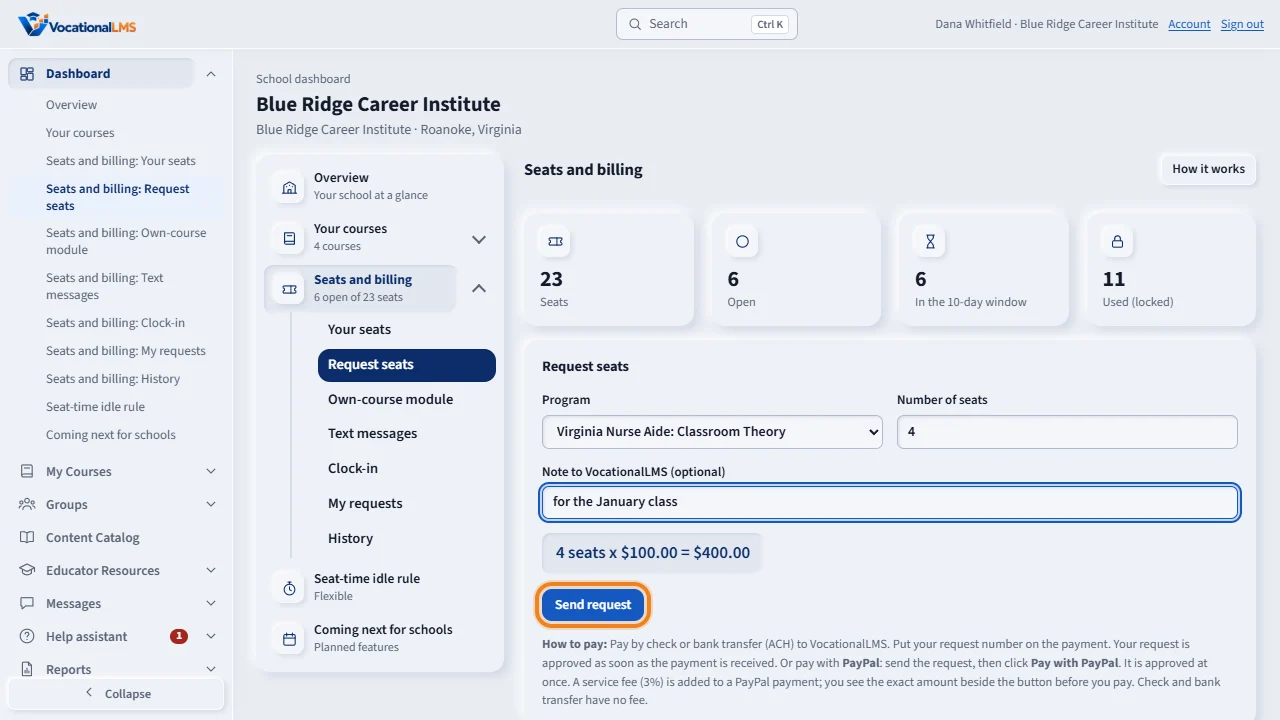
To get more seats, choose the program and type the number of seats. The page shows the total. Click Send request. Then pay with PayPal from My requests, and the request is approved at once, with a service fee if VocationalLMS adds one, for example three percent. Or pay by check or bank transfer as the page says under How to pay, with no fee: the seats are added when your payment arrives and is approved.
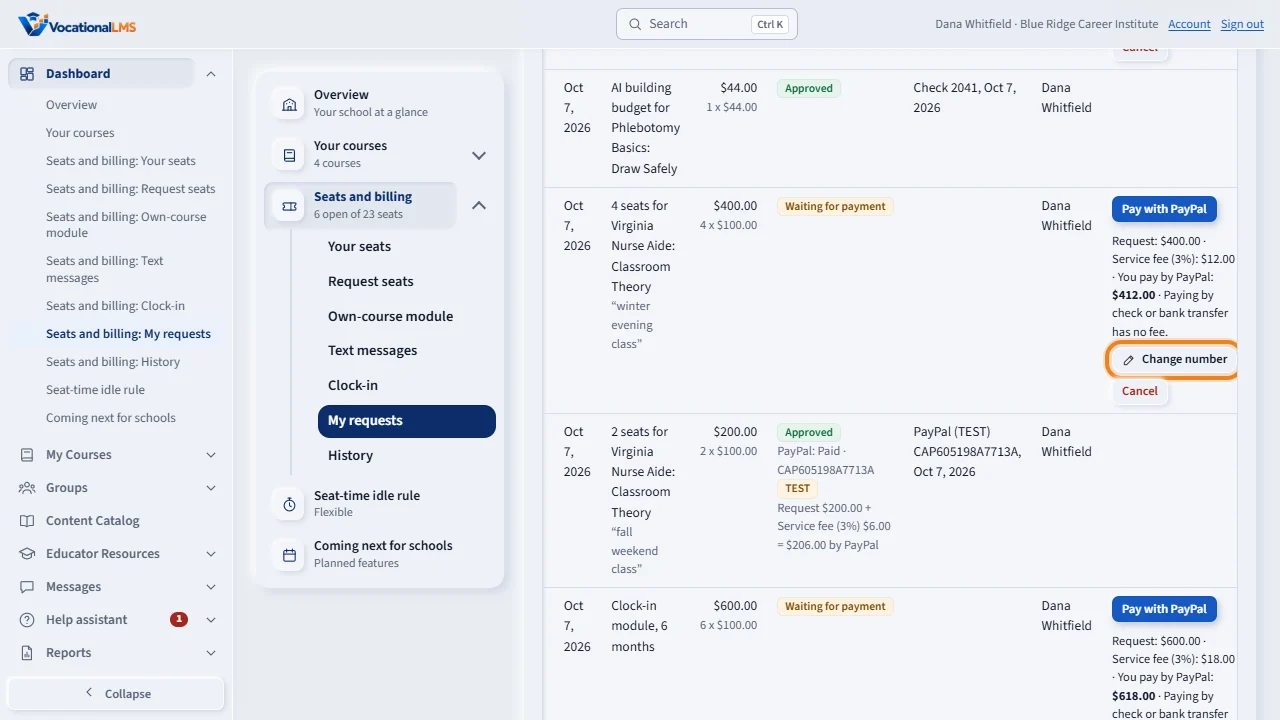
My requests shows where each request stands: waiting for payment, payment received, approved, or declined. A request that is waiting for payment has Pay with PayPal beside it, and you can cancel it, or click Change number.
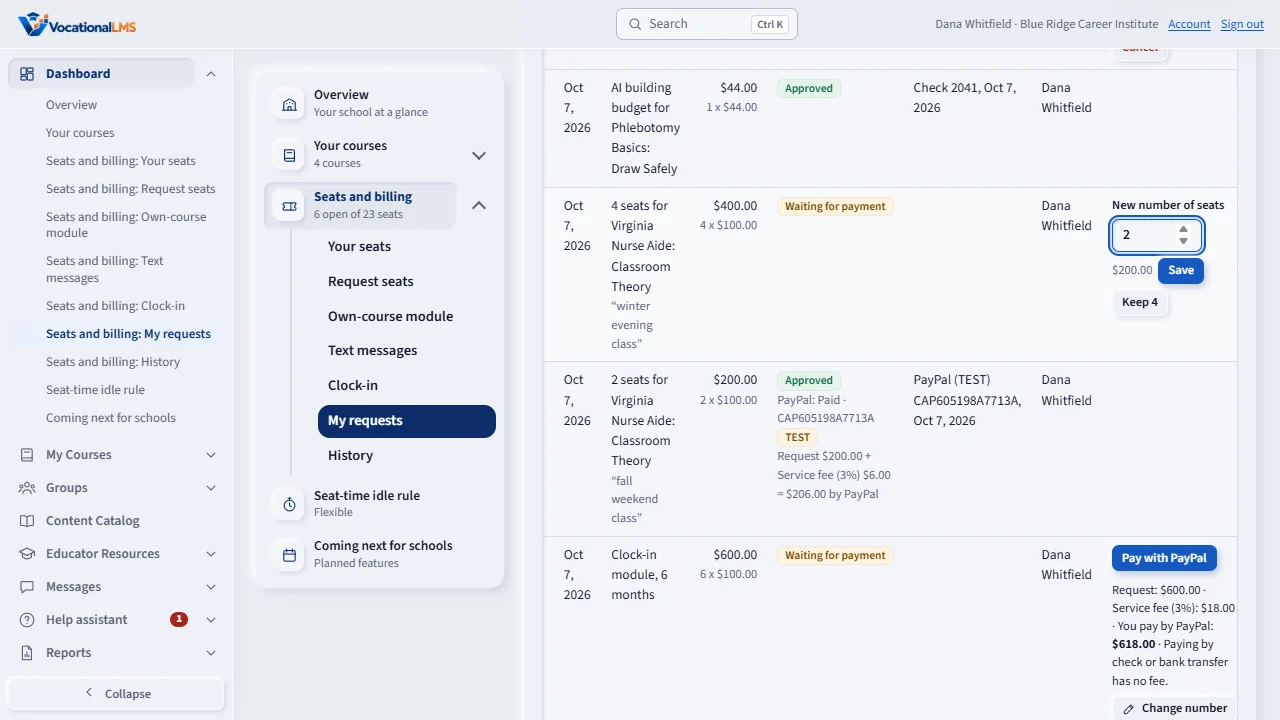
Type the new number, for example two instead of five, and click Save. The amount is worked out again at the same price for each seat, and VocationalLMS is told. After a payment is recorded, call VocationalLMS to change it.
Open this in VocationalLMSDashboard > Seats and billing > Your seats
What it is for
A seat is one student in one program at your school, $100.00 unless VocationalLMS set another price. When Seats required is on for your school, you can enroll a student only if the program has an open seat.
Steps
See your seats
- Open Dashboard and click Seats and billing.
- Your seats lists each program: seats, open, in the 10-day window, used, and the price of a seat.
Request seats
- Under Request seats choose the Program and type the Number of seats. The page shows the total.
- Click Send request. Then, under My requests, click Pay with PayPal (your PayPal account or a card): the request is approved at once. A service fee may be added to a PayPal payment, for example 3%; the line beside the button shows the request, the fee and what you pay (A-61). Or pay by check or bank transfer as the page says under How to pay, with your request number on the payment; those have no fee and the request is approved when the payment arrives.
- The seats are added the moment the request is approved: at once with PayPal, or when VocationalLMS records your check or bank transfer.
Change or cancel a request
- Under My requests, while a request is Waiting for payment, click Change number, type the new number and click Save.
- Cancel withdraws the request (click twice).
What happens next
My requests shows where each request stands: Waiting for payment, Payment received, Approved, Declined or Cancelled. The price for each seat stays as it was when you sent the request; the amount is worked out again when you change the number.
The rules in short
- A student in two programs uses two seats. Seats for one program cannot be used for another.
- Seats never expire. Open seats stay yours until you use them.
- On the day seats are turned on for your school, every student already enrolled gets a free, locked seat.
- After a payment is recorded, or paid with PayPal (which approves the request at once), call VocationalLMS to change the number.
Common problems
| # | Problem | What to do |
|---|---|---|
| 1 | “No seats left for this program.” | Request seats for that program. The student is not added until a seat is open. |
| 2 | Change number is not there. | The request is no longer waiting for payment. Call VocationalLMS support. |