
V-13For the VocationalLMS Super Admin
Seats: turn them on for a school, give seats and set prices
The Seats page: switches for each school, phone orders, special prices and settings.
How-to video V-13 · 1:22
Read the words of this video
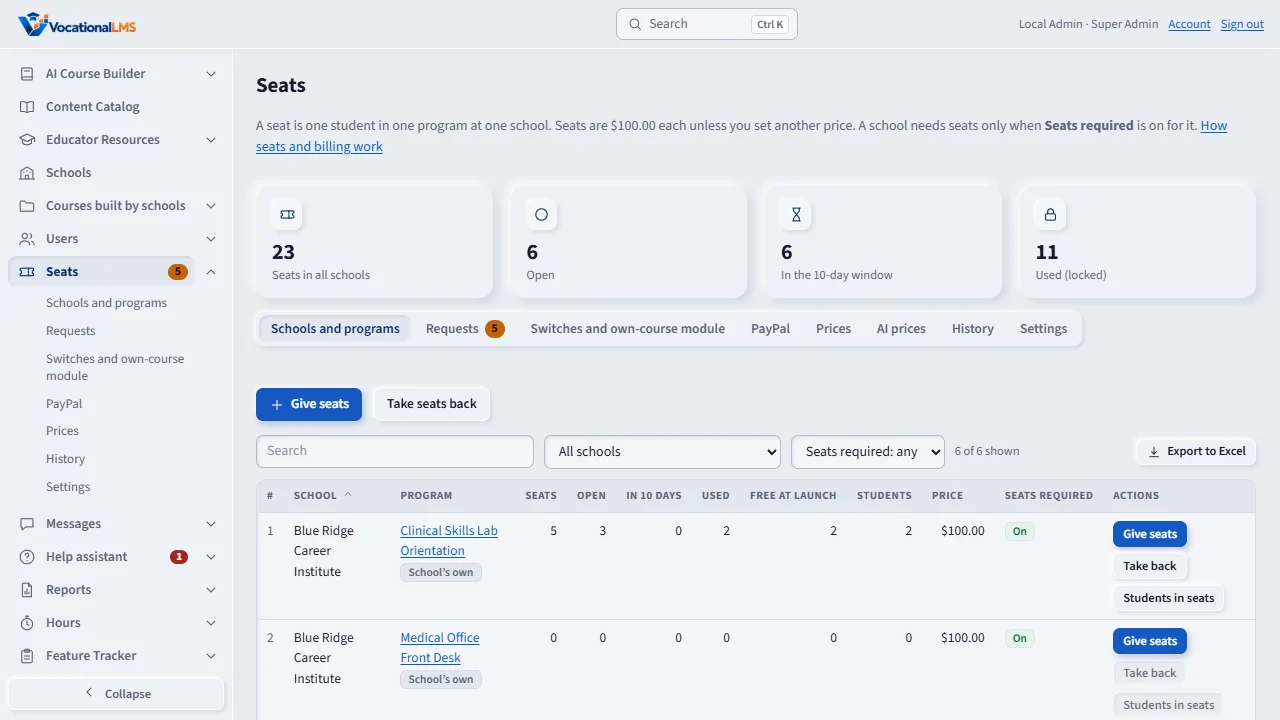
A seat is one student in one program at one school. Click Seats. The tiles show the seats in all schools. Schools and programs lists every school and program, with its seats, open, in the ten-day window, and used.
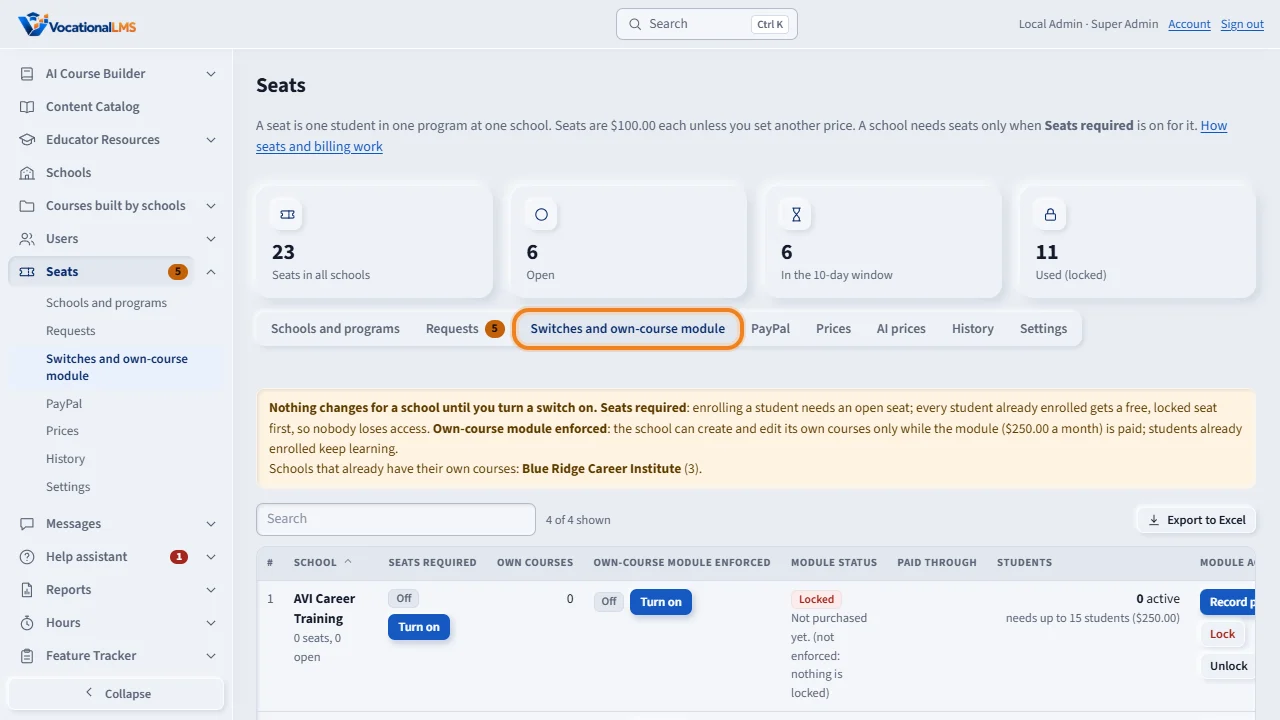
A school needs seats only when you turn Seats required on for it. Open Switches and own-course module, and click Turn on for that school, twice. Every student already enrolled gets a free, locked seat first, so nobody loses access.
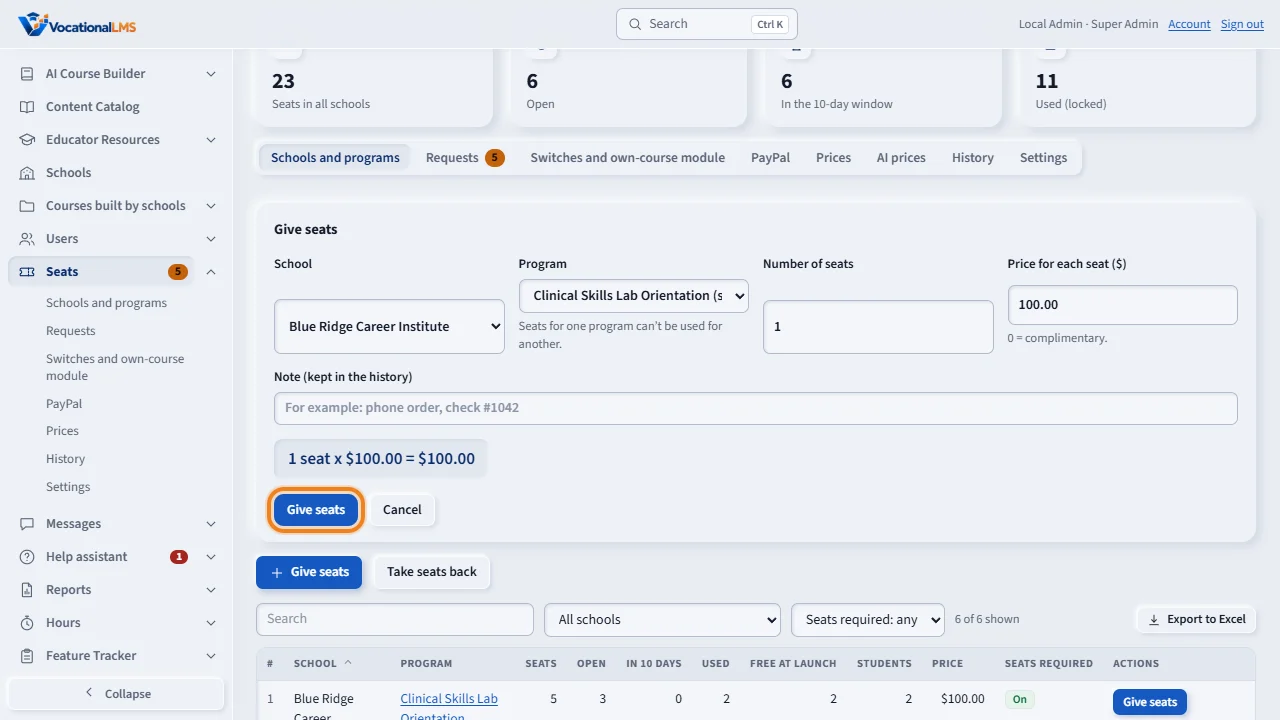
Give seats adds seats after a phone order. Choose the school and the program, the number, and the price for each. Zero makes them complimentary. Add a note, such as the check number.
Prices sets a different price for a school, a program, or one school's program. The most exact price wins.
Settings holds the default price, the ten days, the low-seat warning, and the How to pay words that schools see for check and bank transfer. Those payments are recorded by hand. PayPal is set up under Seats, then PayPal, and a PayPal payment records and approves itself. No card numbers are entered.
Open this in VocationalLMSSeats > Schools and programs
What it is for
A seat is one student in one program at one school, $100.00 by default. A school needs seats only when you turn Seats required on for it. The Seats page is where you run all of it.
Steps
- Click Seats. Schools and programs lists every school and program with seats, open, in the 10-day window and used.
- To turn seats on: Switches and own-course module > Seats required > Turn on, and click again. Every student already enrolled gets a free, locked seat first. The school starts with 0 open seats.
- To give seats after a phone order: Give seats. Choose the school and program, the number, the price for each (0 = complimentary) and a note such as “check #1042”.
- Prices sets a different price for a school, a program, or one school's program. The most exact price wins.
- Settings holds the default price, the 10 days, the swap limit, the low-seat warning, the time zone and the How to pay text schools see for check and bank transfer. PayPal is set up under Seats > PayPal (V-41).
- Take seats back removes open seats only, with a reason. Students in seats on a row shows who is in each seat.
What happens next
Every table sorts by its headings, has a search box and filters, and Export to Excel. A check or bank transfer is recorded by hand; a PayPal payment records and approves itself (V-41). Card numbers never touch VocationalLMS.
Common problems
| # | Problem | What to do |
|---|---|---|
| 1 | A school cannot enroll after you turned seats on. | It has 0 open seats. Give seats or approve its request (V-14). |
| 2 | A refund is due. | Take the open seats back with a reason and send the refund yourself. |