
Messages
Staff and students can write to each other inside VocationalLMS, and staff can write to each other too. Students see everything under the mail icon at the top of their home page. The red number on the icon is how many things they haven't read yet. Clicking the icon opens a panel with three parts:
| # | Part | What it is |
|---|---|---|
| 1 | Conversations | Private two-way threads between one student and one staff member. (Conversations between staff members never show here.) |
| 2 | Priority Messages | Announcements from staff that were marked Priority. Other announcements are on the full Messages page. |
| 3 | System Messages | Automatic notices, such as "You have been enrolled in Nurse Aide". Students remove one with the ×. |
View all messages at the bottom of the panel opens the full Messages page.
For staff: where to find it
Click Messages in the top menu of the Studio. A red number next to it shows unread messages. Every School Admin, Director and Instructor has it, and so does the Super Admin.
- Inbox: your conversations with students and with other staff on the left; the open conversation on the right, with a reply box. Conversations with staff have a Staff tag.
- New message: start a private conversation with one student or one staff member.
- Send announcement: one message to many students.
- Sent announcements: everything sent, with how many students have read each one.
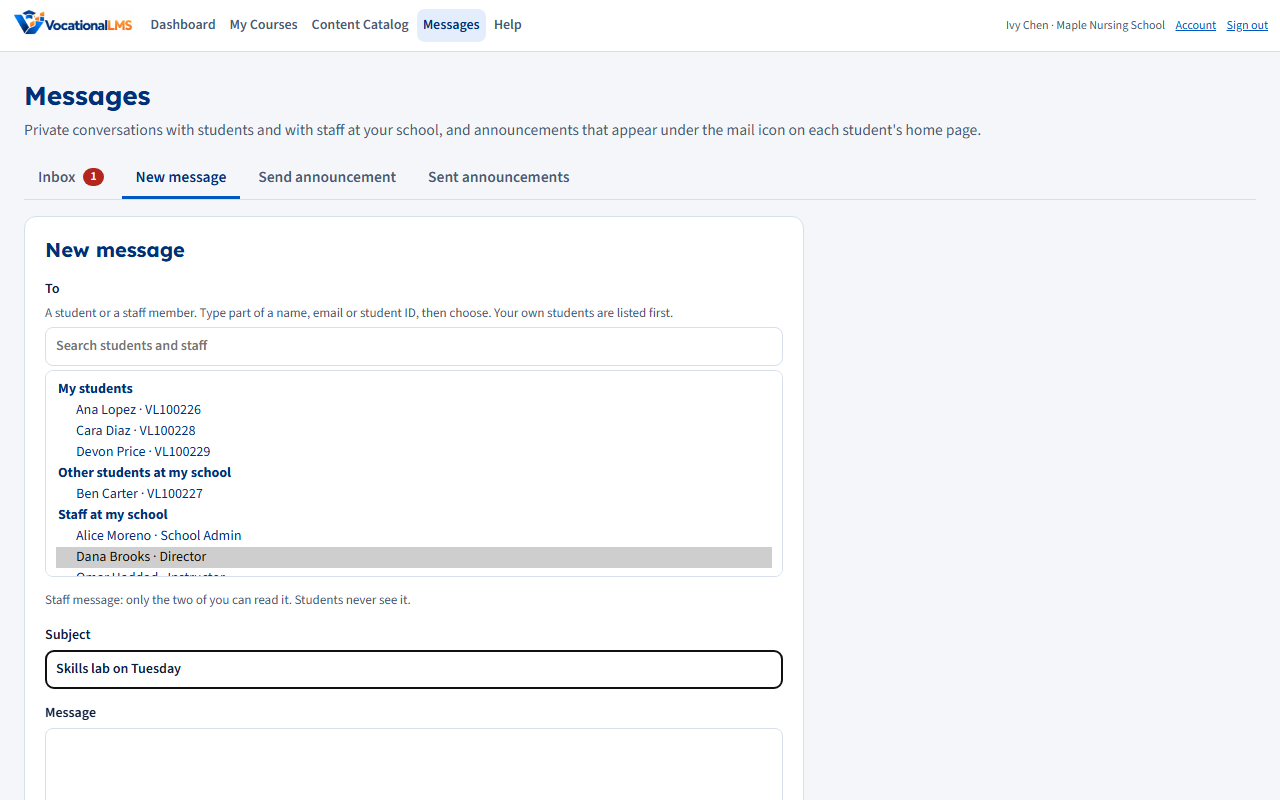
Write to a student or a staff member
- Messages → New message.
- In To, type part of a name, email or student ID, then pick the person. The list is in groups:
- My students (instructors only): the students you teach, either in a class you are an instructor for or as a student's own instructor. They are always at the top.
- Other students at my school (or Students at my school for admins and directors).
- Staff at my school: School Admins, Directors and Instructors.
- Add a subject and your message.
- Leave Also email them a short notice ticked if you want them to get an email too.
- Click Send message. The conversation opens, ready for their reply.
| # | Who | Can write to |
|---|---|---|
| 1 | School Admins, Directors and Instructors | Any student of their own school, and any School Admin, Director or Instructor of their own school. |
| 2 | The Super Admin | Any school's students and staff. Choose the school at the top right first. The staff member can reply. |
| 3 | Students | Their own school's instructors and administrators only. Never another student, and never a staff-only conversation. |
Reply to a student
Open the conversation in the Inbox, type in the reply box and click Send reply. Unread conversations have a blue dot and a number. The page checks for new replies every 30 seconds.
Mine shows the conversations you are part of. School Admins and Directors also have All in school, which shows every conversation with students in the school (for example, to cover for an instructor who is away). Instructors only see their own conversations.
Conversations between staff
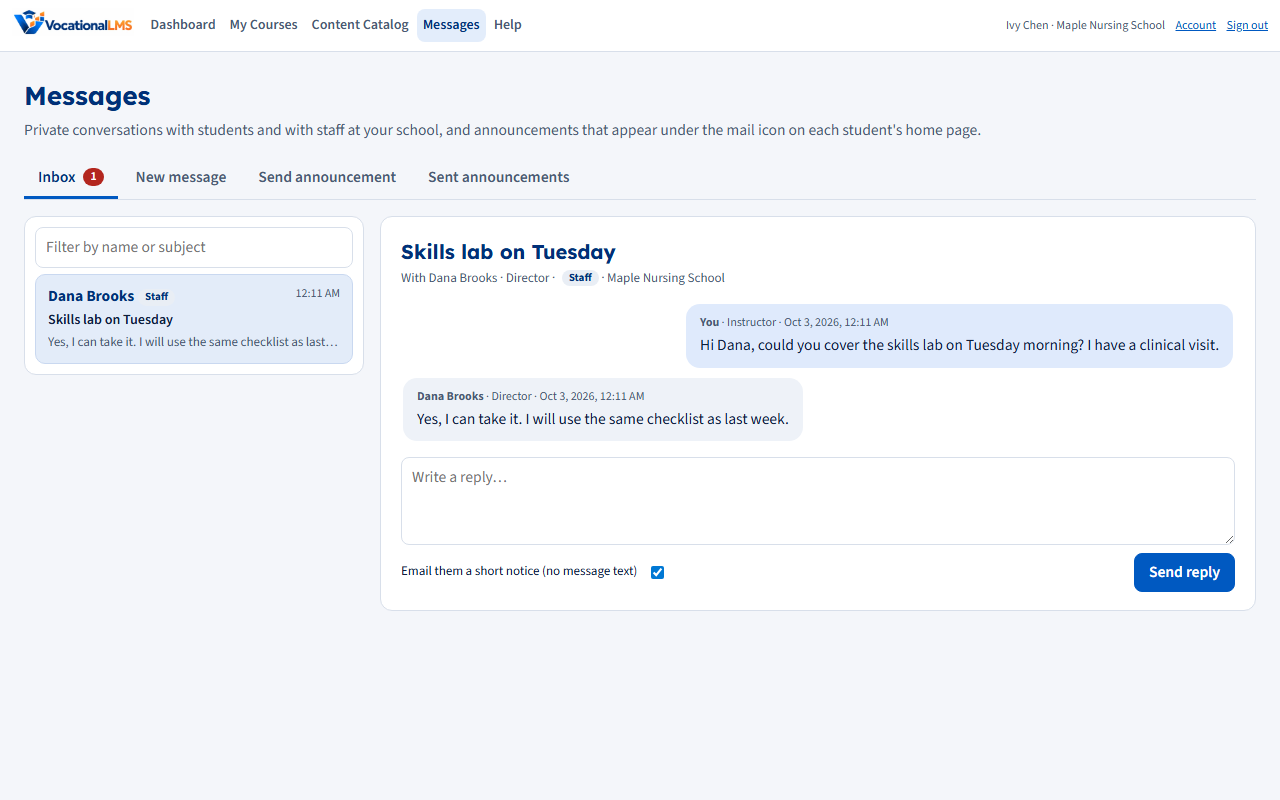
A conversation between two staff members can be read only by those two people (and the VocationalLMS Super Admin). It does not appear under All in school for other administrators, and students never see it. The thread shows who it is with and a Staff tag.
Pictures and links in a message
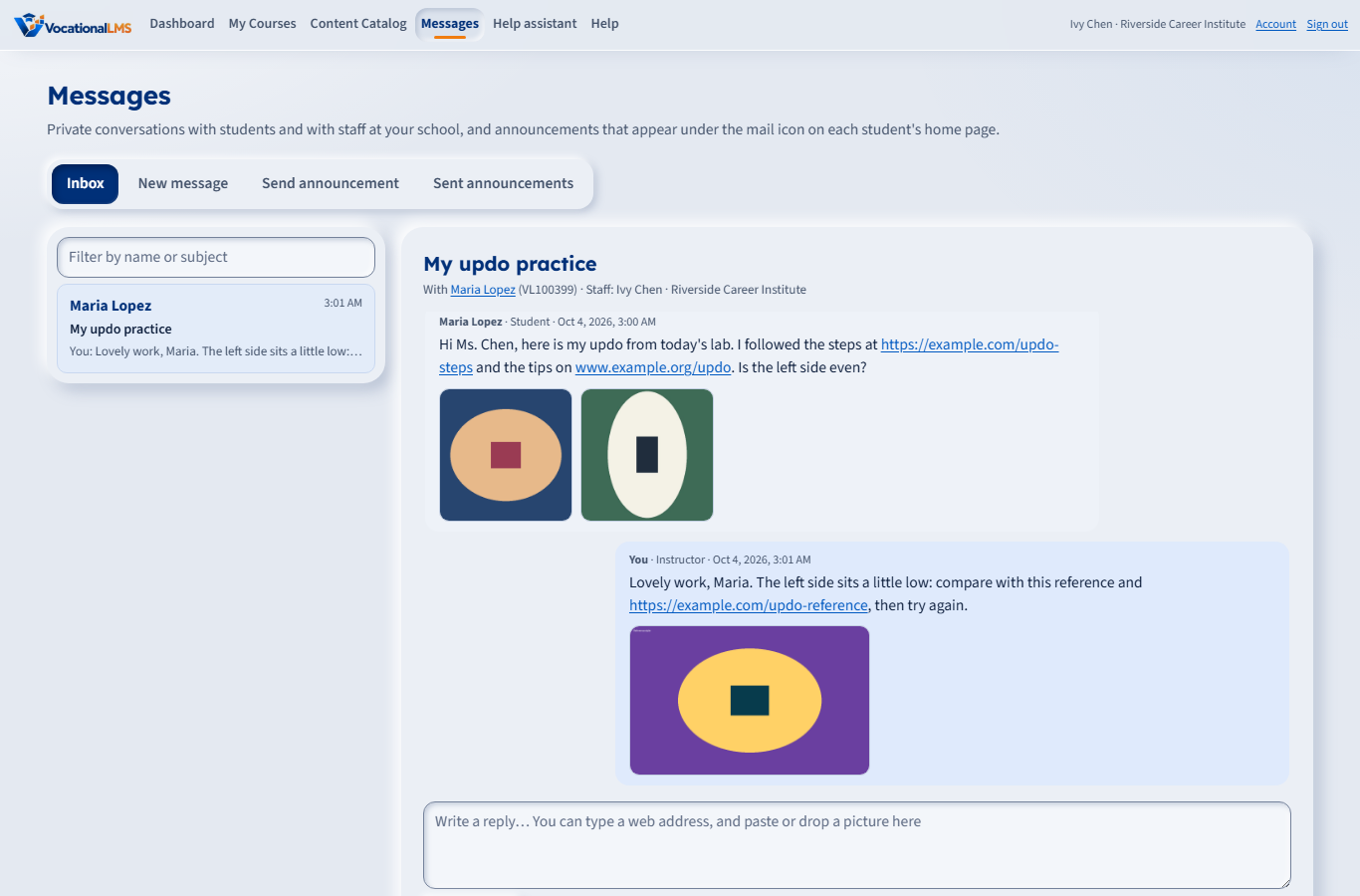
Students, instructors and administrators can all add pictures to a private message, and any web address typed in a message becomes a link. It works the same in a new message and in a reply, for students and for staff (including staff-to-staff conversations).
Add pictures
- Under the message box, click Add image and choose one or more pictures. You can also paste a picture into the message box (for example a screenshot), or drop a picture file on it.
- A small preview of each picture appears. Click the × on a preview to take that picture out before sending.
- Click Send (or Send reply). The text is optional: a message can be pictures only.
| # | Rule | Limit |
|---|---|---|
| 1 | Pictures in one message | Up to 5. Send more in a second message. |
| 2 | Size of each picture | Up to 8 MB. |
| 3 | Kinds of picture | PNG, JPG, GIF and WebP. Other files (documents, web pages, SVG drawings) are refused. |
| 4 | How many you can add | Up to 60 pictures an hour for each person. |
See a picture
Pictures show as small thumbnails under the message text. Click one to see it full size over the page. Click Download to save it, and close it with Close, the Escape key, or a click outside the picture. No new tab opens.
Links
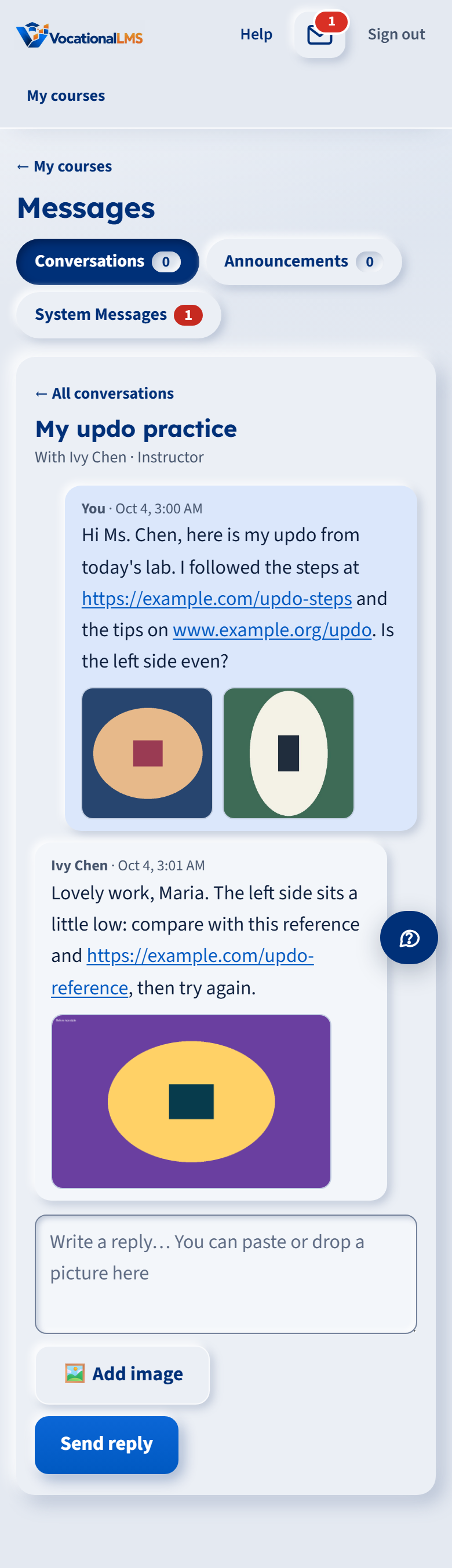
Type or paste a web address that starts with http://, https:// or www. and it becomes a link when the message is sent. Links open in a new tab. Only web addresses become links; anything else stays plain text. Links also work in announcements and system messages that students read.
Who can see a picture
- Exactly the people who can read the conversation: the student and the staff member, plus the school's School Admins and Directors and the Super Admin for student conversations. A picture in a staff-to-staff conversation is seen only by those two people (and the Super Admin).
- Other students, other schools, and instructors who are not in the conversation can't open it, even with its address.
- Email notices never include pictures or message text.
- A picture you added but never sent is removed after one day. When a student record is deleted, their conversations and the pictures in them are deleted too.
- The Excel download of a course's messages lists the picture file names in an Images column; the pictures themselves are not in the file.
Send an announcement
- Messages → Send announcement.
- Choose who gets it:
- Whole school: every active student of the school.
- Everyone in a course: every student enrolled in that course (not withdrawn).
- Chosen students: tick the students one by one. Select all shown ticks everyone in the filtered list.
- Write a title and the message.
- Tick Priority for things students must see. A priority announcement shows under Priority Messages and as a banner at the top of the student's home page until they read it.
- Tick Also email each student a short notice if you want an email to go out too.
- Click Send announcement.
Students who join the course or school later don't get announcements that were sent before they joined.
Who read it
Sent announcements lists every announcement with Read: 3 of 20 and a bar. Click Who read it to see each student, with a ✓ and the time they read it. Click a column heading to sort; type in the box to filter.
Archive hides an announcement from students (for example, once an event is over). Tick Show archived to see archived ones and Restore one. The person who sent it, School Admins, Directors and the Super Admin can archive.
For students
- Click the mail icon at the top of the page to see the newest messages.
- To write to your instructor: New conversation → subject and message → Send. Your instructor is already chosen in To and shown at the top ("Your instructor: Ivy Chen"). If you take more than one course, pick the Course first. You can still choose another instructor or an administrator of your school. If no instructor is assigned yet, the message goes to your school's administrator or director.
- To answer: open the conversation, type your reply and click Send reply.
- To send a picture (a photo of your work, a screenshot): click Add image under the message box, or paste or drop the picture on the box. See Pictures and links in a message.
- Announcements: click Mark as read when you have read one, or Mark all as read.
- System messages: click × to remove one from your list.
- Everything for students is in English and Spanish, following the lesson language they chose on their home page.
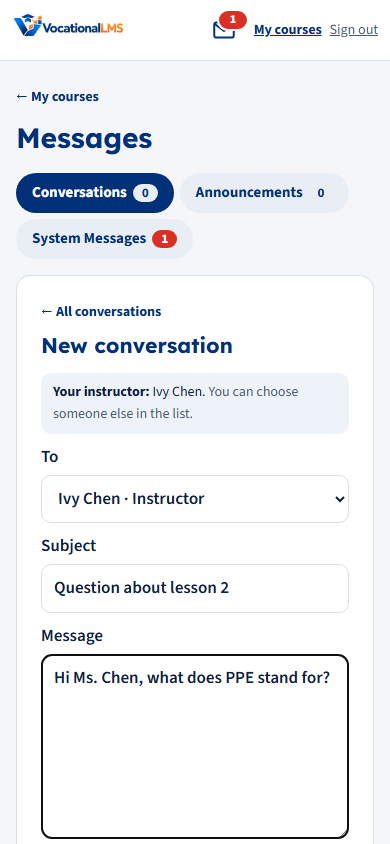
Who a student's instructor is comes from the course page: see Instructors for a class.
Privacy
- A student only ever sees their own conversations, announcements and system messages, never another student's.
- Staff only see their own school. Another school can't see or reply to your messages.
- Conversations between two staff members are private to those two (and the Super Admin).
- Emails only say "You have a new message in VocationalLMS" with a link to sign in. They never include the text of a conversation.
- If email isn't set up or fails, the message is still delivered inside VocationalLMS. See Email settings.
- To avoid a flood of emails during a back-and-forth, each person gets at most one email per conversation every 10 minutes.
Coming next
- More automatic system messages (enrollment, lesson completed, certificate issued).
Announcements to the whole school, or to chosen groups
On Messages > Send announcement, the Super Admin, School Admins and Directors choose which groups get an announcement: Students, Instructors, and School admins and directors, in any mix. Everyone ticks all three, which is the entire school.
- Whole school: every active person in the ticked groups. Everyone in a course: its students and, if you tick Instructors, the instructors who teach it.
- The Super Admin first chooses the school at the top right of the Messages page.
- Staff read announcements under Messages > Announcements for me; the number of unread ones shows on the tab and on the Messages link. Students read them under their mail icon, as before.
- Sent announcements shows how many people read each one; opening one lists each person with their role.
- Instructors can send announcements to students only.
Writing help: Fix grammar and Write it for me (everyone)
Under every message box (new message, reply, announcement; students and staff) there are two buttons.
- ✨ Fix grammar corrects the spelling, grammar and punctuation of your subject and your message. Your meaning, names, numbers and dates stay the same, and Spanish stays Spanish.
- ✨ Write it for me: type the topic and, if you like, a few words about what you want to say. AI drafts a short message, 5 lines at most, and fills in the subject if it is empty. It never makes up dates or amounts; it leaves a blank such as [date] for you to fill in.
- The subject line has its own two buttons under it: ✨ Fix grammar corrects only the subject, and ✨ Write the subject for me writes a short subject from your message (write the message first).
- The result is put in the boxes for you to read and change. ↶ Undo puts your own words back. Nothing is sent until you press Send.
- It uses the same AI service as the Help assistant and counts toward your school's monthly AI limit. Each person can use it 30 times an hour.
Download a course's messages (School Admin)
For your records, a School Admin can download every conversation between a course's students and your staff as an Excel file.
- Open Messages. At the top of the list, open ⬇ Download messages by course.
- Choose the course. To limit the dates, fill in From and To; leave them empty for everything.
- Click ⬇ Download Excel file.
- The Messages sheet has one row for each message: date, time (US Eastern), subject, the student with their Student ID and email, the staff member and their role, who sent it, the text, and the names of any pictures sent with it (Images).
- The Conversations sheet lists each conversation with its first and last message and how many came from the student and from staff. About this file says which course, the dates, who downloaded it and when.
- Students who left the course are included (marked withdrawn). Announcements, system notices and staff-to-staff conversations are not in the file.
- Instructors and Directors can't download; the Super Admin can, for any school.