
S-10For students
Read your messages and announcements
The mail icon, the three kinds of messages, and marking announcements as read.
How-to video S-10 · 1:02
Read the words of this video
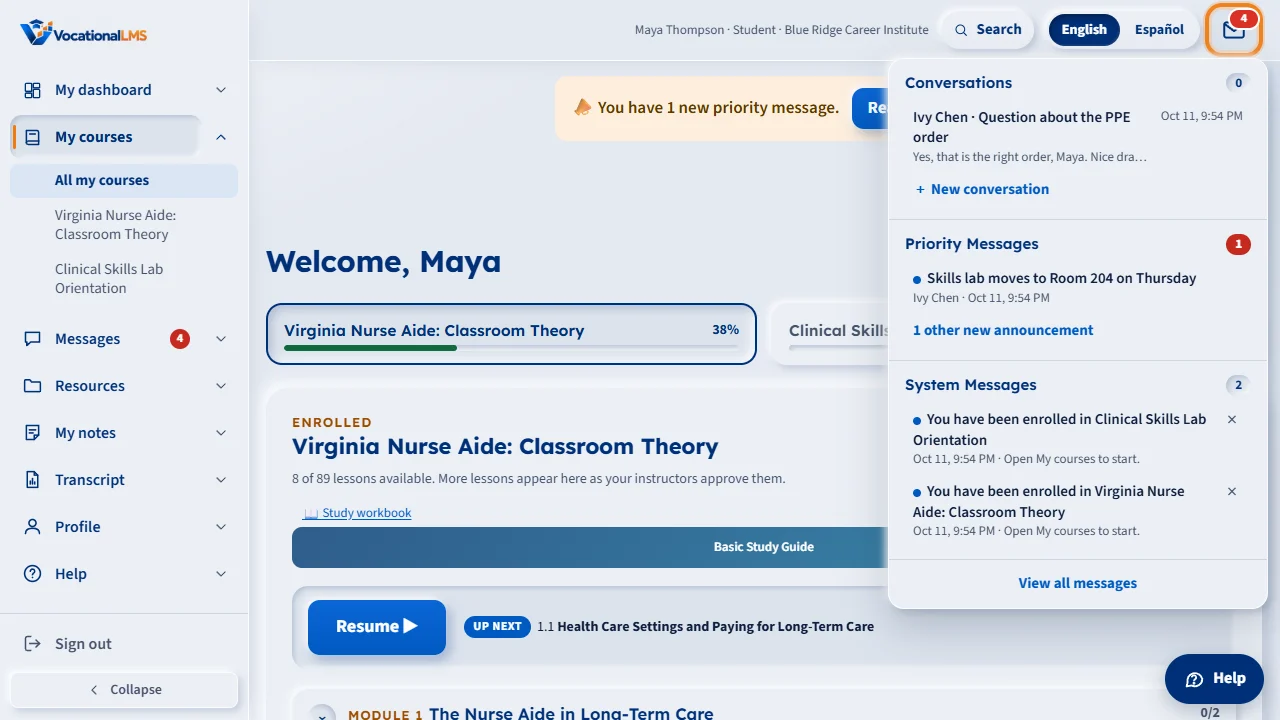
The mail icon at the top of the page shows a red number when you have something new. Click it to see your newest conversations, priority announcements and system messages.
View all messages opens the Messages page, with three tabs. Conversations are private messages between you and your school's staff. A blue dot marks a conversation with something new. Click it to read it and to reply.
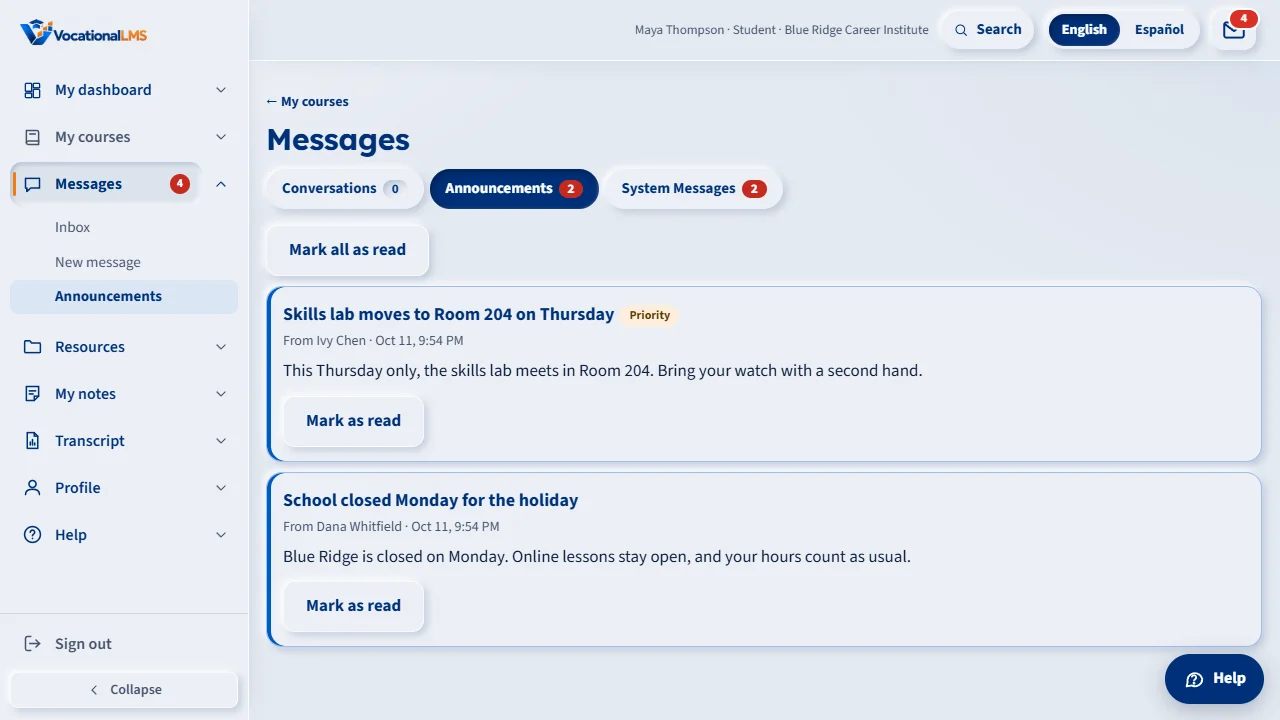
Announcements come from your instructor or your school, to a whole course or the whole school. Read one, then click Mark as read, or Mark all as read. A priority announcement also shows as a banner on My courses until you read it.
System messages are automatic notices, such as You have been enrolled in a course. Click the X to remove one from your list. If you get an email about a new message, it never includes the message itself, so sign in to read it.
Open this in VocationalLMSMessages > Inbox
What it is for
The mail icon at the top of the page is where your school reaches you. The red number is how many things you have not read.
Steps
- Click the mail icon. A panel opens with your newest conversations, priority announcements and system messages.
- Click View all messages to open the full Messages page. Messages in the menu on the left opens it too, with the same red number beside it.
- On the Conversations tab, click a conversation to read it.
- On the Announcements tab, read each one and click Mark as read, or Mark all as read.
- On the System Messages tab you see automatic notices, such as “You have been enrolled in…”. Click × to remove one.
What happens next
The red number goes down as you read. A priority announcement also shows as a banner on My courses until you read it.
Common problems
| # | Problem | What to do |
|---|---|---|
| 1 | You do not see an announcement a classmate got. | Announcements go to the people who were in the course or school when it was sent. Ask your instructor. |
| 2 | You get an email that says “You have a new message”. | Emails never include the message itself. Sign in and click the mail icon. |