
I-08For instructors
Message a student or a coworker, with pictures and links
Start a private conversation, reply, add pictures, and know who can read it.
How-to video I-08 · 1:06
Read the words of this video
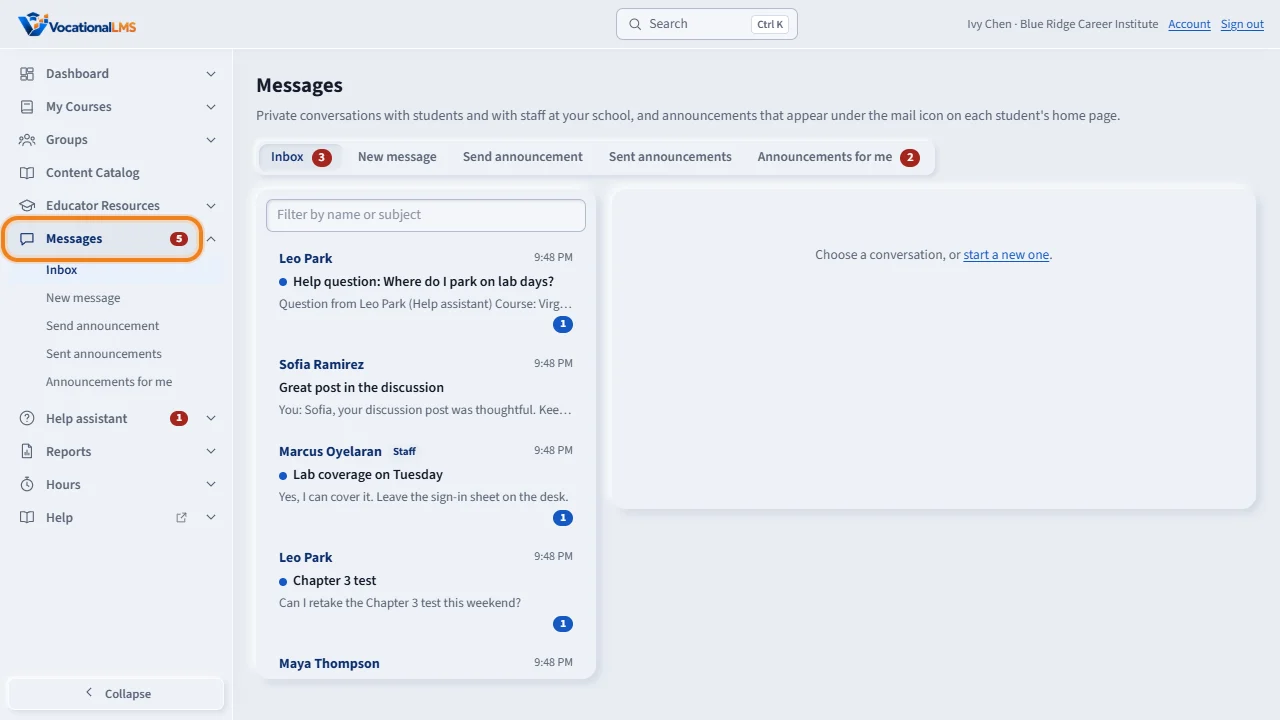
Click Messages in the menu on the left. The Inbox lists your conversations with students and with other staff. A blue dot and a number mark the ones you have not read.
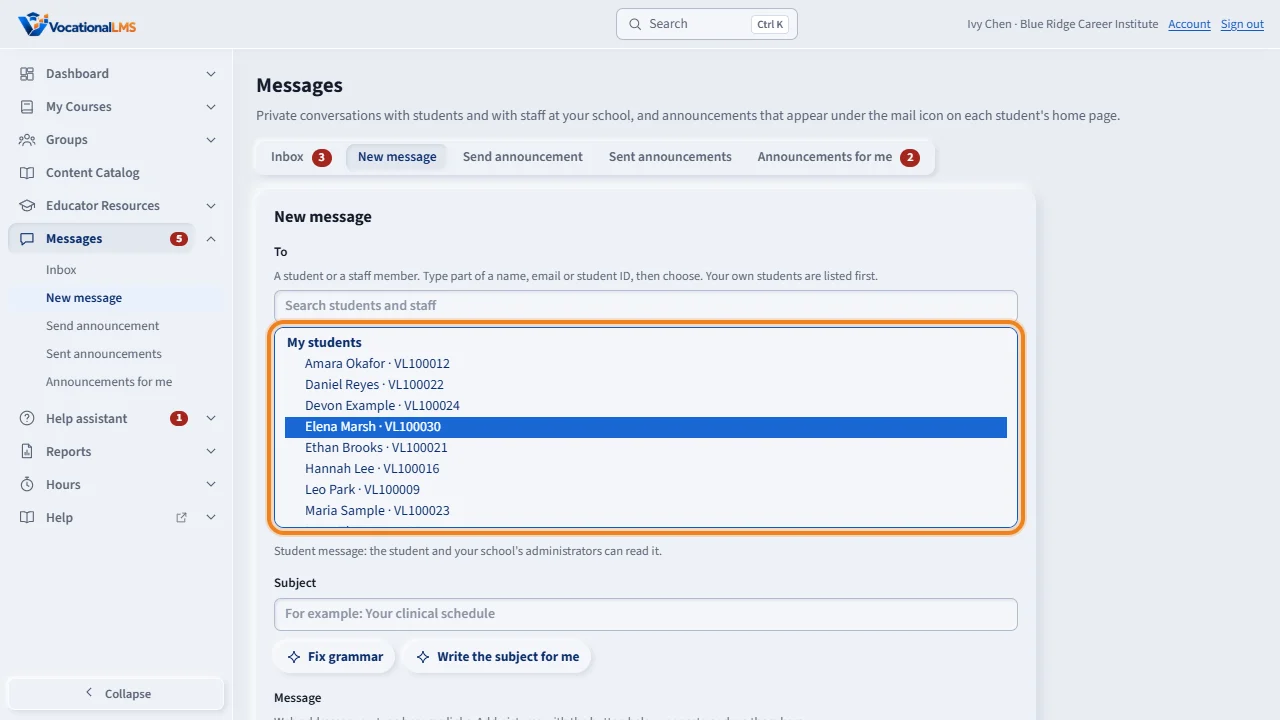
To start one, click New message. In To, type part of a name, email or Student ID. Your own students are listed first, then the staff at your school. You see only the students of the programs you teach.
Type a subject and your message. Click Add image to attach up to five pictures, or paste a picture into the box. A web address becomes a link. Then click Send message.
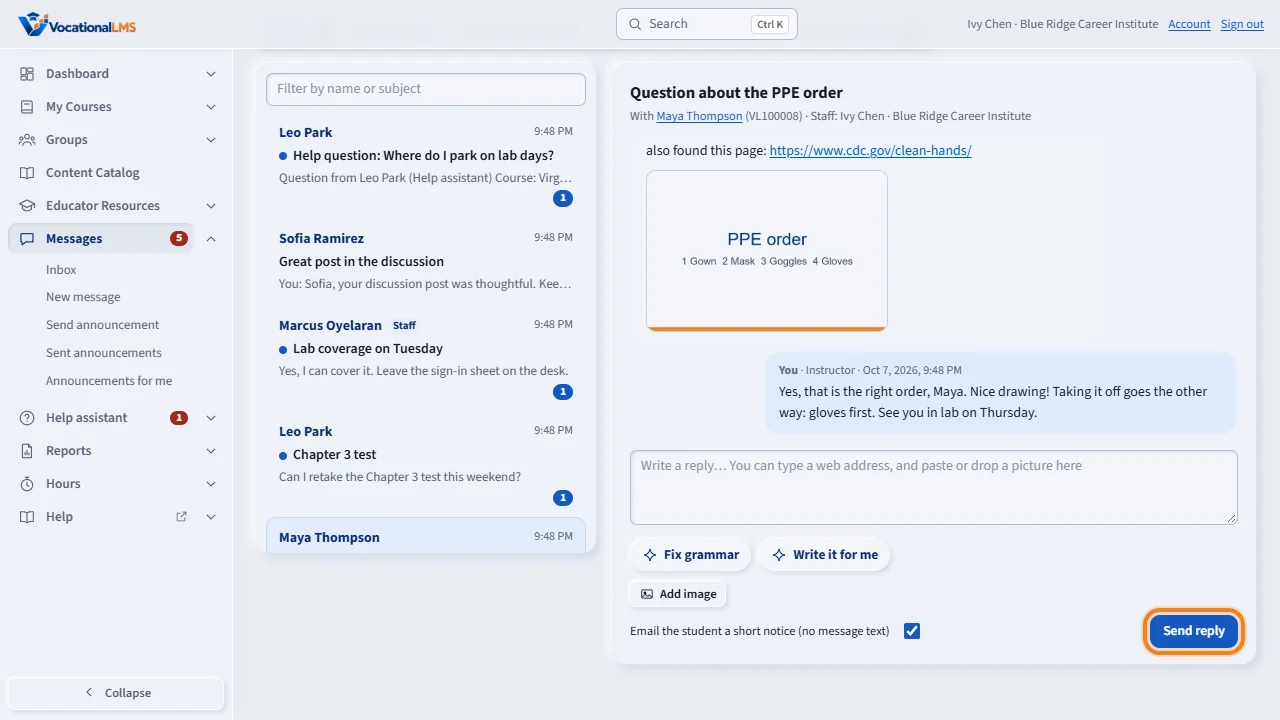
Open a conversation to read it. Click a picture to see it full size. Type in the reply box and click Send reply. The student, you, and your school's administrators can read a student's conversation.
A conversation with another staff member has a Staff tag. It is private to the two of you, and students never see it.
Open this in VocationalLMSMessages > Inbox
What it is for
Messages is where you talk privately with one student or one staff member of your school. Students' new messages come to the instructor of their class, so check it every day.
Steps
Write a new message
- Click Messages, then New message.
- In To, type part of a name, email or Student ID and pick the person. My students are listed first, then Staff at my school.
- Type a subject and the message. To add pictures click Add image (up to 5; PNG, JPG, GIF or WebP; 8 MB each), or paste or drop a picture on the box.
- Leave Also email them a short notice ticked if you want them to get an email, and click Send message.
Reply
- In the Inbox, click a conversation. A blue dot and a number mark unread ones.
- Type in the reply box and click Send reply.
What happens next
A student's conversation can be read by the student, by you, and by your school's School Admins and Directors. A conversation between two staff members has a Staff tag and is private to the two of you. Web addresses become links. Emails never contain the message text.
Common problems
| # | Problem | What to do |
|---|---|---|
| 1 | A student is not in the To list. | You see only the students of your programs (I-02). |
| 2 | A file is refused. | Only pictures can be attached to a message. |
| 3 | A question from the Help assistant appears in your inbox. | The assistant could not answer it and sent it to you. Reply here or on the Help assistant page (I-11). |