
V-21For the VocationalLMS Super Admin
Messages and announcements for any school
Choose a school, then write to its staff or students, send announcements and download messages.
How-to video V-21 · 0:50
Read the words of this video
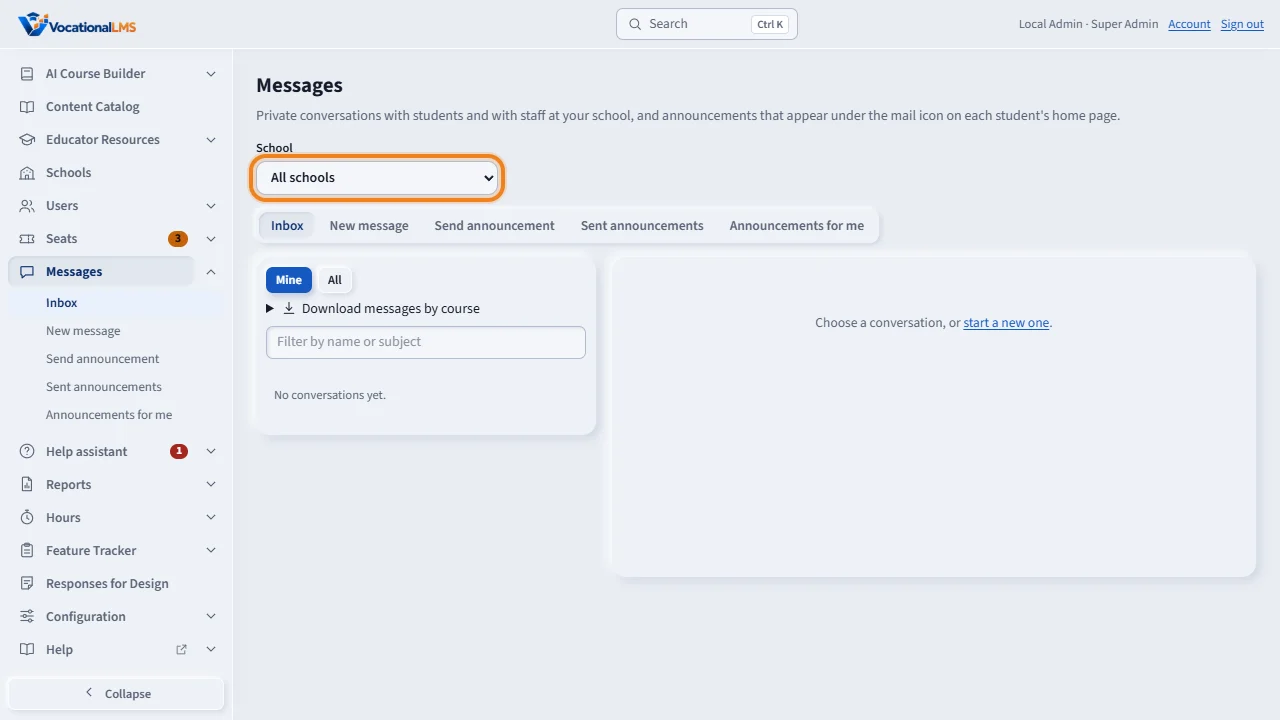
As Super Admin, you can use Messages for any school. Click Messages, and choose the school at the top right. The inbox then shows that school's conversations.
New message starts a private conversation with a staff member or a student of that school, and they can reply. This is the way to answer a School Admin's question inside VocationalLMS.
Send announcement goes to the school you chose. Tick the groups: Students, Instructors, and School admins and directors. Staff read it under Announcements for me, and students under their mail icon.
Download messages by course gives the Excel file of a course's conversations between students and staff at that school, the same file a School Admin can download.
Open this in VocationalLMSMessages > Inbox
What it is for
As Super Admin you can use Messages for any school: write to a staff member or a student, send an announcement to its groups, and download a course's messages as Excel.
Steps
- Click Messages and choose the school at the top right.
- New message: pick a staff member or a student of that school. They can reply.
- Send announcement: choose Whole school or a course, tick the groups (Students, Instructors, School admins and directors), write it and send.
- Download messages by course gives the Excel file for a course at that school.
What happens next
You can read conversations between two staff members of a school; other administrators of that school cannot. Announcements you send appear to staff under Announcements for me and to students under their mail icon.
Common problems
| # | Problem | What to do |
|---|---|---|
| 1 | “Choose a school first.” | Pick the school at the top right; announcements always belong to one school. |