
A-76For School Admins and Directors
A student's page: Info, Enrolled, Groups, Login history, Portfolio and tags
Everything about one student, tab by tab: the basics and contact details, every program with its time spent, the groups, every session with the lessons watched, the student's own work, your school's tags, and the account actions.
How-to video A-76 · 1:08
Read the words of this video
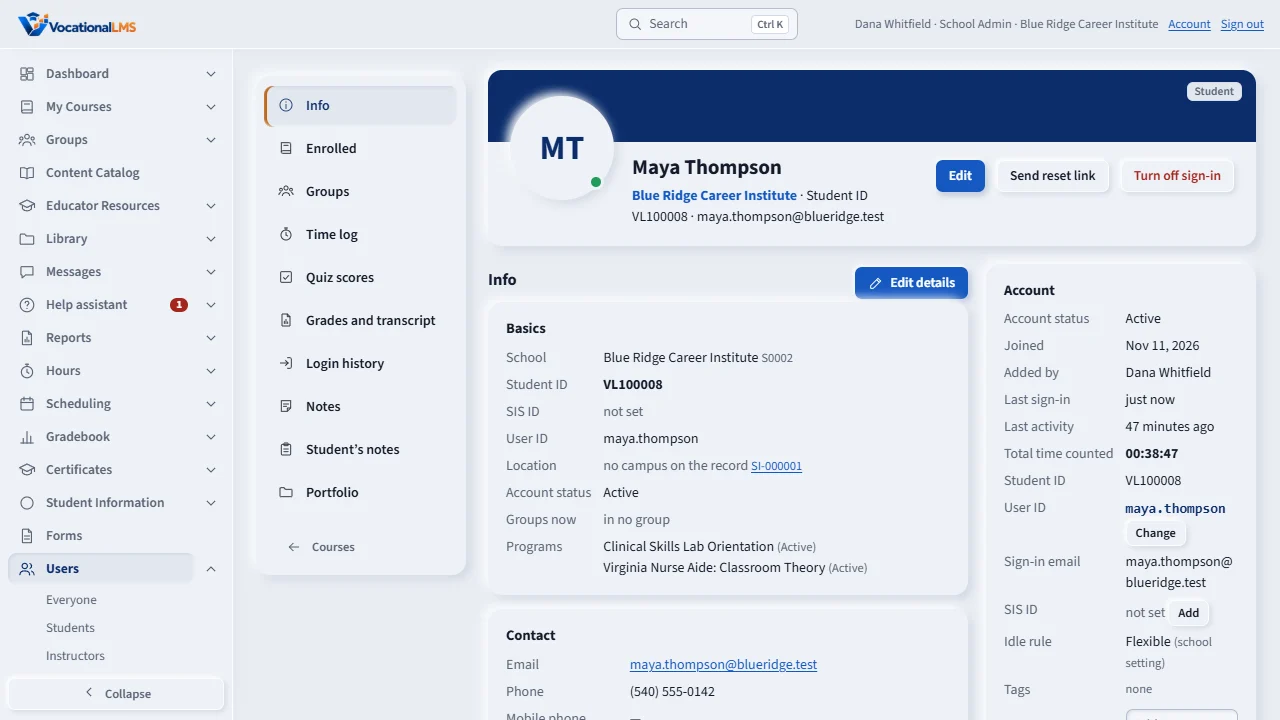
Each student has one page with tabs on the left. Info shows the basics, the contact details, and how many times the student signed in, when last and from which IP address.
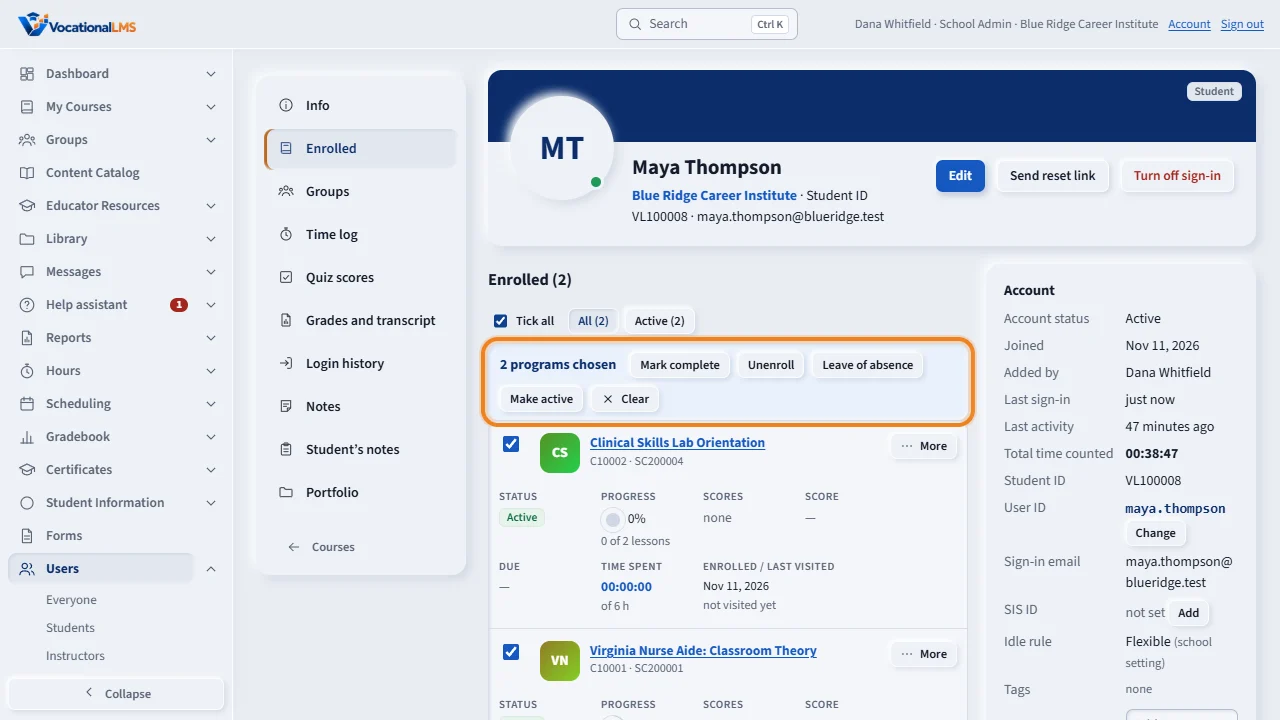
Enrolled lists every program with its status, progress, scores, due date and time spent. Tick programs to mark them complete, unenroll the student, or start a leave of absence, all at once.
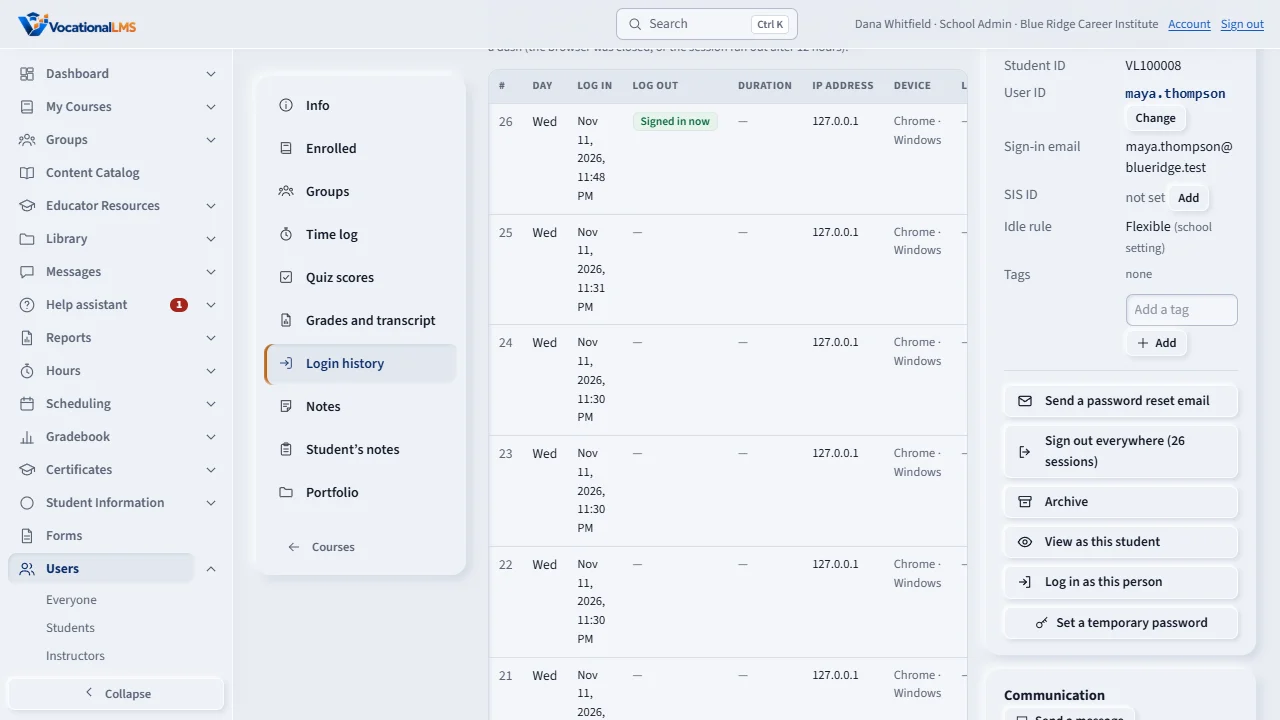
Login history has one line per session: the day, the sign-in and sign-out, how long it lasted, the IP address and the lessons the student watched. Failed attempts are one click away.
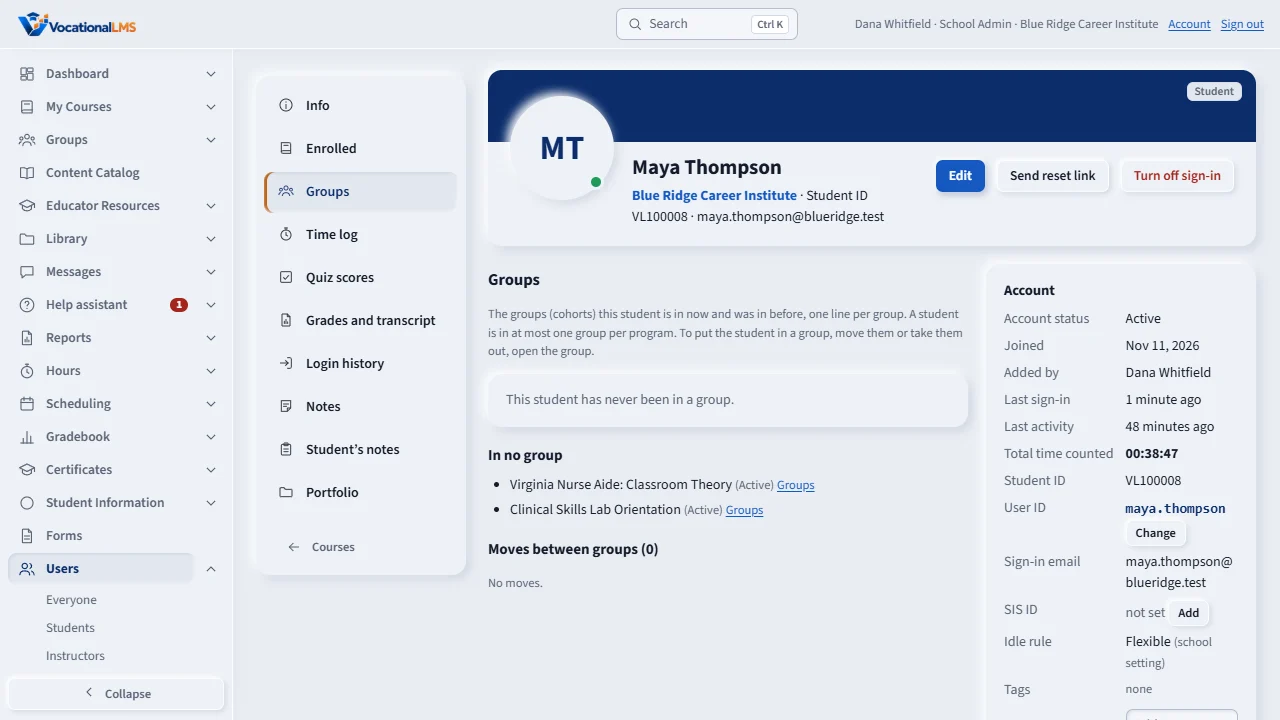
Groups shows the groups the student is in now and was in before, and every move between them. Portfolio shows the student's own documents and links.
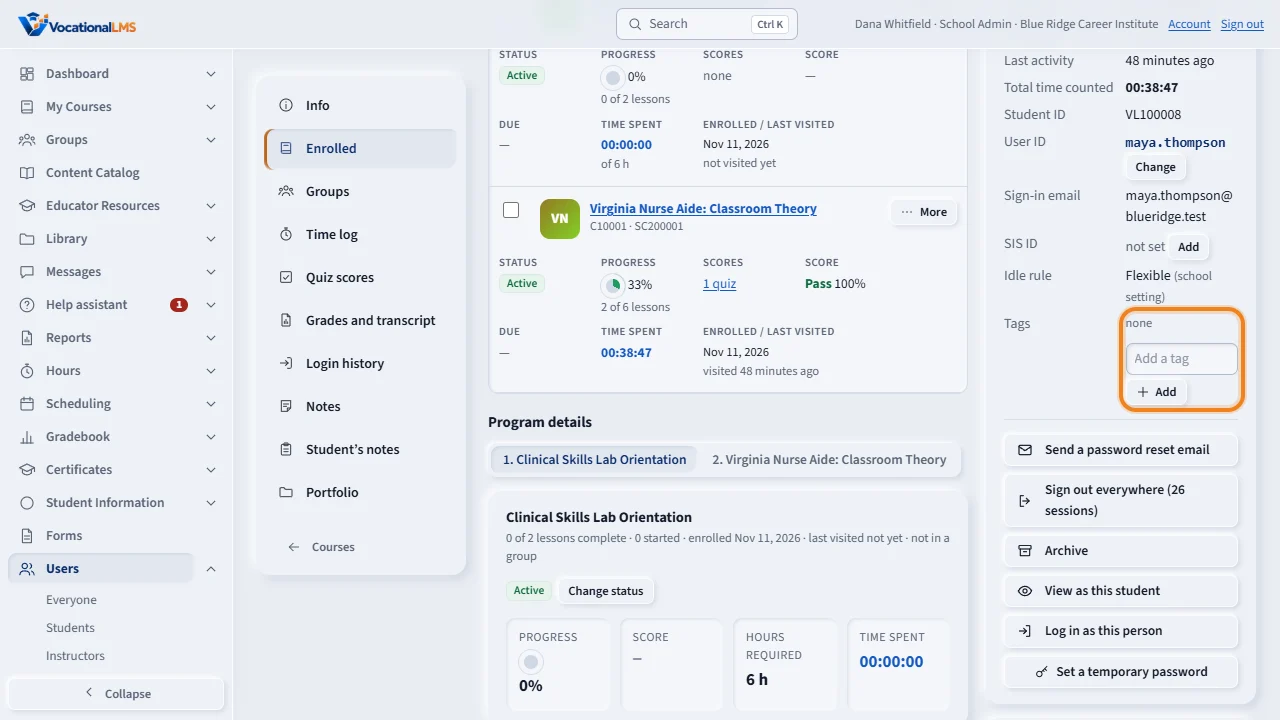
In the Account panel, add your school's tags, such as Evening class. Below them are the actions: send a reset link, sign out everywhere, archive, view as the student and log in as the student.
Open this in VocationalLMSUsers > a student > Info
Who can do this: The School Admin uses every tab and every button. Instructors read the tabs for their own students, without tags and without the account actions.
What it is for
Each student has one page with tabs on the left. Info shows the basics (school, Student ID, SIS ID, User ID, the campus from Student Information, groups and programs), the contact details, and a one-line summary: how many times the student signed in, when last, and from which IP address. Enrolled lists every program with its Course ID, status, progress, scores, due date (the end of the student's group), the time spent and when the student enrolled and last visited. Groups shows the groups the student is in now and was in before, and every move. Login history has one line per session: the day, the sign-in and sign-out, how long it lasted, the IP address, the device and the lessons the student watched in it. Portfolio is the student's own documents, links and folders. The Account panel on the right has the account facts, your tags and the actions.
Steps
Info
- Open Users and click the student's name, or click it in a course's Students list. Click Info in the left menu.
- Edit details opens the name and contact details in place; click Save. The header's Edit button opens the same form.
Enrolled: several programs at once
- Click Enrolled. The buttons above the list show only the programs of one status: Pending means registered and waiting to start.
- Tick one or more programs, or Tick all. The bar offers Mark complete, Unenroll (Withdrawn or Canceled), Leave of absence and Make active.
- Choose the reason (and for a leave the return date), then click Change. Each program gets its own line in its status history, exactly as with Change status. The result says what was done for each program.
- More on a program opens its lessons and status history, Change status, its time log, quiz scores, the program and the group. To enroll the student in another program, choose it at the top and click Enroll.
Login history
- Click Login history. Choose the last 30 days, 90 days or 12 months.
- A session with no sign-out shows a dash: the browser was closed or the session ran out. Signed in now means the session is still open.
- Click the lesson name to open the lesson, or the button 2 lessons to list them all with the time counted in each.
- Failed attempts lists the sign-ins that did not work, with the reason. Staff and account lines lists Log in as, View as and account changes. Every line is the history exactly as it was recorded.
Tags and the Account panel
- Type a tag under Tags (for example Evening class) and click Add. Your school's tags are offered as you type. Click × to take one off.
- The panel also shows Joined, Added by, Last activity, the Student ID, the User ID and the sign-in email, and the buttons Send a password reset email, Sign out everywhere, Archive, View as this student, Log in as this person and Set a temporary password. Communication has Send a message.
What happens next
Every button calls the same action as everywhere else in VocationalLMS: a program status change is the one of Change status, Sign out everywhere is the one on the person's page, and Archive keeps every record. Nothing reloads the page.
Common problems
| # | Problem | What to do |
|---|---|---|
| 1 | There is no Mark complete or Unenroll bar. | Only the School Admin and the Directors change a program status. An instructor uses Ask to change status under More. |
| 2 | A session shows a dash for Log out. | The student closed the browser or the session ran out after 12 hours. Only clicking Sign out records a sign-out. |
| 3 | Sign out everywhere is gray. | Nobody is signed in as this student right now, so there is nothing to end. |
| 4 | Location is empty. | The campus comes from your school's Student Information record of the student. Add the student there (with the same email) or fill in the campus. |
| 5 | Tags are not shown to an instructor. | Tags are your school's own labels, for the School Admin and the Directors only. |
See also
- I-03 A student's profile: progress, scores, time log and sign-ins
- I-27 When did a student study? Sessions and the lessons watched
- A-16 A student's record: edit details, enroll, and reset access
- A-42 Change a student's program status
- A-62 A person's page
- A-65 View as a student, and sign in as a person
- Student profile and seat time (full guide)