
A-77For School Admins and Directors
Face check while students watch videos: the switch, the legal warning, setting it up and accommodations
Off for every school. VocationalLMS has not confirmed it complies with any law; your school must get its own legal review first. How it works, what students see, and how to give an accommodation.
How-to video A-77 · 1:12
Read the words of this video
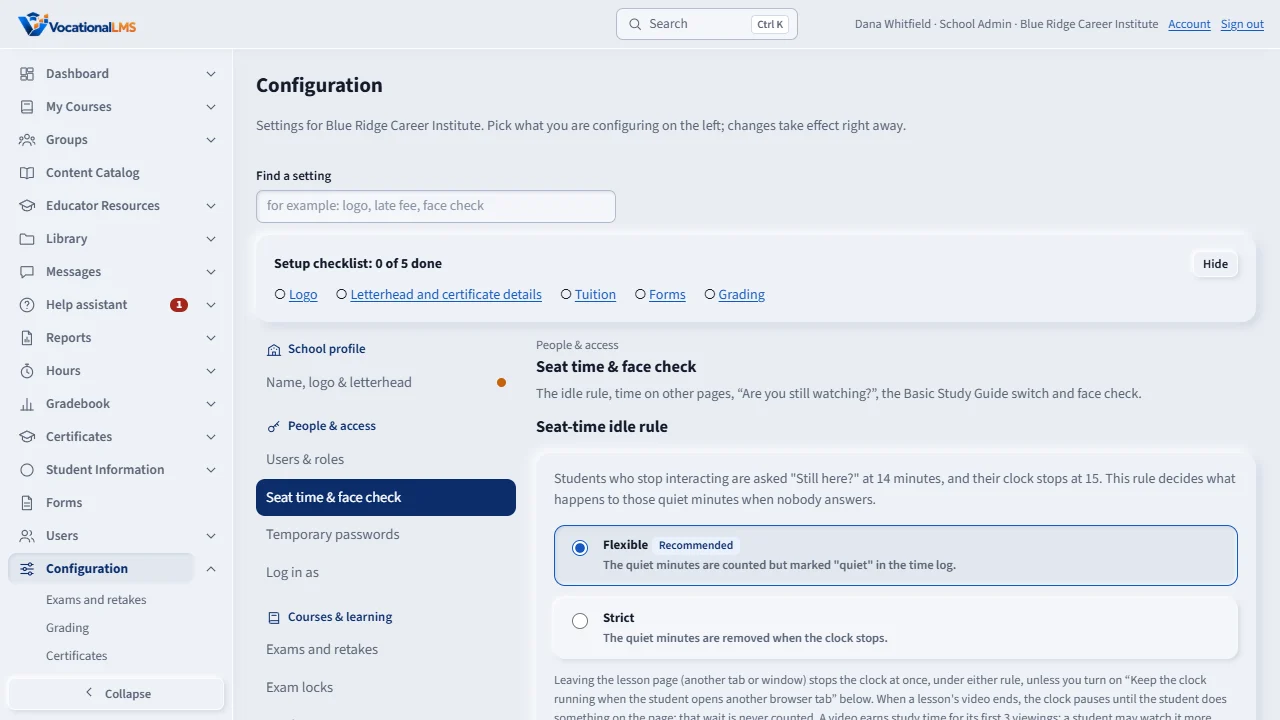
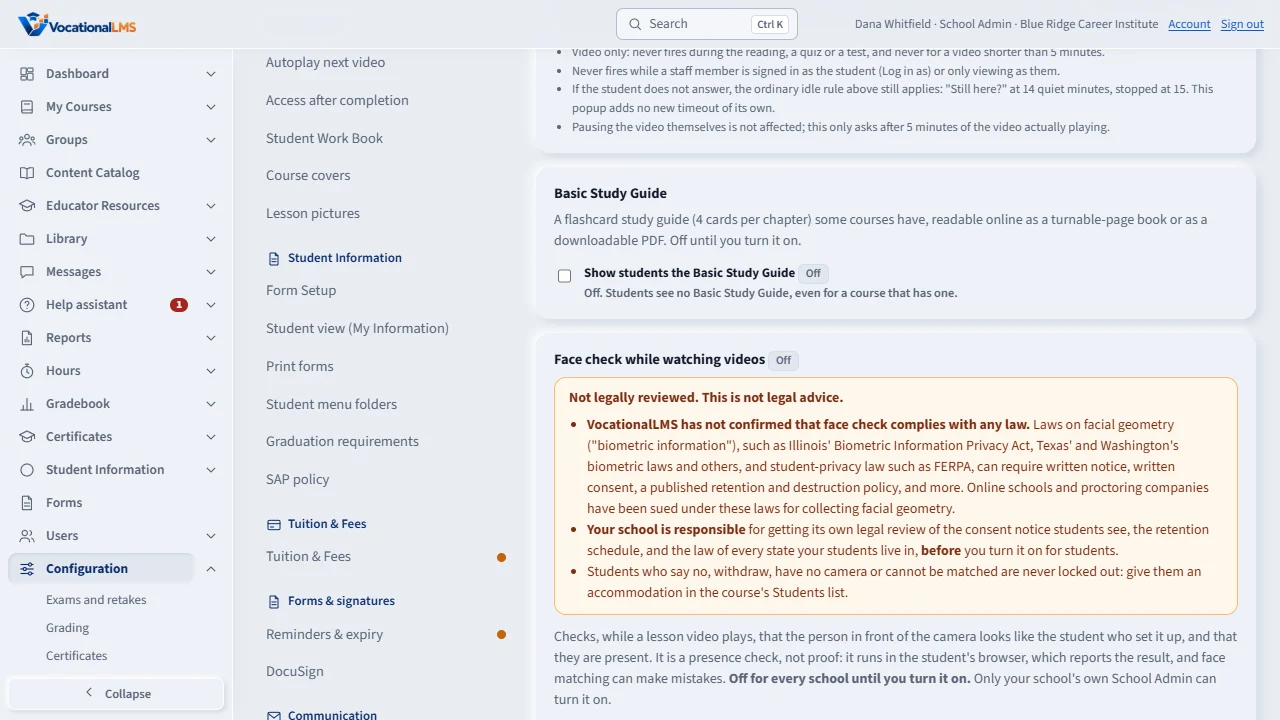
Face check is off for every school until you turn it on. Read the orange warning first. VocationalLMS has not confirmed that face check follows any law, so ask your own lawyer before you use it.
Under Seat-time idle rule, choose the minutes of video between checks, tick the box that says you understand, and click Turn on face check. The label changes to On, with your name and the time.
Once it is on, students cannot open any course content until their face is confirmed in that sign-in. The Students list shows a Face check column, and Set up lets you register a student who is sitting with you.
For a student who cannot use the camera, click Accommodation on their row, choose the reason and give it. That student opens content with no check. End accommodation puts the gate back at once.
Seconds that were not covered by a match show in the Time log as Not counted, face check. That is your record of what was and was not counted.
Open this in VocationalLMSDashboard > Seat-time idle rule > Face check while watching videos
Who can do this: Only the School Admin turns it on or off. A School Admin or Director sets it up with a student present. A School Admin, Director or the student's instructor gives an accommodation.
What it is for
Face check confirms, while a lesson video plays, that the person in front of the camera is the enrolled student. It is off for every school until a School Admin turns it on. Read this first: VocationalLMS has not confirmed that face check complies with any law, and nothing in VocationalLMS is legal advice. Laws on facial geometry ("biometric information"), such as Illinois' Biometric Information Privacy Act and the biometric laws of Texas, Washington and other states, and student-privacy law such as FERPA, can require written notice, written consent, a published retention and destruction policy, and more. Online schools and proctoring companies have been sued under these laws for collecting facial geometry. Your school is responsible for its own legal review of the notice students see, the retention schedule and the law of every state your students live in, before you turn it on for students.
Steps
Turn it on (only after your own legal review)
- Open Dashboard and click Seat-time idle rule. Scroll to Face check while watching videos. It says Off.
- Read the orange warning. It says VocationalLMS has not confirmed face check complies with any law, and that your school is responsible.
- Choose the Minutes of video between checks (2 to 30; 5 to start) and click Save.
- Tick the box I understand that VocationalLMS has NOT confirmed.... Turn on face check stays grey until you tick it.
- Click Turn on face check. The label changes to On, with your name and the time. Nothing reloads.
Set it up for a student who is with you
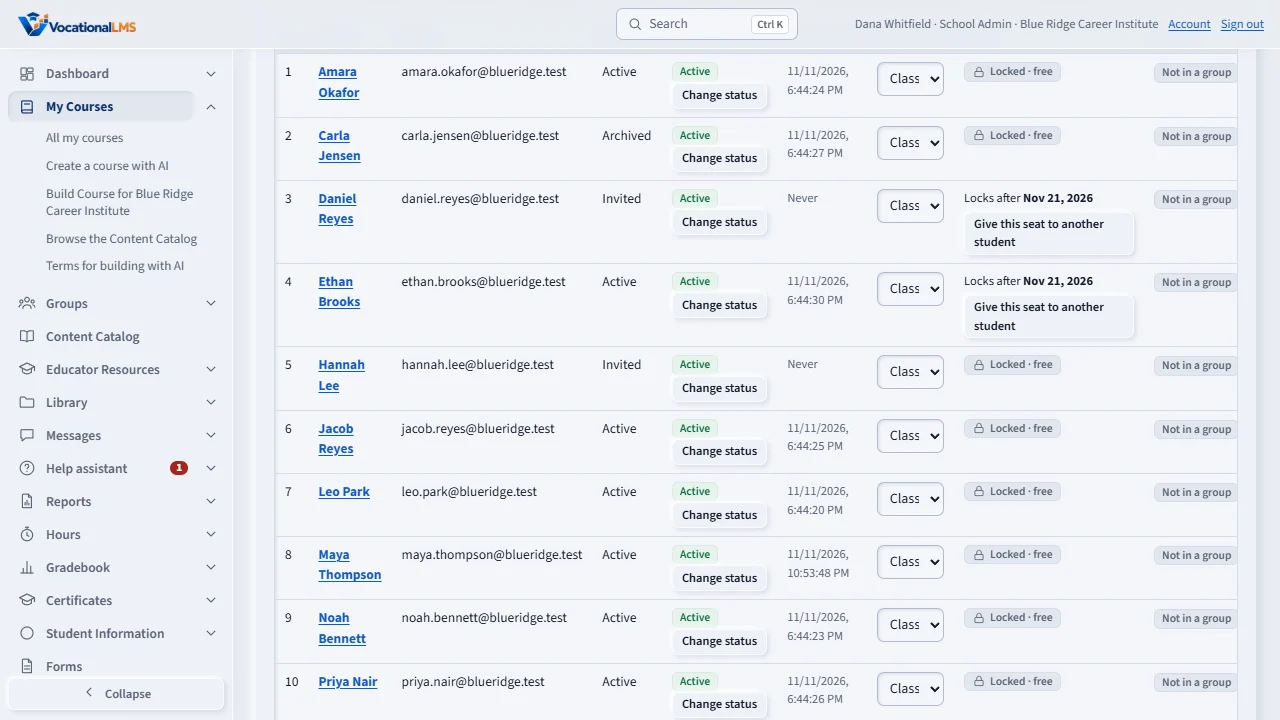
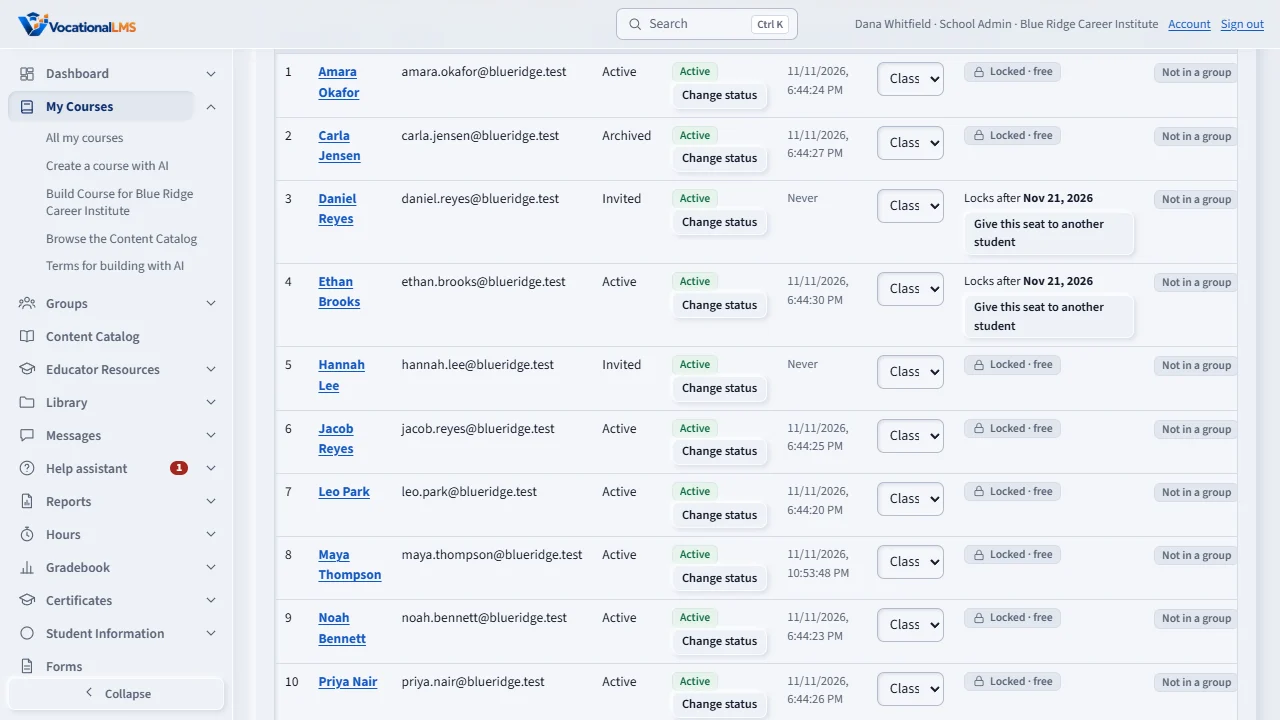
- Open the course and its Students list. The Face check column shows where each student stands.
- Click Set up (student present) on the student's row. Turn the screen to the student: they read the notice and tick I, (name), have read this notice and I agree themselves.
- Tick I confirm the student is here in person and click Record the student's consent.
- Click Turn on the camera (this device's camera). The box draws the points measured on the student's face. Follow the hints (closer, more light, look straight).
- When the hint says Good, click Save face template. Only 128 numbers are saved; no picture is kept.
Give an accommodation
- On the student's row click Accommodation.
- Choose the reason: no camera, medical, religious, technical, the student said no, or other. Add a note if staff need one (it is stored encrypted, and only the School Admin can read it).
- Click Give accommodation. The face check never runs for that student in that program and never pauses their clock. Your name and the time are kept. End accommodation undoes it.
What happens next
Students are asked for their consent the next time they open a lesson video. Nothing turns a camera on before a student agrees, and nothing runs for a student who says no or has an accommodation. Every few minutes of real video playing time (your setting) the student's browser checks the face and sends only the result. If it does not confirm the student, their study clock pauses until a check does. Turning face check off deletes every face template of your school at once. Consent records and check results are kept.
What reaches the server, and what never does
- The camera's picture never leaves the student's browser. No video and no picture is recorded, stored or sent, at any time.
- At set-up, the browser turns the face into a face template: 128 numbers that describe its shape. Only those numbers are sent, once, and stored encrypted with your school's own key.
- The box on the student's page is green when the face matches, amber when no face is in view, and red when a face is there but could not be confirmed as the student. Two red results in a row stop the clock at once; a match restarts it. Red is never an accusation: the student is told to make their face clearly visible, and you see No match and a count of no-match results in red in the Face check column, for you to review (lighting and camera angle cause false mismatches).
- During a lesson, only the result of each check is sent: match, no match, no face found or skipped (camera off or not working), with the time.
- The face template is sent back only to the student's own browser, to compare there. Staff never see it.
How long a face template is kept
- Deleted at once when the student withdraws consent, when you reset it, when you turn face check off, or when the student is deleted.
- Deleted 30 days after the student has no open program (pending, active or on leave) if it was not used; and in any case after one year without use.
- This schedule is VocationalLMS's starting point, not a legally reviewed retention policy. Your legal review may require a different one.
What it cannot do
- It has not been tested with real students' faces at scale. Face matching can make mistakes, and can make more of them for some people than others (lighting, camera quality, skin tone, glasses, age). A student who is not matched is never failed or locked out: only the clock pauses, and an accommodation ends the problem.
- The check runs in the student's browser, so a determined, technical person could interfere with it. It is a presence check, not proof.
- Phones work less well than computers: a phone's front camera, battery and screen size make the check slower and the box smaller.
Common problems
| # | Problem | What to do |
|---|---|---|
| 1 | A student says no, or withdraws. | Nothing runs for them and their clock is never paused. The Face check column says Needs accommodation: give them one, and confirm their attendance another way. |
| 2 | A student is never matched. | Ask them to face a lamp or a window and look at the camera. If it still fails, click Details and Reset face template, set it up again with them present, or give an accommodation (technical). |
| 3 | Turn on face check stays grey. | Tick the acknowledgment box above it first. |
| 4 | The time log shows "Not counted · face check did not confirm the student". | A check did not confirm the student (no match, no face, or the camera was off). That time is not counted; counting starts again when a check confirms them. |