
A-16For School Admins and Directors
A student's record: edit details, enroll, and reset access
What a School Admin can change on a student's profile, on top of what instructors see.
How-to video A-16 · 1:00
Read the words of this video
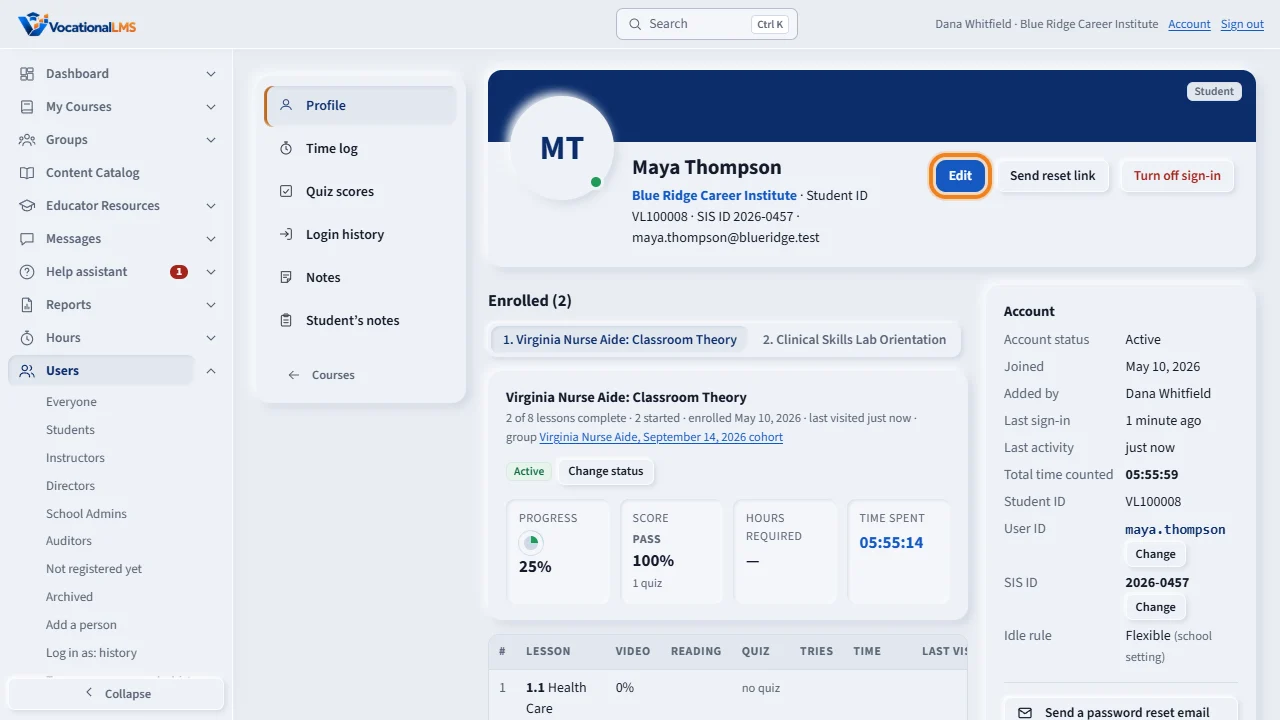
A School Admin sees everything an instructor sees on a student's profile, and can change more. Open a course and click the student's name. Edit opens the contact details: names, phone, date of birth, address and emergency contact.
Send reset link lets the student choose a new password. Turn off sign-in blocks access at once, and nothing is deleted.
Under Enrolled, there is a tab for each course, with progress, score, hours required and time spent. You can change the enrollment status, or pick another course and click Enroll.
The left menu opens the time log, with the IP address and device of every stretch of time, the quiz scores, the login history and the notes. These are records kept by the server, and they cannot be edited. A Director can read all of it, but cannot edit or enroll.
Open this in VocationalLMSUsers > a student
What it is for
The student profile shows progress, scores, the time log, quiz attempts, sign-ins and notes (see I-03 and I-04). A School Admin can also edit the student's details, enroll them in another course, change their instructor and control their sign-in.
Steps
- Open a course and click the student's name, or click their name on Users.
- Edit opens the contact details: legal and preferred name, phone, date of birth, address, emergency contact. Save when done.
- Send reset link (or Resend invitation) lets the student choose a password. Turn off sign-in blocks access at once.
- Under Enrolled, change the enrollment status of the open course, or pick another course and click Enroll.
- Under Instructors, choose the student's instructor for each course.
What happens next
Everything else on the profile is a record kept by the server and cannot be edited: time log, quiz attempts and sign-ins. Notes are permanent.
Common problems
| # | Problem | What to do |
|---|---|---|
| 1 | The time log shows “quiet” minutes. | See the idle rule (A-17). |
| 2 | You need the record for an auditor. | Open each part of the left menu and print the page from your browser. |