
A-42For School Admins and Directors
Change a student's program status
Pending, Active, Leave of absence, Completed, Withdrawn, Canceled, Dismissed or Transferred, with a date, a reason and a history. A change can be dated in the future.
How-to video A-42 · 1:53
Read the words of this video
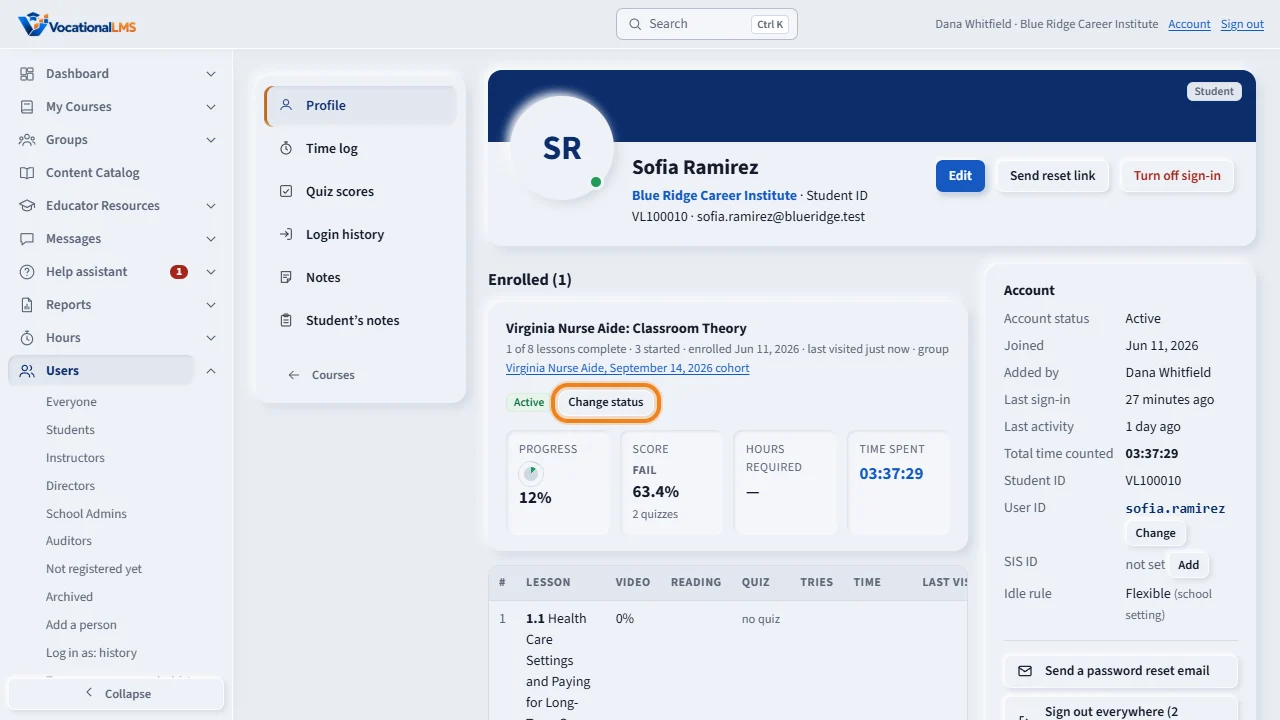
A student's program status says where they stand in one program. It is separate from the account status, which says whether the person can sign in. Open the student's record. The program shows its status, here Active. Click Change status.
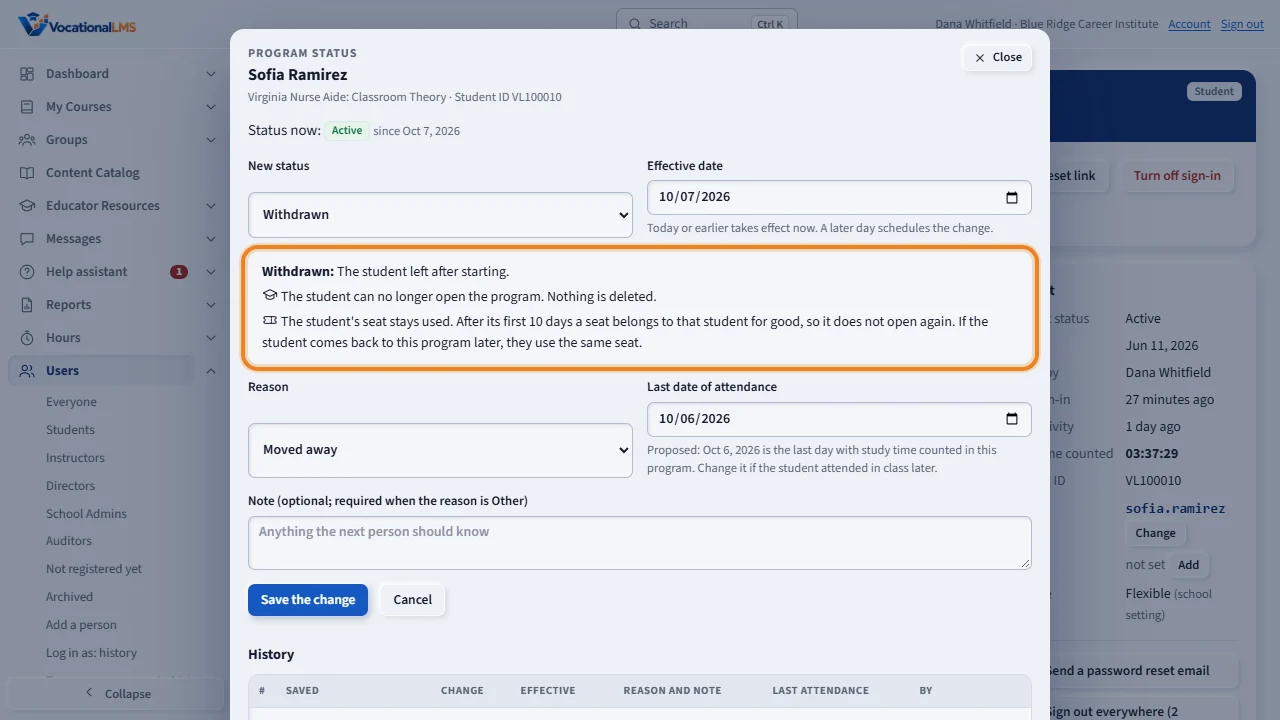
Choose the new status, for example Withdrawn. The box under it says what the student will be able to open and what happens to the seat. Set the effective date and choose a reason.
For a student who leaves, check the last date of attendance. The page proposes the last day with study time. Change it if the student attended in class after that day. Then click Save the change.
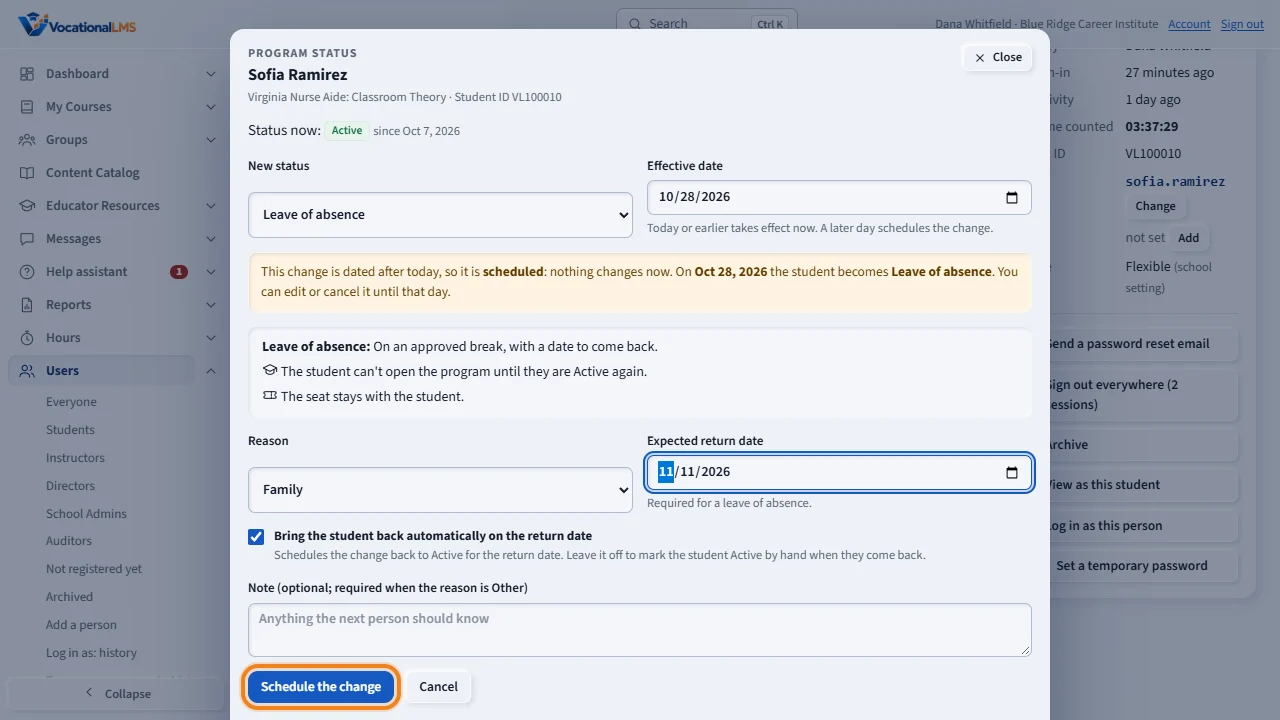
A change can be dated in the future. Choose a later effective date, and the form says the change is scheduled. Nothing changes now. For a leave of absence, set the expected return date. The box under it brings the student back automatically on that date. Click Schedule the change.
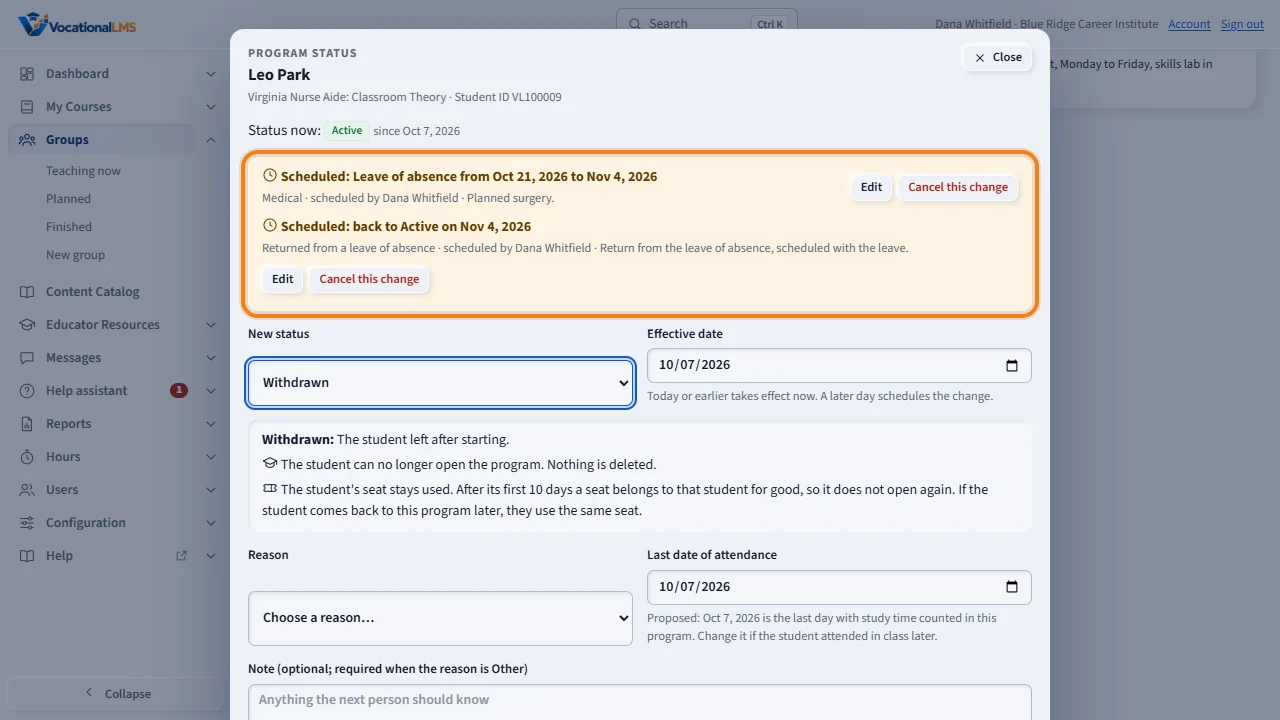
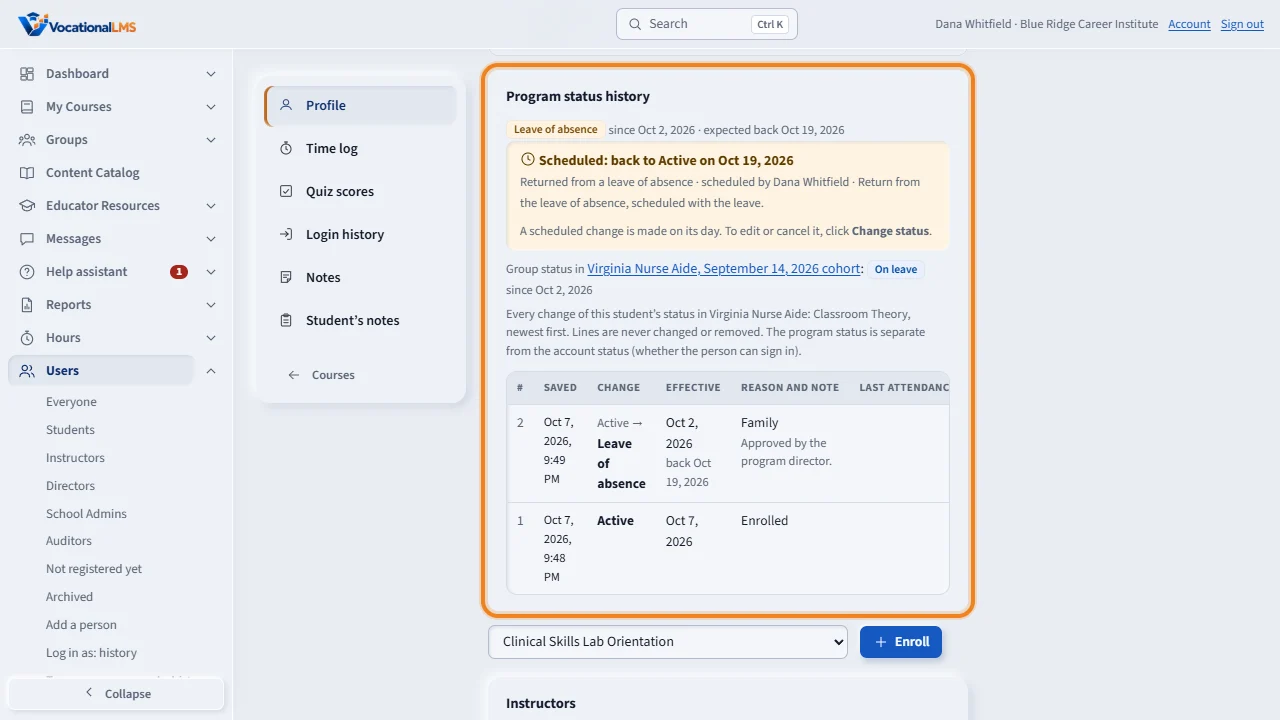
A scheduled change shows on the student's record and on the group's Students tab. To change or stop it before its day, click Change status. At the top, click Edit or Cancel this change.
Program status history on the student's record keeps every change, with who made it, when and the reason. Lines are never erased. To fix a mistake, use Undo this change, which adds a new line.
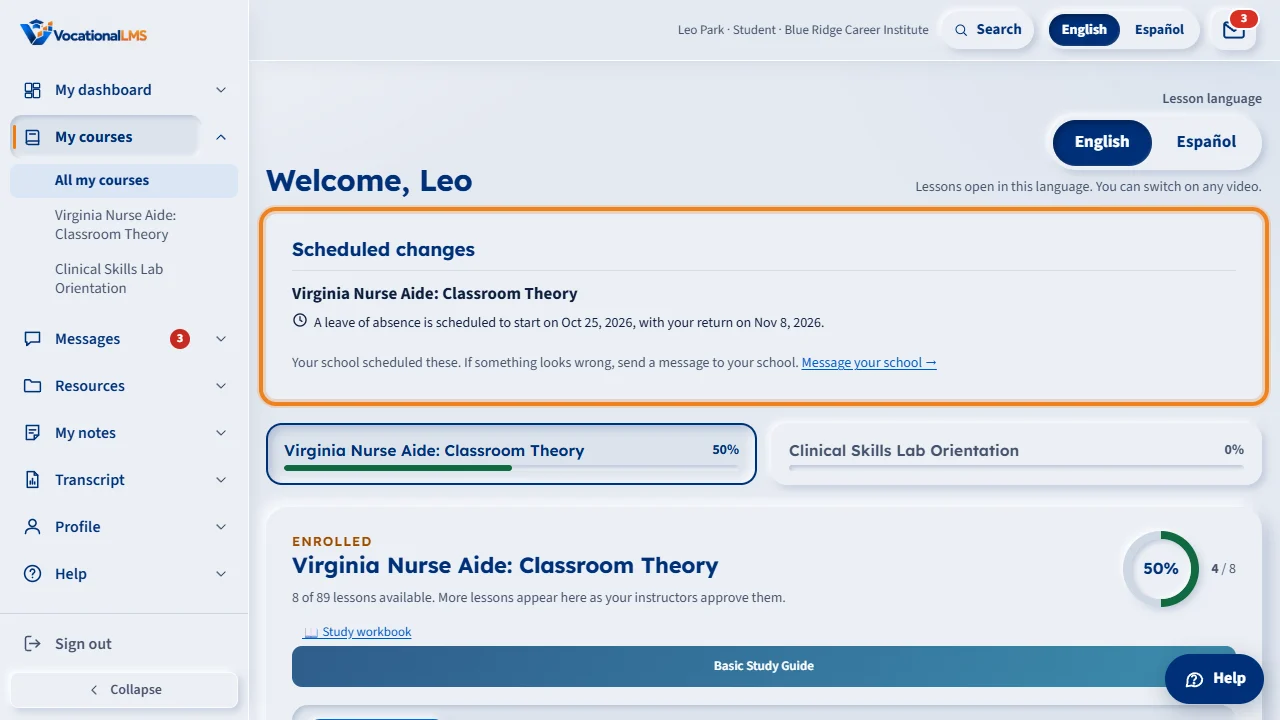
The student sees a scheduled change too. On My courses and on their dashboard, a line under Scheduled changes says in plain words what will happen and when: here, a leave of absence that starts on one day, with the return on another. The student sees only their own changes, and never who scheduled one or your note.
Open this in VocationalLMSUsers > a student > Change status
What it is for
A student has two statuses. The account status says whether the person can sign in (A-05, A-06). The program status says where the student stands in one program. This article is about the program status. Every change is kept in a history that is never erased.
Steps
- Open the student's record (click their name anywhere). Each program shows its status, for example Active.
- Click Change status. You can also click it on a program's Students list or on a group's Students tab.
- Choose the New status. The box under it says what the student will be able to open and what happens to the seat.
- Set the Effective date: today, the earlier day the change really happened, or a later day. A later day schedules the change: see the last steps.
- Choose a Reason. If you choose Other, write a note.
- For Withdrawn, Canceled, Dismissed or Transferred, check the Last date of attendance. The page proposes the last day with study time. Change it if the student attended in class after that day.
- For a Leave of absence, set the Expected return date.
- Click Save the change. The status changes at once and a line is added to the history.
- When a student comes back from leave, click Change status, choose Active and the reason Returned from a leave of absence.
- Made a mistake? Open Change status and click Undo this change on the top line of the history, then Save the change. The wrong line stays; a new line corrects it.
- To schedule a change for a later day: choose an Effective date after today. The form says the change is scheduled and the button becomes Schedule the change. Nothing changes now. On that day the system makes the change and adds the line to the history.
- A scheduled change shows on the student's record and on the group's Students tab, for example Scheduled: Leave of absence from Oct 20, 2026.
- The student sees it too. Their My courses page and their dashboard show a line under Scheduled changes, for example A leave of absence is scheduled to start on Oct 20, 2026, with your return on Nov 3, 2026. The student sees only their own changes, and never who scheduled one, the reason or your note.
- For a Leave of absence, tick Bring the student back automatically on the return date to schedule the return too. It is ticked for you when the leave starts on a later day.
- To change or stop a scheduled change before its day, click Change status. At the top, click Edit or Cancel this change.
What happens next
The student sees the change on their own pages: a program they can't open is listed with its status and the reason in plain words, and a change that is scheduled for a later day is listed under Scheduled changes, in English or Spanish. A student who is Completed keeps the lessons to read and watch until their access end date (A-67). Program status history on the student's record shows every change with who made it, when, the reason and the last date of attendance. Withdrawn and Canceled are kept apart on purpose: a student who never started is counted differently from one who left. Changing a program status never changes the account: to stop a person from signing in, use Turn off or Archive.
The eight statuses
| # | Status | Meaning | Can the student open the program? | The seat |
|---|---|---|---|---|
| 1 | Pending | Registered; has not started | No | Stays with the student |
| 2 | Active | Attending | Yes | Stays with the student |
| 3 | Leave of absence | Approved break with a return date | No | Stays with the student |
| 4 | Completed | Finished the program | To read only, until the access end date (A-67) | Stays with the student |
| 5 | Withdrawn | Left after starting | No | Opens again only in its first 10 days |
| 6 | Canceled | Never started, or canceled in the cancellation period | No | Same as Withdrawn |
| 7 | Dismissed | The school ended the enrollment | No | Same as Withdrawn |
| 8 | Transferred | Moved to another program or school | No | Same as Withdrawn |
Common problems
| # | Problem | What to do |
|---|---|---|
| 1 | “Choose a reason.” | Withdrawn, Canceled, Dismissed, Transferred and Leave of absence need a reason from the list. |
| 2 | “A change is already scheduled for …” | One change can be scheduled for a day. Edit or cancel that one first. |
| 3 | A scheduled change says “Could not be applied”. | On its day the seat rule refused it: coming back needs a seat and none was open. Request seats, then change the status by hand. |
| 4 | The scheduled return did not happen. | A return is made only for a student who is still on that leave. If the status was changed in between, the return is closed with the reason, under Earlier scheduled changes. |
| 5 | “No seats left for this program.” | The student left and the seat opened again, so coming back needs an open seat. Request seats under Dashboard > Seats and billing. |
| 6 | The seat did not open again when the student left. | A seat opens again only in its first 10 days. After that it belongs to that student for good (A-20). No refund or credit is made by the system. |
| 7 | There is no Change status button. | Only a School Admin or Director has it. An instructor has Ask to change status. |
| 8 | A student asks about a change they see on their page. | Students see their own scheduled changes under Scheduled changes on My courses. Open Change status on their record to edit or cancel it; the line on their page follows. |
| 9 | The student still can't open the program. | Check that the program status is Active and that the account status is Active too. |