
A-65For School Admins and Directors
View as a student, and sign in as a person
See exactly what a student sees without changing anything, or sign in as a person to fix a problem, with every use written in their sign-in history. A school setting says whether hours may be voided in such a session.
How-to video A-65 · 2:16
Read the words of this video
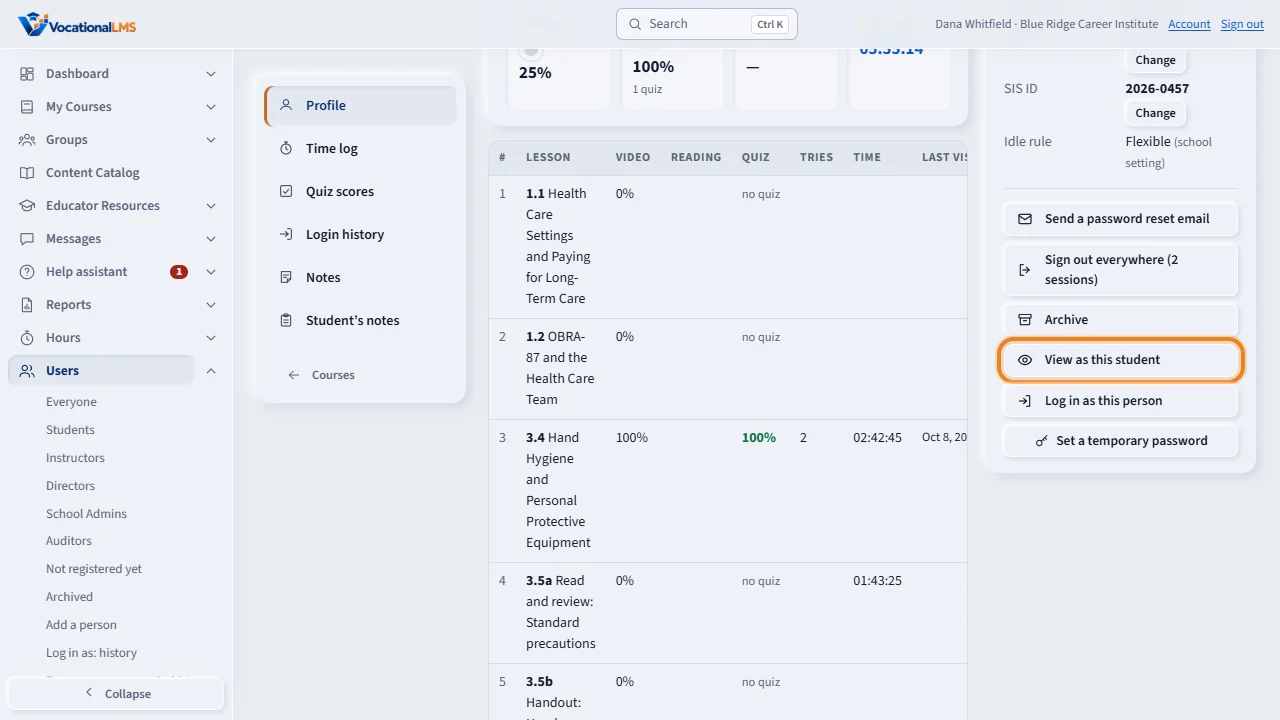
To see exactly what a student sees, open the student's record. In the Account panel, click View as this student. A new tab opens on the student site.
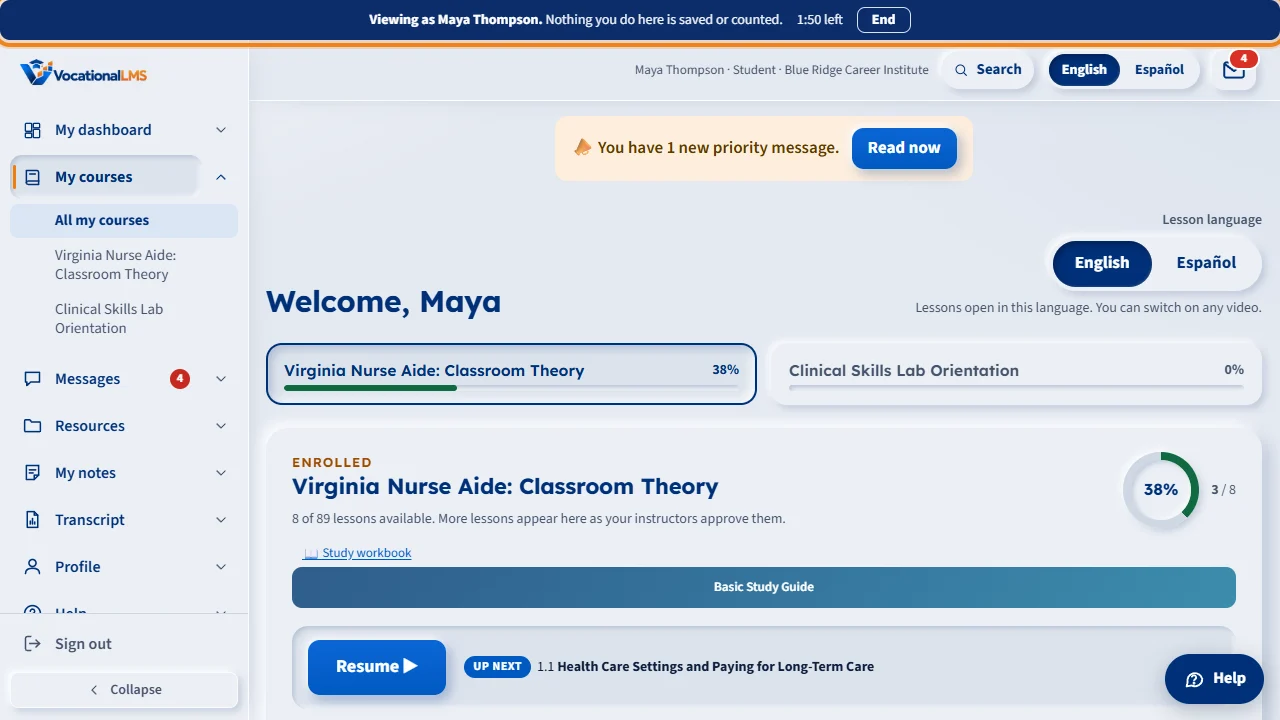
A blue banner says Viewing as, with the student's name, and that nothing you do here is saved or counted. You have thirty minutes. Click End when you are done.
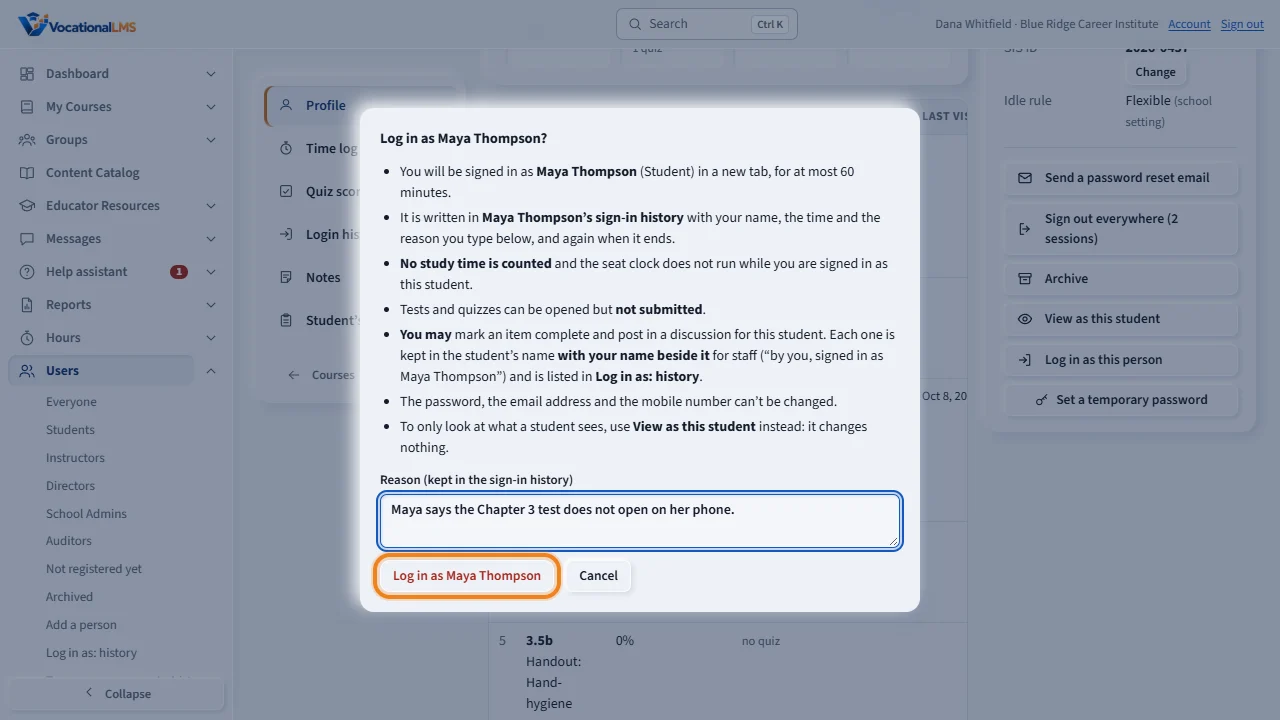
When you must do something the person would do, click Log in as this person. Read the rules, type the reason, and click Log in as. The reason is kept in the person's sign-in history, with your name.
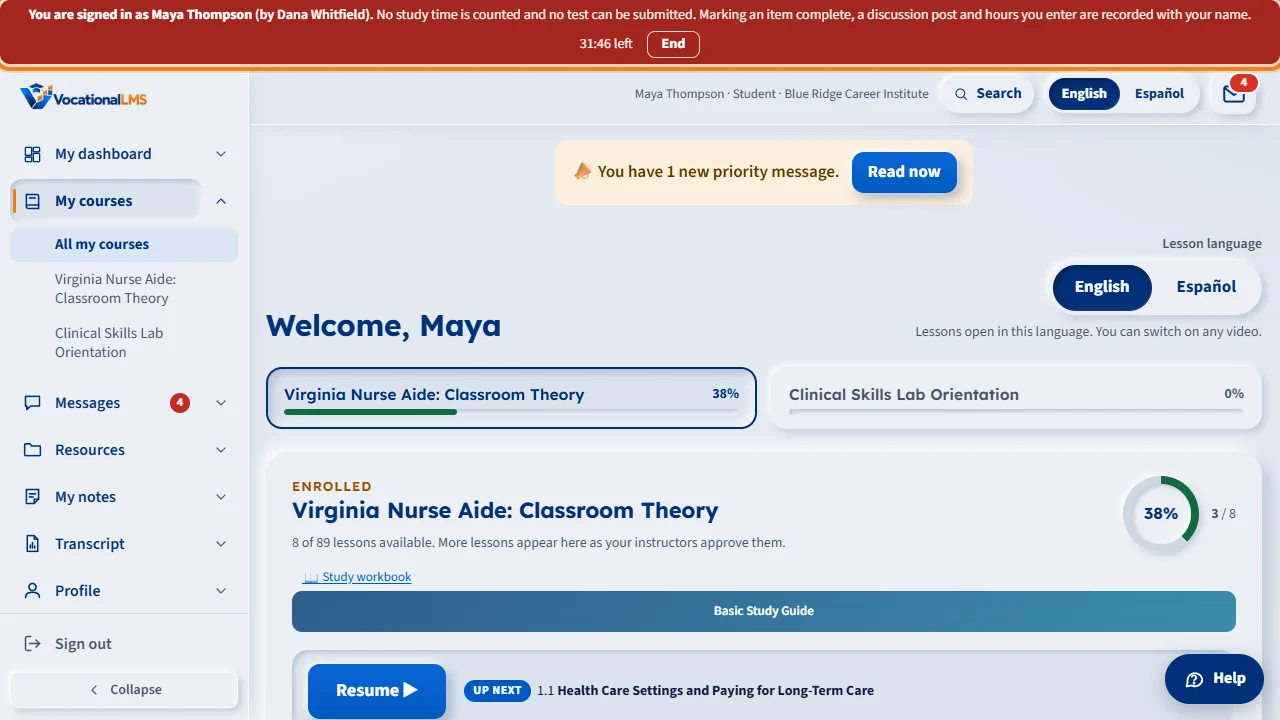
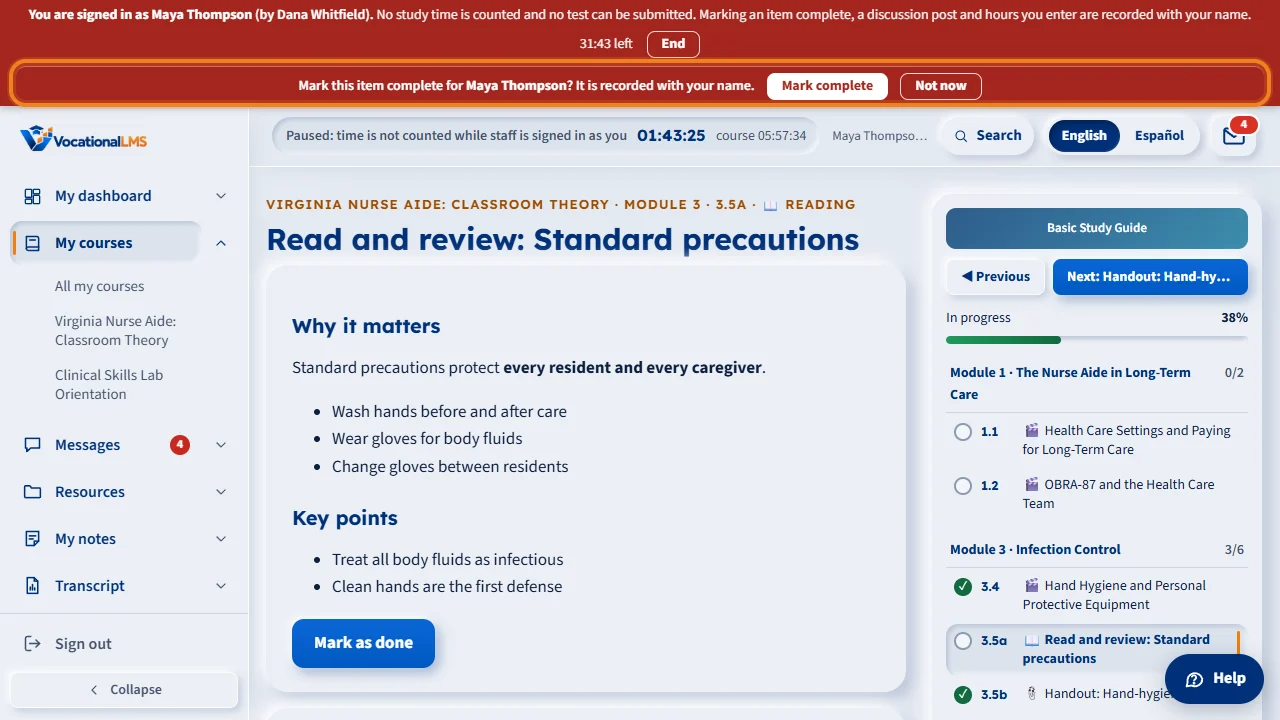
The new tab has a red banner. It says you are signed in as the person, by your name, for at most sixty minutes. No study time is counted, and no test can be submitted. You may mark an item complete, post in a discussion, and enter hours. Each of these is kept in the person's name, with your name beside it.
When you mark an item complete for a student, the red banner asks first. Click Mark complete to record it with your name, or Not now to leave the item as it is.
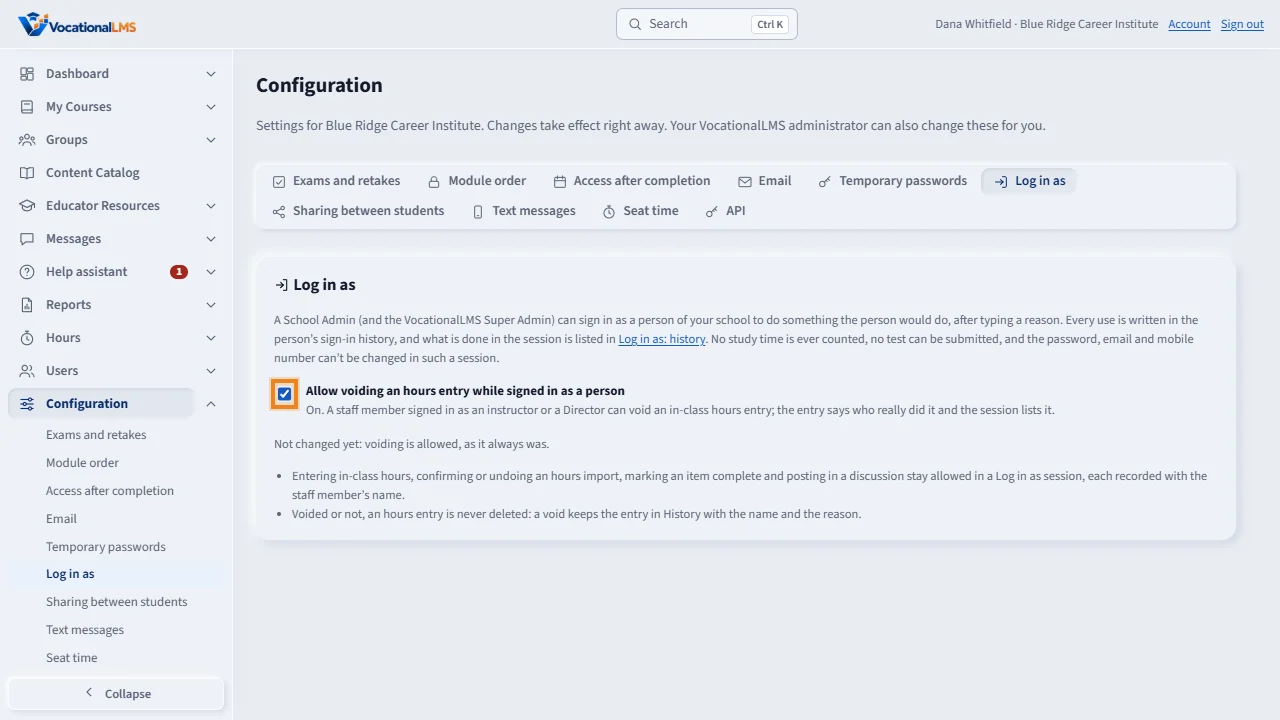
One thing is up to your school. Open Configuration and choose the Log in as tab. Allow voiding an hours entry while signed in as a person is on unless you turn it off. When it is off, the Void or correct button is grayed in a Log in as tab, and the tooltip says to sign in as yourself. The line under the switch says who changed it and when. Everything else about Log in as stays the same.
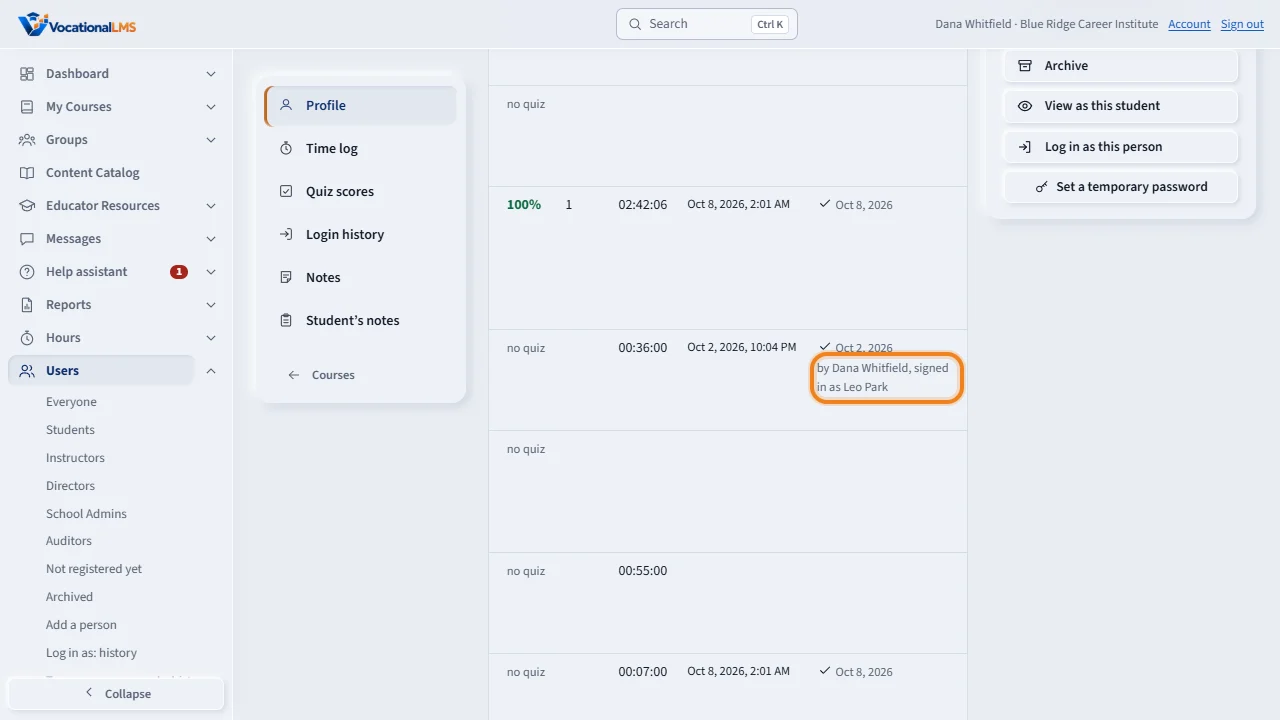
Staff can always see who really did it. On the student's record, the completed item says by your name, signed in as the student. A discussion post and an hours entry say the same. The student sees a post as their own.
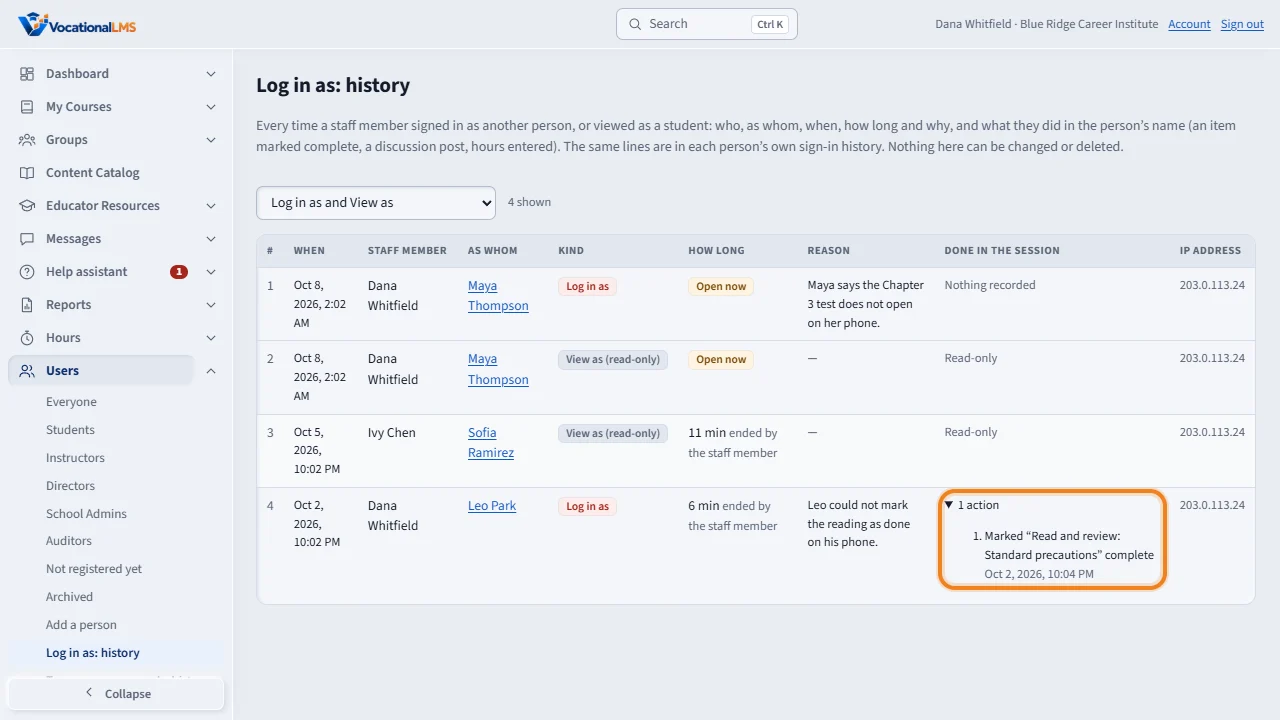
To see who used them, open Users in the menu and choose Log in as: history. Each line shows when, who, as whom, how long, and the reason. Click the count under Done in the session to see what was done, and when. Nothing here can be changed.
Open this in VocationalLMSUsers > a person > View as / Log in as
Who can do this: View as: the School Admin, a Director, and an instructor for her own students. Log in as: the School Admin only, for people of your school, never another School Admin. The VocationalLMS Super Admin can use both.
What it is for
View as this student opens the student site in a new tab exactly as that student sees it. It is read-only: nothing is saved, counted or submitted. Log in as this person opens a real session as the person in a new tab, for when you must do something the person would do. Both are written in the person's own sign-in history with your name. No study time is ever counted while staff is signed in as a student, and a test can never be submitted. Signed in as a person you may mark an item complete, post in a discussion and enter hours; each of these is kept in the person's name with your name beside it.
Steps
View as a student
- Open the student's record (click the name on Users).
- In the Account panel click View as this student. A new tab opens on the student site.
- A blue banner at the top says Viewing as the student's name and Nothing you do here is saved or counted, with the time left (30 minutes).
- Look around: the student's home page, lessons, hours, messages. On a lesson the clock says it is paused.
- Click End in the banner. The tab closes. Your own tab was never changed.
Sign in as a person
- Open the person's page, or the student's record.
- In the Account panel click Log in as this person. Read the rules in the box.
- Type the Reason. It is kept in the person's sign-in history.
- Click Log in as and the name. A new tab opens with a red banner: You are signed in as the person (by your name), with the time left (60 minutes at most).
- Do what you came for. When you mark an item complete for a student, the red banner asks first: Mark this item complete for the student? It is recorded with your name. Click Mark complete, or Not now to leave the item as it is.
- Click End when you are done. The end is written in the person's sign-in history too.
See who used them
- Open Users in the menu and choose Log in as: history.
- Each line shows when, the staff member, as whom, the kind, how long and the reason. Nothing on this page can be changed.
- The column Done in the session counts what the staff member did in the person's name. Click the count, for example 2 actions, to see the list: what was done and when. A View as line says Read-only.
Allow or refuse voiding hours in a Log in as session
- Open Configuration in the menu and choose the Log in as tab.
- Allow voiding an hours entry while signed in as a person is on unless you turn it off. The line under it says who last changed it and when.
- Turn it off if only a person signed in as themselves may void an hours entry at your school. It takes effect right away: in a Log in as tab the Void or correct button is grayed, and its tooltip says why.
- Everything else about Log in as stays the same: entering hours, confirming or undoing an import, marking an item complete and a discussion post are still allowed and still recorded with the staff member's name. The VocationalLMS Super Admin can change this setting for your school too.
What happens next
What you may do while signed in as a person: mark an item complete (a reading, a document, flashcards), post in a discussion, enter in-class hours, void an hours entry (unless your school turned that off under Configuration, Log in as), and confirm or undo an hours import. Each of these leaves a record in the person's name, so each one also keeps who really did it: staff read by your name, signed in as the person, on the student's record beside the completed item, beside the discussion post, and as entered by on the hours entry and the import; and each one is listed in Log in as: history. A student sees their own discussion post as their own, with no staff name. What you still cannot do: submit a test or quiz, change the password, email or mobile number, approve content, hide a discussion post, sign anything, or enter or confirm clock-in records in the person's name. No study time is counted and the seat clock does not run. View as stays read-only: nothing at all is saved. Looking at a message does not mark it as read. The person's own sign-in history and the Sign-in history report show each use in words, and never count it as the person's own sign-in.
Common problems
| # | Problem | What to do |
|---|---|---|
| 1 | The new tab did not open. | Your browser blocked the new window. Allow pop-ups for VocationalLMS and click again. |
| 2 | “A staff member can't take a test as a student.” | Tests belong to the student. You can read the questions; nothing is submitted. |
| 3 | “Not marked complete. Nothing was recorded.” | You clicked Not now in the red banner. Click the item's button again and then Mark complete if you do want to mark it. |
| 4 | A reading was marked complete although the student spent no time on it. | A staff member marked it in a Log in as session: the student's record says by whom, and Log in as: history lists it. No study time was added. |
| 5 | Who entered these hours? | An entry made in a Log in as session says entered by the staff member's name, signed in as the instructor's name. |
| 6 | “Your school does not allow voiding hours while signed in as another person. Sign in as yourself to do it.” | Your school turned that off under Configuration, Log in as. End the session and void the entry from your own account, or turn the setting on again. |
| 7 | “This account is archived or turned off, so nobody can sign in as it.” | Restore or turn on the account first. |
| 8 | “This session has ended.” | The time was up, you signed out, or the person was archived. Close the tab and start again if you need to. |
| 9 | Paused: time is not counted while staff is signed in as you. | This is what the clock shows in your tab. The student's own clock, in the student's own session, is not touched. |