
A-75For School Admins and Directors
The Admin Library and the Instructor Library
Your school's shared folders of documents: one library for School Admins and Directors only, and one for everyone who teaches.
How-to video A-75 · 0:41
Read the words of this video
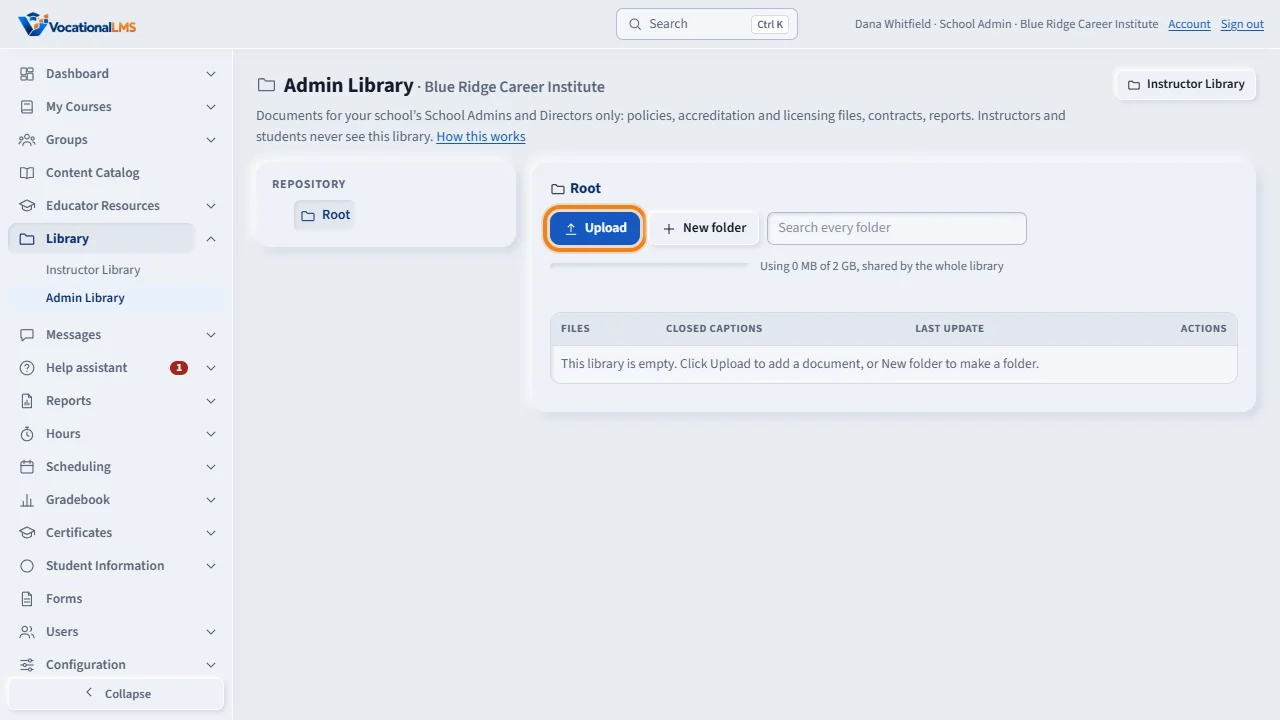
Library, in the menu on the left, has two shared sets of folders for your school. The Admin Library is for School Admins and Directors only. Instructors and students never see it.
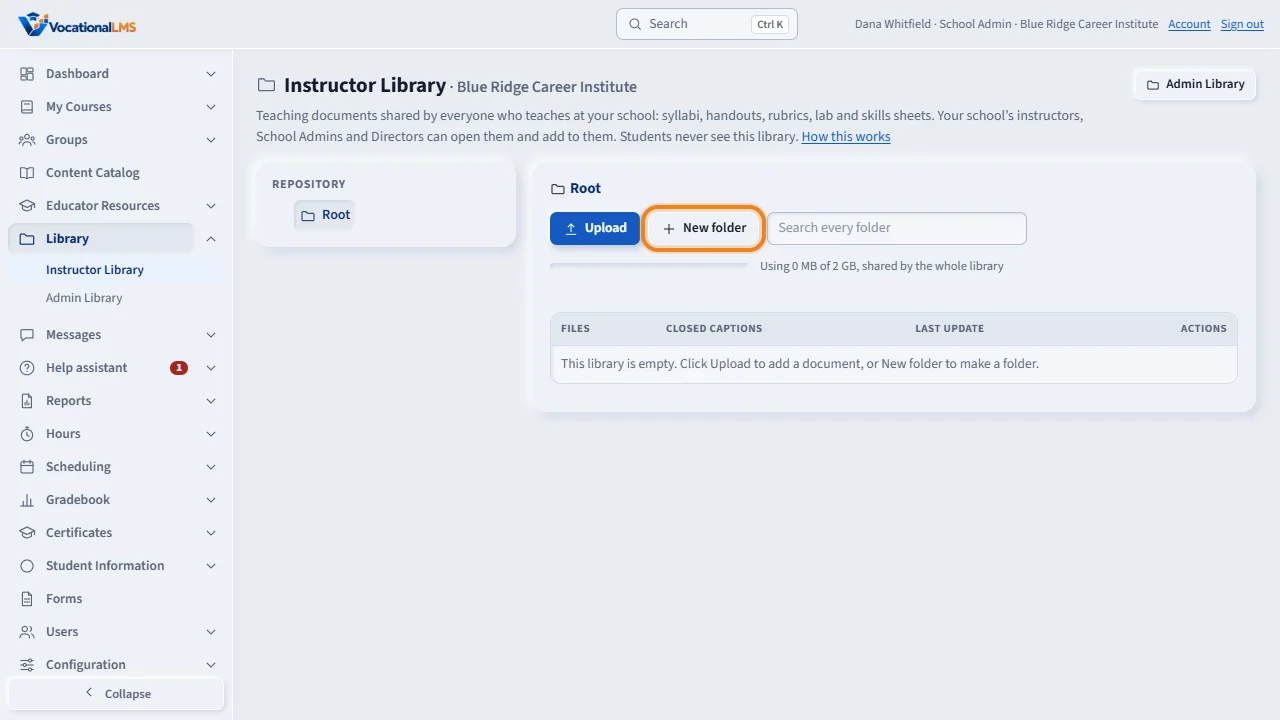
The Instructor Library is shared by everyone who teaches at your school. In both libraries, click New folder to make a folder, and Upload to add documents into the folder that is open.
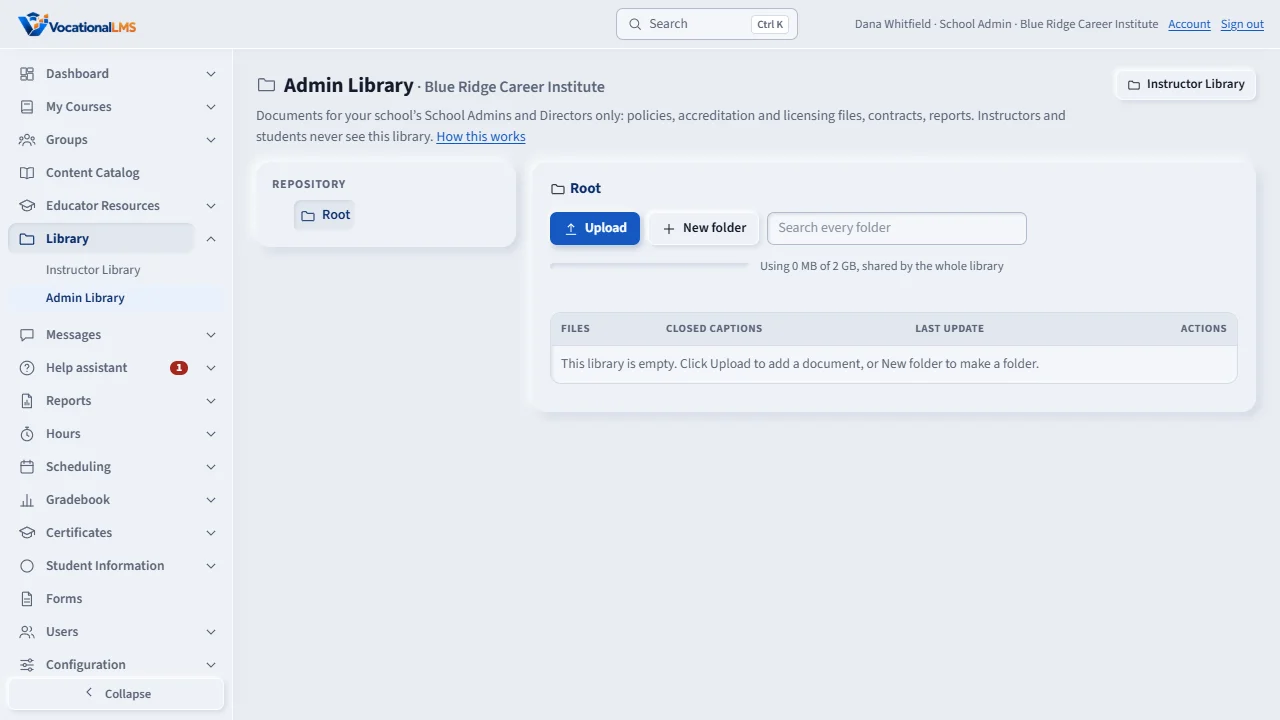
Each row shows the file and its size, the last update and who made it, and the buttons Edit, Move and Delete. A folder can be deleted only when it is empty.
Open this in VocationalLMSLibrary > Admin Library
Who can do this: School Admins and Directors open, add to and change both libraries. Instructors open and add to the Instructor Library and change only what they added. The VocationalLMS Super Admin chooses a school at the top of the page. Students and auditors see neither library.
What it is for
Library, in the menu on the left, has two shared sets of folders for your school. The Admin Library is for School Admins and Directors only: policies, accreditation and licensing files, contracts, reports. Instructors and students never see it. The Instructor Library is shared by everyone who teaches at your school, and by you. Each library has its own folders, folders inside folders, and its own 2 GB of space.
Steps
Open a library
- In the menu on the left click Library, then Admin Library or Instructor Library. The button at the top right switches to the other one.
- Click a folder in the tree on the left (Repository > Root), or its name in the table, to open it.
Add documents and folders
- Open the folder you want, click Upload, choose one or more documents and click Upload. PDF, Word, PowerPoint, Excel, pictures and text files are accepted, up to 25 MB each.
- Click New folder, type a name and click Create folder.
Keep it in order
- Edit changes a document's title or a folder's name. Move puts a document or a folder into another folder. Delete asks you to click twice; a folder can be deleted only when it is empty.
- Last Update shows when each item was last changed, and by whom.
A student's own folders
- Students can keep their own documents and links in folders of their own (Resources, My documents and links). To see them, open the student's profile and click Portfolio: the Folder column and the folder list show where each item is. You can open and download them, never change them.
What happens next
Every file is checked the same way as everywhere else in VocationalLMS: only the listed types, real content, 25 MB at most, and it is only ever opened by someone signed in who may see that library. Closed Captions shows a dash, because the libraries keep documents and pictures, not videos.
Common problems
| # | Problem | What to do |
|---|---|---|
| 1 | Library is not in my menu. | It is for School Admins, Directors and instructors. An auditor's read-only access does not include it. |
| 2 | An instructor can't see the Admin Library. | That is on purpose: only School Admins and Directors see it. Put shared teaching documents in the Instructor Library. |
| 3 | “Not enough space.” | Each library has 2 GB for the whole school. Delete documents nobody needs any more. |
| 4 | A folder can't be deleted. | It still has something inside. Move or delete what is in it first. |