
I-03For instructors
A student's profile: progress, scores, time log and sign-ins
Everything about one student on one page, with the server's record of every stretch of time.
How-to video I-03 · 1:16
Read the words of this video
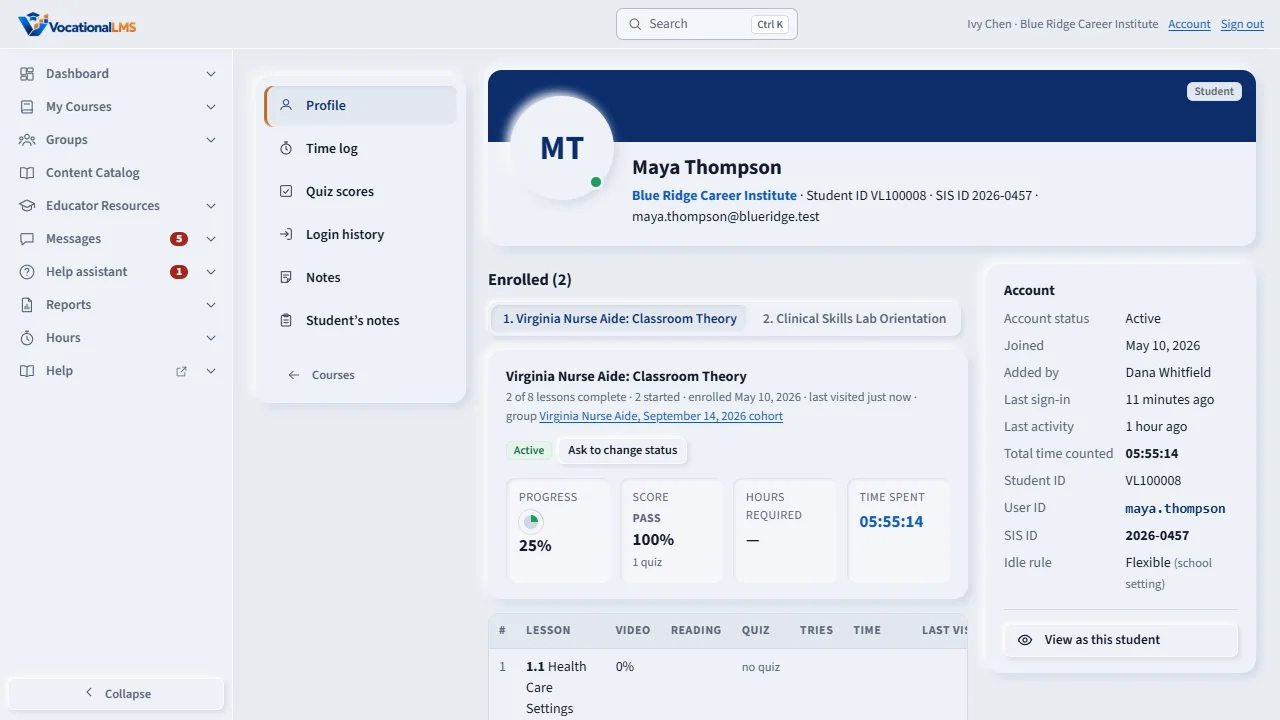
Open a course and click a student's name. The profile shows the student's name, school, Student ID and email. Under Enrolled there is a tab for each course. The tiles show progress, score, hours required and time spent.
The table under the tiles shows each lesson: how much of the video was watched, the reading, the best quiz score, the number of tries, the time, the last visit and the day it was done.
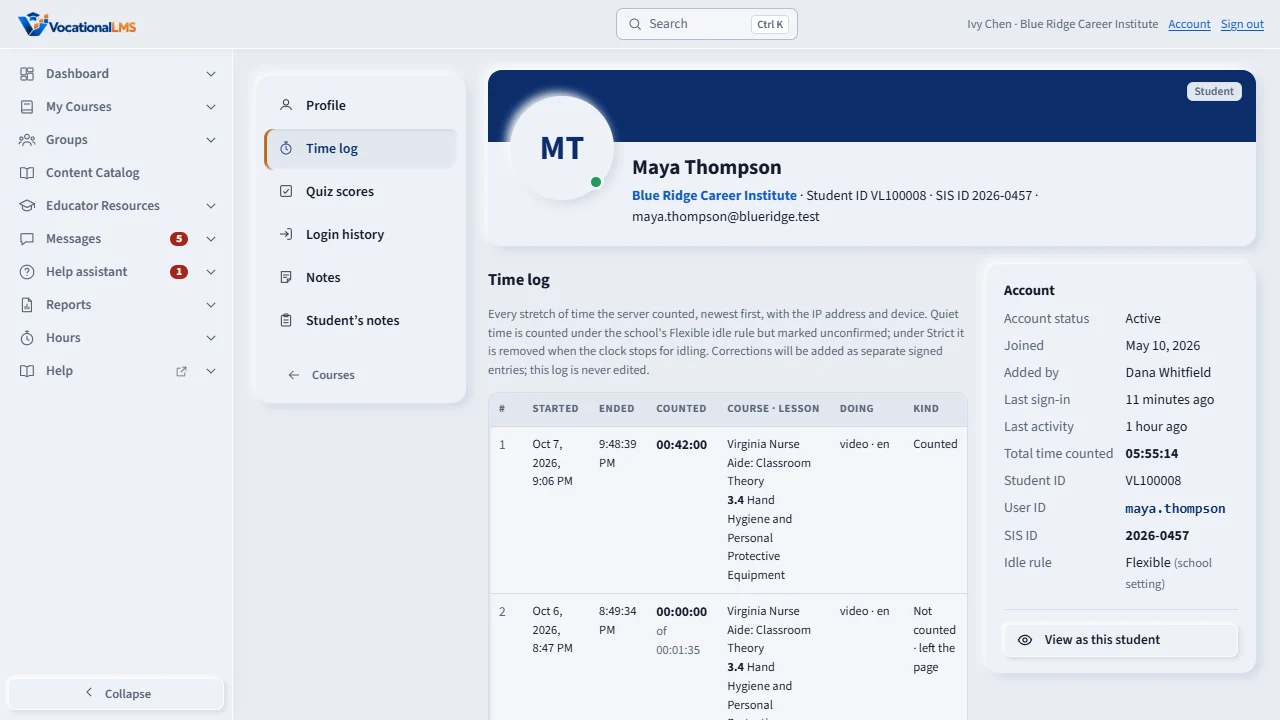
Time log lists every stretch of time the server counted, newest first: the lesson, what the student was doing, whether it was counted, and the IP address and device. Time away from the lesson page shows as not counted.
Quiz scores lists every attempt, graded by the server, with the score and the result.
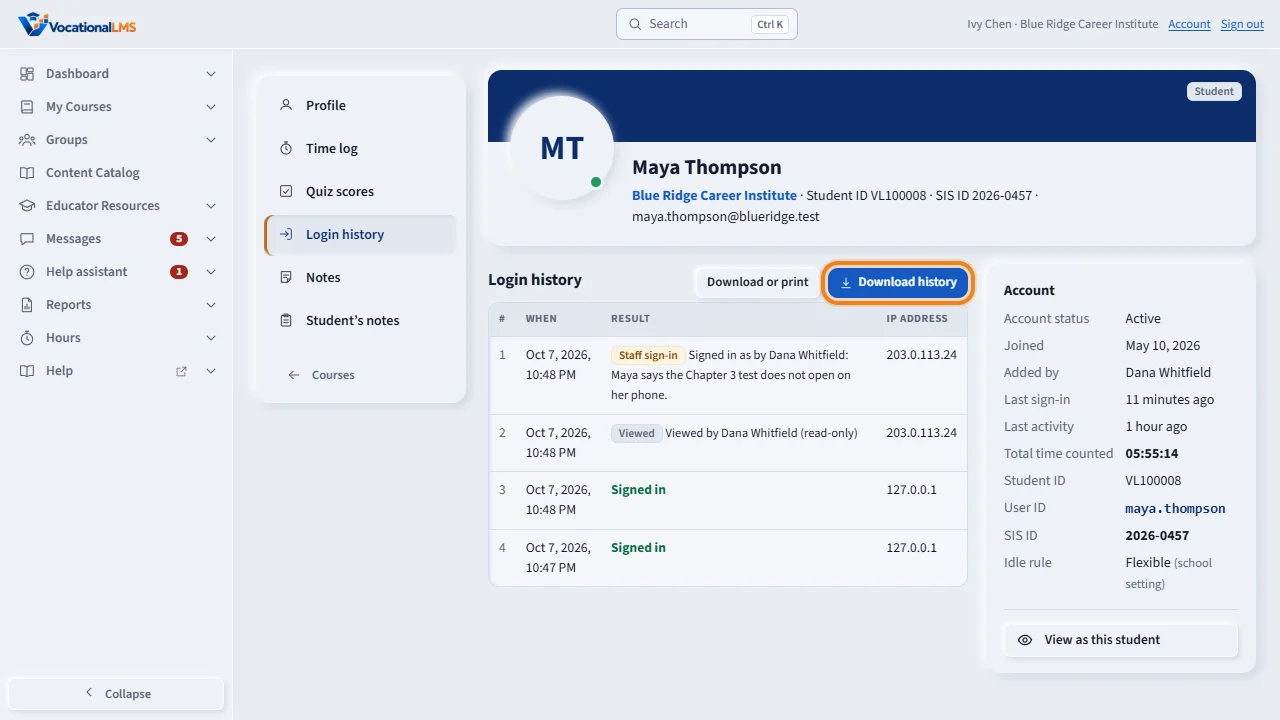
Login history lists every sign-in, including failed tries, with the IP address. Download or print opens the Sign-in history report for the student, and Download history gives you the last twelve months as a file in one click. The Account box on the right shows the last sign-in and the total time counted.
Open this in VocationalLMSUsers > a student
What it is for
Each student has a profile with their courses, progress, scores, hours, every stretch of time counted, every quiz attempt and every sign-in. Use it before you call or advise a student.
Steps
- Open a course and click the student's name in the Students list.
- Enrolled lists every program: status, progress, scores, due date, time spent, enrolled and last visited. Under Program details, click a course tab if the student has more than one. The four tiles show Progress, Score, Hours required and Time spent; the table under them shows each lesson: video, reading, quiz, tries, time, last visit and done.
- Click Time log in the left menu: every stretch of time, newest first, with the lesson, what the student was doing, whether it was counted, and the IP address and device.
- Click Quiz scores for every attempt with its score and result.
- Click Login history: one line per session, with the day, the sign-in and sign-out, how long it lasted, the IP address and the lessons watched in it. Failed tries are under Failed attempts. Download or print opens the Sign-in history report for the student; Download history downloads the last 12 months as a CSV file in one click.
What happens next
The Account box on the right always shows status, date joined, last sign-in, last activity, total time counted, Student ID and your school's idle rule.
Common problems
| # | Problem | What to do |
|---|---|---|
| 1 | A stretch says “Not counted · left the page”. | The student switched to another tab or window; that time is never counted. |
| 2 | A stretch says “Not counted · video ended, waiting for the student”. | The lesson's video played to its end and the student did nothing on the page for that long. The clock counts again from the student's next key, click, scroll or play (A-17). |
| 3 | A stretch is marked quiet. | The student did nothing for a while before the clock stopped. Your school's idle rule decides whether those minutes count (A-17). |
| 4 | You cannot open a student. | The student is not in one of your programs. |