
A-62For School Admins and Directors
A person's page
Every staff member has a page: profile, programs and groups, sign-in history, notes, and the Account panel with the actions.
How-to video A-62 · 1:20
Read the words of this video
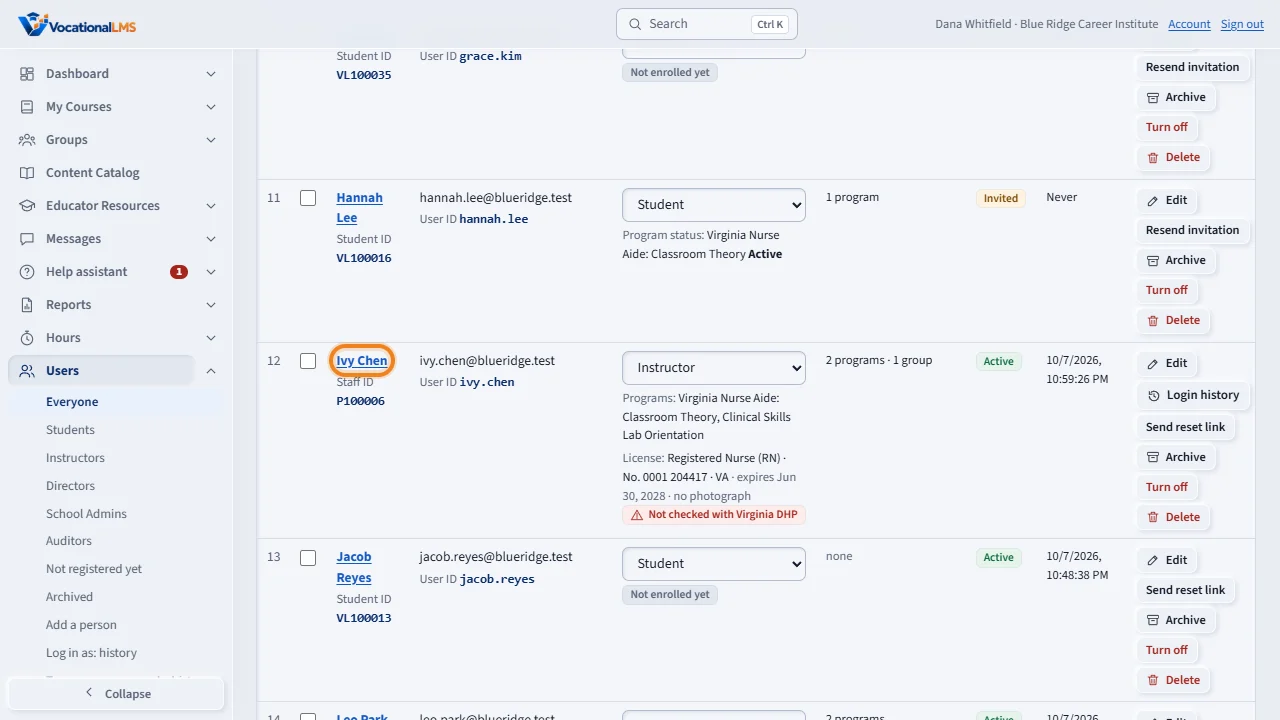
Every person at your school has a page. Open Users and click a name. A staff member's name opens their page. A student's name opens the student record.
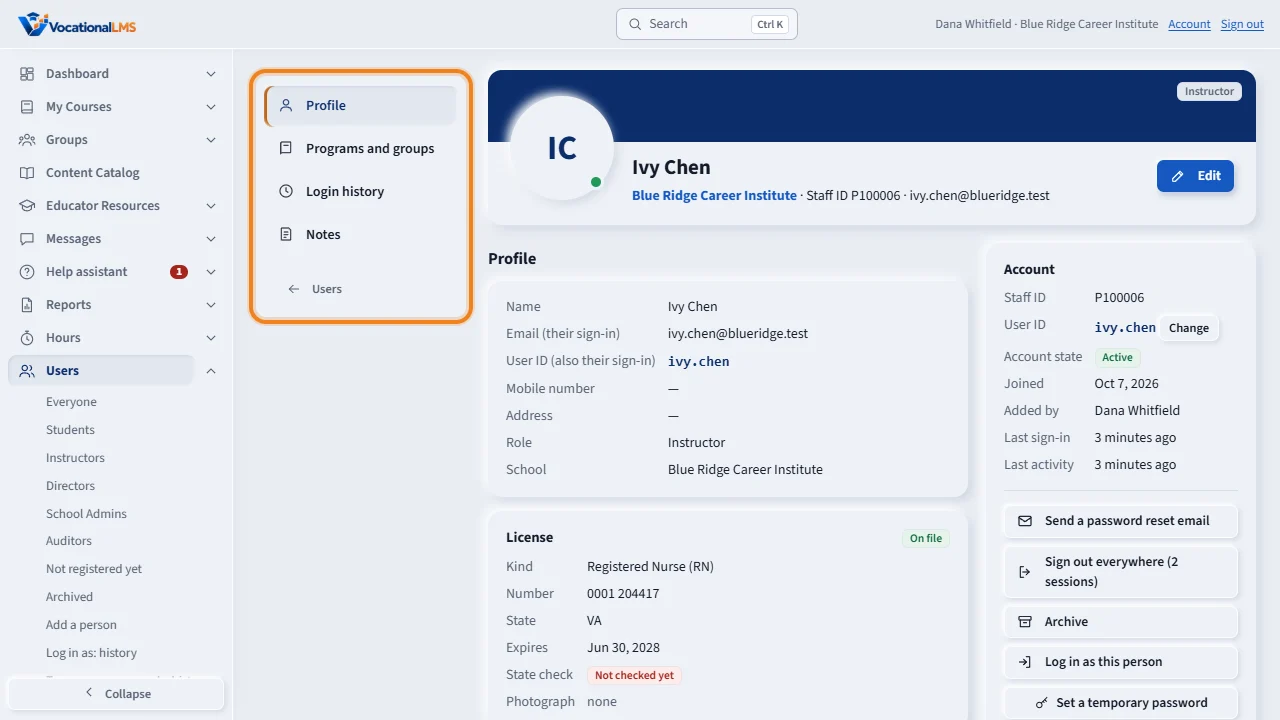
The menu on the left has Profile, Programs and groups, Login history and Notes. Profile shows the contact details, and for an instructor the license on file.
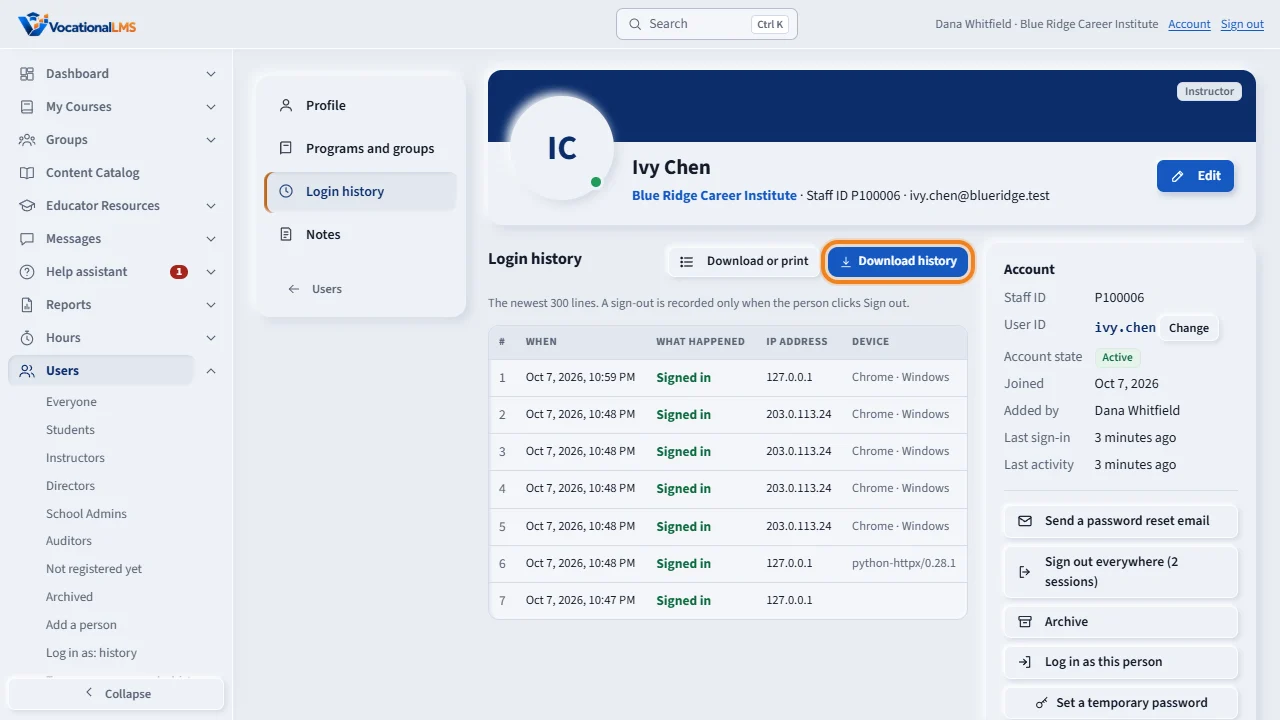
Login history lists every sign-in, sign-out and failed attempt, with the I P address and the device. Download or print opens the Sign-in history report for this person. Download history gives you the last twelve months as a file in one click.
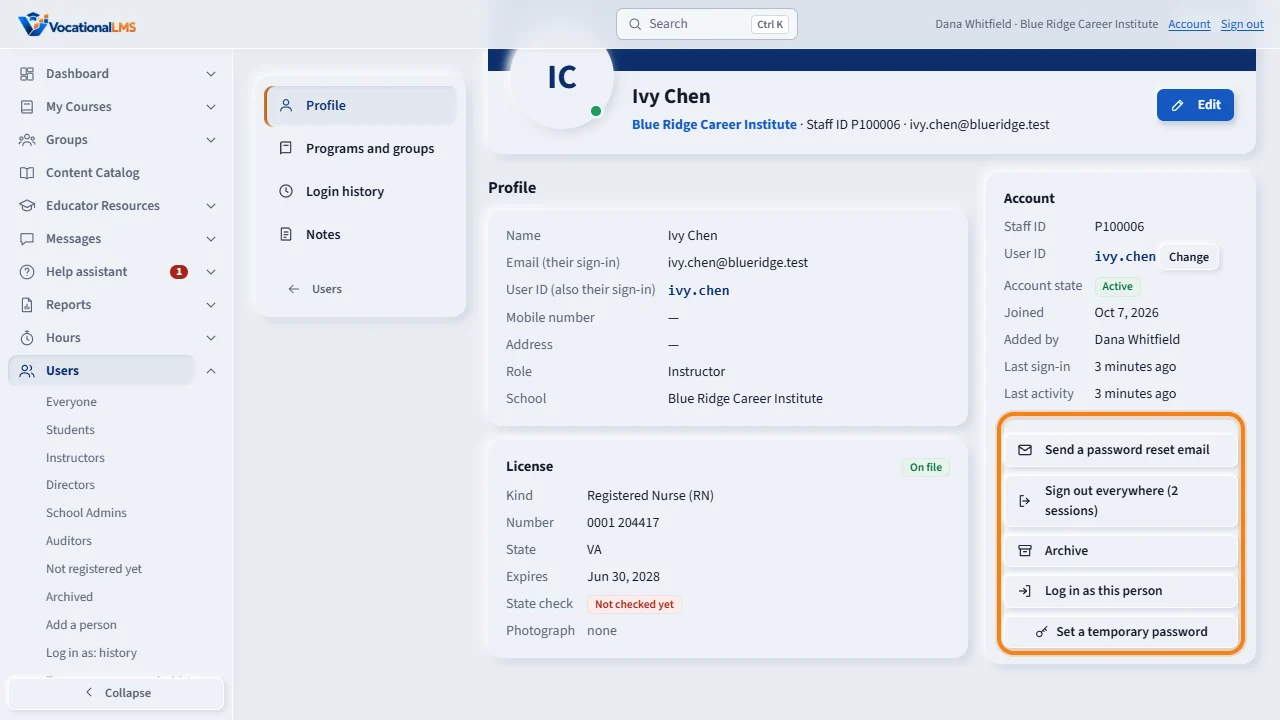
The Account panel shows the staff I D, the account state, and the last sign-in. Its buttons are Send a password reset email, Sign out everywhere, and Archive. Nobody ever sees or sets another person's password.
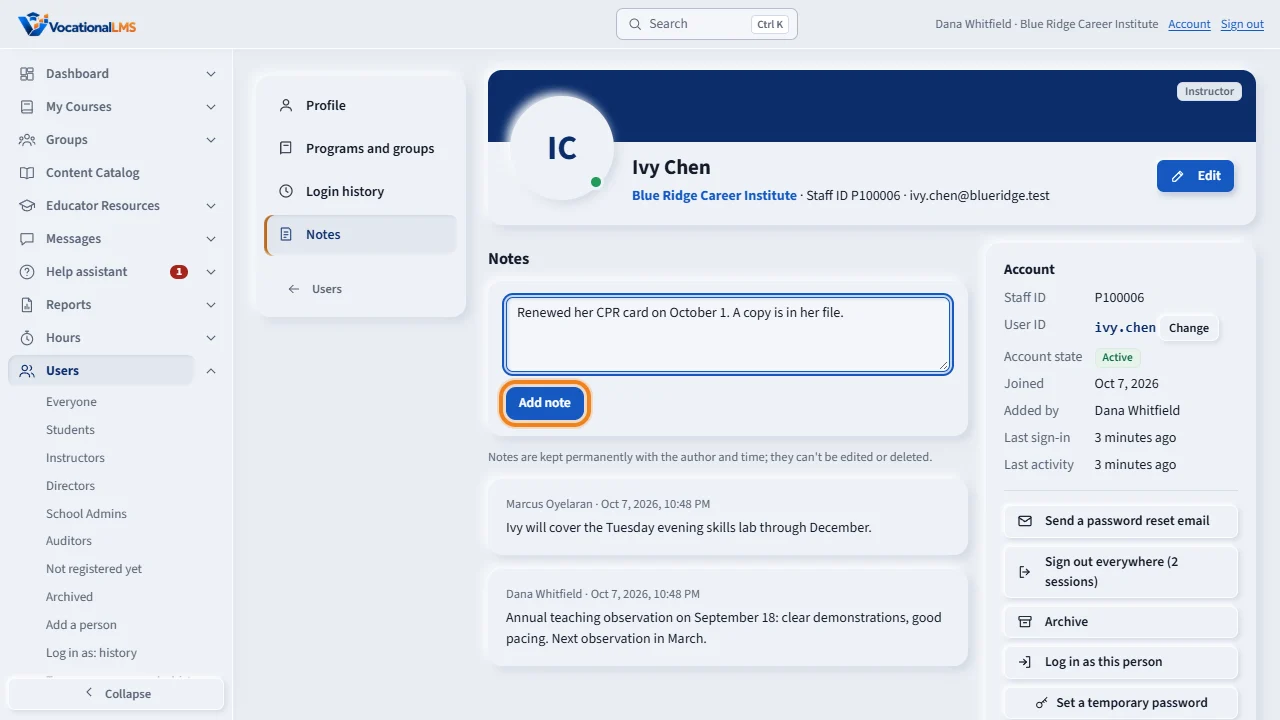
Under Notes, type a note and click Add note. Notes are kept for good with your name. Only the School Admin and the Directors see them.
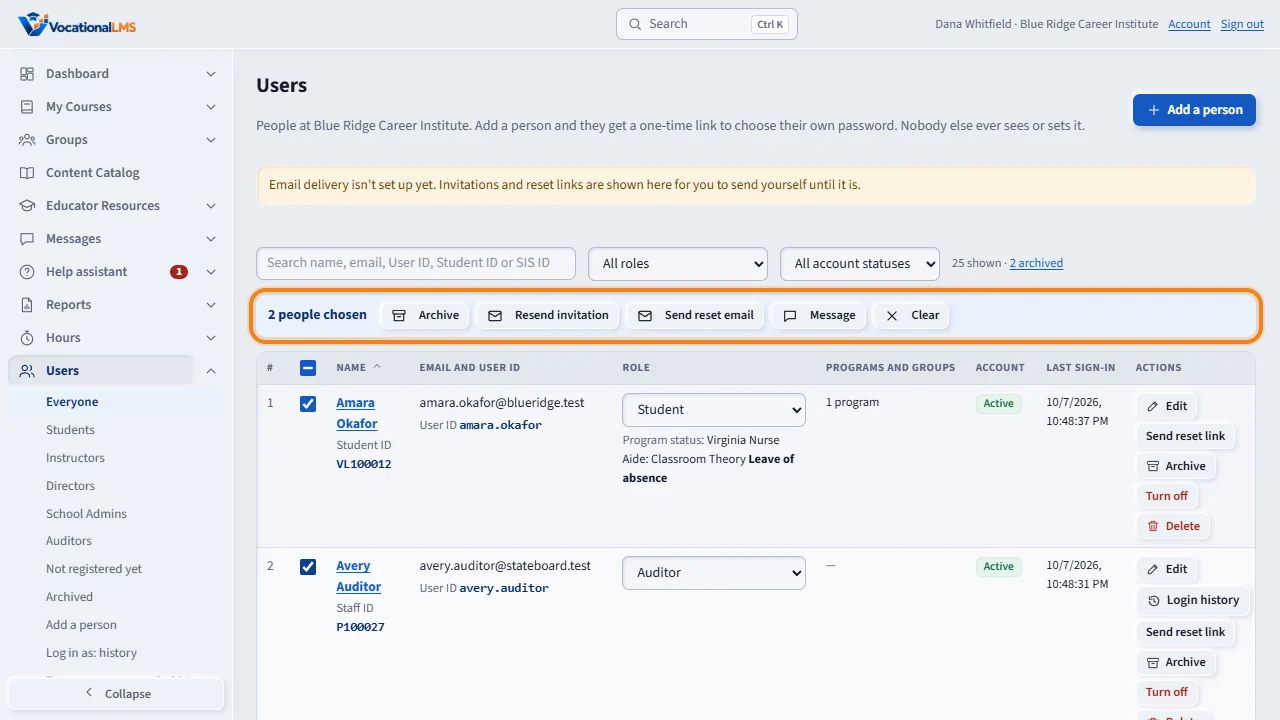
To do one thing for several people, tick their boxes on the Users page. A bar appears with Archive, Resend invitation, Send reset email and Message. You confirm before anything happens.
Open this in VocationalLMSUsers > My students
Who can do this: The School Admin opens every page and uses every button. An instructor can open only her own page, without the notes about her.
What it is for
Every person at your school has a page of their own. A student's page is the student record you already know. A staff member's page shows who they are, what they teach, when they signed in, and notes that only the School Admin and the Directors see. The Account panel on the right has the person's ID, when they joined, who added them, the last sign-in and the last activity, and the buttons.
Steps
Open a person's page
- Open Users. Click the person's name. A staff member's name opens their page; a student's name opens the student record.
- Profile shows the name, email, mobile number and address, and for an instructor the license on file.
- Programs and groups shows the programs the person is assigned to and their groups: Teaching now, Planned and Finished. Click a group to open it.
- Login history lists every sign-in, sign-out and failed attempt with the IP address and device. Click Download or print to open the Sign-in history report for this person, or Download history for the last 12 months as a file (CSV, opens in Excel) in one click.
- Notes: type a note and click Add note. Notes are kept for good with your name and the time. The person never sees them.
Use the Account panel
- The panel shows the Staff ID (or Student ID), Account state, Joined, Added by, Last sign-in and Last activity.
- Click Edit at the top to change the name, email, mobile number or address. The role, the programs and the license are changed on the Users page.
- Click Send a password reset email to email the person a one-time link. They choose their own new password. Nobody else ever sees or sets it.
- Click Sign out everywhere, then click again, to end every session of the person on every device and in the phone app. It is written in their sign-in history with your name.
- Click Archive for a person who has left (see A-63).
Do one thing for several people
- On Users, tick the box in front of each person, or the box at the top to tick everyone shown.
- A bar appears: Archive, Resend invitation, Send reset email, Message. Click one.
- The page says how many people it is for and lists their names. Click the button to go on, or Cancel.
- A list shows what happened for each person. Click Close when you have read it.
What happens next
The Users list has a column Programs and groups: for staff, how many programs they are assigned to and how many groups they teach today. If you teach yourself, the box My students shows only your own students. Nothing reloads the page.
Common problems
| # | Problem | What to do |
|---|---|---|
| 1 | There is no Passwords button. | Nobody sets or sees another person's password. Use Send a password reset email; the person chooses a new one. |
| 2 | Sign out everywhere is not there. | The person has no open session, or it is your own account. Use Sign out at the top for yourself. |
| 3 | “Already registered. Use Send reset email.” | Resend invitation is for people who have not chosen a password yet. |
| 4 | The list did not refresh while a form was open. | The page waits until you close the form, so what you typed is never lost. |