
I-27For instructors
When did a student study? Sessions and the lessons watched
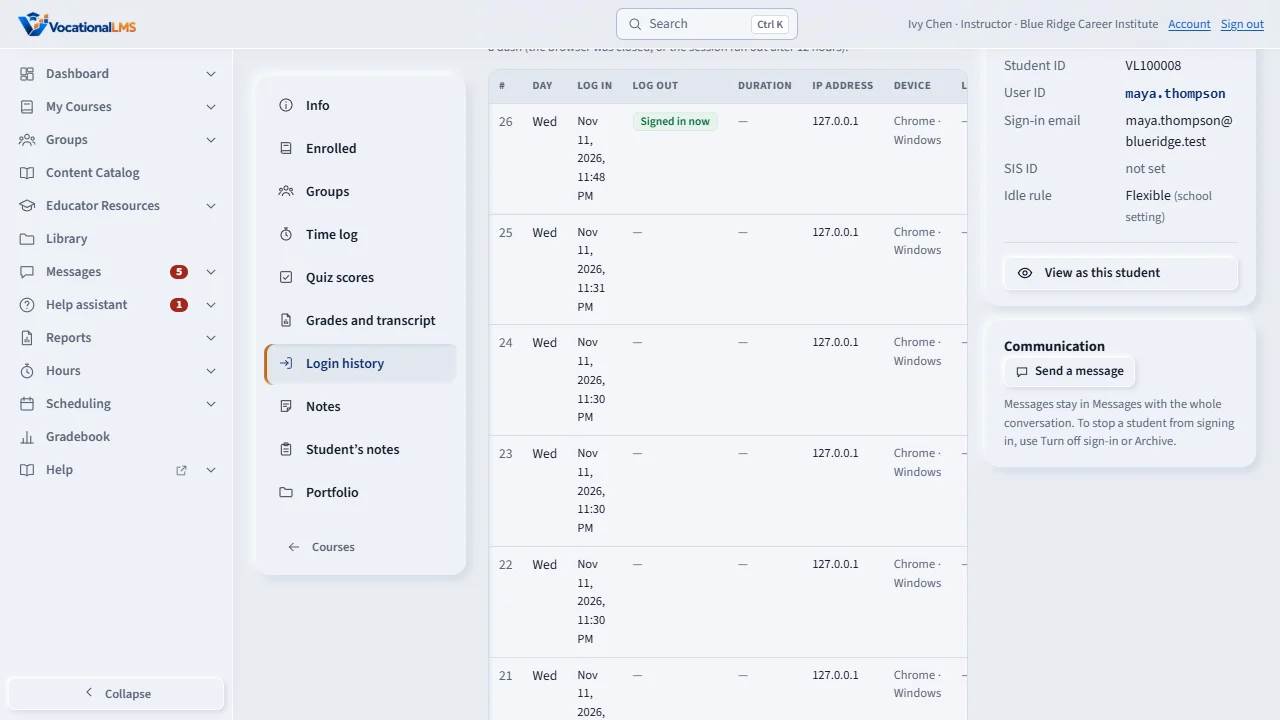
A student's Login history shows each session with its day, how long it lasted and the lessons the student watched in it.
How-to video I-27 · 0:17
Read the words of this video
Login history shows one line per session: the day, the sign-in and sign-out, how long it lasted, the IP address and the lessons watched. Click a lesson to open it.
Open this in VocationalLMSUsers > a student > Login history
What it is for
Login history on a student's page pairs each sign-in with its sign-out. Each line is one session: the day of the week, the time the student signed in and out, how long it lasted, the IP address, the device, and the lessons the study clock counted while it was open. Use it to answer “was she really on the site on Tuesday, and what did she watch?”.
Steps
- Open the student's page and click Login history in the left menu.
- Read one line per session, newest first. Choose Last 90 days or Last 12 months to go further back.
- Click a lesson's name to open that lesson. When the student watched several, click the button (for example 3 lessons) to see each one with its program, what the student did (video, reading, quiz) and the time counted.
- Failed attempts shows sign-ins that did not work; Every line shows the history exactly as it was recorded.
What happens next
The lessons come from the same study clock as the Time log, so the times match. When the student had two devices open at once, each lesson goes to the session of the device it was watched on.
Common problems
| # | Problem | What to do |
|---|---|---|
| 1 | Log out shows a dash. | The student closed the browser or the session ran out after 12 hours; only clicking Sign out records a sign-out. |
| 2 | A session has no lessons. | The student signed in but no study time was counted: they did not open a lesson, or only looked at other pages. |