
A-50For School Admins and Directors
Total hours and in-class hours
See every student's online, live online, in-class and transfer hours in one table, for a program or for one group, set the hours a program requires, and type the hours your students were in class.
How-to video A-50 · 1:14
Read the words of this video
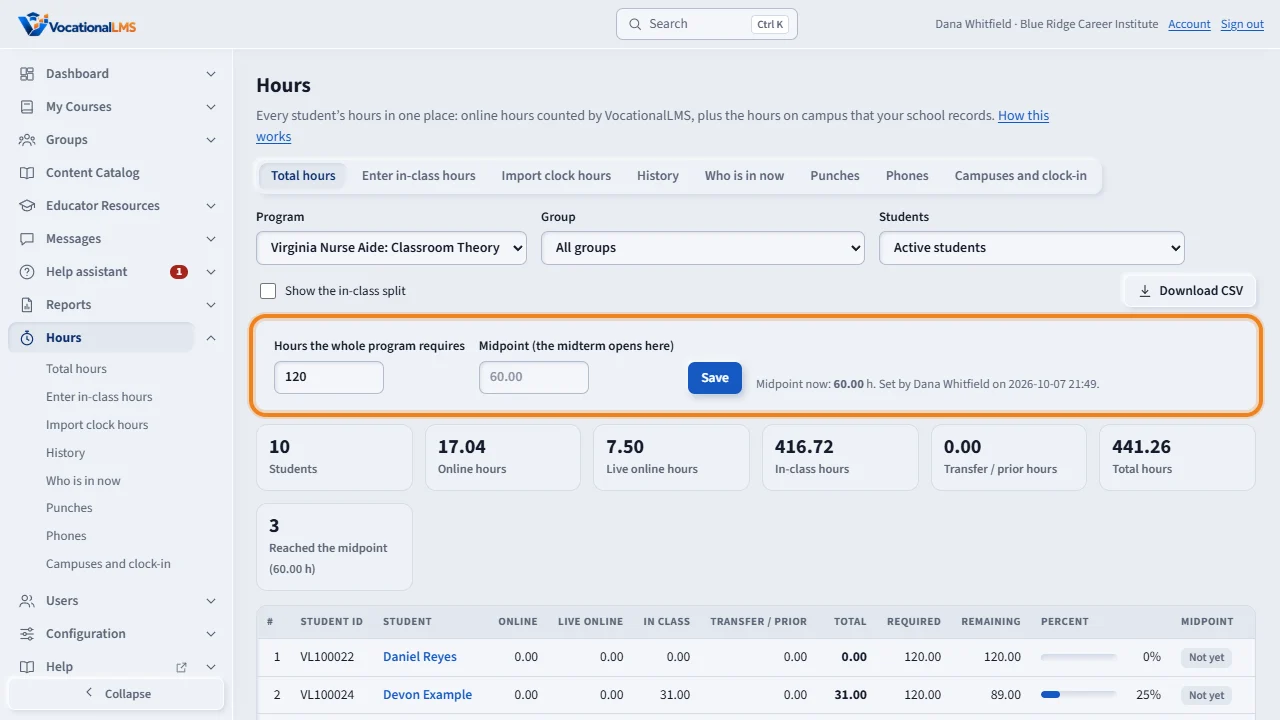
Click Hours in the menu on the left. On Total hours, choose the program, type the hours the entire program requires, and click Save.
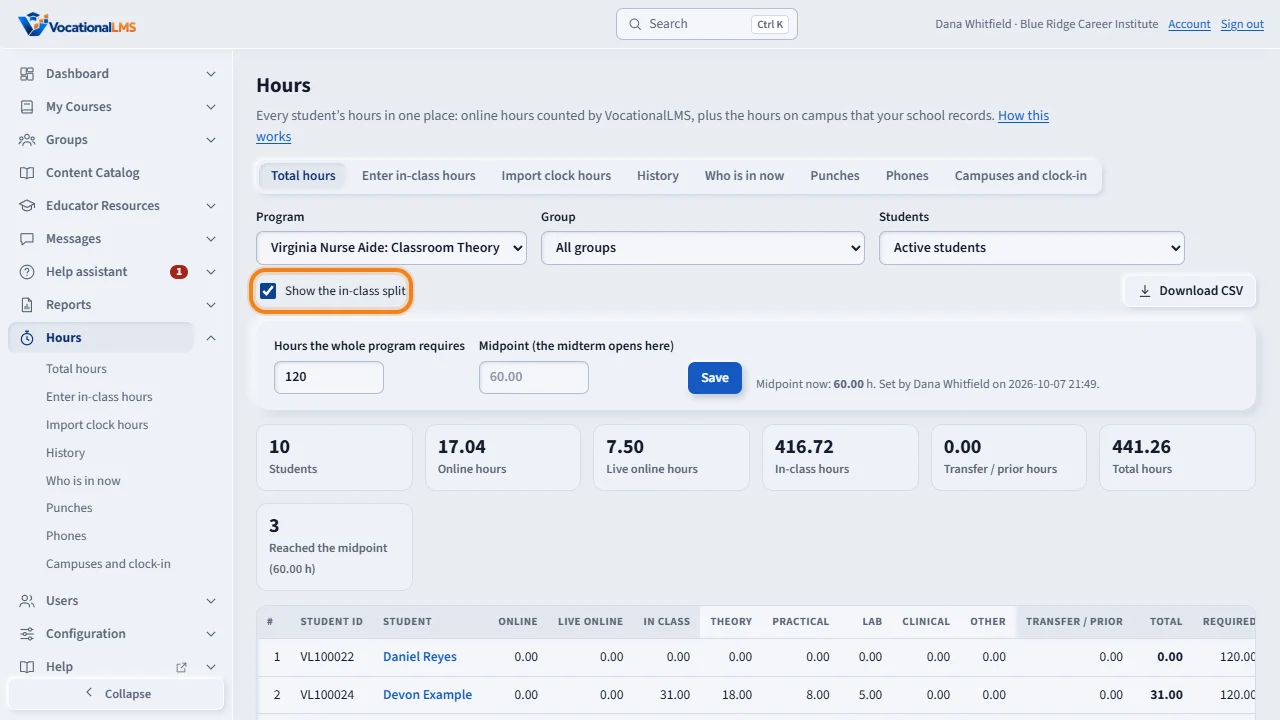
Each row is one student: online, live online, in-class and transfer hours, the total, and the hours still to go. Tick Show the in-class split for a column for each kind.
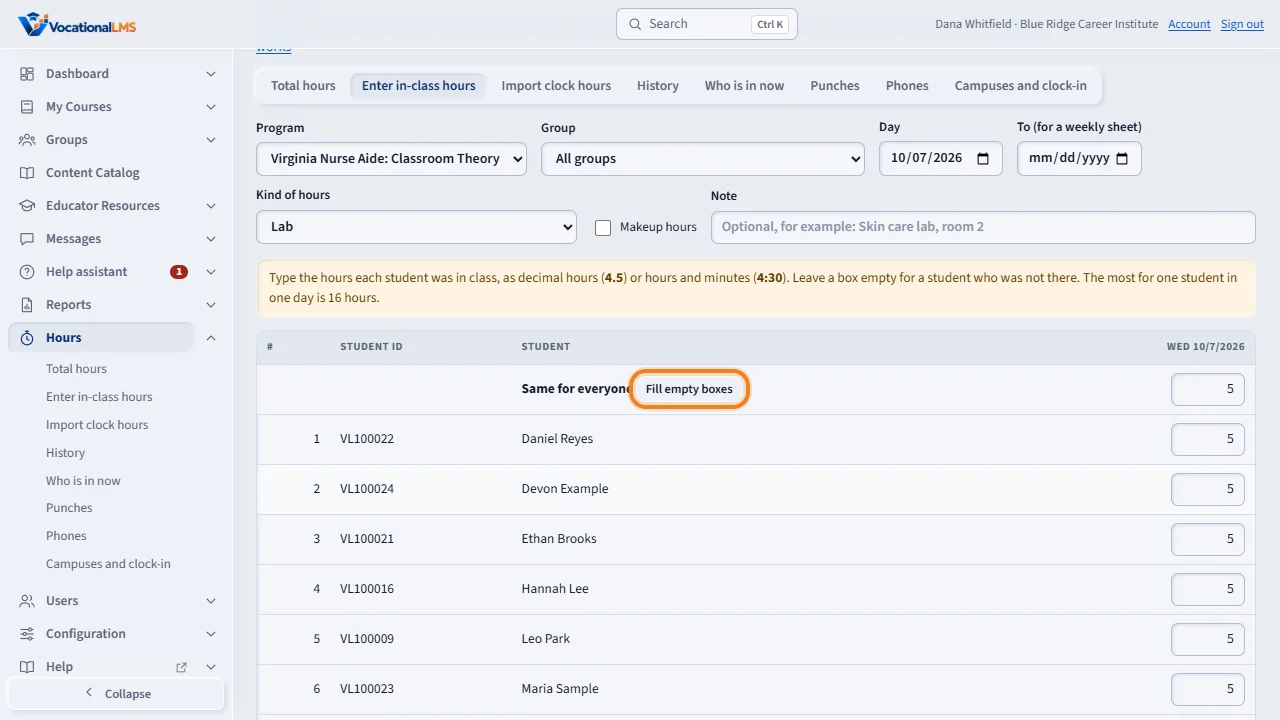
To type hours, click Enter in-class hours. Choose the day and the kind of hours. When everyone had the same hours, type them on the Same for everyone line and click Fill empty boxes. Clear the box of a student who was not there, then click Save all hours.
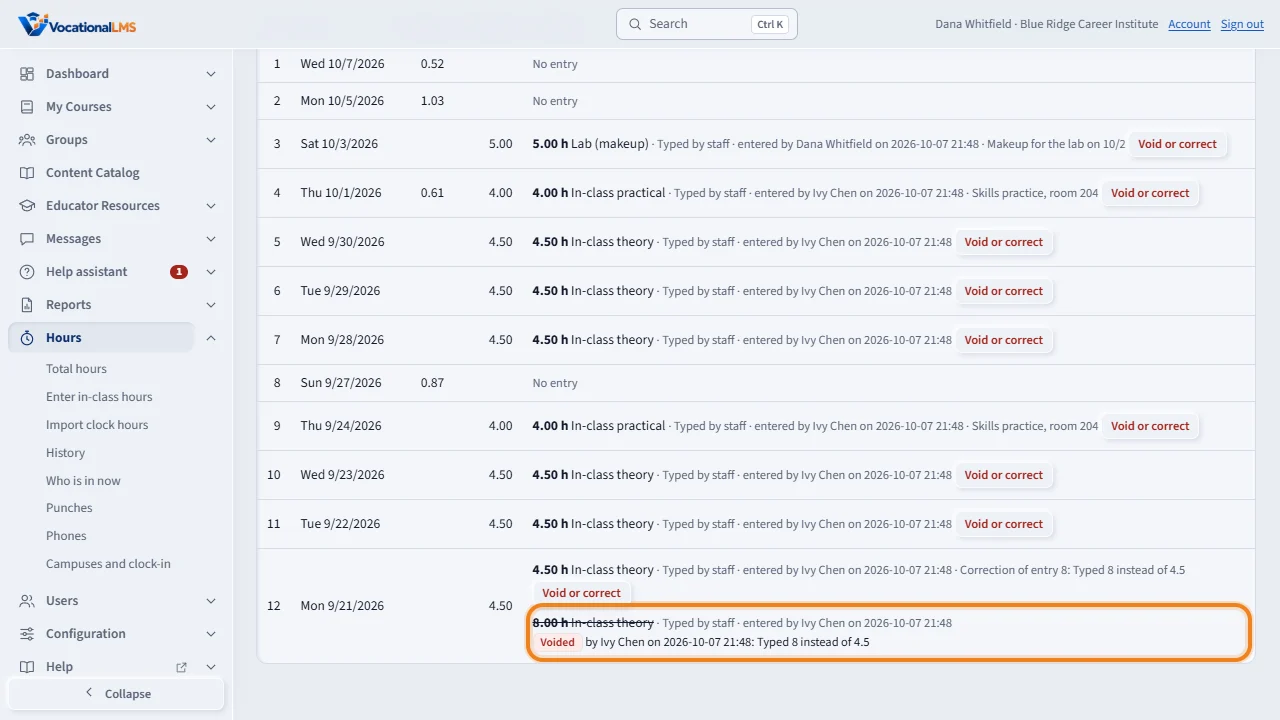
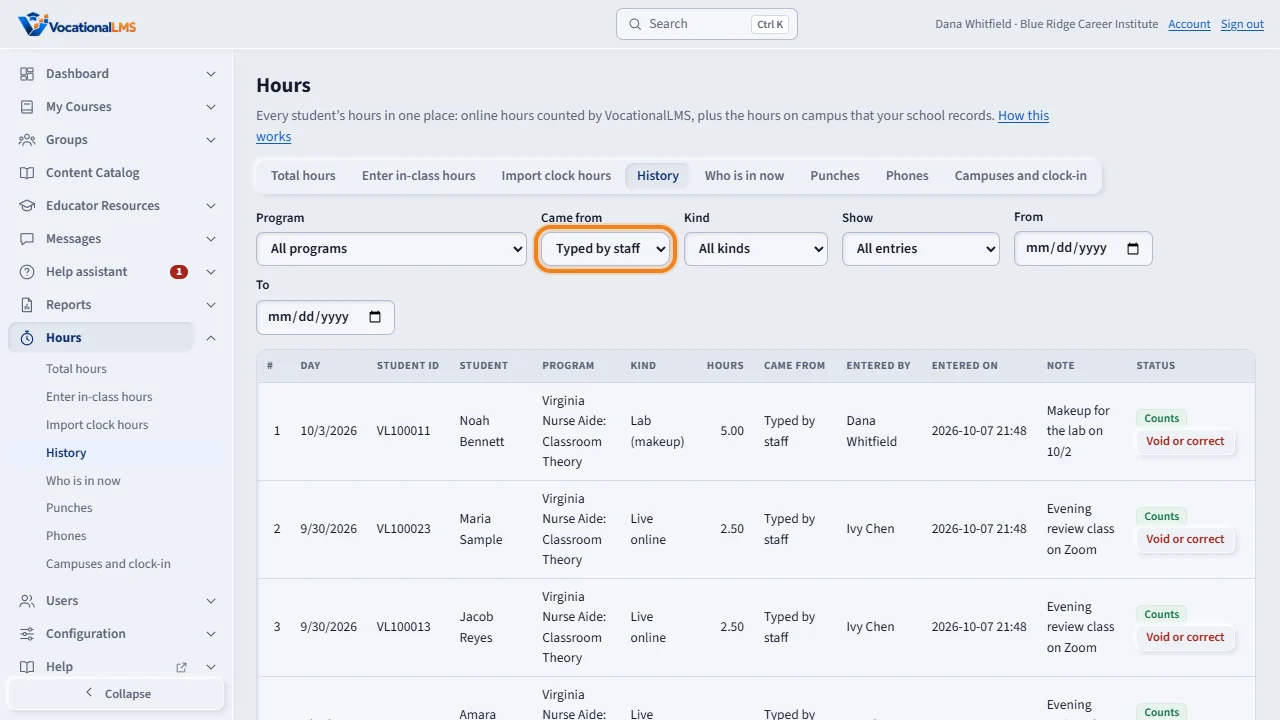
Click a student's name to see every day and every entry. To correct a mistake, click Void or correct, and type the reason and the corrected hours. The old entry stays, struck through.
History lists every entry: who entered it, where it came from, and whether it still counts. Nothing is erased.
Open this in VocationalLMSHours > Total hours
What it is for
Hours in the menu on the left puts a student's hours in one place: the online hours VocationalLMS counted in the lessons; live online hours (a live class by Zoom or another video call); the in-class hours your school records (theory, practical, lab, clinical); and transfer / prior hours (hours you accepted from another school, and hours brought over from another online system). Each kind is kept apart, never blended, and added up to a total, against the hours the whole program requires. Makeup hours are a tick on the entry, so a makeup lab is still a lab. Your school's own records stay the official record; this page is a working view and a report.
Steps
Set the hours a program requires
- Click Hours in the menu on the left. The first page is Total hours.
- Choose the Program.
- Type the Hours the whole program requires, for example 600. Leave Midpoint empty for half (300), or type another number.
- Click Save. The table now shows Required, Remaining, Percent and a Midpoint reached mark for each student.
Read the Total hours table
- Each row is one active student: Student ID, Online, Live online, In class, Transfer / prior, Total, Required, Remaining and a bar with the percent.
- In class is theory + practical + lab + clinical + other. Rest the pointer on a number to see the split, or tick Show the in-class split to get a column for each.
- If the program has groups, choose one under Group to see only that group (cohort). The choice stays when you go to Enter in-class hours.
- Choose All students under Students to include students who completed or withdrew.
- Click a student's name to see every day, with online time and each in-class entry: who entered it, when, and where it came from.
- Click Download CSV to open the table in Excel or Google Sheets.
Type in-class hours
- Click Enter in-class hours. Choose the Program (and a Group, if you want only one cohort), the Day and the Kind of hours: In-class theory, In-class practical, Lab, Clinical, Live online or Other. For a weekly sheet, also choose a last day under To (at most 7 days).
- Tick Makeup hours when the sheet is a makeup class. The kind stays what it is.
- Type each student's hours in the box: decimal hours (4.5) or hours and minutes (4:30). Leave the box empty for a student who was not there.
- When everyone had the same hours, type them on the Same for everyone line and click Fill empty boxes.
- Click Save all hours. Everything is checked first: if one box is wrong, nothing is saved and the page marks the box and says why.
Correct a mistake
- Open the student from Total hours, or open History.
- Click Void or correct beside the entry. Type the Reason. To replace the hours, also type the Corrected hours.
- Click Void entry. The old entry stays in History, struck through, with your name and reason. It is no longer counted.
Record transfer hours
- On Enter in-class hours, choose Transfer hours (accepted from another school) as the kind.
- Type the hours for the student and a Note (required): the school they come from and the document you have on file. Click Save all hours.
Record a total from another online system
- On Enter in-class hours, choose Prior online total (from another online system) as the kind.
- Type ONE number for each student: all the hours earned in the other system, as of the day you chose (for example 187:54). Type a Note (required): the system and the report you have on file. Click Save all hours.
- The total is shown under Transfer / prior. It is not time in class on that day, so the 16-hour limit does not apply.
What happens next
Online hours are the same number as Time spent on the student's record. Every kind of hours counts toward the total and toward the midpoint. An entry is never changed or erased: a correction voids it and adds a new one. The page refuses a day in the future, more than 16 hours for one student in one day (all kinds together), and negative numbers. If a student also studied online for 2 hours or more on that day, the hours are saved and the page warns you to check that the same time is not counted twice. Download CSV has a column for every kind. Two reports under Reports, topic Hours, give the same numbers to print or download, for all students or for one Group: Total hours by student and In-class hours log.
Common problems
| # | Problem | What to do |
|---|---|---|
| 1 | Required, Remaining and Percent are empty. | The hours the program requires are not set. Type them at the top of Total hours and click Save. |
| 2 | Nothing was saved. | One box was wrong. The page marks it in red and lists the reason. Correct it and click Save all hours again. |
| 3 | A student is missing from the grid. | The grid has the active students of the program. A withdrawn or archived student is not in it. |
| 4 | I typed hours for the wrong day. | Void the entry with a reason, then enter the hours for the right day. |
| 5 | The program list has “No program”. | Those are hours from the clock-in app that belong to no program yet. Open Hours, then Punches, and set the program of the visit (A-53). |