
I-25For instructors
Enter in-class hours for your students
Type the hours your students were in class, for a day or a week, see their total hours, and close a punch a student forgot.
How-to video I-25 · 1:00
Read the words of this video
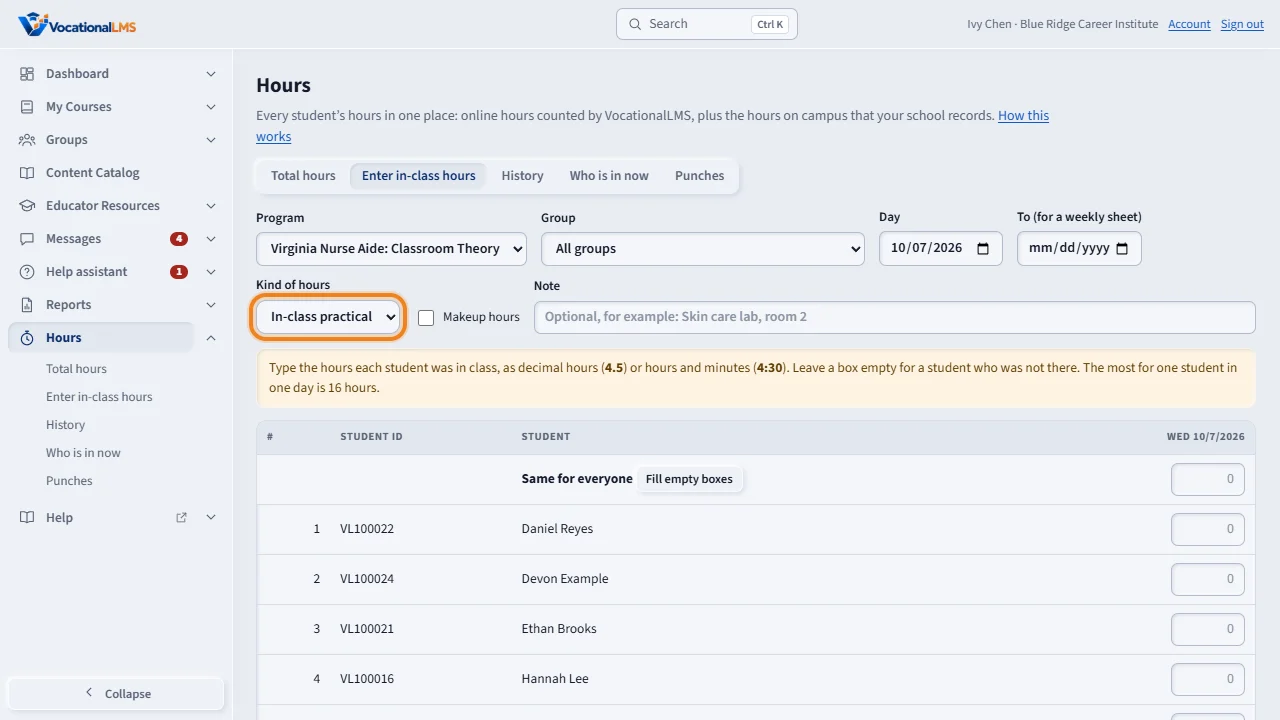
Click Hours, then Enter in-class hours. Choose the program, the day and the kind of hours. Tick Makeup hours when it is a makeup class.
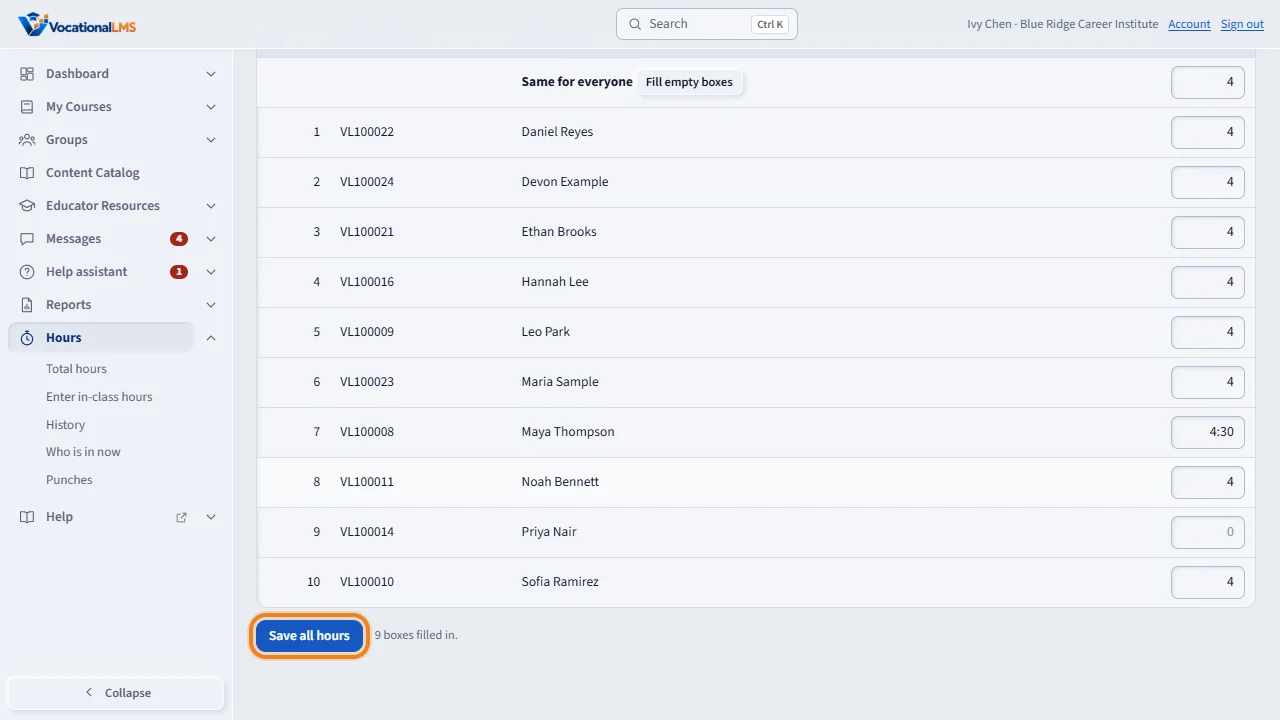
Type each student's hours, for example 4.5 or 4:30. Leave the box empty for a student who was not there. When everyone had the same hours, use Fill empty boxes. Then click Save all hours.
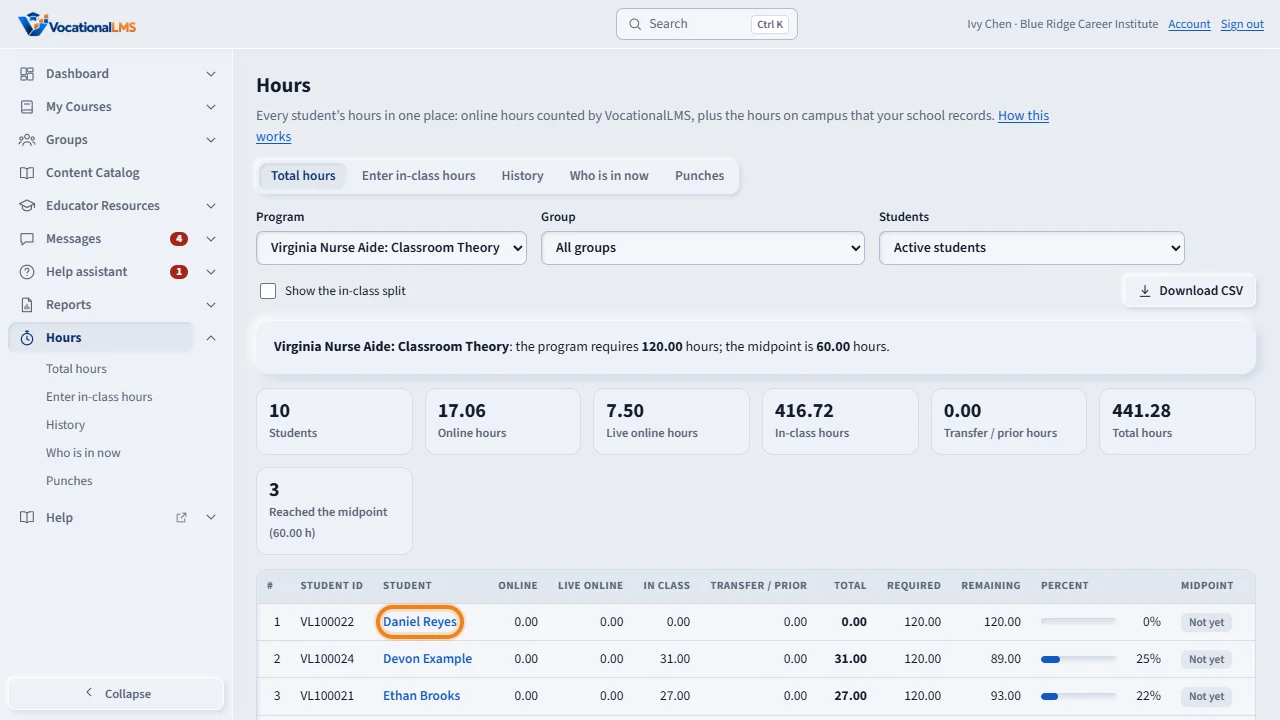
Total hours shows your own students, against the hours the program requires. Click a name to see every day and every entry.
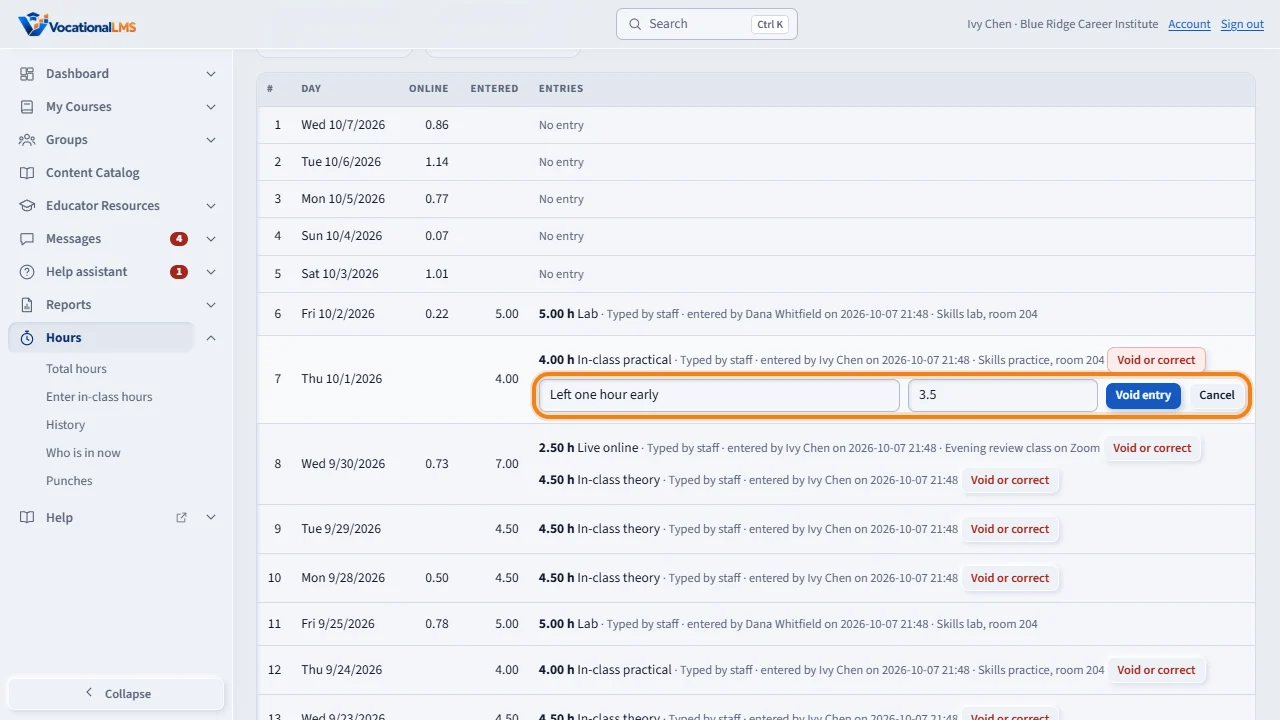
To correct an entry you entered, click Void or correct. Type the reason and the corrected hours, and click Void entry.
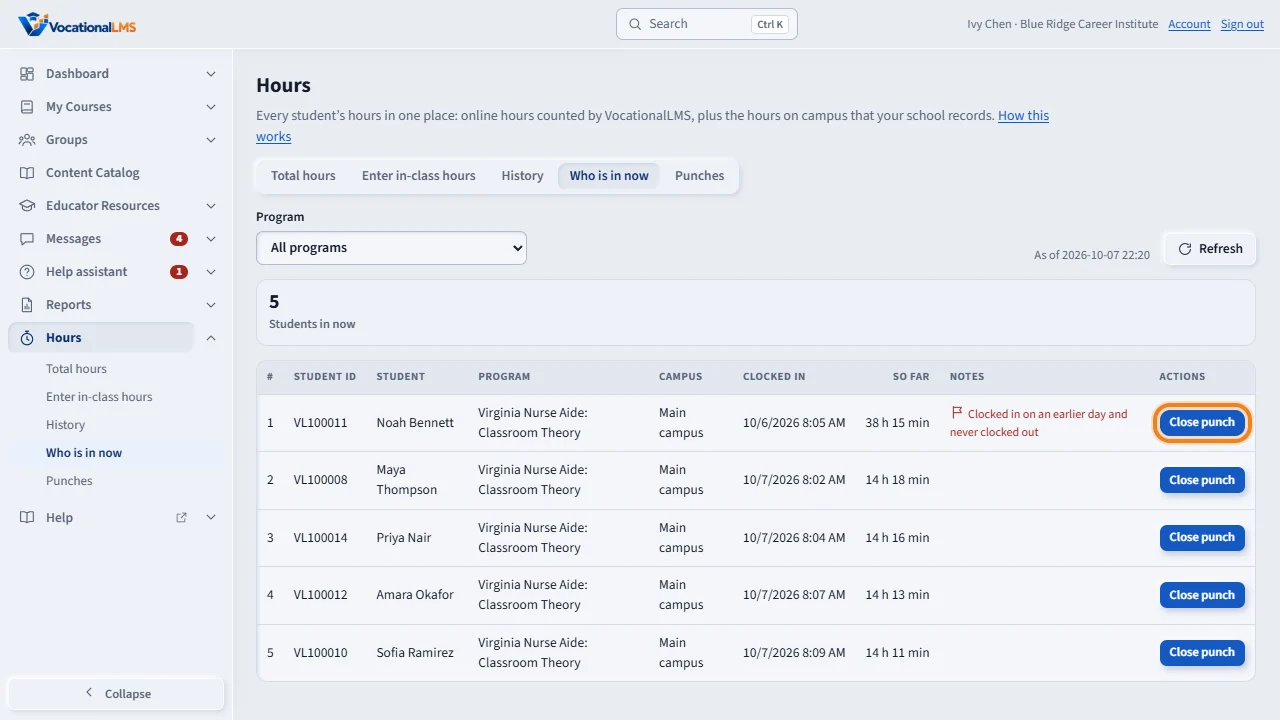
If your school uses the clock-in app, Who is in now lists your students who are clocked in. When one forgot to clock out, click Close punch, with the time they really left and the reason.
Open this in VocationalLMSHours > Enter in-class hours
What it is for
Hours in the menu on the left shows the hours of your own students: online hours, live online hours, in-class hours and the total, against the hours the program requires. You can type the in-class hours for your students. If your school uses the clock-in app, you also see who is in now and can close a punch a student forgot.
Steps
Type in-class hours
- Click Hours, then Enter in-class hours.
- Choose the Program, the Day and the Kind of hours: In-class theory, In-class practical, Lab, Clinical, Live online (a class by Zoom) or Other. For a weekly sheet, also choose a last day under To.
- If you teach a group, choose it under Group: the grid then has only that group's students. You are offered only the groups you are on.
- Tick Makeup hours when it is a makeup class.
- Type each student's hours: 4.5 or 4:30. Leave the box empty for a student who was not there. When everyone had the same hours, use the Same for everyone line and click Fill empty boxes.
- Click Save all hours. If one box is wrong, nothing is saved and the page says which box and why.
See your students' hours
- Click Total hours. Each row is one of your students. Click a name to see every day and every entry.
- To correct an entry you entered, click Void or correct, type the reason and, if you want, the corrected hours.
If your school uses the clock-in app
- Who is in now lists your students who are clocked in.
- A student forgot to clock out: click Close punch, choose the time they really left, type the reason and click Close punch.
- A student could not punch: on Punches click Add a missed punch, with the times and a reason.
What happens next
The page refuses a day in the future, more than 16 hours for one student in one day, and negative numbers. An entry is never changed or erased; a correction voids it with your name and reason. Only the School Admin or a Director can set the hours a program requires, record transfer hours or a total from another online system, void an entry someone else entered, edit or void a punch, or import a file. When a punch was edited you can click Edited on it to read what was changed.
Common problems
| # | Problem | What to do |
|---|---|---|
| 1 | A student is missing. | You see students of the programs you are assigned to. A student who has a different instructor of their own is theirs. Ask your School Admin. |
| 2 | I cannot void an entry. | You can void an entry you entered yourself. Ask your School Admin or a Director for the others. |
| 3 | Required hours are not set. | Your School Admin or a Director sets them on Total hours. |