
A-55For School Admins and Directors
Upload any attendance report and let AI read it
Upload a PDF, a saved web page, a photo, Excel, CSV or text from your school's system. The AI reads it, the page checks the totals, and you confirm.
How-to video A-55 · 1:31
Read the words of this video
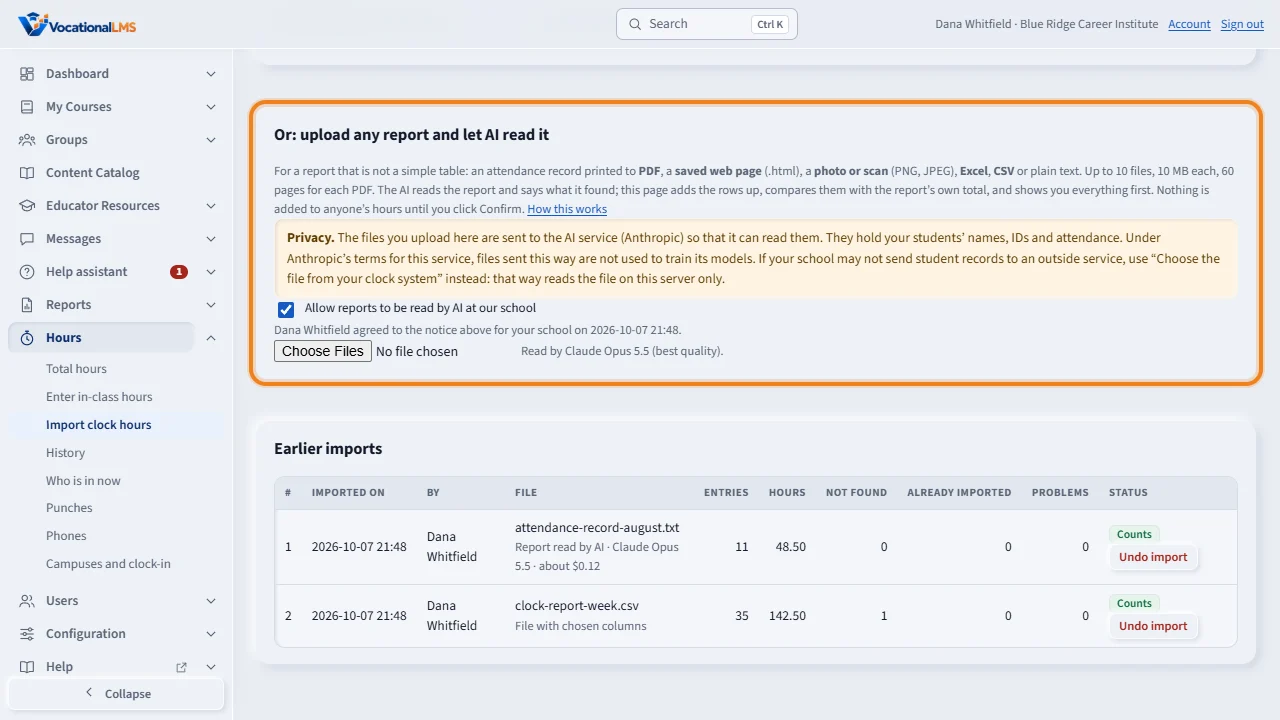
Some reports are not a simple table: a printed attendance record, a P D F, a photo. On Import clock hours, scroll to Upload any report and let AI read it. Read the Privacy box first: the files are sent to the AI service.
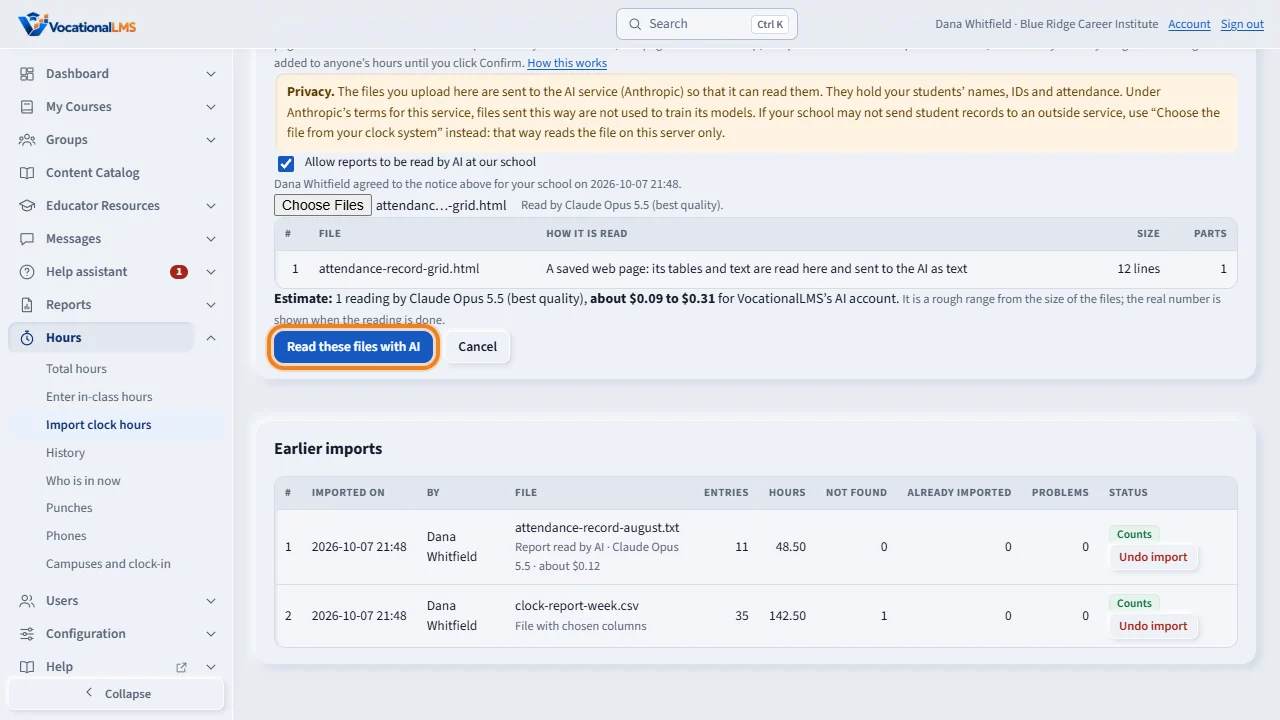
Click Choose Files and pick your files. The page lists each file and shows an estimate of the cost. Nothing has been sent yet. Click Read these files with AI. The first time, you also tick a box to agree.
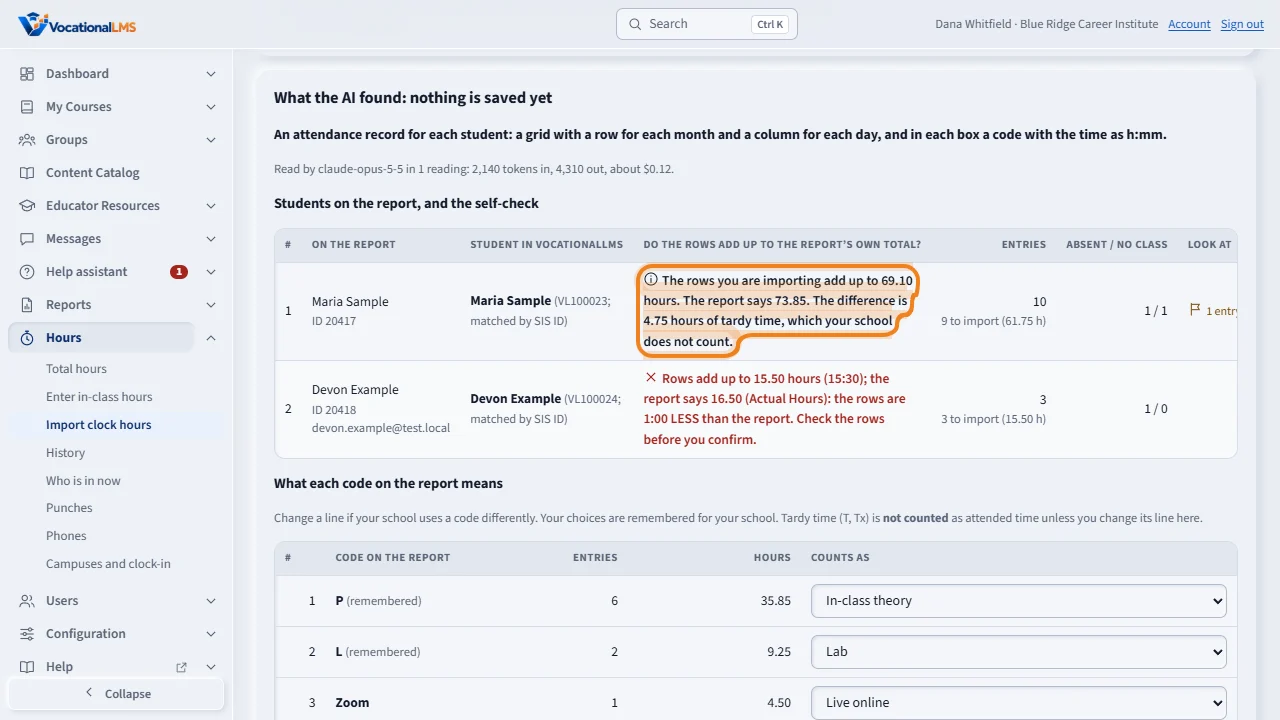
When the reading is done, check what was found. For each student, the page adds the rows up and compares them with the total printed on the report. Here the rows add up to 69.10 hours and the report says 73.85. The difference is 4.75 hours of tardy time, which your school does not count. Red means a difference the page cannot explain: look at the report before you go on.
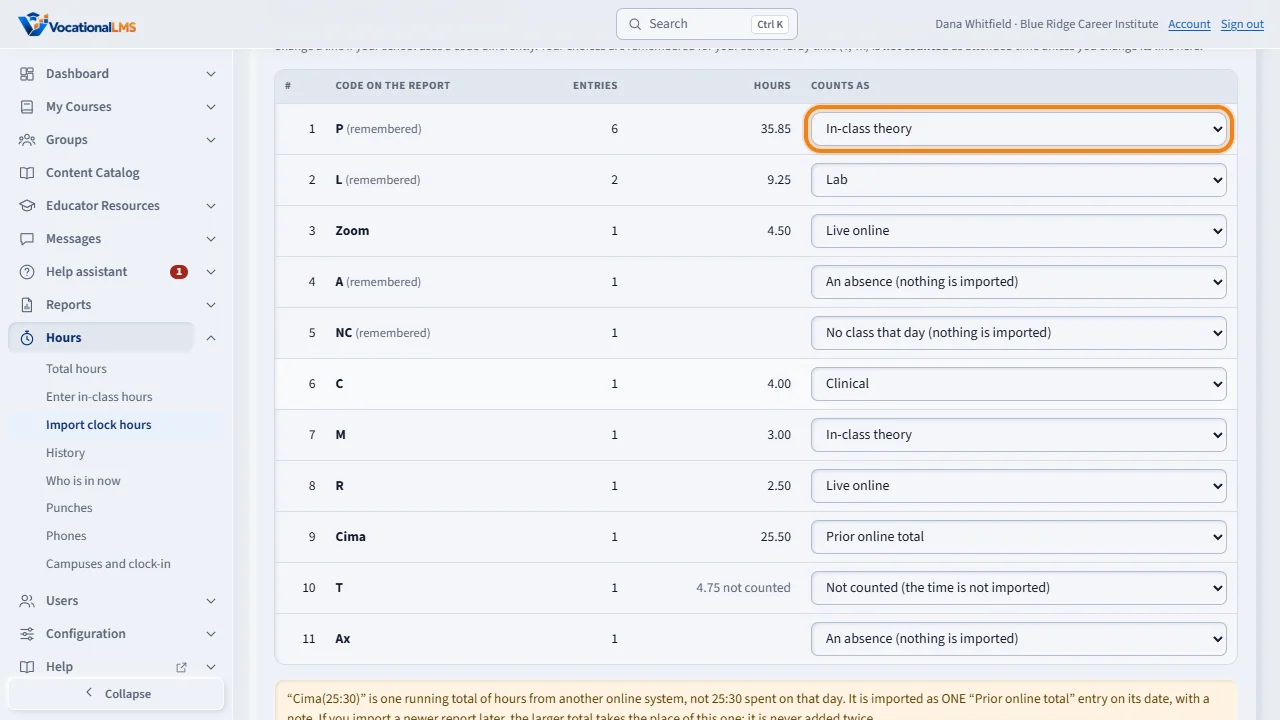
Next is what each code on the report means. Change a line if your school uses a code differently. Tardy time is set to Not counted, so its time is not imported. Absences and no-class days are never imported.
Nothing is added to anyone's hours until you click Confirm import. The import is then listed under Earlier imports, and you can undo it there.
Open this in VocationalLMSHours > Import clock hours > AI
Who can do this: A School Admin or a Director. Only the School Admin can turn the switch Allow reports to be read by AI at our school on or off.
What it is for
Some reports are not a simple table: an attendance record with a grid of months and days and a code in each box, a PDF, a photo of a sign-in sheet. Under Hours > Import clock hours, the part Or: upload any report and let AI read it takes such a file. The AI only reads: it says what the report is, who is on it, and what is printed for each student and day. The page does the rest itself: it turns the printed times into hours, adds each student's rows up and compares them with the total printed on the report, matches the students to your records, and shows you everything first. Nothing is added to anyone's hours until you click Confirm.
Steps
Upload and read
- Click Hours, then Import clock hours. Scroll to Or: upload any report and let AI read it.
- Read the Privacy box: the files are sent to the AI service (Anthropic) to be read. If your school may not send student records to an outside service, use 1. Choose the file from your clock system at the top instead (A-51).
- Click Choose Files and pick up to 10 files: PDF (up to 60 pages each), a saved web page (.html), a PNG or JPEG picture, Excel (.xlsx), CSV or text; 10 MB each.
- The page lists each file with how it will be read and shows an Estimate of the cost for VocationalLMS's AI account. Nothing has been sent yet.
- The first time at your school, tick the box that says you understand the files are sent to the AI service. Your name and the date are kept; it is asked once.
- Click Read these files with AI. The Activity box shows each step with its time. You can wait; it updates by itself.
Check what was found
- The first line says what the report is, in one sentence. Under it is the real usage and cost.
- Students on the report, and the self-check: each student, who they were matched to, and one line such as Rows add up to 73.85 hours; the report says 73.85 (Actual Hours): match. A difference is shown in red with how much more or less. Look at the report before you go on. When the only difference is tardy time, the line says so: The rows you are importing add up to 69.10 hours. The report says 73.85. The difference is 4.75 hours of tardy time, which your school does not count.
- A student who was not found, or whose exact name belongs to more than one student, has a box: choose the right student, or Skip this student. A near name is never guessed.
- What each code on the report means: for example P is In-class theory, Zoom is Live online, L is Lab, A is an absence. Change a line if your school uses a code differently. Your choices are remembered. Tardy time (T, Tx) is Not counted: its time is not imported as attended hours. If your school does count tardy time, set that line to the kind of class it was.
- Absences and no-class days are counted and never imported. Entries the AI was unsure of are held back until you tick Also import the entries the AI was unsure of.
- Choose the Program for these hours if your students are in more than one program.
Confirm, or undo
- Click Confirm import. The entries are saved as one import, listed under Earlier imports as Report read by AI.
- To take it back, click Undo import, type the reason and click Undo it. Every entry of that import is voided; nothing is erased.
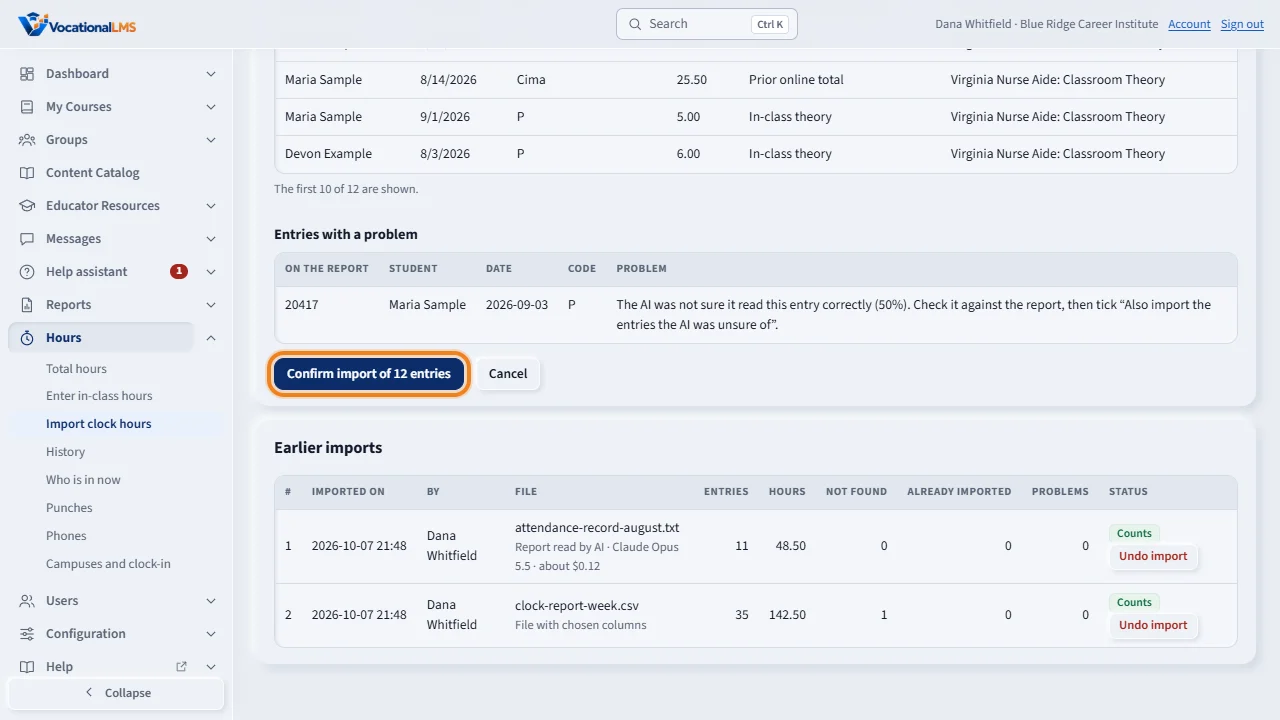
What happens next
The same entry counts once, whatever file it comes in: uploading the same report again adds nothing. A running total from another online system, printed as one entry on one day (for example Cima(187:54)), is saved as ONE Prior online total entry; when a newer report has a larger total, it takes the place of the old one and is never added to it. The page also points out the same day twice, more than 16 hours in a day, and days outside the student's program dates printed on the report. Reading grades and student lists the same way is planned.
Common problems
| # | Problem | What to do |
|---|---|---|
| 1 | “No Anthropic key is set up on VocationalLMS yet.” | The AI reader is not turned on for the platform. Use 1. Choose the file from your clock system (A-51), or ask VocationalLMS. |
| 2 | “Reading reports with AI is turned off for your school.” | The School Admin ticks Allow reports to be read by AI at our school on this page. |
| 3 | The rows do not add up to the report's total. | Look at the entries the AI was unsure of and at the lines under Look at. If the report itself is right, tell VocationalLMS; do not confirm numbers you cannot explain. |
| 4 | A student is not matched. | Their Student ID, SIS ID, email or exact name is not in VocationalLMS. Choose them in the box, or add their SIS ID on the Users page and upload again. |
| 5 | The file is a long plain table with thousands of punches. | Use 1. Choose the file from your clock system instead. It is exact and costs nothing. |
| 6 | It is an old .xls file. | Open it in Excel and save it as Excel Workbook (.xlsx) or print it to PDF. |