
A-53For School Admins and Directors
Punches: who is in, corrections
See who is clocked in now, review each day's visits, close an open punch, add a missed punch, edit a punch that is wrong or void one, each with a reason.
How-to video A-53 · 1:12
Read the words of this video
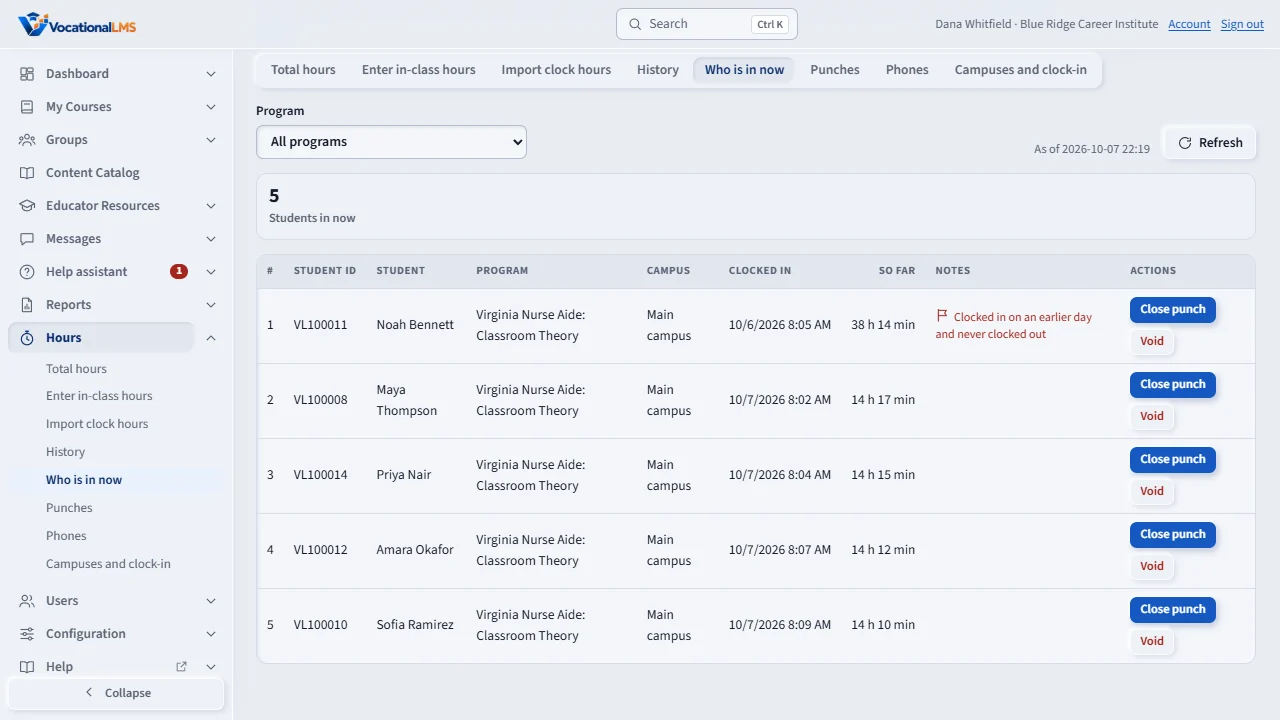
Click Hours, then Who is in now, to see who is clocked in. A student who never clocked out on an earlier day is flagged.
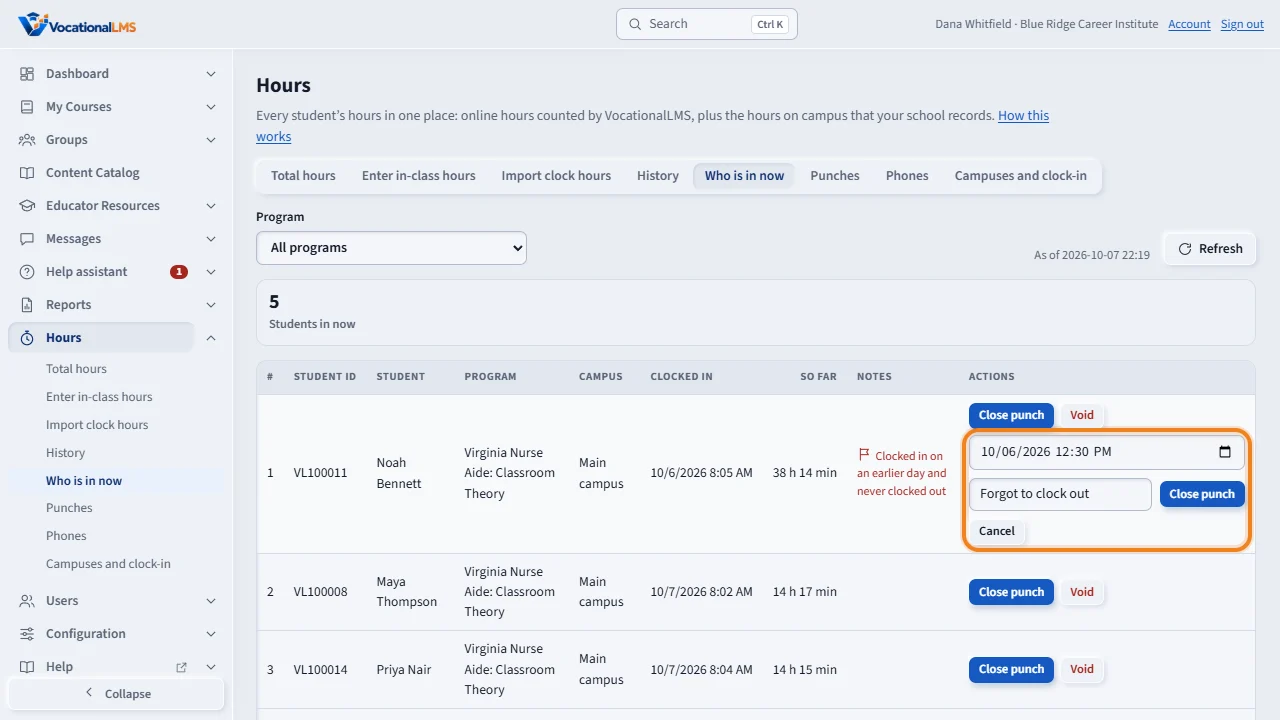
When a student forgot to clock out, click Close punch. Choose the time the student really left, type the reason, and click Close punch. The hours are then counted.
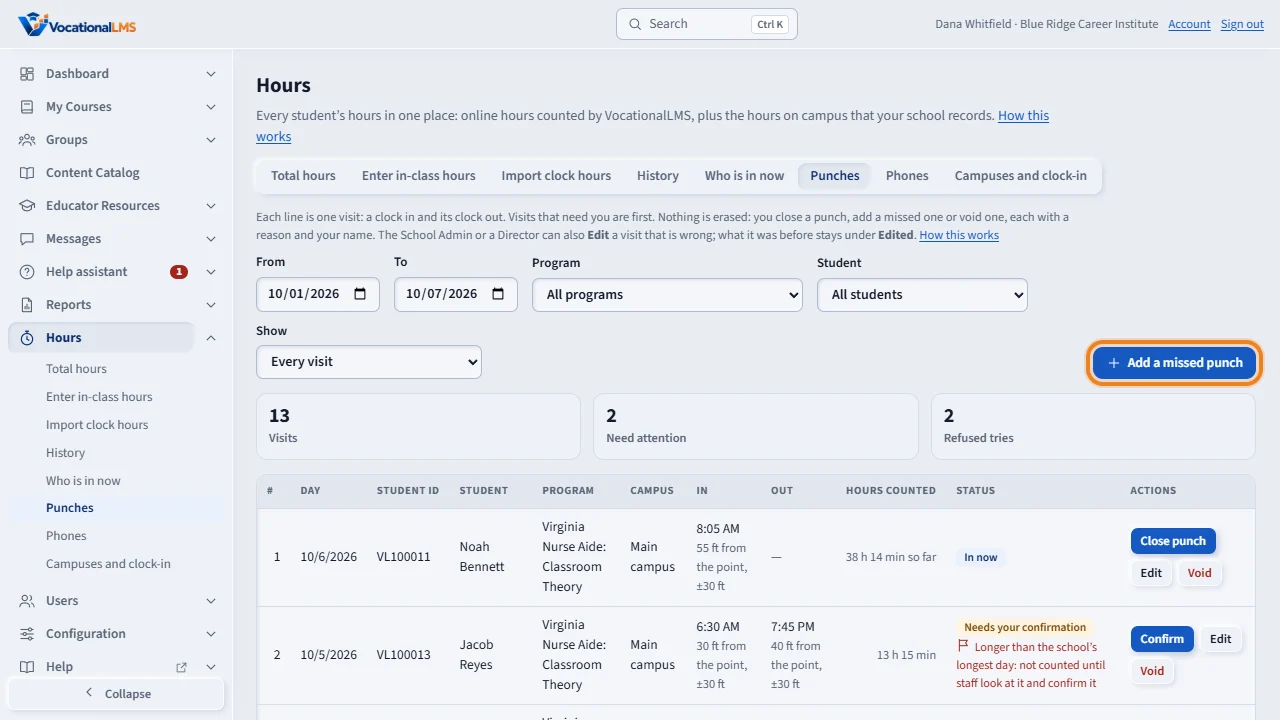
Punches lists every visit by day, with the hours counted and a status. Visits that need you are first. If a student could not punch, click Add a missed punch.
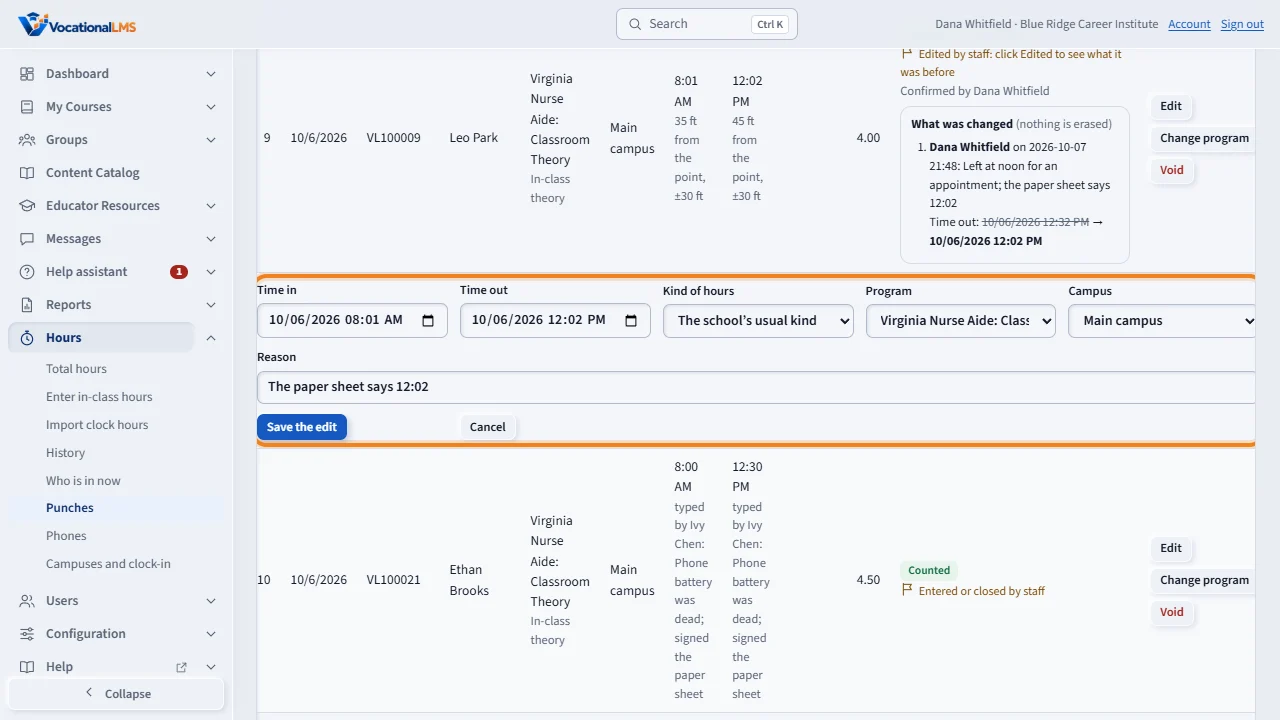
To correct a visit, click Edit. Change what is wrong, type the reason, and click Save the edit. The visit then has an Edited button: click it to see who changed it, why, and what it was before.
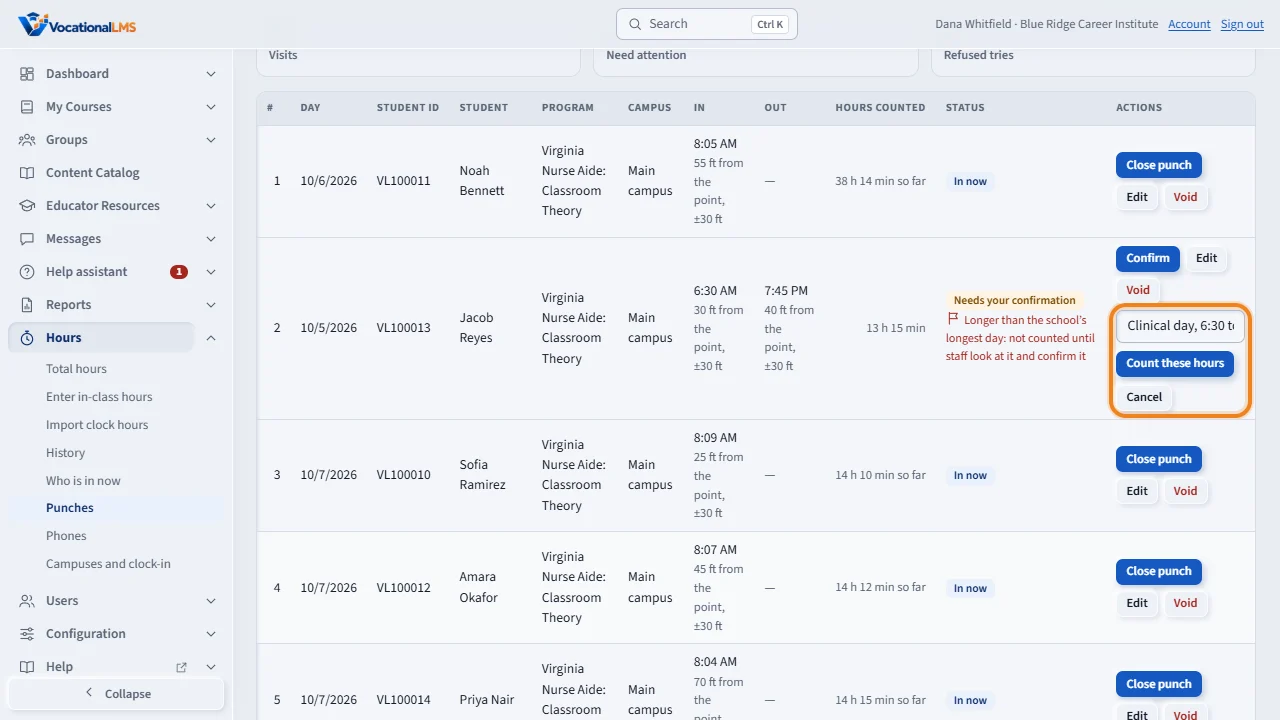
A visit longer than your school's longest day says Needs your confirmation, and is not counted. Look at it, click Confirm, type the reason, and click Count these hours.
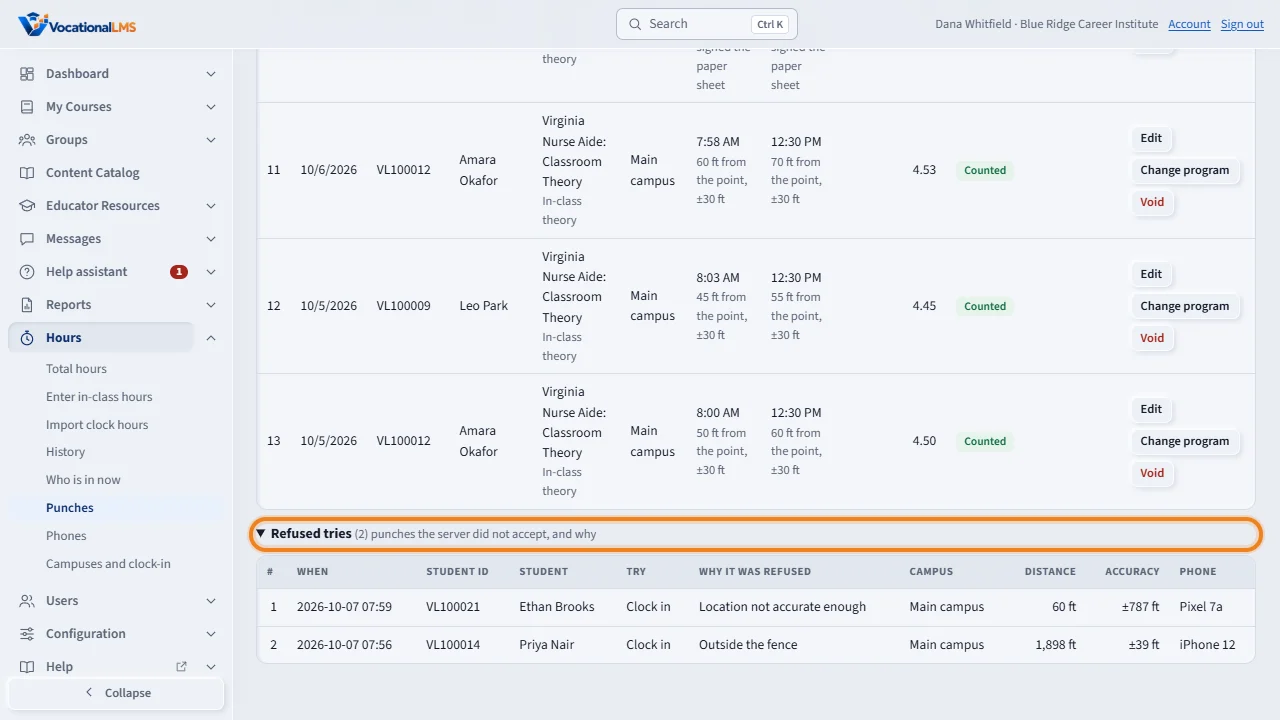
At the bottom, open Refused tries. It lists every punch the server did not accept, with the reason, the distance and the phone.
Open this in VocationalLMSHours > Who is in now
What it is for
Who is in now lists the students who are clocked in at this moment. Punches lists every visit by day: the clock in, the clock out, the hours counted and a status. Visits that need you are first. Nothing is erased: you close a punch, add a missed one, edit one that is wrong or void one, each with a required reason and your name. When a punch is edited, what it was before is kept and shown under Edited.
Steps
See who is in
- Click Hours, then Who is in now. Choose a Program to shorten the list, and then a Group if the program has groups. Click Refresh to ask again.
- A student who clocked in on an earlier day and never clocked out is flagged.
Close an open punch
- A student forgot to clock out. The punch stays open; the system never guesses a time.
- On Who is in now or Punches, click Close punch. Choose the date and time the student really left, type the Reason, and click Close punch. The hours are then counted.
Add a missed punch
- On Punches, click Add a missed punch.
- Choose the student, the Time in and the Time out (leave it empty if the student is still at school), and type the Reason. Click Add punch.
Edit a punch that is wrong
- On Punches, find the visit and click Edit. A form opens on a line under it, filled with what the visit is now.
- Change what is wrong: the Time in, the Time out, the Kind of hours, the Program or the Campus. Type the Reason (required).
- Click Save the edit. The hours of the visit are counted again from the new values: the old hours entry is voided and a new one is added.
- The visit now has an Edited button. Click it to see every change: who made it, when, why, and what the value was before and after.
Confirm a long day, set a program, void
- A visit that the student closed and that is longer than your school's longest day says Needs your confirmation and is not counted. Look at it, click Confirm, type the reason, and click Count these hours. A visit that staff closed or edited is counted at once: there is no second confirmation.
- A visit under No program came from a student who is in several programs, or in none. Click Set program, choose the program and type the reason.
- Click Void to void the whole visit, or only its time out (the punch is then open again). Type the reason. The visit stays in the list as voided, and its hours no longer count.
Read the refused tries
- At the bottom of Punches, open Refused tries: every punch the server did not accept, with the reason (outside the fence, location not accurate enough, fake location, phone not approved), the distance and the phone.
What happens next
The hours of a visit follow its punches: when you close, edit, confirm or void, the in-class hours entry is made or voided with it, and Total hours changes at once. On Punches you can narrow the list to one Program and one Group. Flags on a visit tell you what to look at: at the edge of the fence, the phone's clock was off, online study during the visit, entered by staff, or edited by staff. When the Clock-in module lapses, every past punch, the hours and the reports stay; only new punches stop.
Common problems
| # | Problem | What to do |
|---|---|---|
| 1 | A student says the app refused them. | Open Refused tries. It shows why: how far away they were, or that the phone was not sure of its place. If they were at school, add a missed punch with a reason. |
| 2 | The hours of a visit are 0. | It is still open, the student closed it and it is longer than the longest day (confirm it), or it is too short to count after your rounding rule. |
| 3 | I closed a punch with the wrong time. | Click Edit on the visit, choose the right Time out and type the reason. What it was before stays under Edited. |
| 4 | A student clocked out from the parking lot and it was refused. | A clock out must be inside the fence, like a clock in. Close the punch for them with the time they really left and a reason. |
| 5 | An instructor asks you to correct a punch. | Only the School Admin or a Director can edit a punch. The instructor can close an open punch and add a missed one. |
| 6 | Hours from a punch cannot be voided on History. | Correct the punch here; the hours follow it. |