
A-31For School Admins and Directors
Reports: students, study hours and sign-in history
Run a standard report when you need it, then download it for Excel or print it. Star the ones you use, save your filters, and see who ran what.
How-to video A-31 · 1:43
Read the words of this video
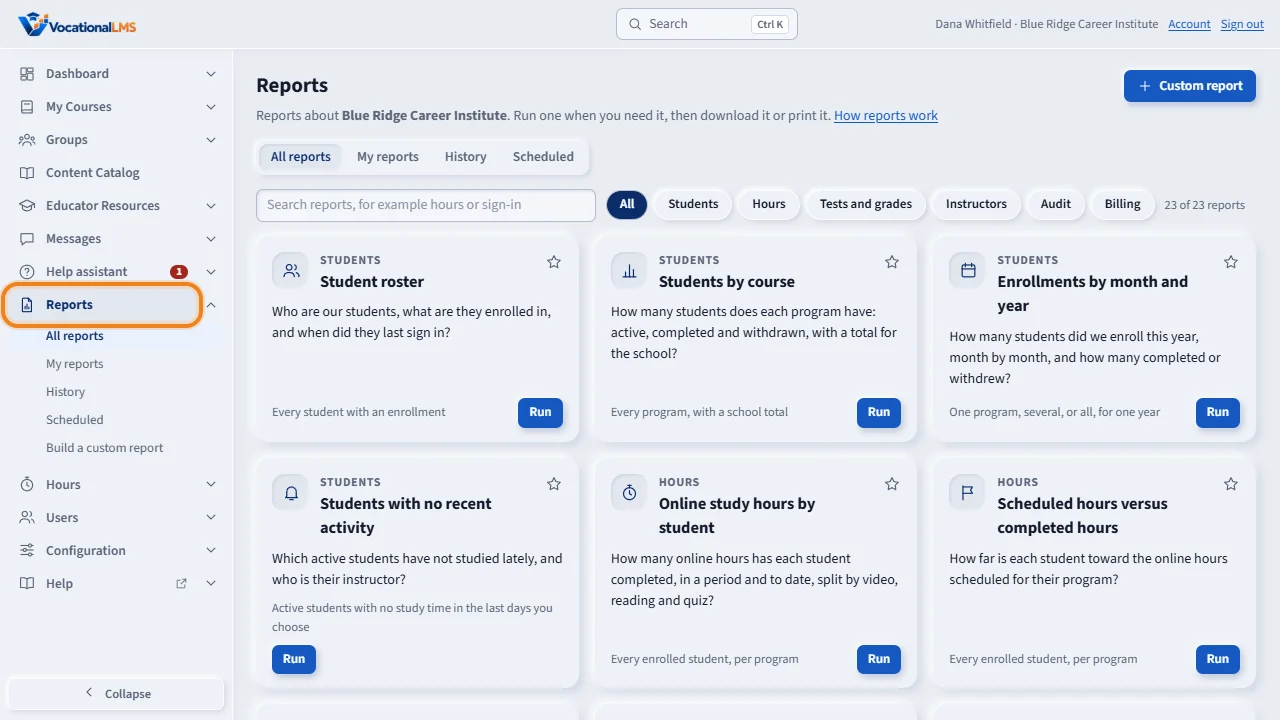
Reports, in the menu on the left, has the standard reports for your school. Each card is one report, with the question it answers. Type a word in the search box, or click a topic, to shorten the list. Every report is about your school only.
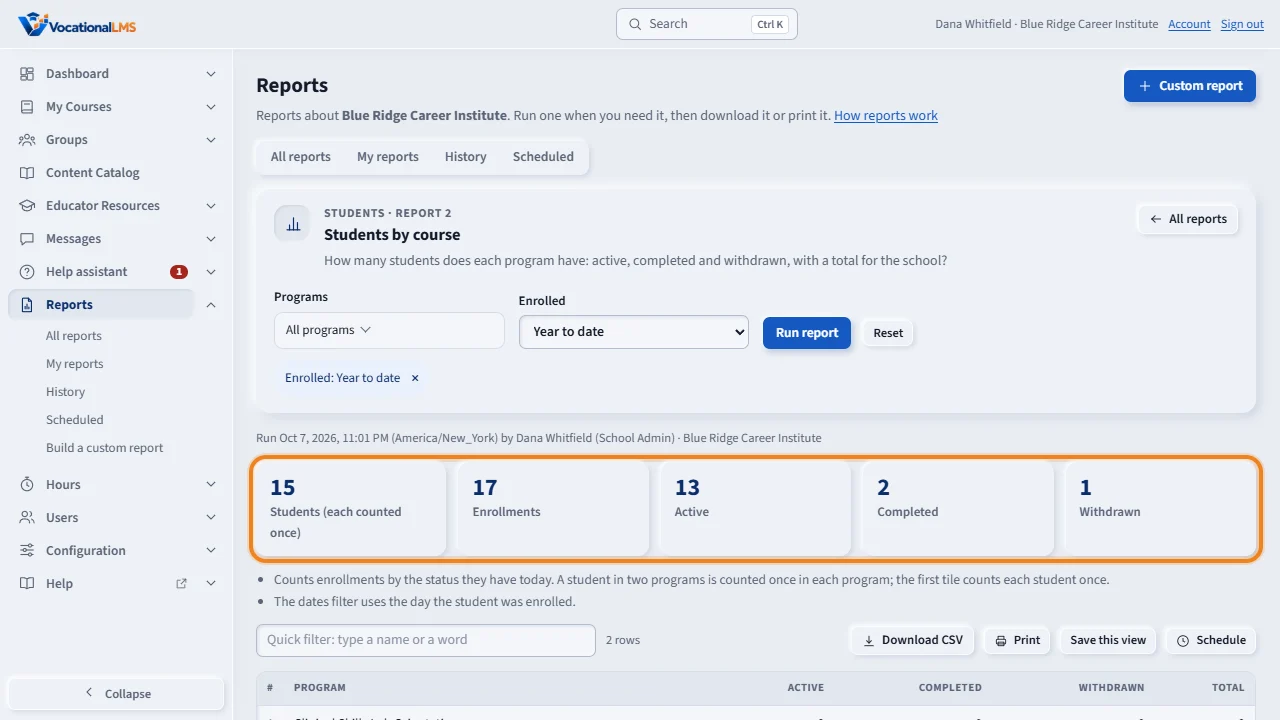
Click Run on a card. Choose the programs and the dates, then click Run report. This one counts the students of each program, active, completed and withdrawn, with a total for the entire school. The tiles above the table give the totals.
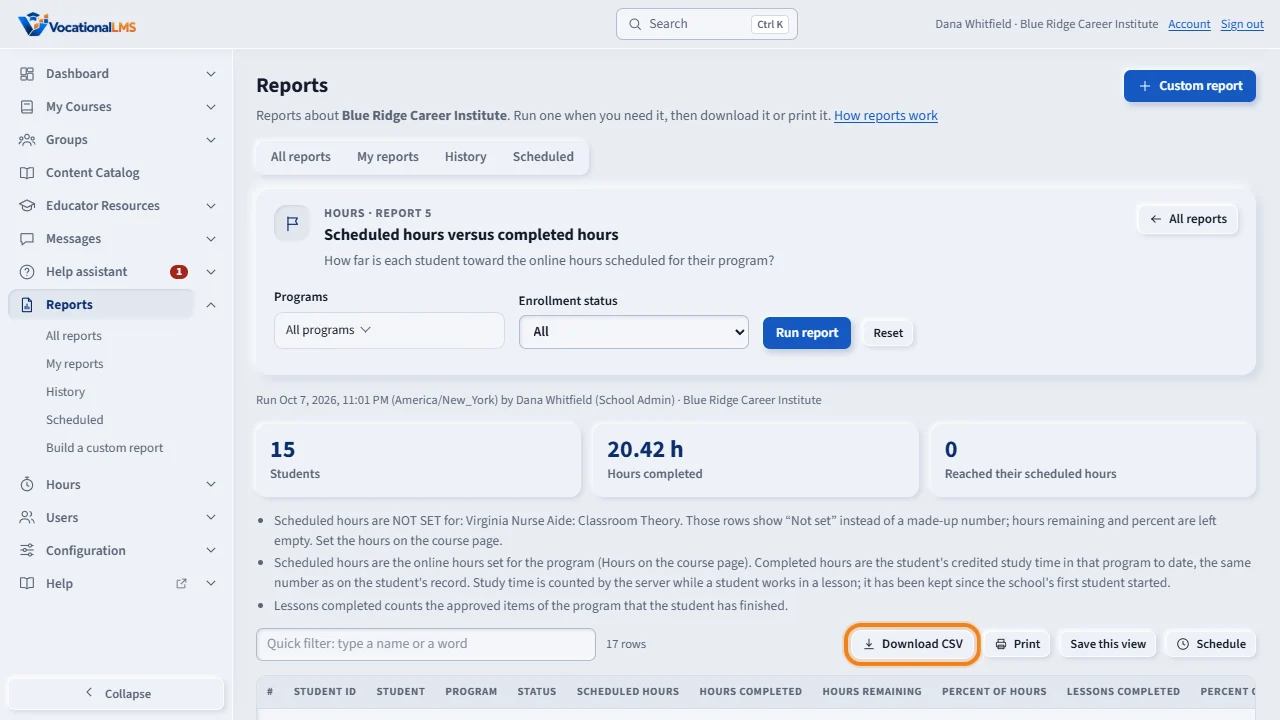
Scheduled hours versus completed hours shows how far each student is toward the hours of their program. These are the same hours as on the student's record. Click Download C S V to open the report in Excel, or Print to print it or save it as a P D F with your school's name, the filters, the date and your name.
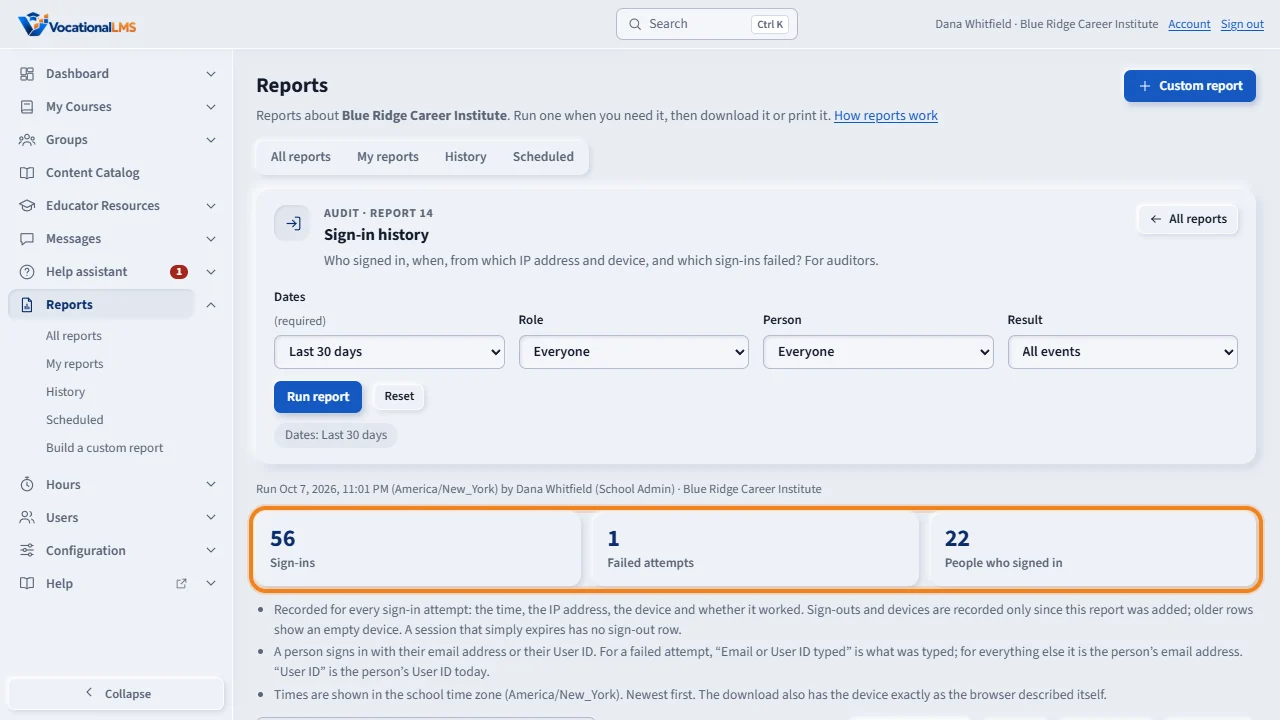
For an auditor, open Sign-in history. Each row is a sign-in, a sign-out or a failed attempt, with the date and time, the person, the I P address and the device. On the Users page, Login history on a staff row opens this report for that person. On a student's record or a person's page, Login history has Download or print, and Download history, which gives the last twelve months as a file in one click.
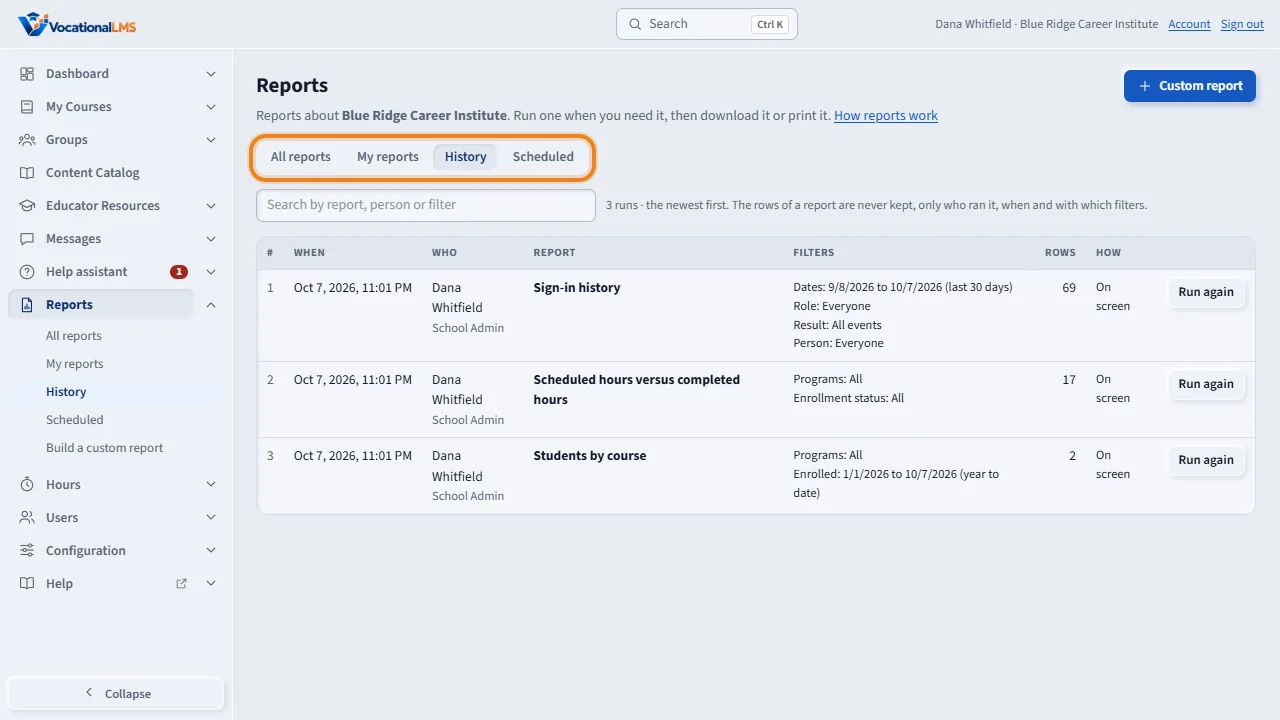
Click the star on a report to keep it under My reports, and click Save this view after a run to keep your filters. History lists every report run at your school, with who ran it and when. Click Run again to run one again.
Open this in VocationalLMSReports > All reports
What it is for
Reports in the menu on the left has the standard reports for your school: how many students each program has, enrollments by month and year, online study hours, scheduled hours against completed hours, a daily hours log, students who have not studied lately, students by instructor, seats, and the sign-in history auditors ask for. Every report is about your school only. Each one says above its table, in plain words, what it counts.
Steps
Run a report
- Click Reports in the menu on the left. Each card is one report: its name, the question it answers and who it covers.
- Type a word in the search box, or click a topic (Students, Hours, Tests and grades, Instructors, Audit, Billing) to shorten the list.
- Click Run on a card. Choose the filters: Programs (leave it on All programs, or tick one or more), a status, and the dates (for example Last 30 days, Year to date, or Between two dates).
- Click Run report. The totals show in tiles above the table. Click a column heading to sort. Type in Quick filter to find one student.
- Click Download CSV to open the report in Excel or Google Sheets, or Print to print it or save it as a PDF. The printed page has your school's name, the report name, the filters, the date and time, and your name.
- For the number of students in a year: open Enrollments by month and year, choose the year and one program or all programs. For hours: open Scheduled hours versus completed hours.
Keep the reports you use
- Click the star on a card to star it. Starred reports are under My reports.
- After running a report with the filters you want, click Save this view, give it a name and click Save. Next time, open My reports and click Run.
- History lists every report run at your school: when, who, which report, the filters and the number of rows. Click Run again to run one again.
Sign-in history for an auditor
- Open Sign-in history (topic Audit). Choose the dates, and if you want, a role or one person. Click Run report.
- Each row is one event: Signed in, Signed out or Failed sign-in with the reason, with the date and time, the person, the IP address and the device (for example Chrome on Windows).
- On the Users page, Login history on a staff row opens this report for that person. On a student's profile and on a person's page, Login history has a Download or print link that does the same for that person, and a Download history button that downloads the last 12 months as a CSV file in one click.
- Sign-in summary by person gives one row per person: first and last sign-in, the number of sign-ins, the days with a sign-in, and failed attempts.
What happens next
Hours are shown as hours:minutes:seconds with decimal hours under them; the CSV has decimal hours. They are the same hours as Time spent on the student's record. Days and months are counted in your school's time zone. What is recorded for a sign-in: the time, the IP address, the device, and whether it worked. Sign-outs and devices are recorded only since this report was added, and a session that simply runs out has no sign-out row. History keeps who ran which report and with which filters; it never keeps the rows of the report.
Common problems
| # | Problem | What to do |
|---|---|---|
| 1 | Scheduled hours says “Not set”. | No online hours are set for that program. The report never makes up a number. Set the hours on the course page. |
| 2 | A student is missing from a report. | Check the filters: choose All programs, set the status to All and choose a longer period. A student with no enrollment is only on the Users page. |
| 3 | The daily hours log asks for dates. | It needs a first and a last date, at most 92 days apart. Run it once for each term. |
| 4 | The hours do not match my own count. | Only time the server credited counts: time away from the page and removed idle time are left out. Open the student's Time log to see every stretch. |
| 5 | Excel shows an apostrophe before a name. | A cell that starts with =, +, - or @ is written with an apostrophe so that it can never run as a formula. |
| 6 | The table is cut off on a phone. | Slide the table sideways with your finger. The page itself stays still. |