
A-51For School Admins and Directors
Import clock hours from your school's system
Upload the CSV or Excel file from your time clock or SIS, check the preview, confirm. Undo a whole import if it was wrong.
How-to video A-51 · 1:03
Read the words of this video
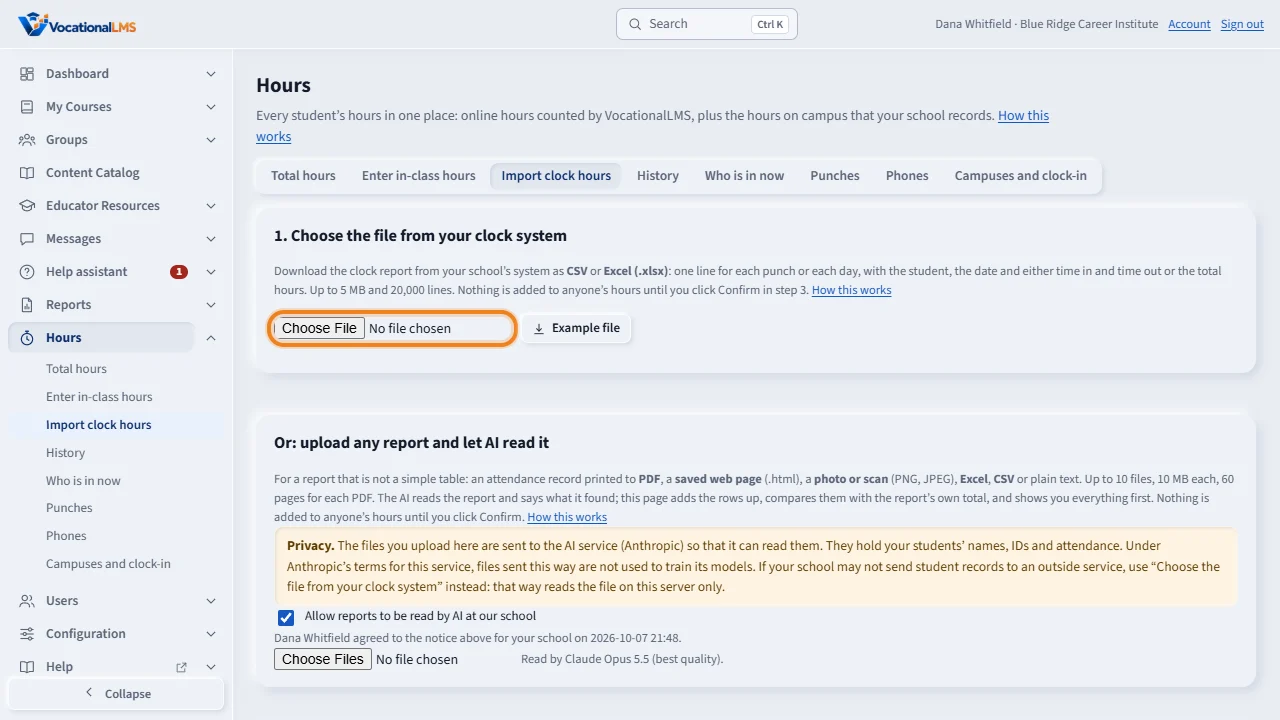
If your school records attendance in its own clock system, download that report as C S V or Excel. Click Hours, then Import clock hours, and choose the file. Nothing is saved until you confirm.
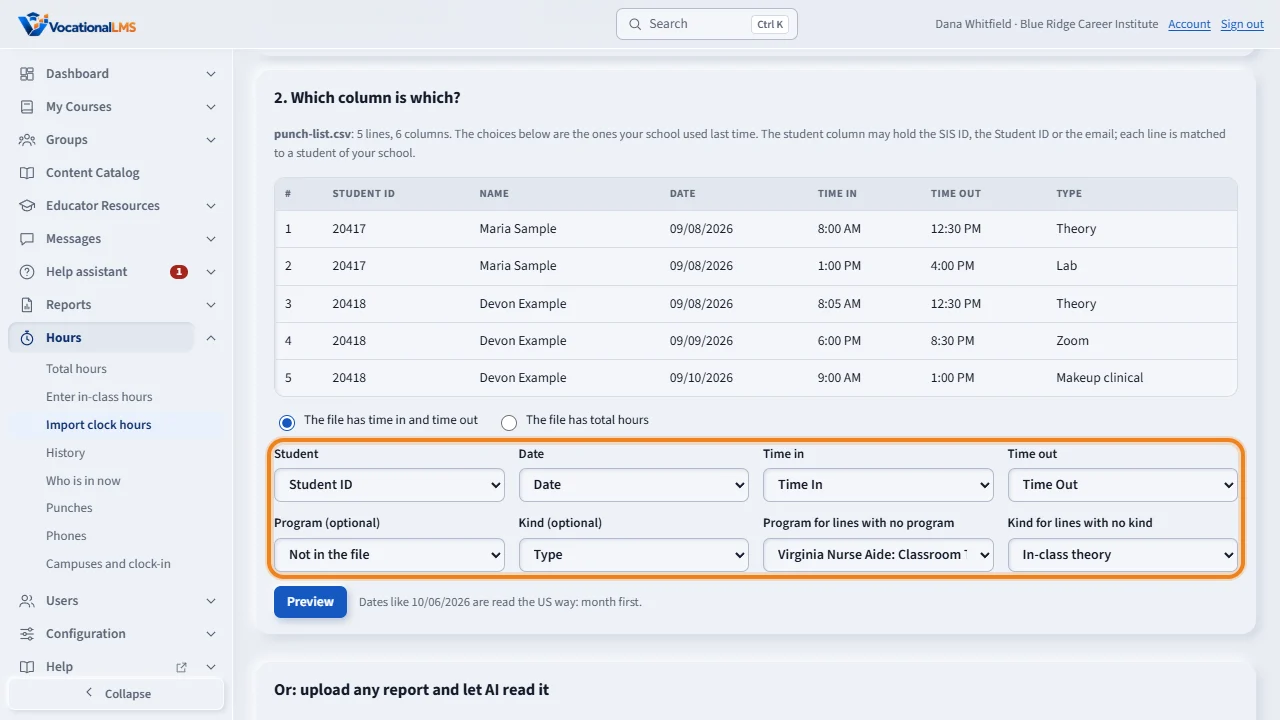
The page shows the first lines of the file. Check which column is the student, the date, the time in and the time out. Choose the program for lines that have none. Your choices are remembered for next time. Then click Preview.
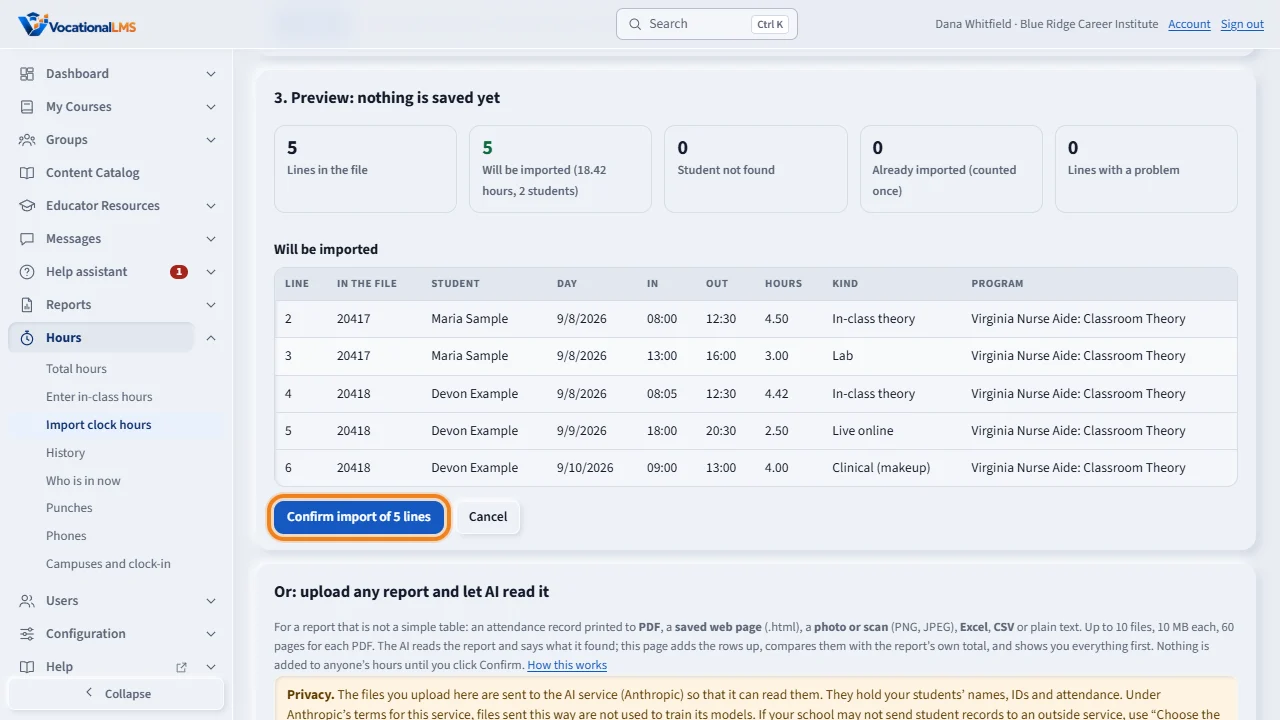
The preview counts the lines that will be imported, lines whose student was not found, lines already imported, and lines with a problem. Look at the sample under the counts. When it is right, click Confirm import.
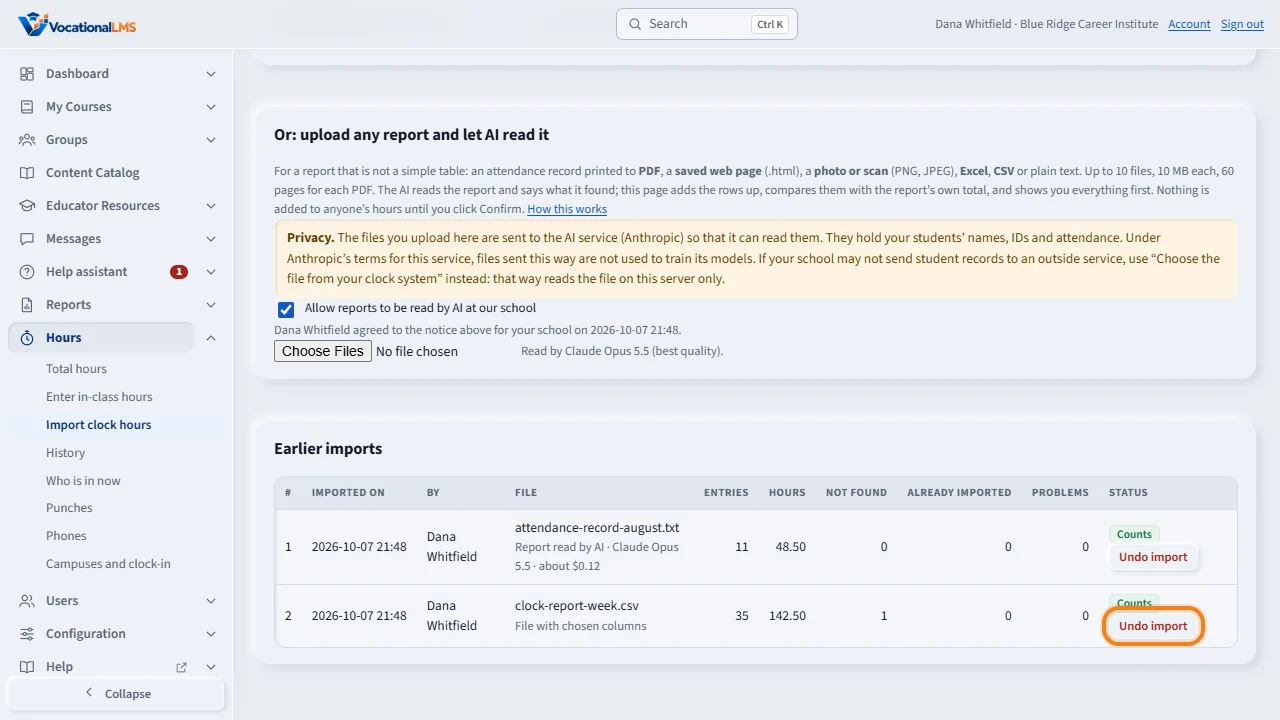
Earlier imports lists every import. If one was wrong, click Undo import, and type the reason. Its entries are voided. Nothing is erased, and the same punch is never counted twice.
Open this in VocationalLMSHours > Import clock hours
What it is for
If your school already records attendance in its own clock system or SIS, you do not type the hours again. Download the report from that system as CSV or Excel (.xlsx) and upload it under Hours > Import clock hours. The hours become in-class hours on Total hours. Nothing is saved until you click Confirm. If your report is not a simple table (a printed attendance record, a PDF, a photo), use Upload any report on the same page instead (A-55).
Steps
Import a file
- Click Hours, then Import clock hours.
- Under 1. Choose the file, choose the file from your clock system. It may have up to 20,000 lines and 5 MB. Click Example file to see the columns the page reads.
- Under 2. Which column is which?, check each choice: Student (the SIS ID, the Student ID or the email), Date, and either Time in and Time out or Total hours. Program and Kind are optional. In a Kind column the words Theory, Practical, Lab, Clinical and Zoom (or Remote) are each kept as their own kind, and a word such as “Makeup lab” is saved as a makeup lab. Your choices are remembered for next time.
- Choose the Program for lines with no program: one program for the whole file, or Each student's own program when every student is in one program.
- Click Preview. The page counts the lines that will be imported, lines whose student was not found, lines already imported, and lines with a problem, with a sample and the reason for each.
- Click Confirm import. The matched lines are saved as one import.
Undo an import
- Under Earlier imports, find the import and click Undo import.
- Type the Reason and click Undo it. Every entry of that import is voided and no longer counted. Nothing is erased, and the file can be imported again.
What happens next
The same punch counts once. With time in and time out, a line with the same student, day, time in and time out is the same punch, whatever file it comes in. With total hours only, the same file imported twice adds nothing, and two lines that are alike in one file (a morning and an afternoon) are both kept. Dates like 10/06/2026, 2026-10-06 and Oct 6, 2026 are read; when the day and month cannot be told apart, the date is read the US way, month first. A line is a problem when time out is before time in, when it is more than 16 hours in a day, when the date is in the future, or when the program is not known.
Common problems
| # | Problem | What to do |
|---|---|---|
| 1 | Student not found. | The value in the file is not the Student ID, SIS ID or email of a student of your school. Correct it on the Users page, or in the file, and upload again. The other lines can still be imported. |
| 2 | Every line is “already imported”. | This file was imported before. Nothing is added twice. |
| 3 | The student is in more than one program. | Choose one program for the file under “Program for lines with no program”, or add a Program column to the file. |
| 4 | It is an old .xls file. | Open it in Excel, choose Save As, and save it as Excel Workbook (.xlsx) or CSV. |
| 5 | I imported the wrong month. | Click Undo import beside it, with a reason. Then import the right file. |