
A-52For School Admins and Directors
Clock-in: campuses, the fence and phones
Set up your campus and its fence, choose your school's clock-in rules (including the accuracy limit), assign students to a campus, and approve or reset a student's phone.
How-to video A-52 · 1:35
Read the words of this video
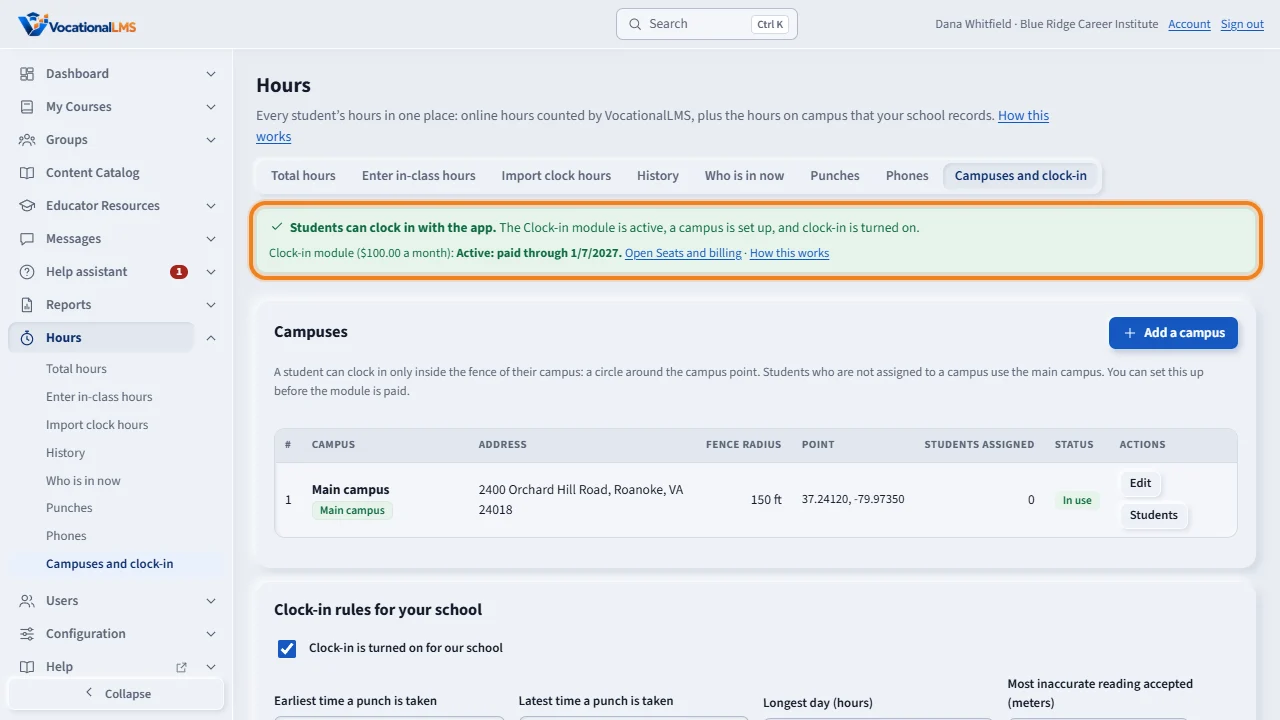
With the Clock-in module, your students clock in at school with the app on their phone. Click Hours, then Campuses and clock-in. The box at the top says whether students can clock in, and what is still needed.
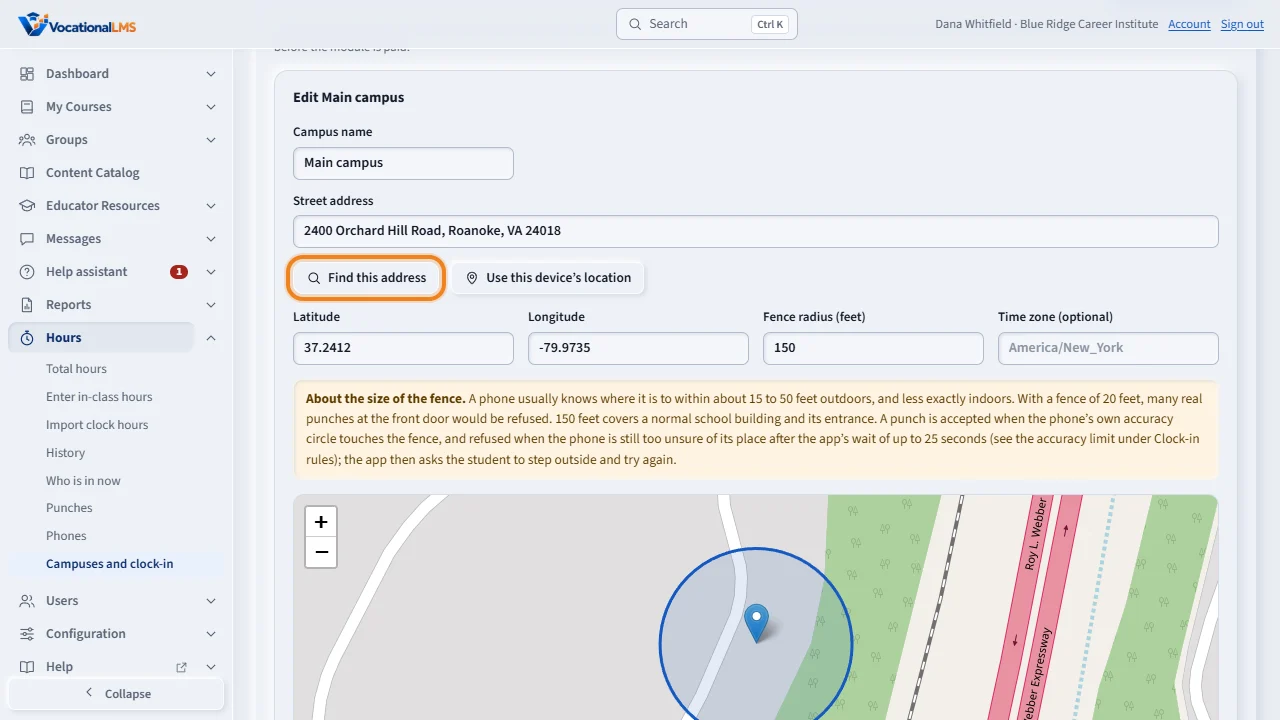
Click Add a campus, or Edit to change one. Type the name and the street address, and click Find this address. The map shows the point.
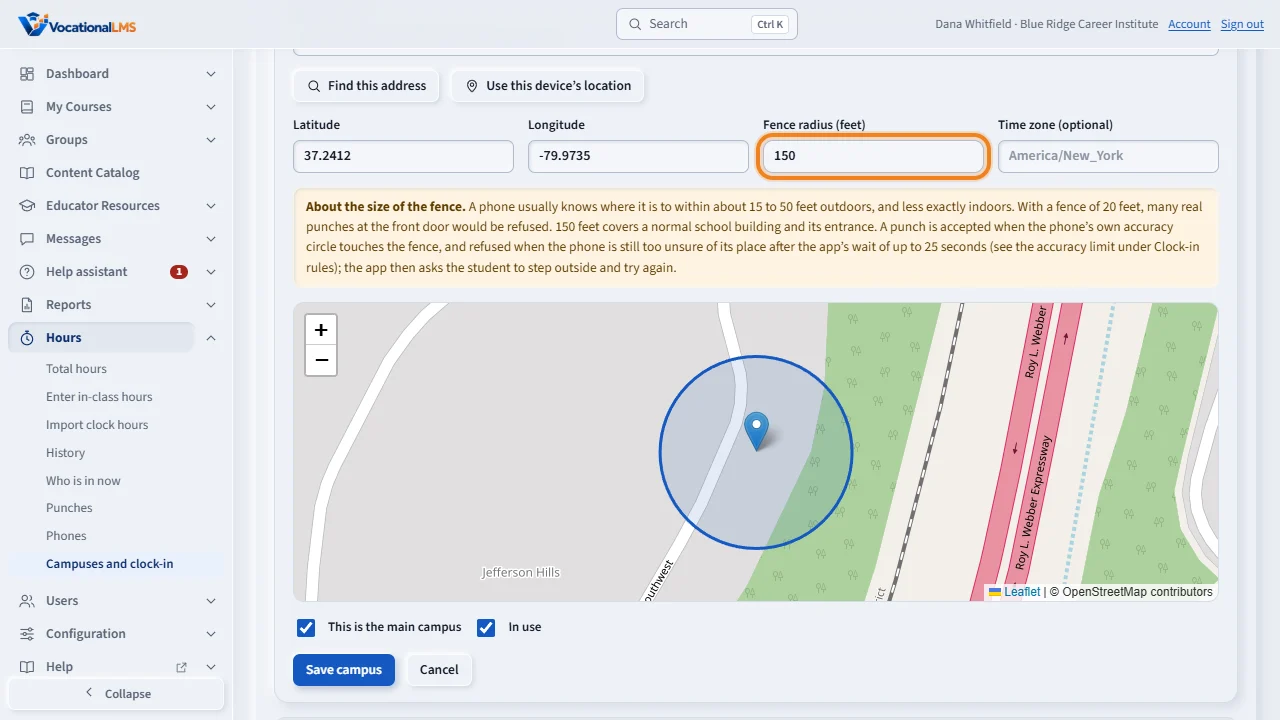
The circle on the map is the fence. Set the fence radius in feet: 150 feet suits most buildings. A very small fence would refuse real punches. Drag the pin to the front door, then click Save campus.
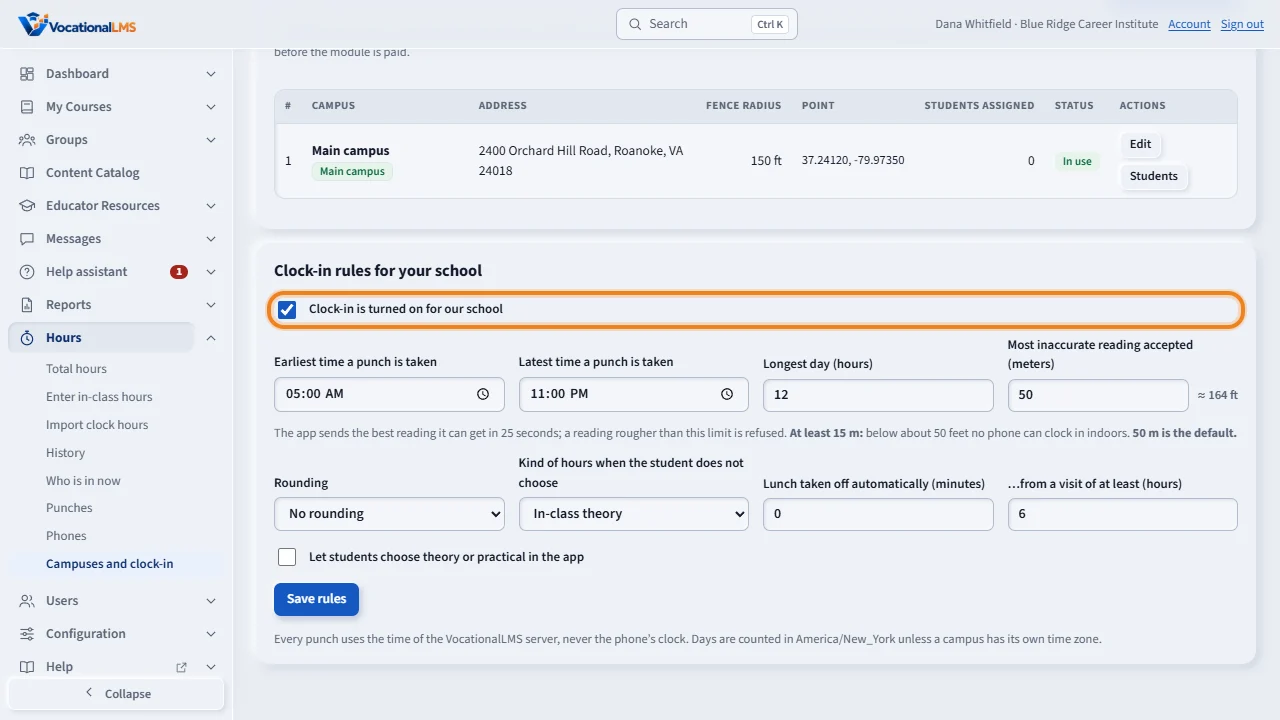
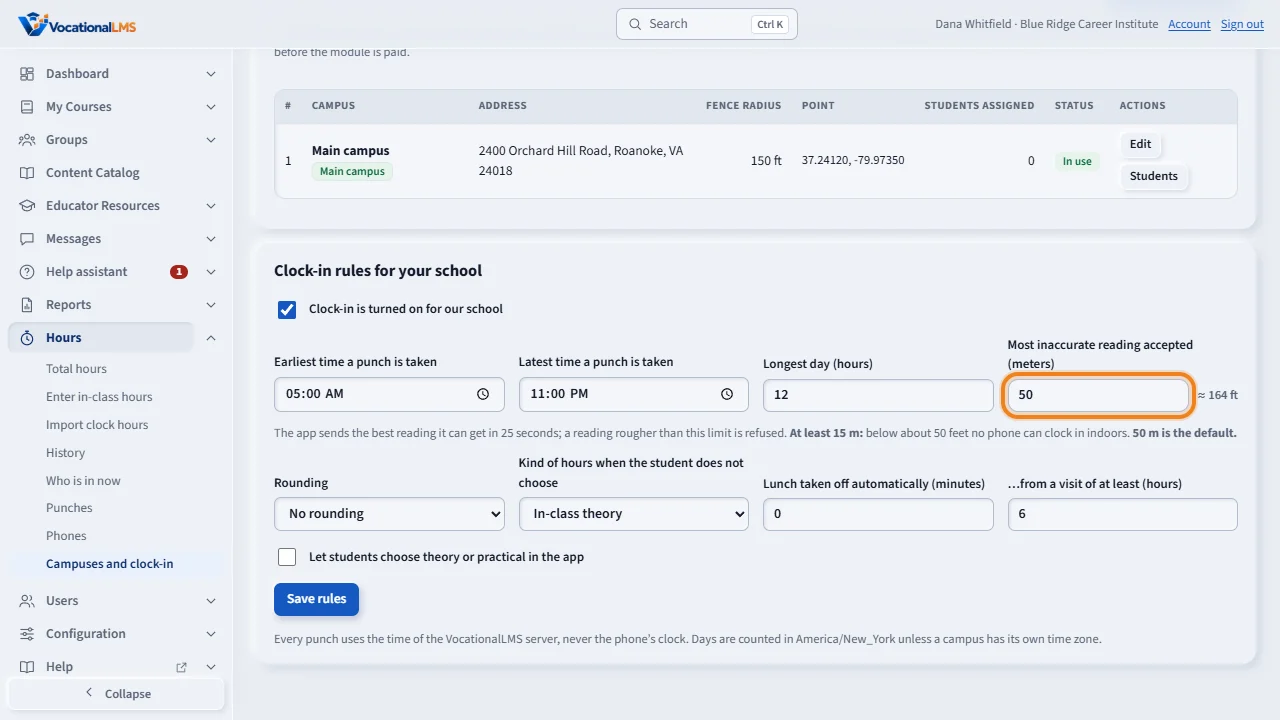
Under Clock-in rules, tick Clock-in is turned on for our school. Set the earliest and latest time, the longest day, rounding and lunch, as your policy says. Then click Save rules.
Most inaccurate reading accepted is how unsure of its place a phone may be and still clock in. 50 meters, about 165 feet, is the default and suits most buildings. The smallest you can type is 15 meters, about 50 feet: below that, no phone can clock in indoors.
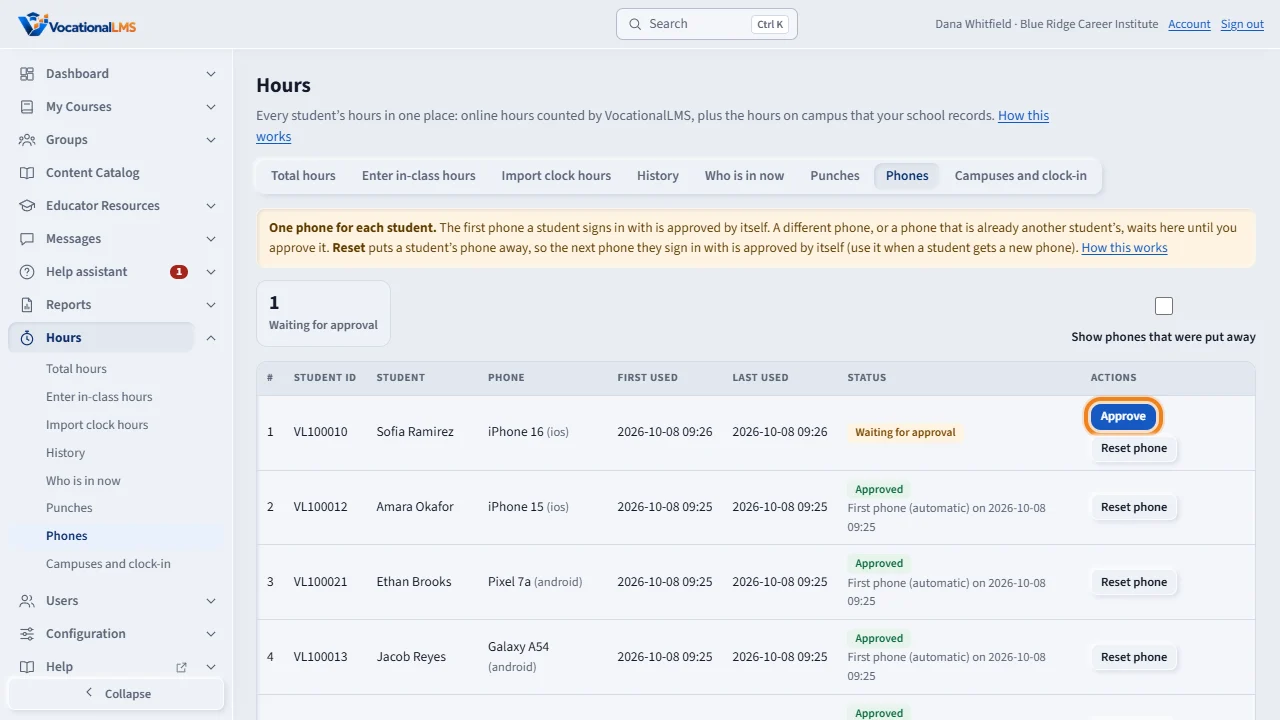
Each student uses one phone. The first one is approved by itself. A different phone waits under Phones: click Approve, or Reset phone when a student has a new one.
Open this in VocationalLMSHours > Phones
What it is for
With the Clock-in module your students clock in and out at school with the VocationalLMS app on their own phone. A punch is accepted only inside the fence: a circle around your campus point. The time comes from our server, never from the phone. Clock-in has nothing to do with online lessons; a school can use it without any online course. Students can clock in when three things are true: the Clock-in module is active (A-54), a campus is set up, and clock-in is turned on for your school. You can set up the campus before you pay.
Steps
Add your campus
- Click Hours, then Campuses and clock-in. The box at the top says what is still needed.
- Click Add a campus. Type the Campus name and the Street address.
- Click Find this address. The latitude and longitude are filled in and the map shows the point with its circle. Drag the pin to the front door if it is not exactly right. You can also stand at the front door and click Use this device's location, or type the latitude and longitude yourself.
- Set the Fence radius (feet). 150 feet suits most buildings. The smallest is 20 feet.
- Tick This is the main campus for your main site. Click Save campus.
Choose the size of the fence
- A phone usually knows where it is to within about 15 to 50 feet outdoors, and less exactly indoors.
- With a fence of 20 feet, many real punches at the front door would be refused. Start with 150 feet and make it smaller only if you see a reason.
- A punch is accepted when the phone's own accuracy circle touches the fence, and the reading is no rougher than your accuracy limit (the rule below). The app watches the phone's position for up to 25 seconds, shows the student the accuracy as it improves, and sends the best reading it gets; the server, not the app, says yes or no. A phone that is still too unsure of its place is asked to step outside and try again.
Assign students to a campus
- A student with no campus uses the main campus. You only assign students who attend another site.
- Click Students on the campus line. Tick the students (use Find a student and Tick all shown), then click Assign to that campus.
Set your school's rules
- Under Clock-in rules for your school, tick Clock-in is turned on for our school.
- Set the earliest and latest time a punch is taken, the longest day, rounding (none, to the nearest 15 minutes, or down to 15 minutes), the kind of hours a visit counts as (theory, practical, lab, clinical or other), and an automatic lunch deduction if your policy has one.
- Most inaccurate reading accepted (meters) is how unsure of its place a phone may be and still clock in. The page shows the same number in feet beside it. 50 m (about 165 feet) is the default and suits most buildings. The smallest you can type is 15 m (about 50 feet): below that no phone can clock in indoors, because a phone inside a building seldom knows its place closer than that. If your school saved a smaller number before this floor existed, the page says so and reads it as 15 m; click Save rules to keep 15 m, or type a larger number.
- The longest day is for visits a student closes: a longer one waits for one look by you. A visit that staff closed or edited is counted at once.
- Click Save rules.
Approve or reset a phone
- Each student uses one phone. The first phone they sign in with is approved by itself.
- Click Hours, then Phones. A phone that is Waiting for approval is at the top: the student signed in with a different phone, or with a phone that is already another student's.
- Click Approve to make it the student's phone. Click Reset phone (twice) when a student has a new phone: the next phone they sign in with is approved by itself.
What happens next
Each closed visit (a clock in and its clock out) becomes one in-class hours entry on Total hours, on the day of the clock in. Lunch is taken off first, then the minutes are rounded, as your rules say. A student must be inside the fence to clock in and to clock out: a clock out from outside the fence is refused and the student stays clocked in until they are back, or until staff close the punch. The app reads the phone's location only at the moment of a punch; it does not follow the student.
Common problems
| # | Problem | What to do |
|---|---|---|
| 1 | Students cannot clock in yet. | The box at the top of Campuses and clock-in lists what is still needed: the module, a campus, or the switch. |
| 2 | The map does not appear. | The page still works. Type the latitude and longitude in the boxes; the fence is the same. |
| 3 | “Find this address” did not find it. | Check the address, use this device's location while you stand at the door, or type the latitude and longitude. |
| 4 | Many students are refused at the door. | The fence is too small for a phone's accuracy. Make the radius larger, for example 150 feet. |
| 5 | Students indoors keep seeing “not accurate enough”. | Your accuracy limit is too strict. Under Clock-in rules, set Most inaccurate reading accepted back to 50 m (the default) and click Save rules. It can never go below 15 m. |
| 6 | A student has a new phone. | Open Phones and click Reset phone. They sign in on the new phone and it is approved. |