
A-67For School Admins and Directors
Access after a student completes a program
Choose how long a student keeps the lessons and videos after they complete a program: for your school, for one group, or for one student.
How-to video A-67 · 2:04
Read the words of this video
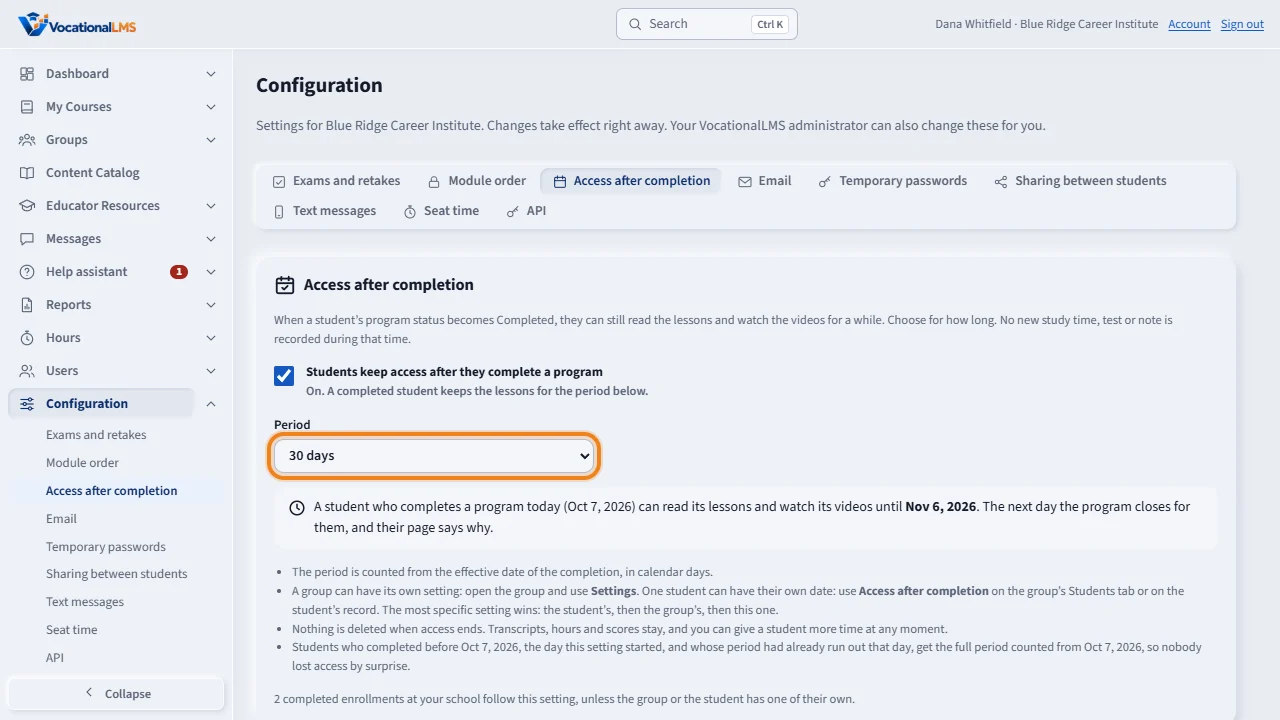
When a student completes a program, they can still read its lessons and watch its videos for a while. You decide for how long. Open Configuration and click the tab Access after completion. The switch is on, and the period is thirty days unless you change it. Choose from seven days up to a year, No end date, or Close at once. Your choice is saved right away, and the box below shows the last day for a student who completes today.
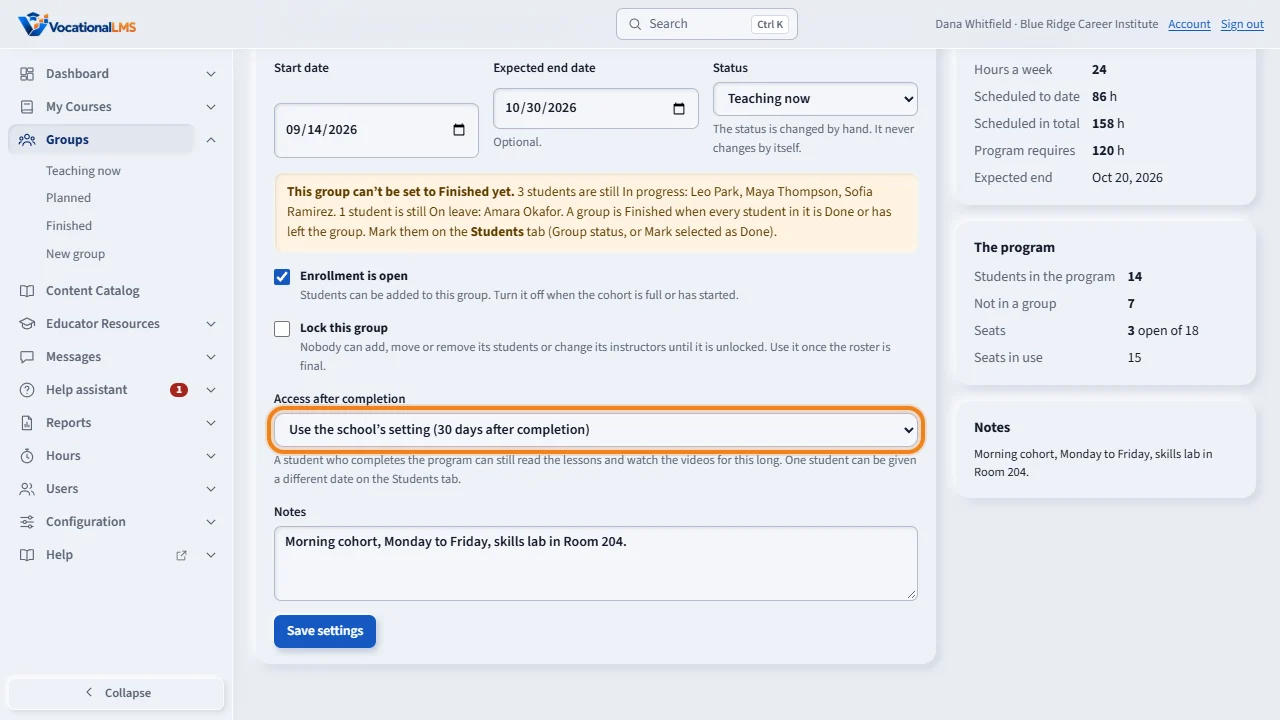
A group can have its own setting. Open the group, click Settings, and find Access after completion. Leave it on Use the school's setting, or give this group its own period, keep it open, or close it at once. Then click Save settings.
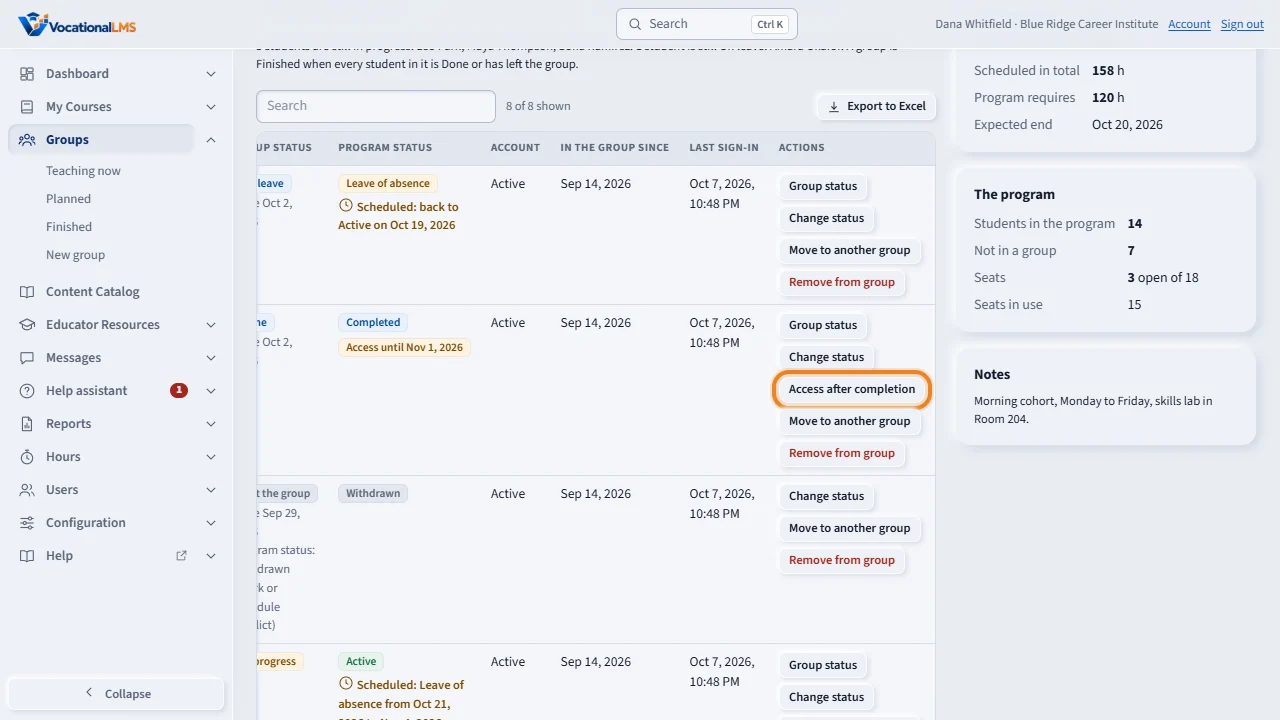
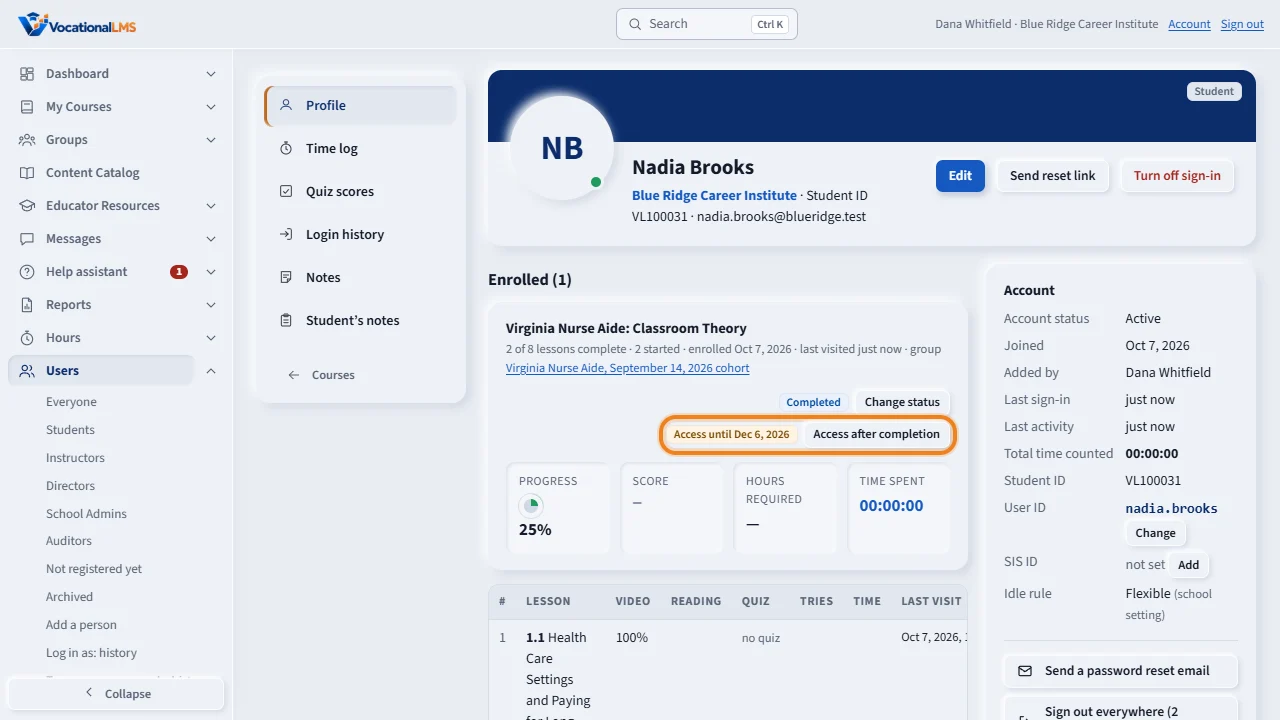
Wherever a completed student is listed, a chip shows their last day: Access until, and the date. You see it on the group's Students tab, on the student's record and on the program's Students list. To change it for one student, click Access after completion on their row.
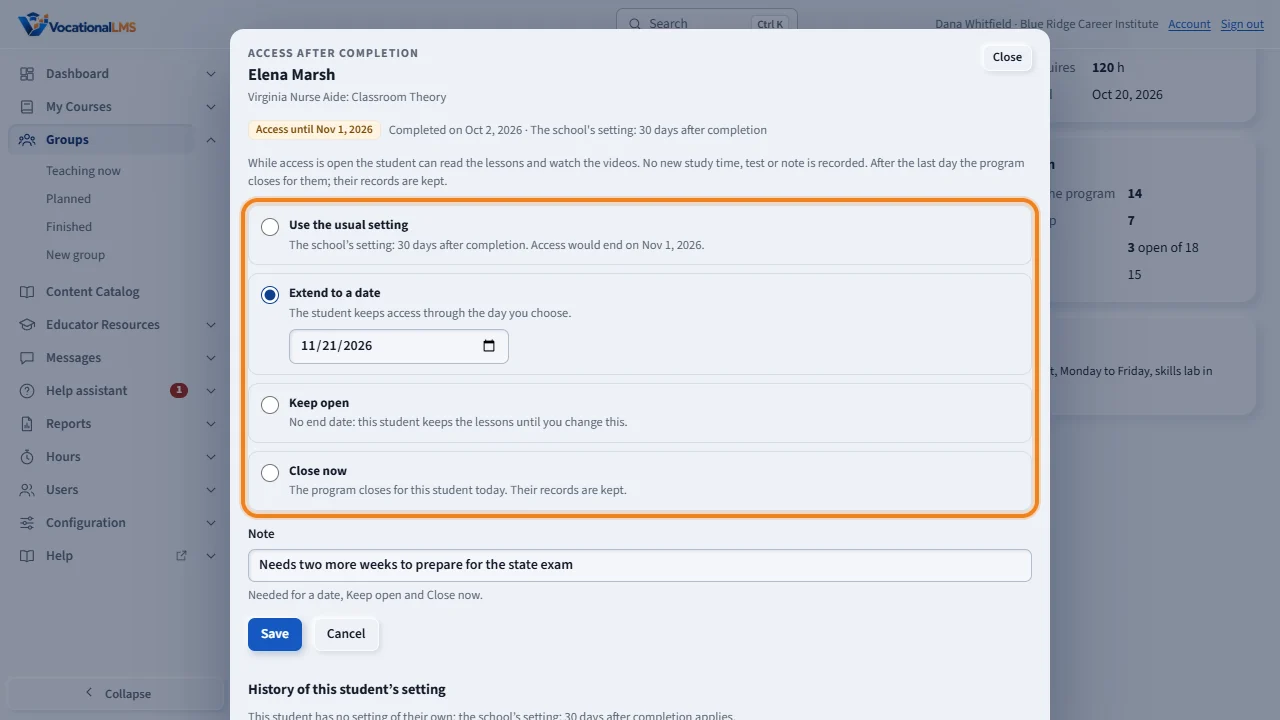
Choose one of four: Use the usual setting, Extend to a date, Keep open, or Close now. Write a short note that says why, and click Save. The student's own setting wins over the group's, and the group's wins over the school's. Every change is kept in the history under the form, with who made it and when.
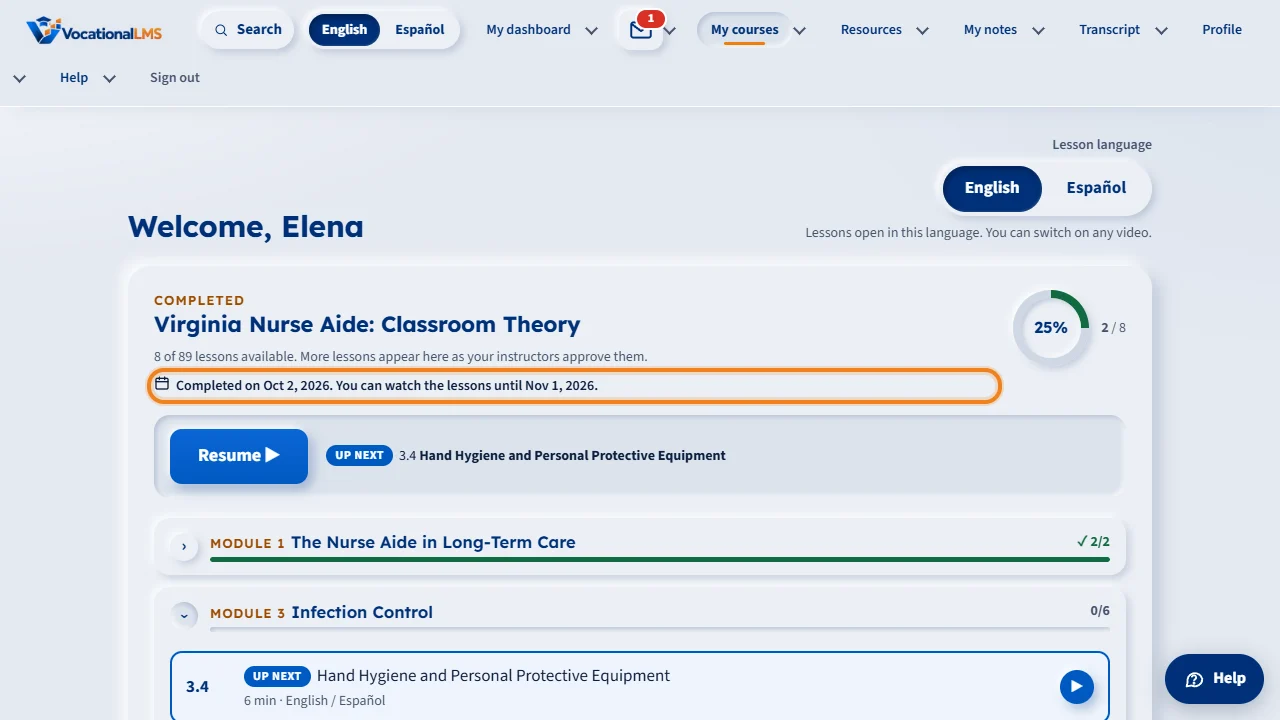
The student sees it too. On My courses, the completed program says the day they completed it and the last day they can watch the lessons. Seven days before that day they get a notice. During this time they read and watch only: no new study time, test or note is recorded.
After the last day the program closes for the student. Their page says when it ended and tells them to ask the school. Nothing is deleted: the transcript, the hours and the scores stay. To give a student more time, open their record and click Access after completion.
Open this in VocationalLMSUsers > a student > Access after completion
What it is for
When a student's program status becomes Completed (A-42), they can still read the lessons and watch the videos for a while. You choose for how long. The period is counted from the effective date of the completion. After the last day the program closes for the student, and their page says why. During this time the student only reads and watches: no new study time, test or note is recorded. Nothing is ever deleted.
Steps
Set the period for your school
- Click Configuration in the menu on the left, then the tab Access after completion.
- Leave the switch Students keep access after they complete a program on. It is on for every school to start with.
- Choose the Period: 7, 14, 30, 60, 90, 180 or 365 days, or No end date (keep access). A school starts with 30 days.
- To close a program for a student as soon as they complete it, turn the switch off, or choose Close at once.
- Each choice is saved right away. The box under the list shows the last day for a student who completes today.
Give one group its own setting
- Open the group from Groups and click the Settings tab.
- Under Access after completion, choose Use the school's setting, a period for this group, keep open or close at once.
- Click Save settings.
Change it for one student
- Find the completed student on the group's Students tab, on their record, or on the program's Students list. A chip shows Access until and the date, Access kept open or Access ended.
- Click Access after completion beside the chip.
- Choose Use the usual setting, Extend to a date (pick the last day), Keep open or Close now.
- Write a short Note that says why, and click Save. The change takes effect at once and is added to the history under the form.
What happens next
The student sees it on their own pages: on My courses the program says Completed on Oct 7, 2026. You can watch the lessons until Nov 6, 2026., in English or Spanish. Seven days before the last day they get a notice in Messages. After the last day the program is listed under Programs you can't open right now with the sentence Your access to the program ended on Nov 6, 2026, 30 days after you completed it. Ask your school if you need it again. Their transcript, hours and scores stay, and you can give more time at any moment. If a completed student is made Active again, their own setting is removed, so a later completion starts from the usual setting.
Three levels: the most specific one wins
| # | Level | Where you set it | Choices |
|---|---|---|---|
| 1 | One student, for one program | Access after completion on the group's Students tab, the student's record or the program's Students list | Use the usual setting, Extend to a date, Keep open, Close now |
| 2 | One group | The group's Settings tab | Use the school's setting, its own period, keep open, close at once |
| 3 | Your school | Configuration, tab Access after completion | 7, 14, 30, 60, 90, 180 or 365 days, No end date, Close at once |
Example: your school keeps access for 30 days. The evening cohort has its own 90 days. One student of that cohort was given the date December 31. That student keeps access until December 31, the rest of the cohort for 90 days, and every other student of the school for 30 days.
How the days are counted
A student who completes on October 7 with a period of 30 days keeps access through November 6. The program is closed from November 7. Days are calendar days. If you date a completion in the past, the period is counted from that earlier date.
Common problems
| # | Problem | What to do |
|---|---|---|
| 1 | A completed student says the program is gone. | Their access period is over. Open their record, click Access after completion, choose Extend to a date or Keep open, write a note and save. |
| 2 | There is no Access after completion button. | It shows only for a student whose program status is Completed, and only for a School Admin or Director. |
| 3 | “Write a short note that says why.” | Extend to a date, Keep open and Close now need a note. It is kept in the history. |
| 4 | “The last day of access can't be before today.” | Choose today or a later day. To end the access now, choose Close now. |
| 5 | I can't change the school's setting. | Only the School Admin changes it on the Configuration page. A Director changes a group's setting or one student's. |
| 6 | A student who completed long ago still has access. | Students who completed before this setting existed, and whose period had already run out, got one full period from the day the setting started, so that nobody lost access by surprise. The Configuration tab names that day. |
| 7 | The chip shows a different date than I expect. | Hover over the chip: it says which setting the date comes from, the student's own, the group's or the school's, and the completion date it is counted from. |