
A-44For School Admins and Directors
A group's class schedule
Set the days and hours of class each week, with one or more class sessions on a day, the first and last class day and the no-class days, and see scheduled hours and the expected end date.
How-to video A-44 · 1:55
Read the words of this video
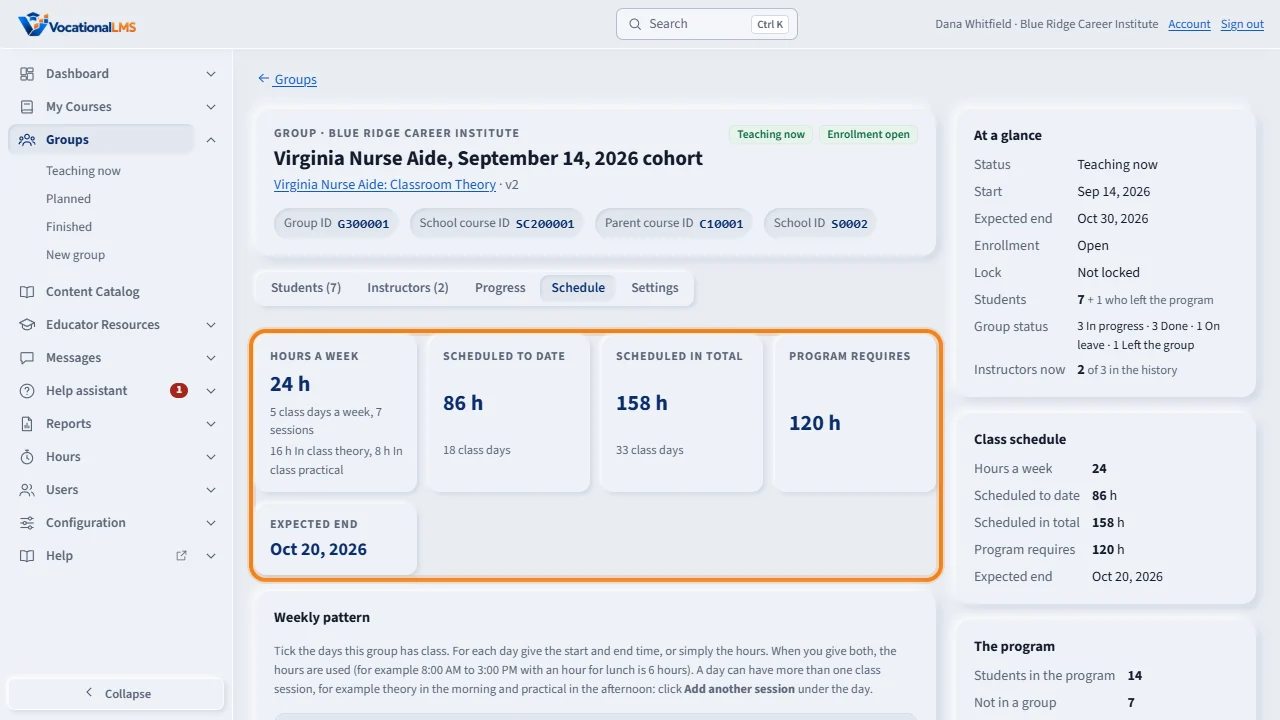
A group's class schedule says when the group has class. Open the group from Groups and click the Schedule tab. The tiles at the top show the hours a week, the hours scheduled to date and in total, the hours the program requires, and the expected end date.
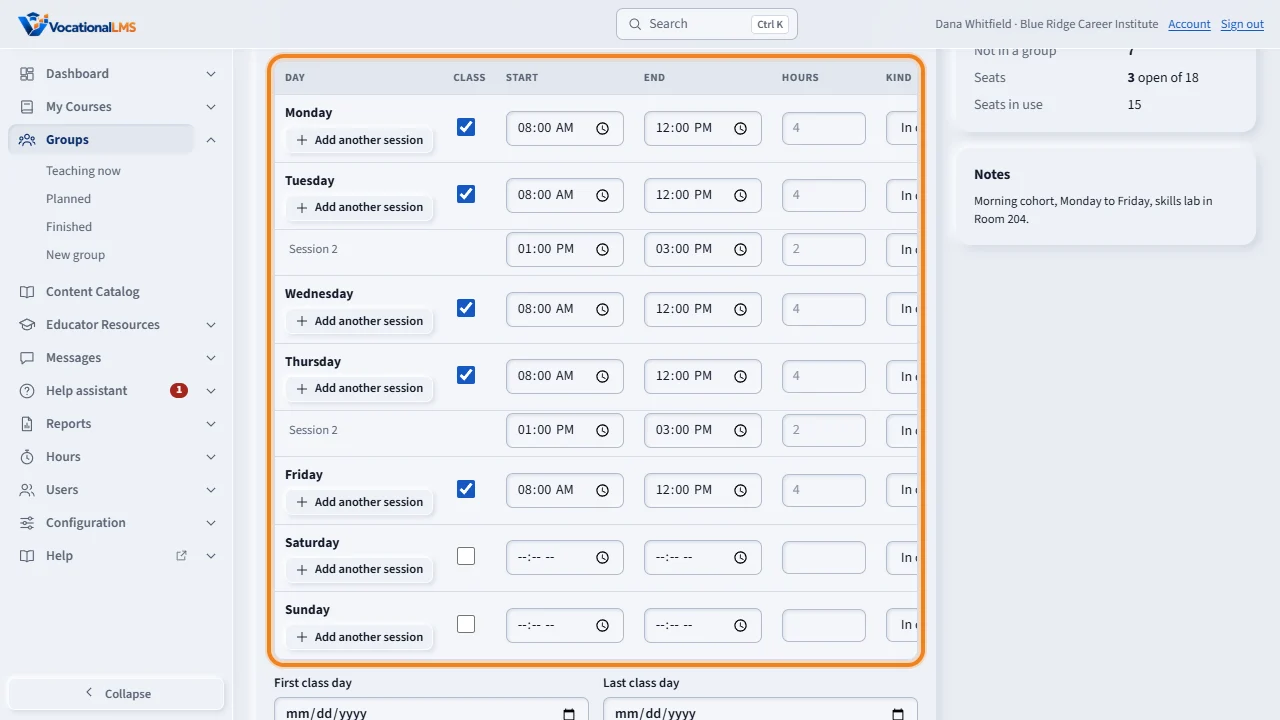
Under Weekly pattern, tick Class for each day the group has class. Give the start and end time, or simply type the hours, and choose the kind: in class theory, in class practical or live online.
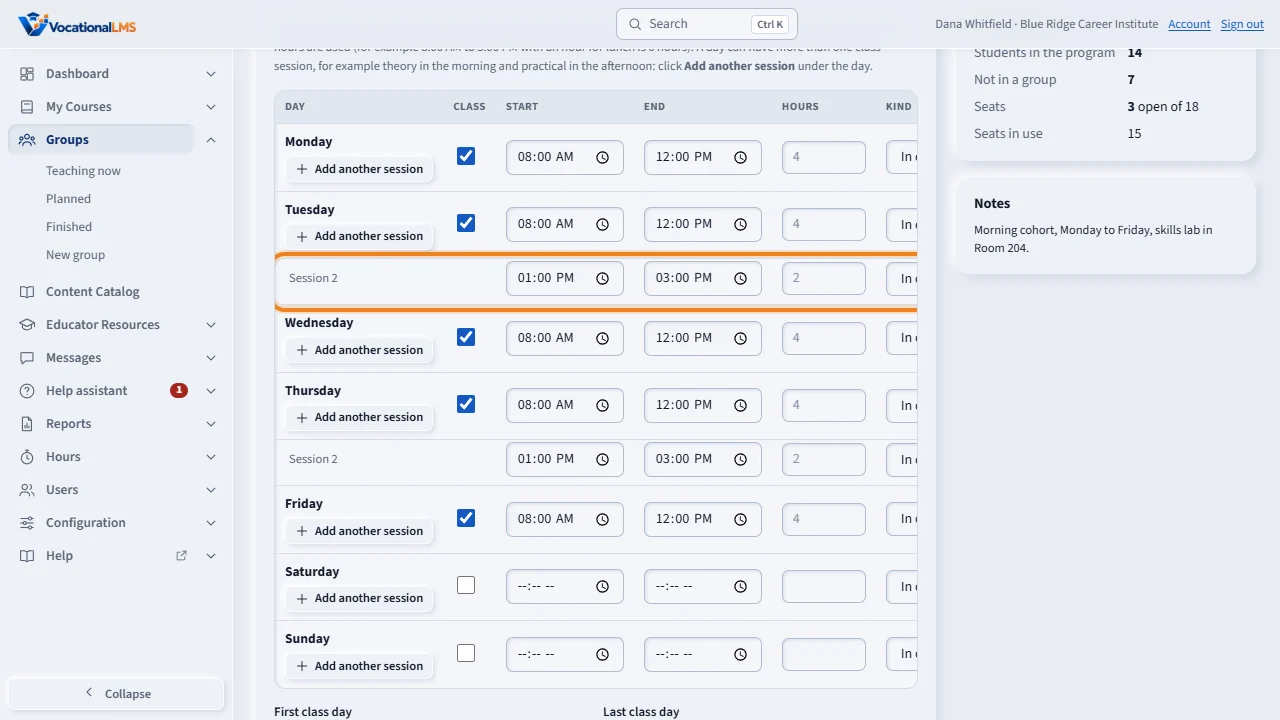
A day can have more than one class session. Here Tuesday has theory from eight to twelve, and practical from one to three. To add a session, click Add another session under the day, then give it its own times or hours and its own kind. Sessions on one day must not overlap. To take one off, click Remove on its row.
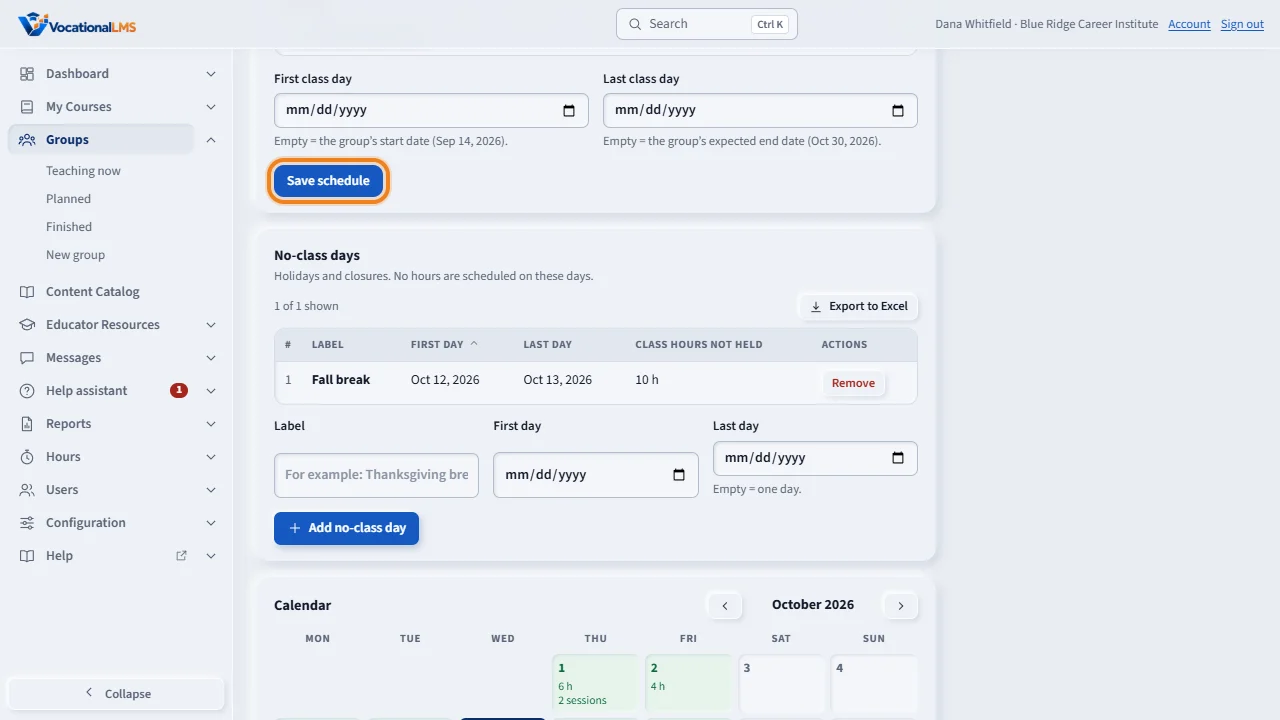
Check the first class day and the last class day. Leave them empty to use the group's start date and expected end date. Then click Save schedule.
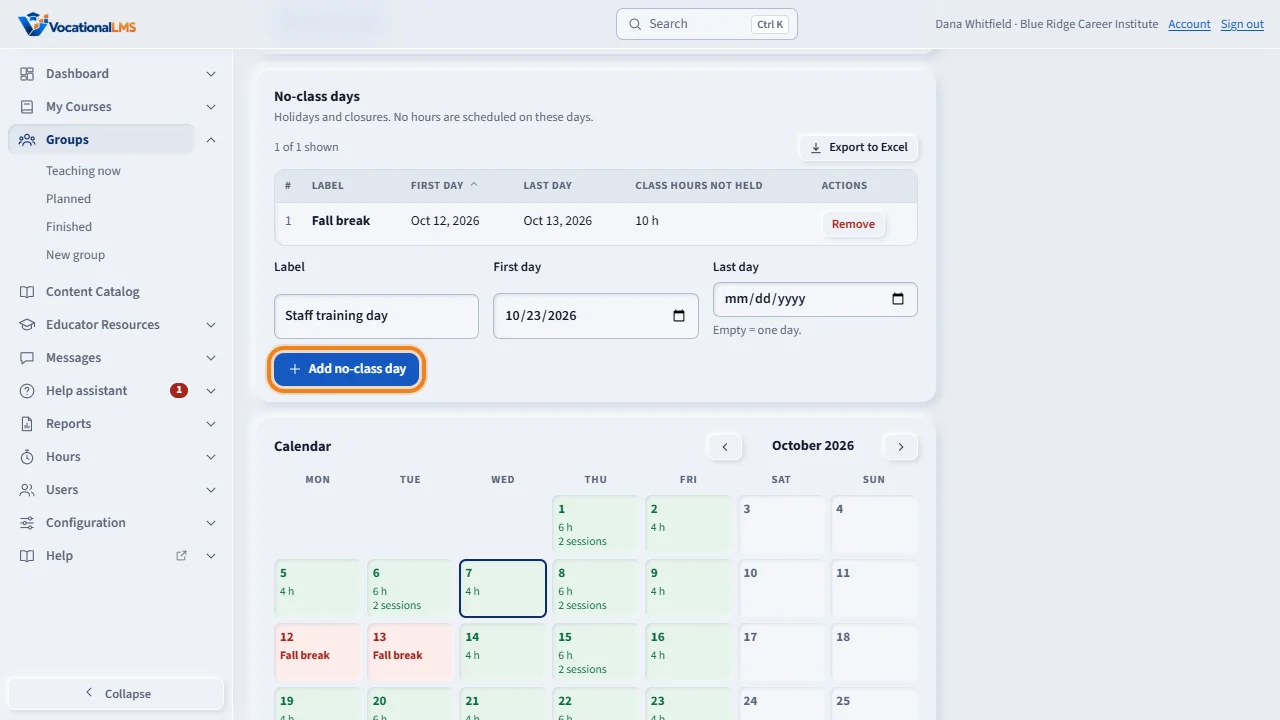
For a holiday or a closure, go to No-class days. Type a label and choose the first day. For more than one day, also choose the last day. Click Add no-class day. The list shows the class hours that are not held.
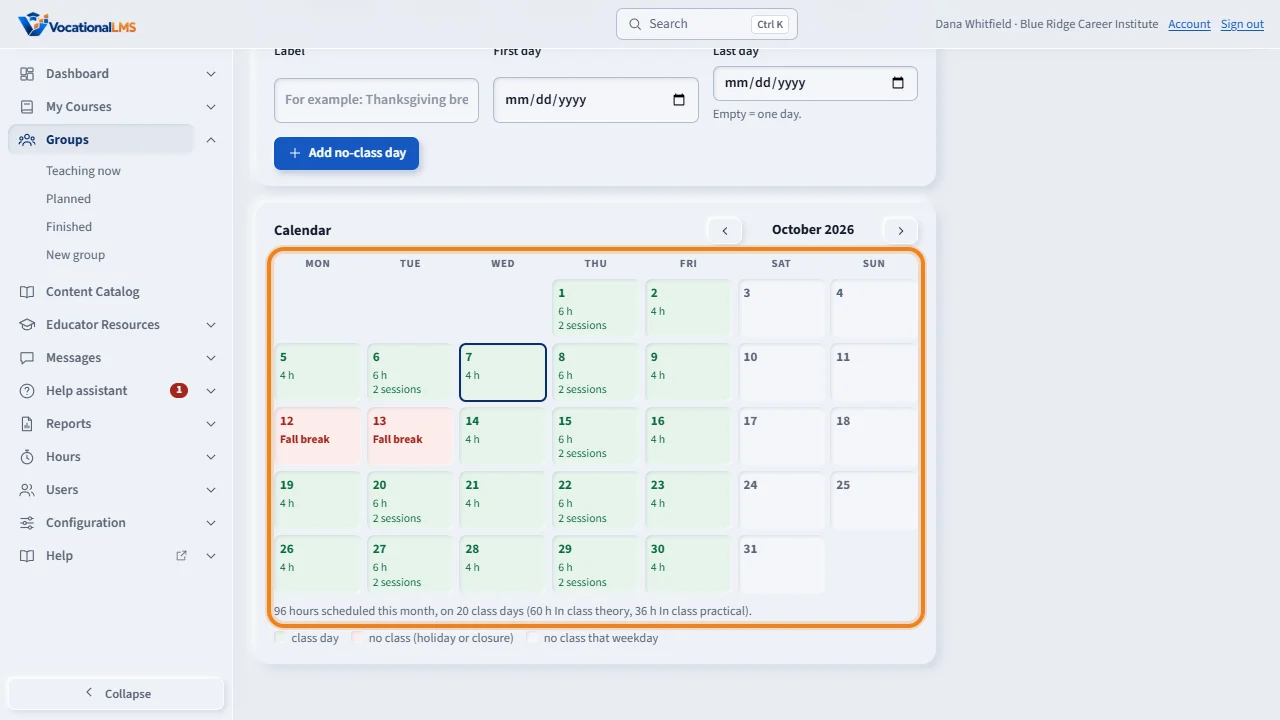
The calendar shows a month at a time. A class day has its hours, and a no-class day has its label. A day with two sessions shows its hours added together, and says two sessions. Use the arrows to change the month.
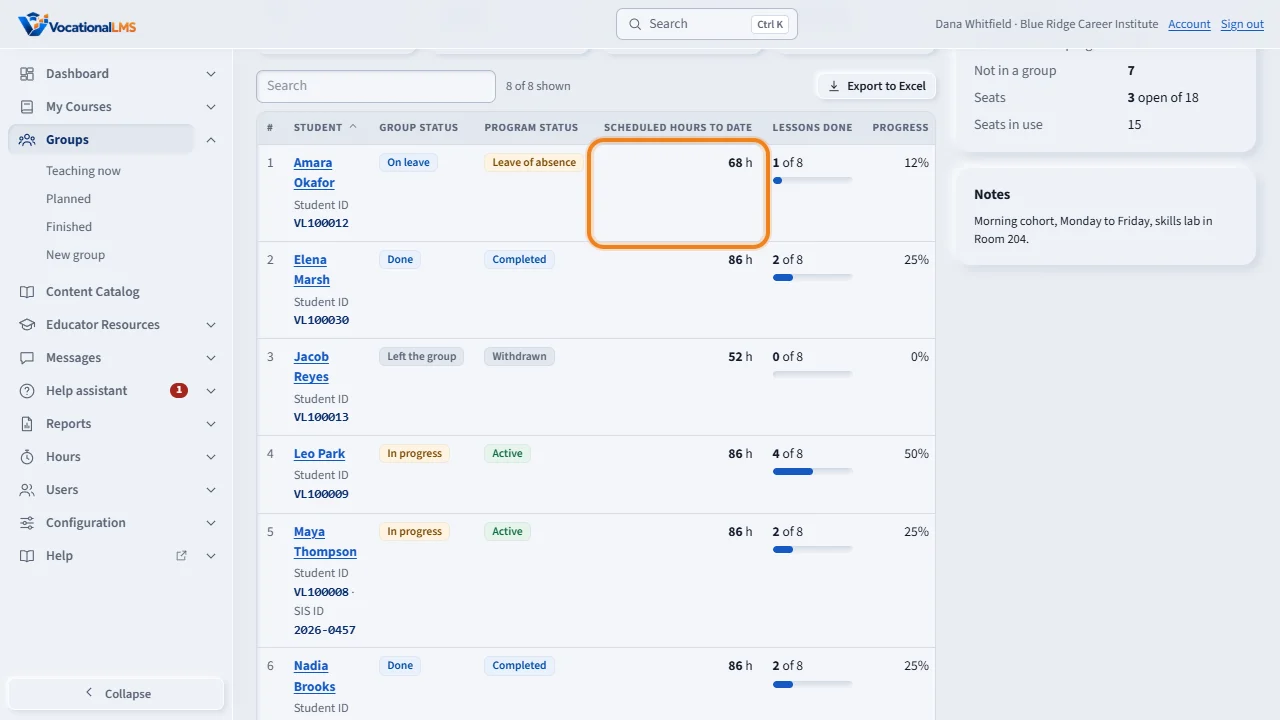
The expected end is the class day on which the scheduled hours reach the program's hours. The Progress tab shows the scheduled hours to date for each student. A student who joined late is counted from their first day in the group, and a student on leave is not scheduled during the leave.
Open this in VocationalLMSGroups > a group > Schedule
What it is for
A group's class schedule says when the group has class. From it the system works out the scheduled hours: to date, in total, and for each student. Scheduled hours are what attendance is measured against: attendance rate is actual hours divided by scheduled hours.
Steps
Set the weekly pattern
- Open the group from Groups and click the Schedule tab.
- Under Weekly pattern, tick Class for each day the group has class.
- For each day give the Start and End time, or simply type the Hours. If you give both, the hours are used. Example: 8:00 AM to 3:00 PM with an hour for lunch is 6 hours.
- Choose the Kind: In class theory, In class practical or Live online.
- A day can have more than one class session, for example theory from 9:00 AM to 12:00 PM and practical from 1:00 PM to 4:00 PM. Click Add another session under the day, and give that session its own start and end time (or hours) and its own kind. A day can have up to 6 sessions.
- Sessions on one day must not overlap. One may start at the minute the one before ends. To take a session off a day, click Remove on its row.
- Check the First class day and the Last class day. Leave them empty to use the group's start date and expected end date.
- Click Save schedule.
Add holidays and closures
- Under No-class days, type a Label, for example Thanksgiving break.
- Choose the First day. For more than one day, also choose the Last day.
- Click + Add no-class day. The list shows the class hours that are not held on those days.
- To take one back, click Remove on its row, then click again.
Read the numbers
- The tiles at the top show Hours a week, Scheduled to date, Scheduled in total, Program requires and Expected end. The same numbers are in the side panel of the group.
- Expected end is the class day on which the scheduled hours reach the hours the program requires, at this pattern and with these no-class days.
- The Calendar shows a month at a time: green for a class day with its hours, red for a no-class day with its label. Use ◀ and ▶ to change the month. A day with more than one session shows the hours of the day added together and the number of sessions; point at the day to read each session with its kind and times.
- When a group has more than one kind of class, Hours a week and the line under the calendar also give the hours of each kind, for example 16 h In class theory and 8 h In class practical.
- The Progress tab shows Scheduled hours to date for each student.
What happens next
A student who joined the group late is scheduled from their first day in the group. A student on a leave of absence is not scheduled during the leave. A student who left is not scheduled from the day they left. To correct a student's first day, open the Students tab, click Group status on their row and change First day in this group. This page shows scheduled hours only; actual hours and the attendance rate are in Hours and Reports.
Common problems
| # | Problem | What to do |
|---|---|---|
| 1 | “Program hours not set” | The expected end date needs the hours the program requires. Set them under Hours > Program hours, then come back. |
| 2 | Scheduled in total says “set the last class day”. | The group has no expected end date. Type the Last class day on the Schedule tab, or the expected end date under Settings. |
| 3 | “The hours are more than the time between the start and the end.” | Check the start time, the end time and the hours for that day. |
| 4 | “Give both the start time and the end time, or only the hours.” | A session needs both times, or no times and the hours. |
| 5 | “Two sessions overlap” | Two sessions of that day have times that run into each other. The message names the day and both times. Change them so one ends before the next starts, and save again. |
| 6 | A day needs a lunch break between two sessions. | Give each session its own times, for example 9:00 AM to 12:00 PM and 1:00 PM to 4:00 PM. The hour between them is not scheduled. |
| 7 | A student's scheduled hours look too low. | Check the student's First day in this group (Students tab, Group status). Hours are counted from that day. |
| 8 | The expected end date is after the last class day. | At this pattern the dates do not hold the program's hours. Add class days or hours, or move the last class day. |