
A-43For School Admins and Directors
IDs: school, course, group, student and SIS ID
The permanent ID of your school, each course, each group and each student, and how to add a student's ID from your own system.
How-to video A-43 · 1:28
Read the words of this video
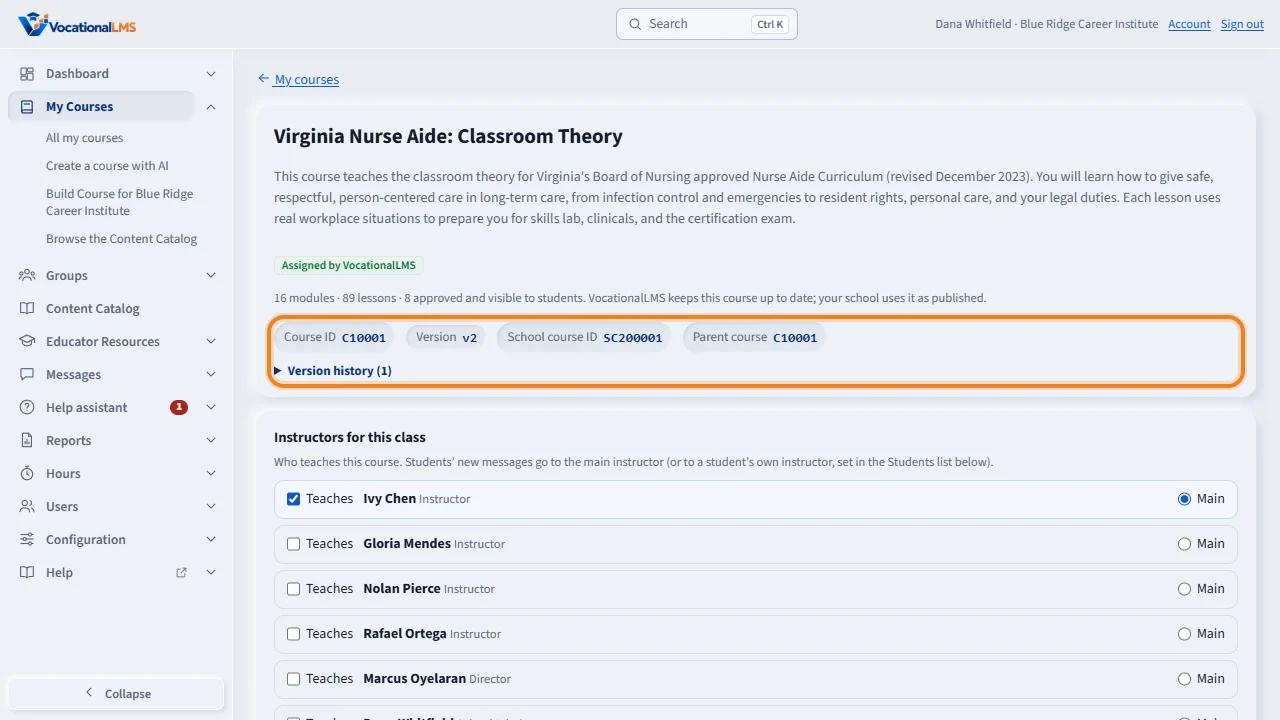
VocationalLMS gives a permanent I D to your school, each course, each group and each student. You never type or change them. Open a course from My Courses. Under its title you see the Course I D, the version, your School course I D and the parent course. Click any I D to copy it.
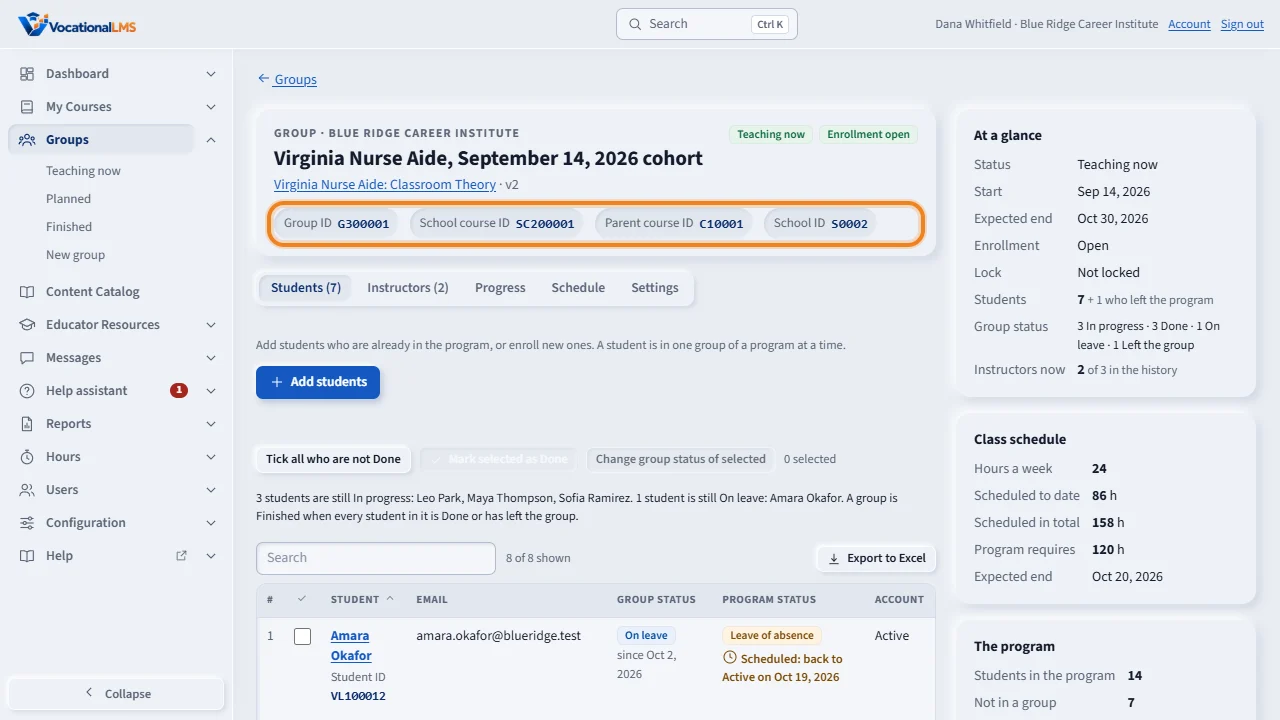
A group has its own Group I D under its name, beside the School course I D and your School I D. Each student in the list has a Student I D that starts with V L.
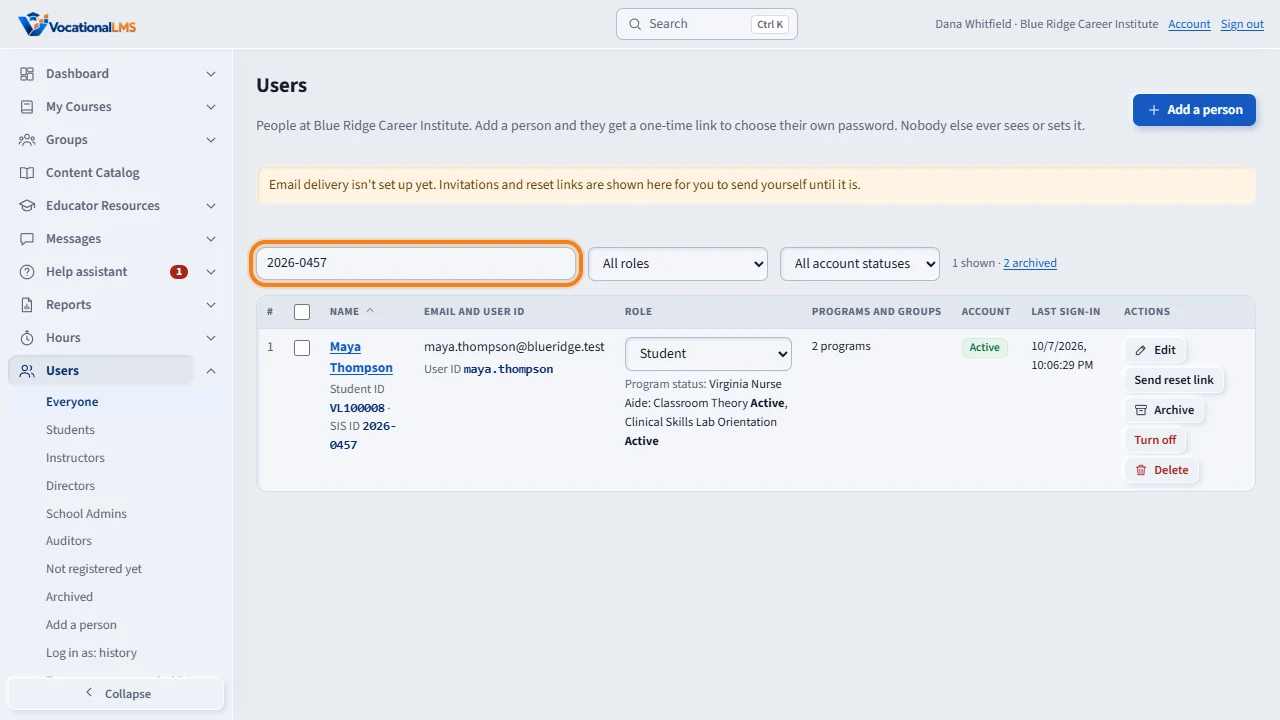
You can also add each student's S I S I D: the I D that student has in your school's own system. On the Users page, both I Ds are under the student's name. Type a Student I D or a S I S I D in the search box and press Enter to find that student.
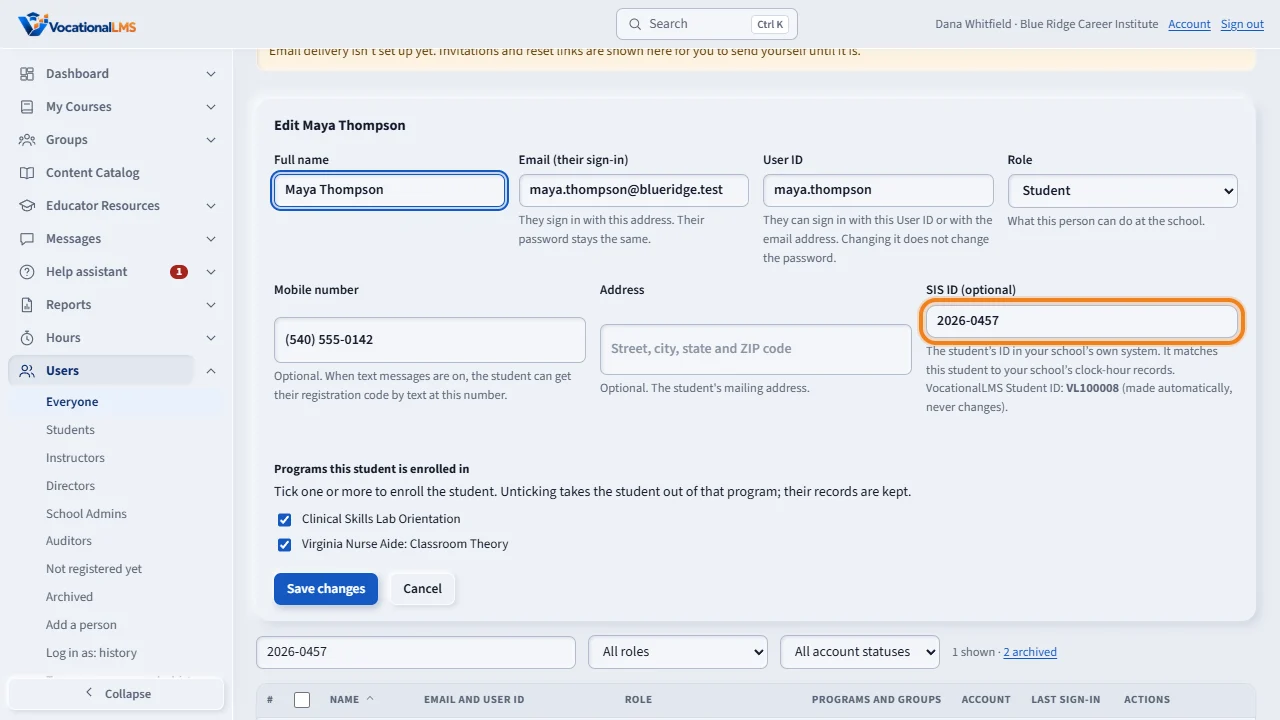
To add or change it, click Edit on the student's row, type the S I S I D and click Save changes. The same box is on the form when you add a new student.
Or open the student and click Change beside S I S I D in the Account panel. Type the I D and click Save. To remove it, empty the box and save. Two students of one school can't have the same S I S I D.
Open this in VocationalLMSMy Courses > a course
What it is for
VocationalLMS gives a permanent ID to your school, to each course, to each course at your school, to each group and to each student. You never type or change these. You can also add each student's SIS ID: the ID that student has in your school's own system.
Steps
- School ID (for example S0003): your school. Course ID (C10009): a course. School course ID (SC200417): that course at your school. Group ID (G300112): one group of students (A-40). Student ID (VL100234): one student.
- Open a course from My Courses. Under its title you see Course ID, Version, School course ID and Parent course. The parent course is the VocationalLMS course your school was given.
- Click any ID to copy it. Paste it into an email or a spreadsheet.
- Open Users. Under each student's name you see the Student ID and the SIS ID. Type a Student ID or a SIS ID in the search box and press Enter to find that student.
- To add a SIS ID when you add a student: click Add a person, choose the role Student, and fill in SIS ID (optional).
- To add or change it later: click Edit on the student's row, or open the student and click Add or Change beside SIS ID in the Account panel. Type the ID and click Save.
- To remove a SIS ID, empty the box and click Save.
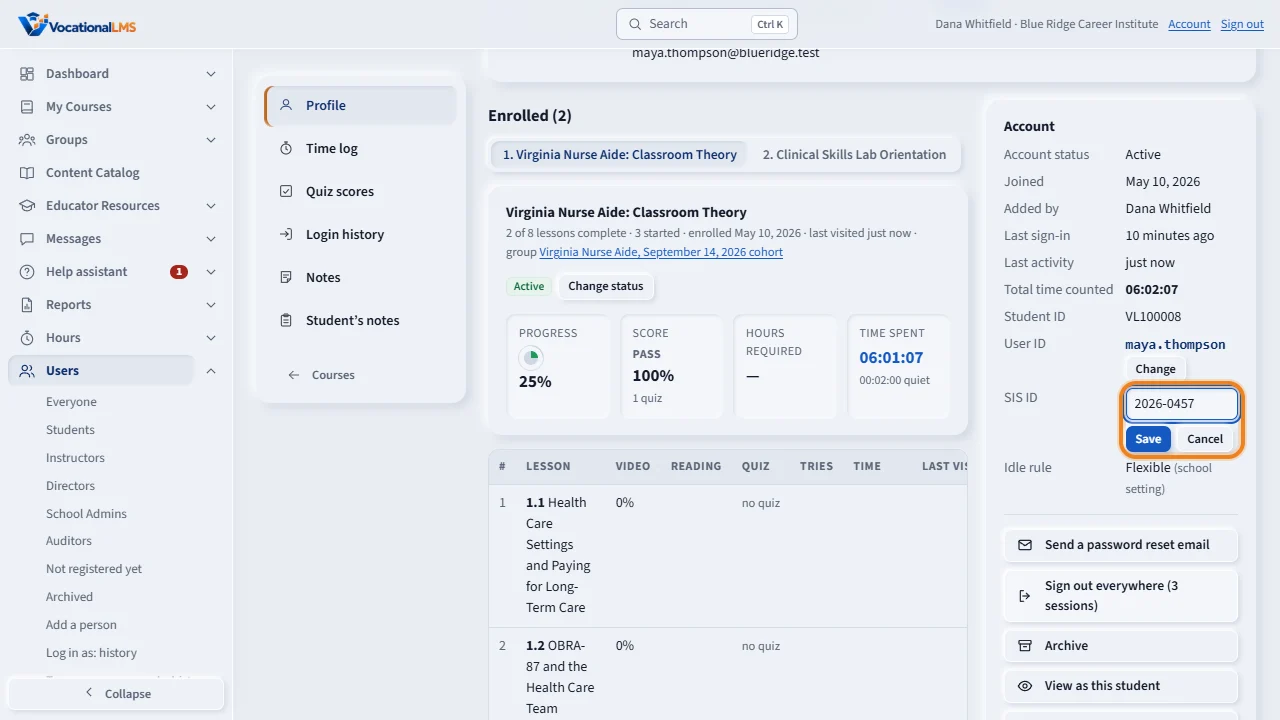
What happens next
The Student ID is made automatically when the student is added and never changes. The SIS ID is yours: use the same ID the student has in your own records, so hours and reports can be matched to them. Every student also needs an email address, and no two people can have the same one.
Common problems
| # | Problem | What to do |
|---|---|---|
| 1 | “SIS ID … is already used by … at this school.” | Two students of one school can't have the same SIS ID. Check which student it belongs to and fix the other one. |
| 2 | “A SIS ID can have letters, numbers, spaces and . _ - / # only.” | Take out other characters such as commas or quotes. |
| 3 | There is no Change button beside SIS ID. | Only a School Admin or Director changes it. An instructor can read it. |
| 4 | A course shows “Parent course: your school's own course”. | Your school made that course itself, so it was not copied from a VocationalLMS course. |
| 5 | Do we need an ISBN? | No. An ISBN is for a printed book. Our courses are not books. |