
A-40For School Admins and Directors
Groups (cohorts)
Make a group for each cohort of a program, add its students, mark each student Done, finish the group, and read its progress.
How-to video A-40 · 1:36
Read the words of this video
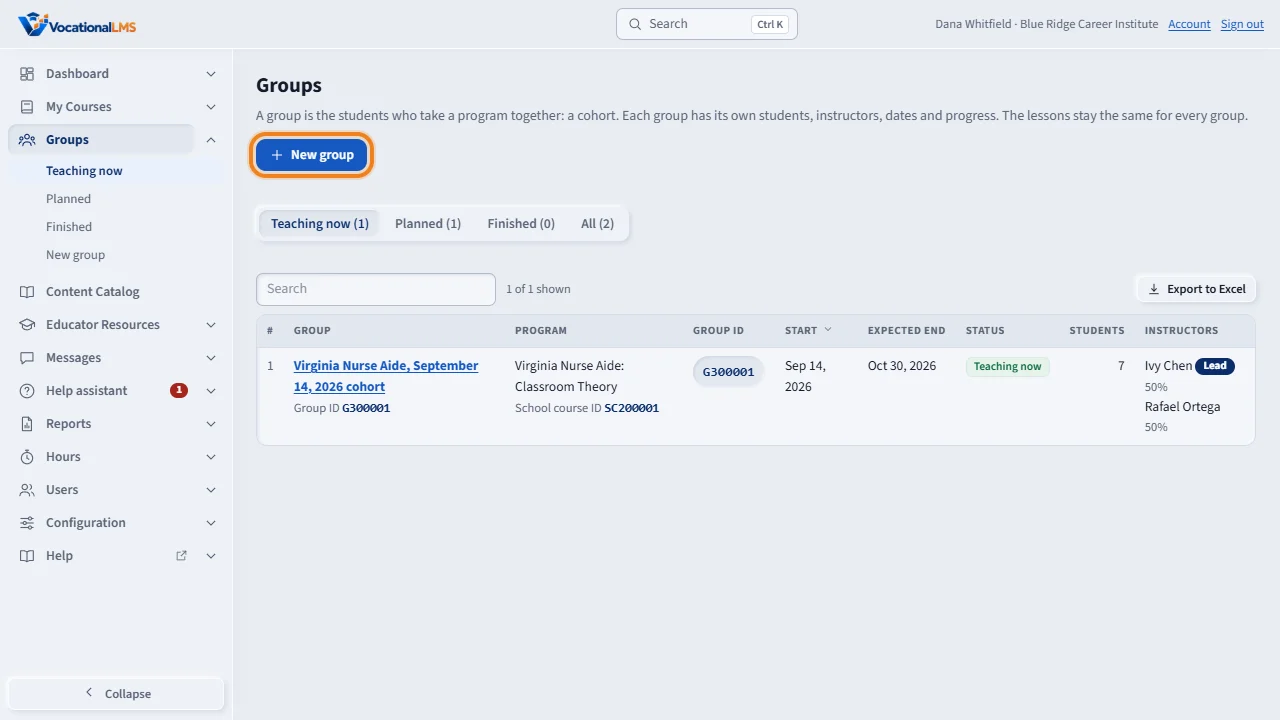
A group is the students who take a program together: a cohort. Click Groups in the menu on the left to see the groups being taught now, the planned ones and the finished ones. To make one, click New group.
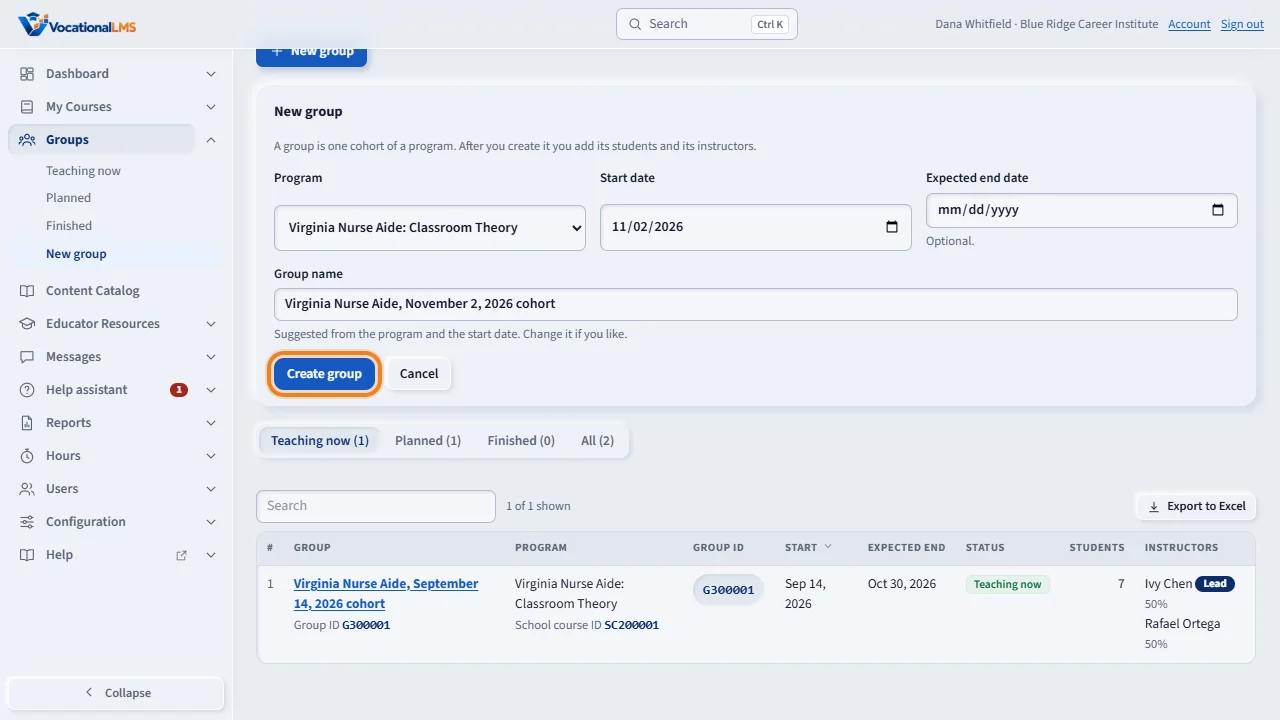
Choose the program and the start date. The group name is suggested for you, and you can change it. Click Create group, and the group's page opens.
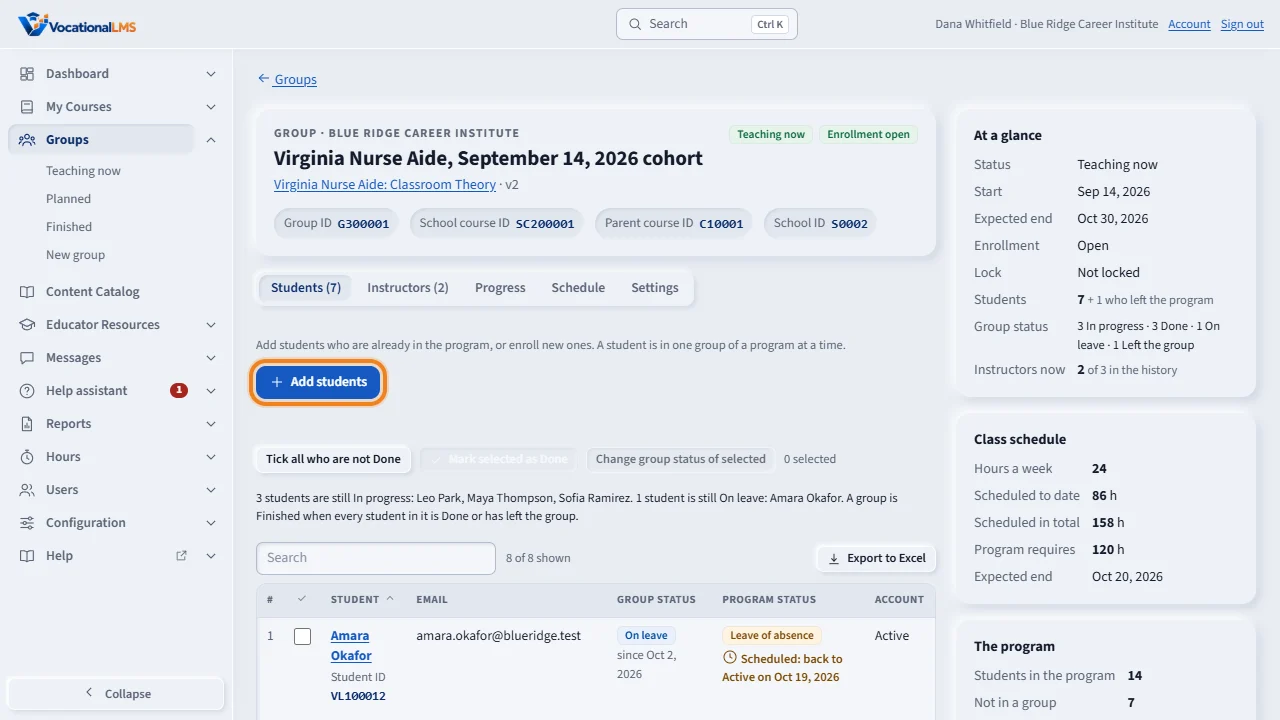
The group's page has its Group I D under the name, and the tabs Students, Instructors, Progress, Schedule and Settings. The side panel shows its dates and counts. On the Students tab, click Add students.
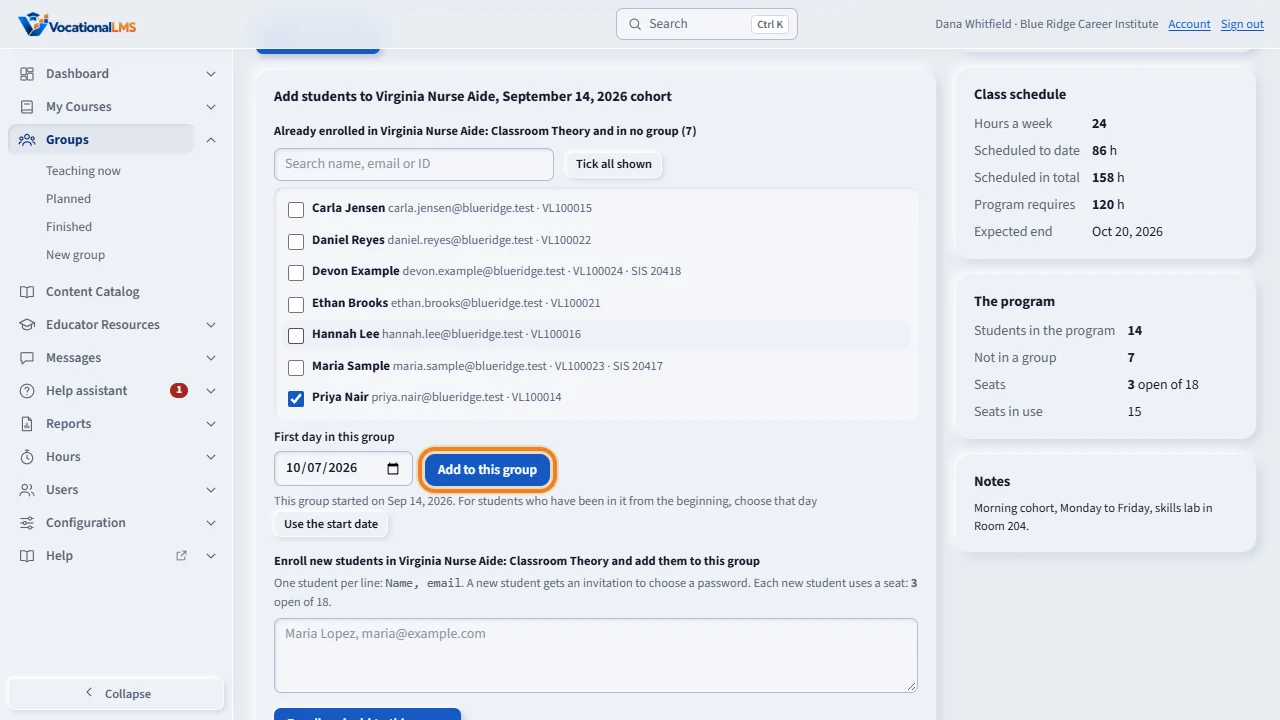
Tick students who are already in the program, check their first day in this group, and click Add to this group. To enroll new people, type one name and email on each line. A student is in one group of a program at a time.
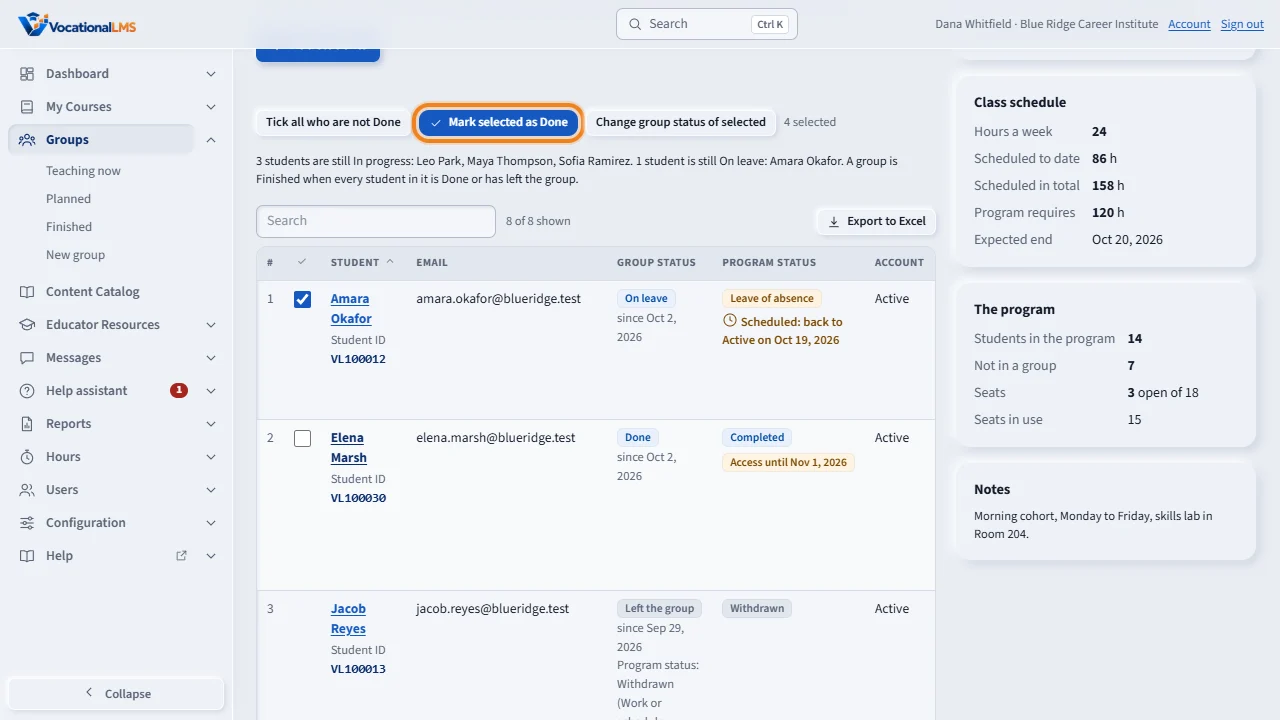
Each student has a group status: In progress, Done, On leave or Left the group. Tick the students who finished and click Mark selected as Done. Their program status changes only if you tick that box in the next step.
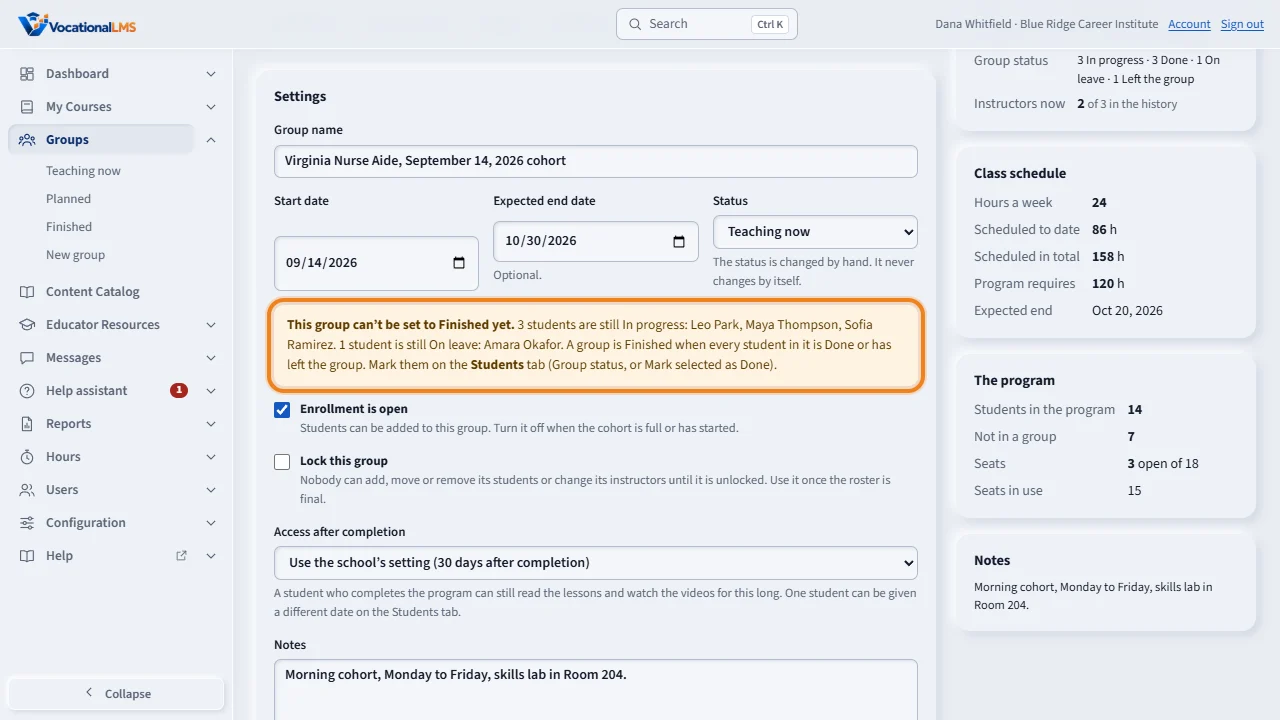
When no student is In progress or On leave, open Settings, choose the status Finished and click Save settings. Until then, the page names the students who are holding the group. A finished group can be opened again by the School Admin or a Director: choose another status, write the reason, and save.
Open this in VocationalLMSGroups > Teaching now
What it is for
A group is the students who take a program together: a cohort, for example the Nurse Aide class that starts on October 1. Each group has its own students, instructors, dates and progress. The lessons are the same for every group of a program; nothing is copied. Each student has a group status of their own: In progress, Done, On leave or Left the group. It is separate from the program status (A-42).
Steps
Make a group
- Click Groups in the menu on the left, then New group.
- Choose the Program and the Start date. Add the Expected end date if you know it.
- The Group name is suggested for you, for example Nurse Aide, October 1, 2026 cohort. Change it if you like.
- Click Create group. The group's page opens. Its Group ID is under the name.
Add, move and remove students
- On the Students tab click Add students.
- To add students who are already in the program: tick them in the list, check First day in this group, and click Add to this group. Use the search box to find one. For students who have been in the cohort from the beginning, click Use the start date.
- To add people who are not in the program yet: type one per line, Name, email, and click Enroll and add to this group. They are enrolled the usual way and get an invitation.
- To move a student to another cohort, click Move to another group on their row, choose the group, type the reason, and click Move student.
- To take a student out of the group, click Remove from group and type the reason. The student stays enrolled in the program, in no group.
- Open Group history at the bottom to see every move, with who did it, when and why.
Mark students Done and finish the group
- The Group status column on the Students tab shows each student's status in this group. A new student is In progress.
- To mark several students at once, tick them (or click Tick all who are not Done) and click Mark selected as Done. Set the date, add a note if you like, and click Save.
- To change one student, click Group status on their row. You can choose In progress, Done or On leave.
- Done changes only the group status. To also change the program status, tick Also mark the program Completed. A completed student keeps their seat.
- Left the group is set for you: when a student's program status becomes Withdrawn, Canceled, Dismissed or Transferred, or when you move or remove the student. The reason is copied.
- When no student is In progress or On leave, open Settings, choose the Status Finished and click Save settings. Until then the page names the students who are holding the group.
- To re-open a finished group, open Settings, choose another Status, type the Reason for re-opening and click Save settings. A School Admin or a Director can do it. The reason is kept under Status history.
- A Planned group whose start date has come shows Start this group. Click it once. The status never changes by itself.
Progress and settings
- The Progress tab shows each student's lessons done, online hours, scheduled hours and average score, and the totals for the group. Export to Excel downloads the list.
- The Schedule tab has the days and hours of class (A-44).
- The Settings tab has the name, the dates and the Status: Planned, Teaching now, Finished or Canceled.
- Access after completion on the Settings tab says how long this group's students keep the lessons after they complete the program: the school's setting, or the group's own (A-67).
- Turn off Enrollment is open when the cohort is full. Tick Lock this group when the list is final: nobody can change its students or instructors until you unlock it.
What happens next
A student is in one group of a program at a time. Students who are in no group keep working exactly as before; the program's Students list shows Not in a group beside them. The side panel of a group shows its dates and counts, how many students of the program are in no group, and your seats for the program. Use the list pages Teaching now, Planned and Finished under Groups to find a group.
Common problems
| # | Problem | What to do |
|---|---|---|
| 1 | “No seats left for this program.” | Your school needs a seat for each new student. Request more seats under Dashboard > Seats and billing, then enroll the student. |
| 2 | A student is not in the tick list. | The list has students of this program who are in no group. A student in another group is moved from that group's page. A person who is not in the program is enrolled with Name, email. |
| 3 | “Enrollment is closed for this group.” | Open Settings and tick Enrollment is open. |
| 4 | “This group is locked.” | Open Settings and untick Lock this group. |
| 5 | “This group still has students.” | A group with students can't be canceled. Move or remove its students first. |
| 6 | “This group can't be Finished yet.” | The message names the students who are still In progress or On leave. Mark each one Done on the Students tab, or change their program status if they left. |
| 7 | I need to re-open a finished group. | A School Admin or a Director opens Settings, chooses another Status, types the reason and saves. The reason is kept under Status history. An instructor cannot re-open a group. |
| 8 | A student who left still shows in the group. | They stay on the list as Left the group, so the group's record is complete. They do not hold the group from finishing. |
| 9 | “This program already has a group with that name.” | Give the group a different name, for example add the time of day. |
See also
- A-41 Instructors on a group
- A-44 A group's class schedule
- A-42 Change a student's program status
- A-67 Access after a student completes a program
- A-43 IDs: school, course, group, student and SIS ID
- A-09 Add students to a course and set their enrollment
- A-20 See your seats, request more, and change a request