
A-33For School Admins and Directors
Scheduled and custom reports
Have a report emailed by itself every day, week or month, and build your own report from a list of subjects and columns.
How-to video A-33 · 1:10
Read the words of this video
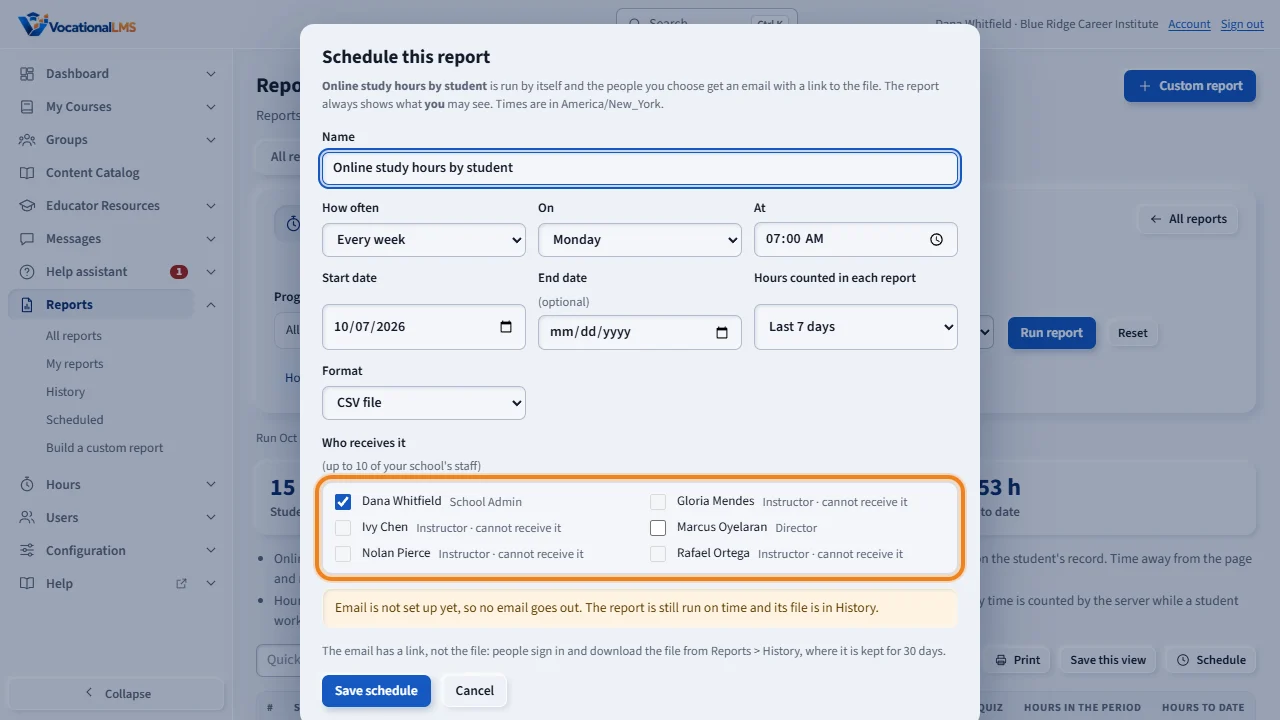
To have a report sent by itself, run it with the filters you want and click Schedule. Give it a name, choose every day, every week or every month, the time, and the period each report covers. Then tick the staff who receive it.
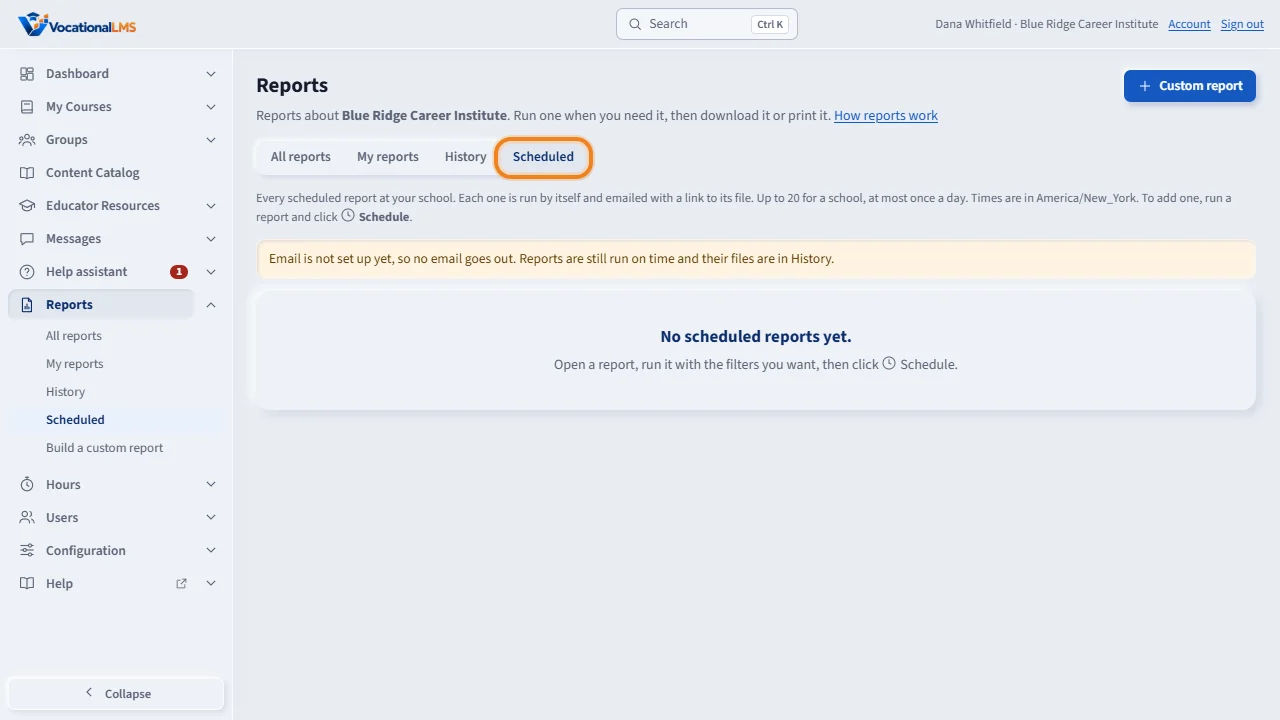
The Scheduled tab lists every schedule, with its next run and its last run. Each person gets an email with a link. They sign in and download the file from History, where it is kept for thirty days. You can run a schedule now, pause it, change it or delete it.
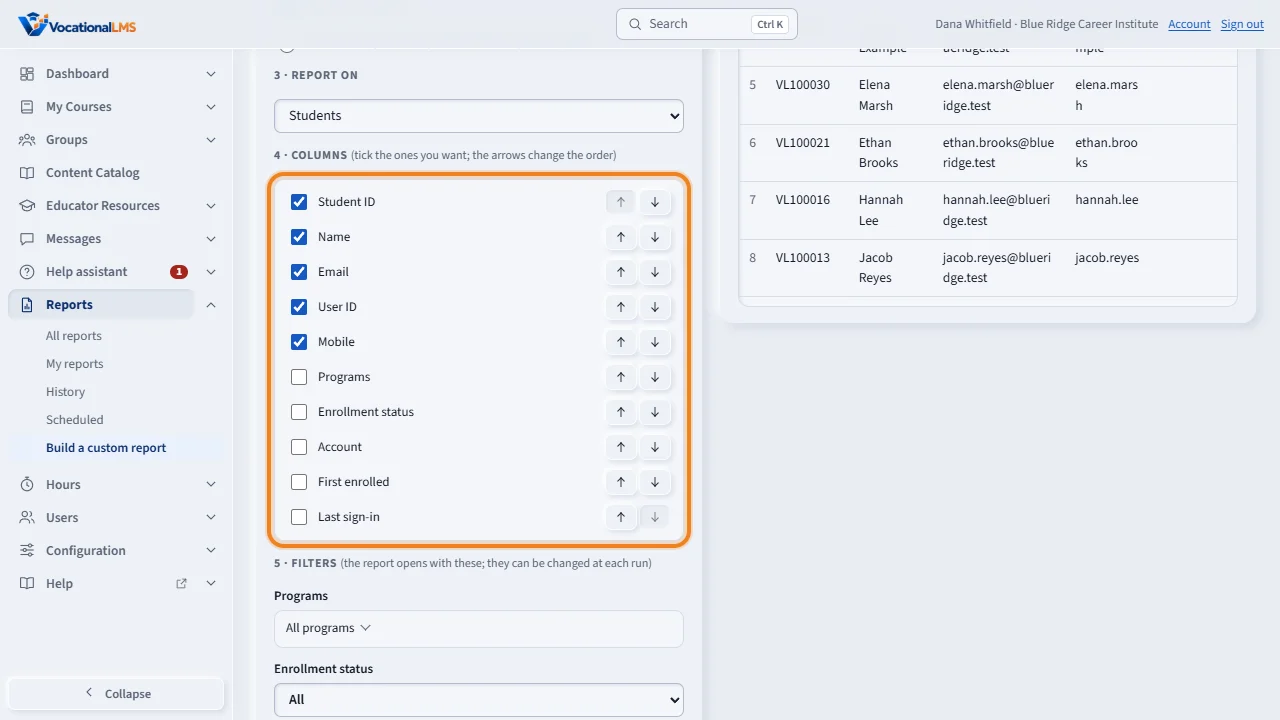
To build your own report, click Custom report at the top right. Type a name, choose what to report on, and tick the columns you want. The arrows change their order, and the preview shows the first rows as you go.
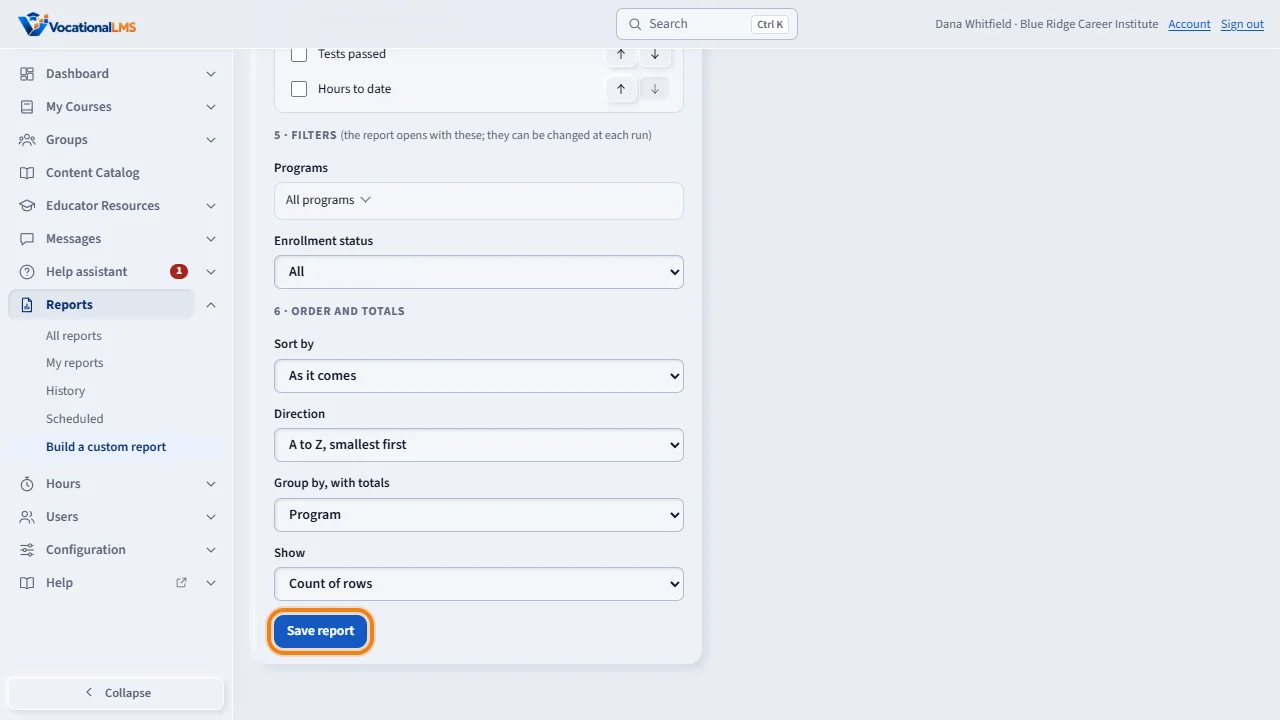
Set the filters, the sort order and, if you want, group by with totals. Save the report for yourself or for your whole school. It then appears under the topic Custom and works like any other report: download, print, save a view or schedule it.
Open this in VocationalLMSReports > Scheduled
What it is for
Two more parts of the Reports page. Scheduled: a report is run by itself and the staff you choose get an email with a link to its file. Custom report: you build your own report by picking what to report on, the columns, the filters and the order. No formulas and no code.
Steps
Schedule a report
- Open a report, choose the filters and click Run report. Then click Schedule above the table. (On My reports, a saved view has a Schedule button too.)
- Give it a name. Choose How often: every day, every week on one weekday, or every month on one day. Choose the time, the start date and, if you want, an end date.
- Choose the period each report covers, for example Last 7 days or Last month. A scheduled report cannot use two fixed dates.
- Tick who receives it, up to 10 people of your school's staff. Click Save schedule.
- Open the Scheduled tab to see every schedule with its next run and last run. Use Run now, Pause or Resume, Edit and Delete (click twice).
Build a custom report
- Click Custom report at the top right of the Reports page.
- Type a name. Choose the library: Personal (only you) or School (everyone at your school who may run reports).
- Under Report on choose one subject: Students, Enrollments, Online hours (by day), Tests and quizzes (takes), Sign-ins, Courses or Instructors.
- Tick the columns you want. The ↑ and ↓ arrows change their order. The preview on the right shows the first 20 rows as you go.
- Set the filters the report opens with, Sort by, and if you want Group by, with totals: a count, a total (for example of hours) or an average (for example of scores).
- Click Save report. It opens like any other report. You find it under the topic Custom, where its card has Edit, Duplicate and Delete (click twice).
What happens next
The email has a link, not the file: the person signs in and downloads the CSV file from Reports > History, where it is kept for 30 days. A scheduled report always shows what the person who made it may see, so an instructor cannot receive a whole-school report; an instructor can schedule a report about their own students for themselves and for admins and directors. If the person who made a schedule can no longer sign in, the schedule pauses itself and says so. A run that fails is tried once more and then shown as failed. A school can have 20 schedules, and a report is sent at most once a day. A custom report can be starred, saved as a view, downloaded, printed and scheduled like a standard report, and each person who runs it sees only what they may see.
Common problems
| # | Problem | What to do |
|---|---|---|
| 1 | An instructor's box cannot be ticked. | The report covers the whole school, and an instructor may only see their own students. Ask the instructor to schedule the report themselves. |
| 2 | “A scheduled report needs dates that move with the calendar.” | Choose Last 7 days, Last 30 days, This month so far, Last month or Year to date instead of two dates. |
| 3 | Nobody got the email. | The Scheduled tab says so when email is not set up for your school (A-23). The report was still run; its file is in History. |
| 4 | “This file is no longer kept.” | Files of scheduled reports are deleted after 30 days. Click Run again in History. |
| 5 | A schedule shows Paused with a reason. | Its end date has passed, the person who made it can no longer sign in, or its report was deleted. Delete it and make a new one. |
| 6 | I cannot choose School in the builder. | Only a School Admin or a Director can save a report for the whole school. An instructor saves to Personal. |
| 7 | I cannot change someone else's custom report. | Only the person who made it, or a School Admin, can. Click Duplicate to make your own copy. |