
A-09For School Admins and Directors
Add students to a course and set their enrollment
Paste a list of names and emails, and mark a student Active, Completed or Withdrawn.
How-to video A-09 · 1:06
Read the words of this video
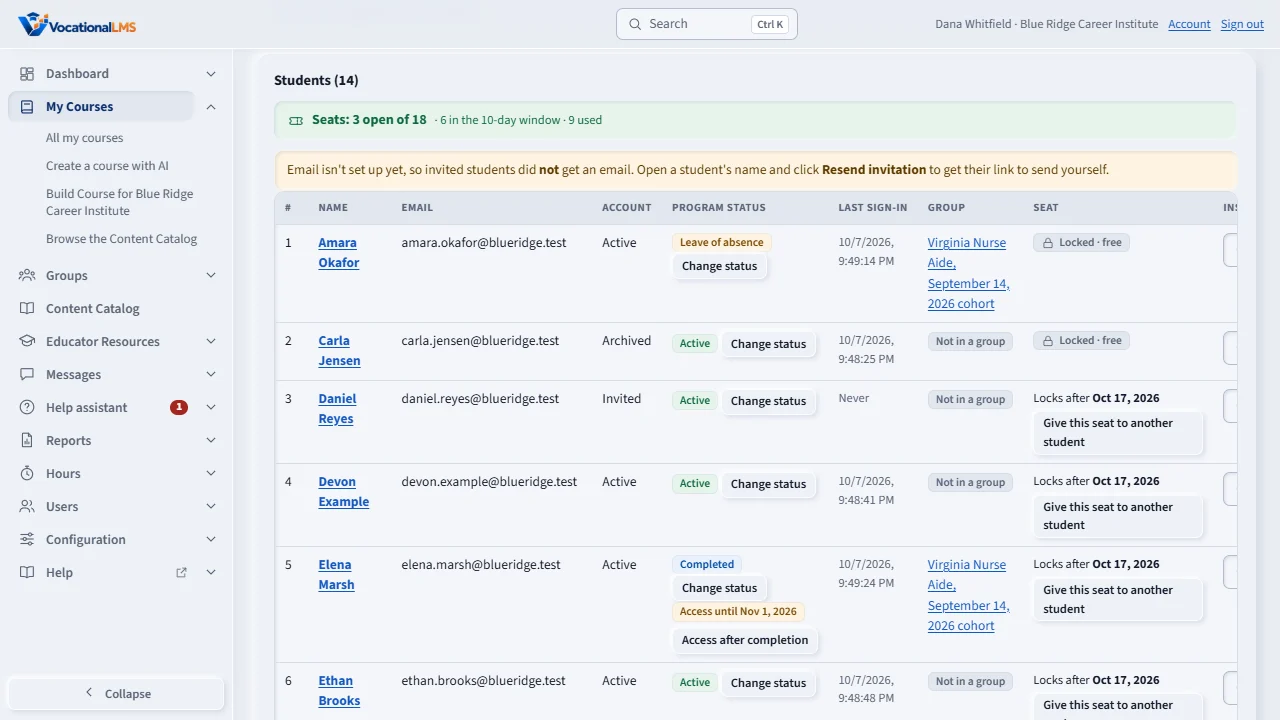
The quickest way to enroll a class is on the course page. Click My Courses and open the course. The Students list shows each student's account, program status, last sign-in, group, seat and instructor.
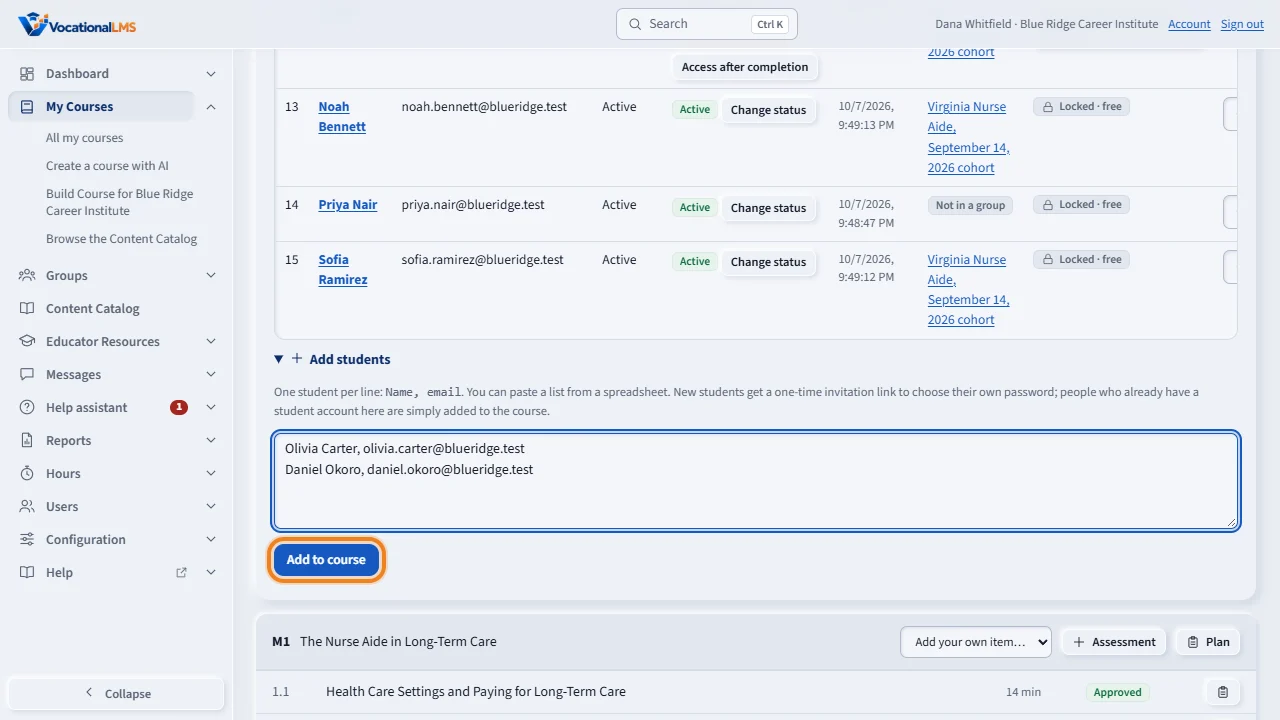
Open Add students. Type one student on each line, the name, a comma, and the email. You can also paste two columns from a spreadsheet. Then click Add to course.
New students get a one-time invitation link and choose their own password. A student who already has an account is simply added. The Account column shows Invited until they choose a password.
The Program status column shows where each student stands, for example Active, Completed or Withdrawn. Click Change status to change it. A withdrawn student loses access to the course at once. Nothing is deleted. If your school uses seats, each new student uses one open seat.
Open this in VocationalLMSMy Courses > a course > Students
What it is for
The quickest way to enroll a class is on the course page: one student per line, typed or pasted from a spreadsheet. New students get an invitation link; students who already have an account are simply added.
Steps
- Click My Courses and open the course.
- Click the Students row to open it (every section of a course page starts closed, so the modules are in view; the page remembers the rows you keep open), then open Add students.
- Type one student per line as
Name, email, or paste two columns from a spreadsheet. - Click Add to course.
- To change where a student stands, click Change status in the Program status column and choose, for example, Completed or Withdrawn (A-42).
What happens next
Each student gets the system message “You have been enrolled…”. Account shows Invited until they choose a password. A Withdrawn student loses access to the course at once; nothing is deleted, and setting them back to Active restores it.
Common problems
| # | Problem | What to do |
|---|---|---|
| 1 | “No seats left for this program.” | Your school uses seats and none is open. The student is not added. Click Request more seats (A-20). |
| 2 | “This email belongs to someone who isn't a student at this school.” | That email is a staff account or belongs to another school. |
| 3 | Invitations were not emailed. | Email is not set up. Open the student's name and click Resend invitation to get the link (A-23). |