
V-27For the VocationalLMS Super Admin
Reports for any school, and the platform reports
Run every school report for one school or all schools, see which schools are active, and the sign-in history of everyone.
How-to video V-27 · 0:40
Read the words of this video
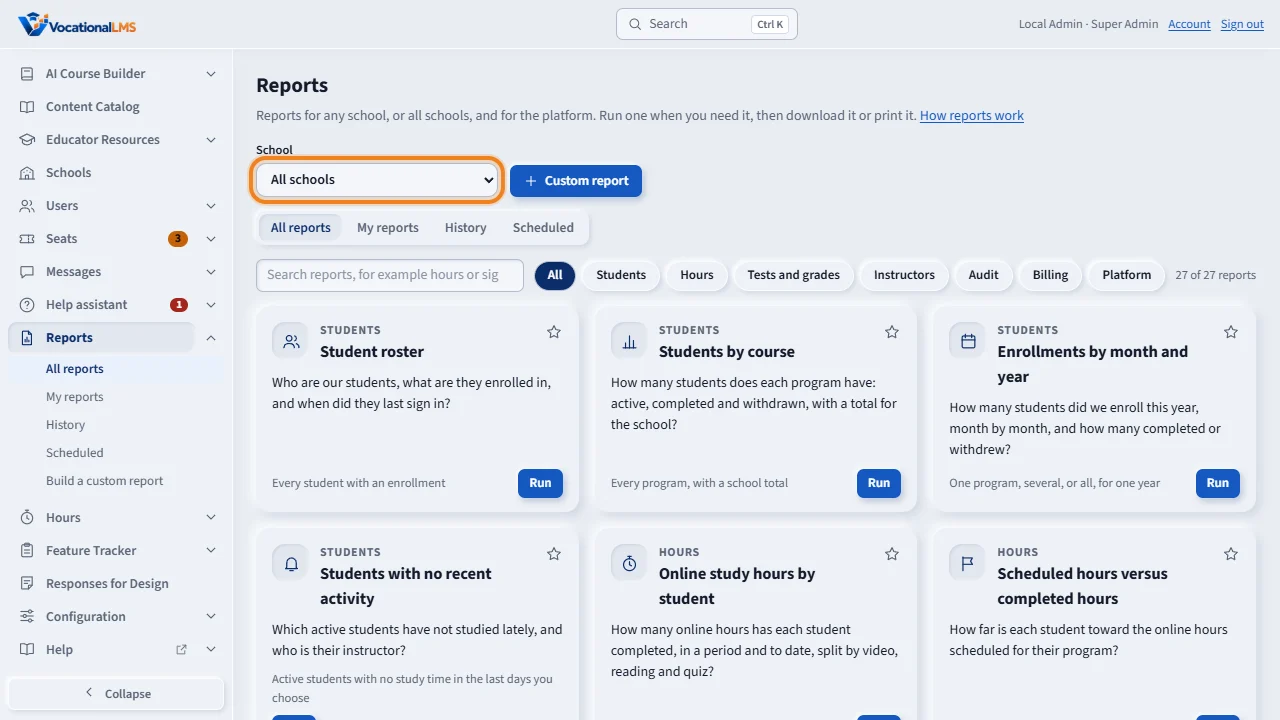
As Super Admin, Reports has every school report for one school or for all schools. Choose the school at the top right. With all schools, each report gets a School column.
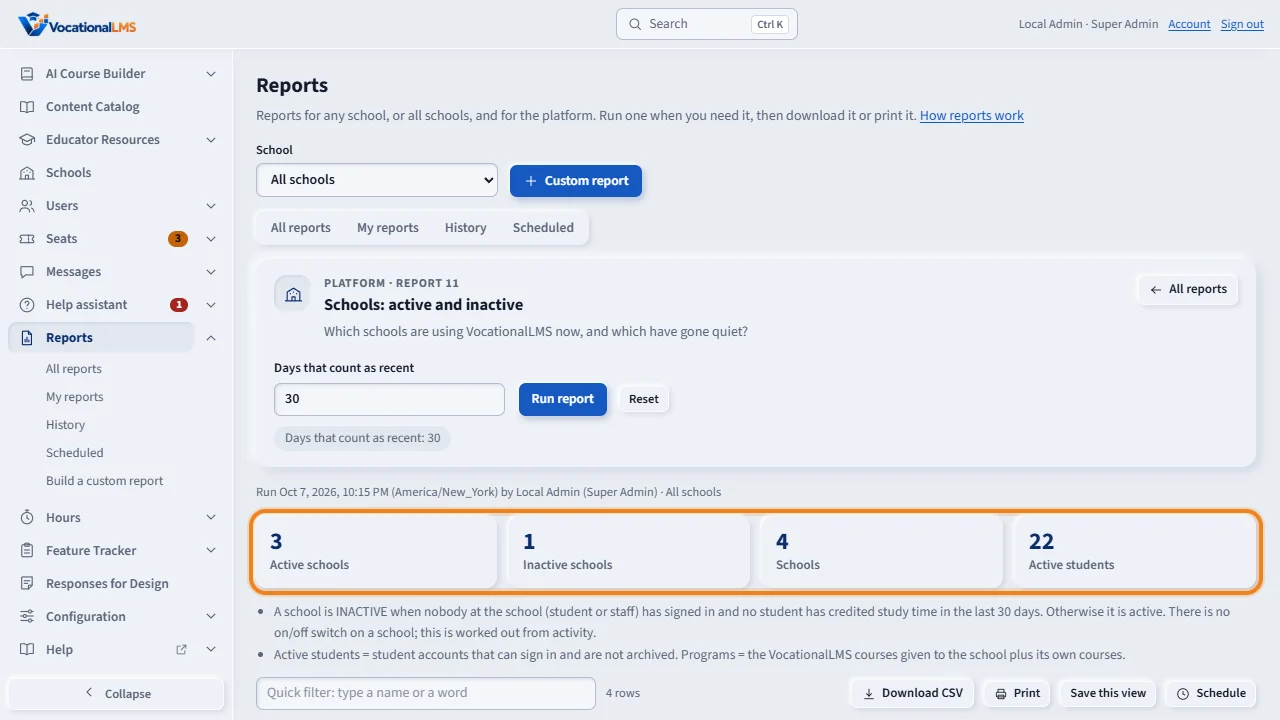
The platform report Schools, active and inactive, lists every school. A school is inactive when nobody there has signed in and no student has studied in the last thirty days. The tiles give the number of active and inactive schools.
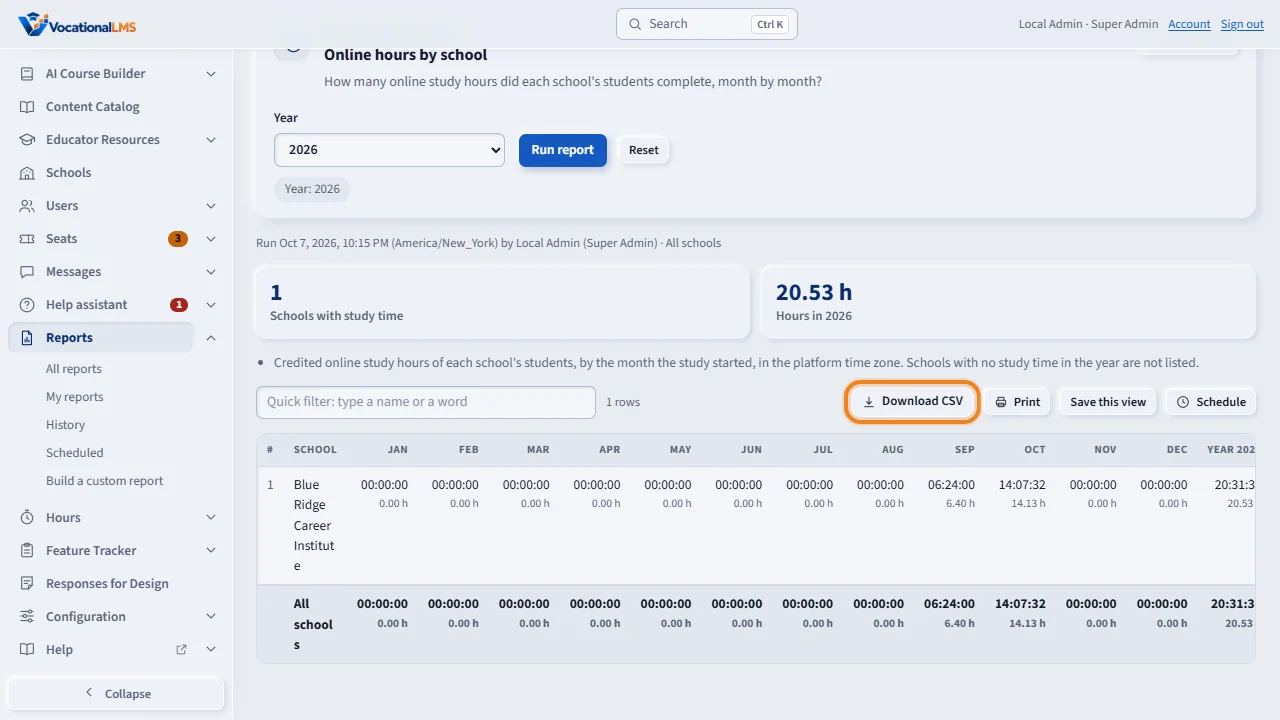
Online hours by school gives each school's study hours month by month. Like every report, you can download it for Excel or print it.
Open this in VocationalLMSReports > All reports
What it is for
As Super Admin, Reports has every school report (A-31, A-32) for one school or all schools, plus three platform reports: Schools: active and inactive, Students by school and course and Online hours by school.
Steps
- Click Reports in the menu on the left. In School at the top right, choose one school or leave All schools. With all schools, each school report gets a School column.
- Click the topic Platform. Open Schools: active and inactive and click Run report. The tiles give the number of active and inactive schools.
- A school is inactive when nobody at the school has signed in and no student has credited study time in the last 30 days. Change the number in Days that count as recent.
- Students by school and course counts enrollments for every school and program. Online hours by school gives each school's study hours month by month for a year.
- Sign-in history with All schools also shows Super Admin sign-ins, and failed attempts with an email that belongs to nobody. Schools never see those rows.
- History lists the runs of every school. On Users, Login history on a staff row opens that person's sign-ins.
- Scheduled lists the scheduled reports of every school; you can pause, run or delete any of them. To schedule one for a school, choose the school first; the recipients are that school's staff. A schedule you make for all schools can go to Super Admins only.
- Custom report works as for a school (A-33), and you have one more subject, Schools. You see the custom reports every school saved to its School library; a school never sees yours.
What happens next
There is no on/off switch on a school; active or inactive is worked out from sign-ins and study time each time the report runs. Days and months use the platform time zone set under Seats settings. The sign-in history keeps the time, the IP address, the device and whether the sign-in worked. Sign-outs and devices are recorded only since this report was added; a session that simply expires has no sign-out row.
Common problems
| # | Problem | What to do |
|---|---|---|
| 1 | The Person and Student boxes are empty. | Choose one school first; with All schools the lists would be too long. |
| 2 | A school report shows another school's students. | It does only for you with All schools chosen. A School Admin always gets their own school, whatever is sent. |
| 3 | A new school shows as inactive. | Nobody has signed in yet. It turns active at the first sign-in. |