
V-30For the VocationalLMS Super Admin
IDs for schools and courses, and marking a new version of a course
Where each permanent ID shows, the School course ID a school gets when you give it a course, and the version number of a course.
How-to video V-30 · 1:08
Read the words of this video
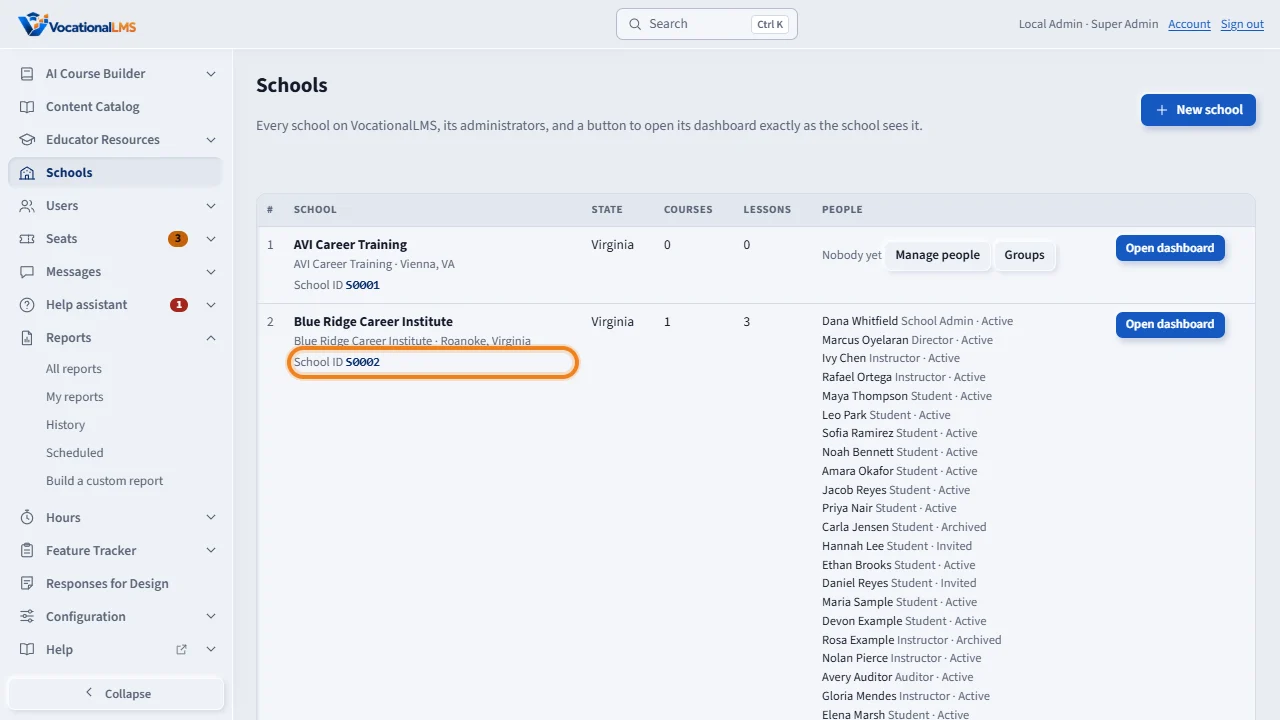
Every school, course, group and student has a permanent I D made by the system. Open Schools. Each school's School I D is under its name. I Ds never change and are never reused.
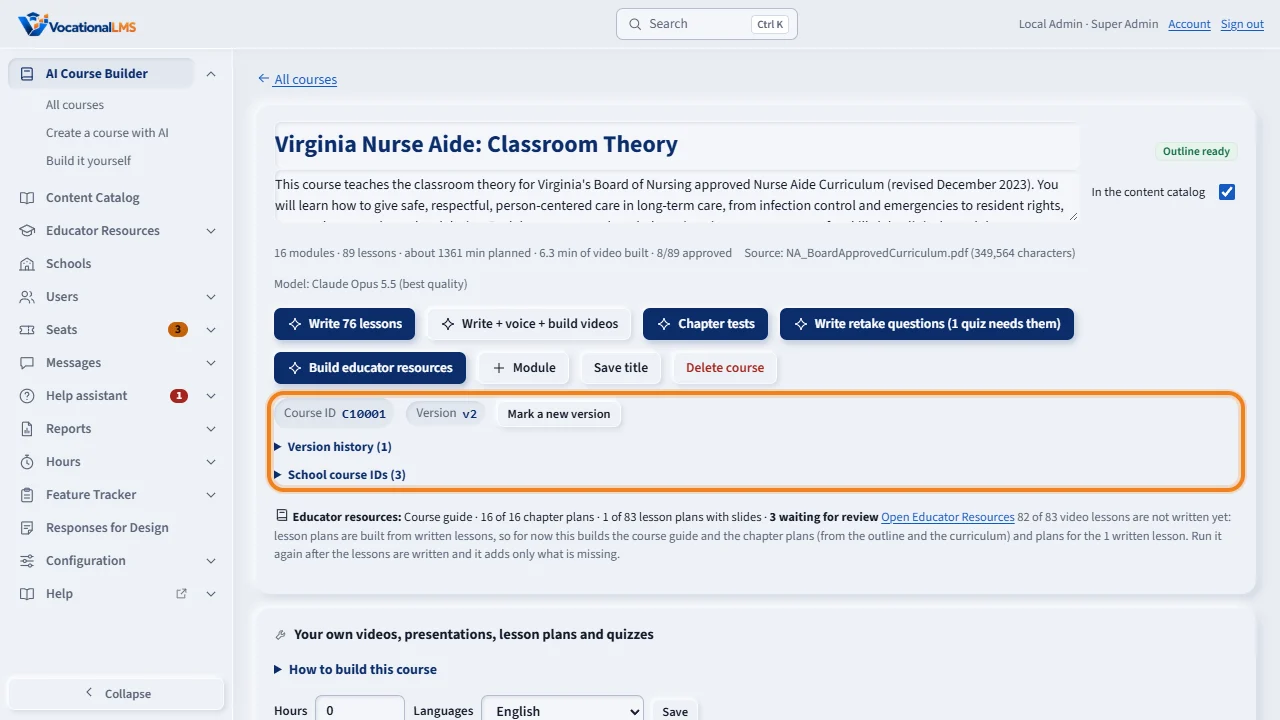
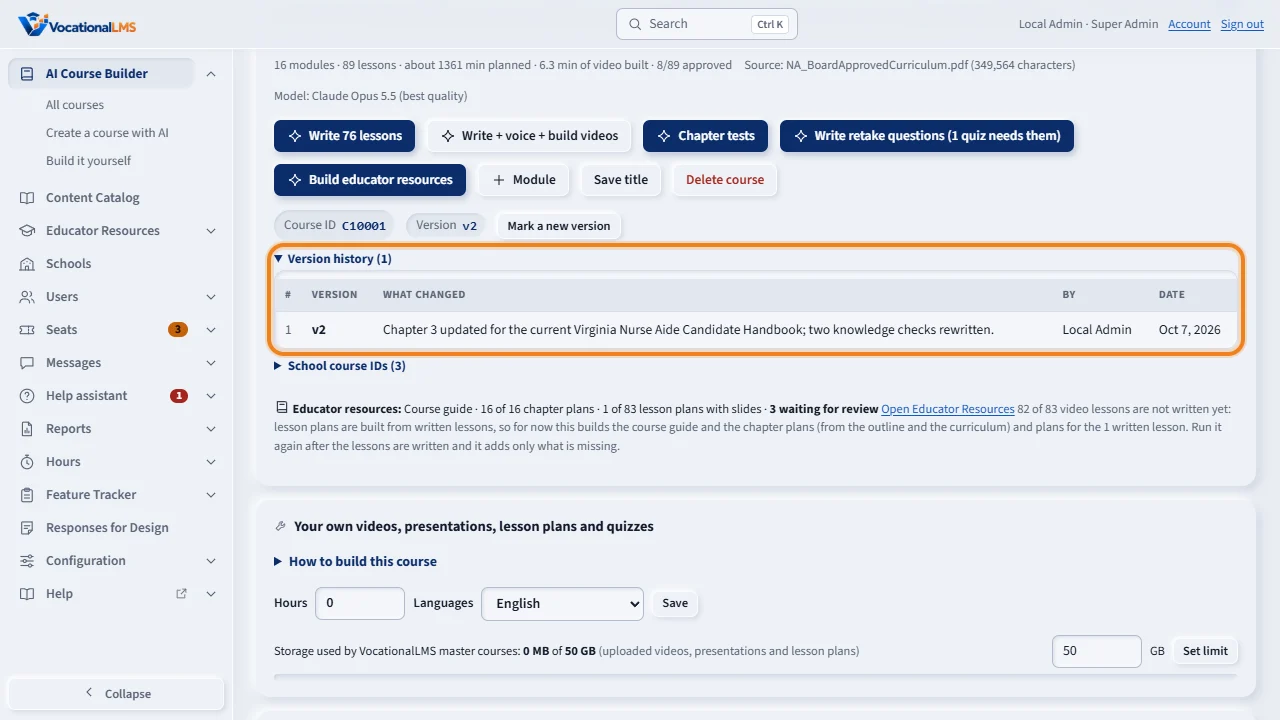
Open a course in the A I Course Builder. Under the title you see its Course I D and its version. When you give this course to a school, that school gets its own School course I D for it at once.
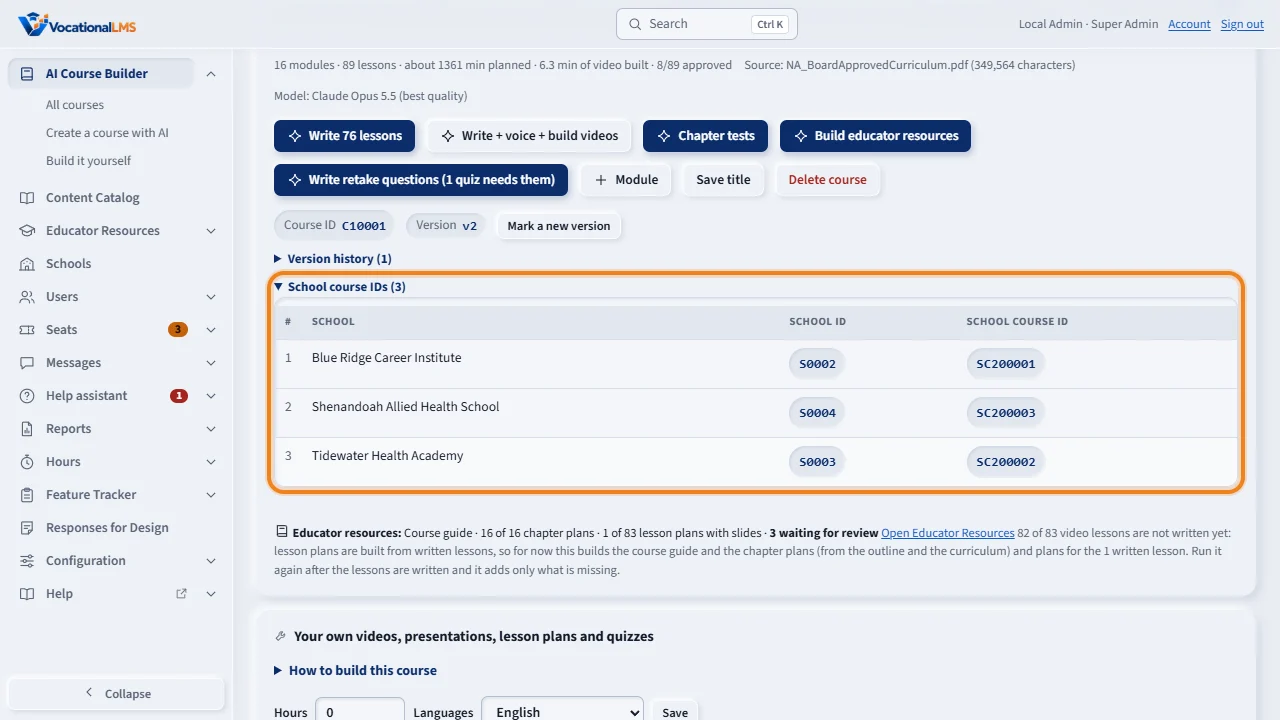
Open School course I Ds to see the I D of this course at each school that has it. A school sees only its own. If you take a course back and give it again later, the school gets the same I D as before.
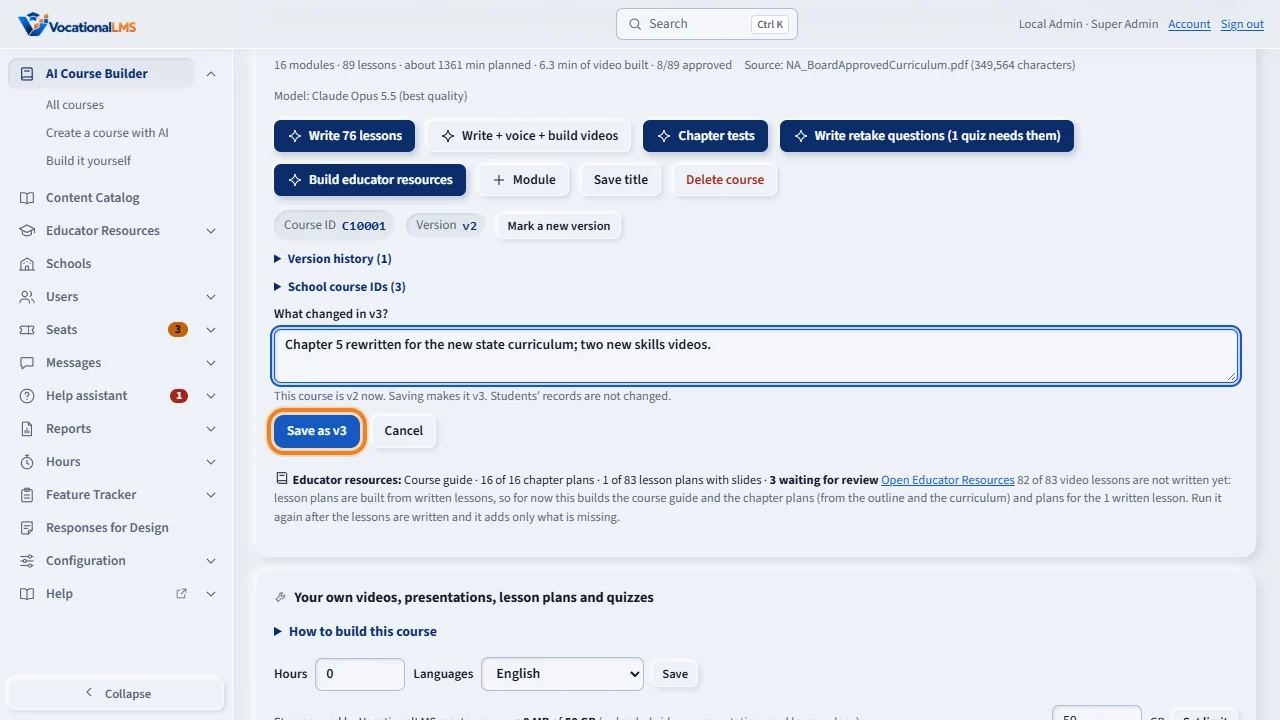
When the approved content of a course changes, click Mark a new version. Write what changed, then click Save. The note is required. Marking a version does not change any lesson or any student's record.
Version history lists every version with its note, who saved it and the date. It is what a school or an auditor reads later.
Open this in VocationalLMSAI Course Builder > a course > IDs
What it is for
Every school, course, school course, group and student has a permanent ID made by the system. When you give a course to a school, that school gets its own School course ID for it at once. Every course also has a version, which you raise when its approved content changes.
Steps
- Open Schools. Each school's School ID (for example S0003) is under its name.
- Open a course in AI Course Builder. Under the title you see its Course ID (C10009) and Version (v1).
- Open School course IDs on that page to see the ID of this course at each school that has it (SC200417). A school sees only its own.
- When the approved content of a course changes, click Mark a new version. Write what changed, then click Save as v2.
- Open Version history to read every version with its note, who saved it and the date.
What happens next
IDs never change and are never reused. If you take a course back from a school and give it again later, the school gets the same School course ID as before. The version is a number you raise by hand; marking a new version does not change any lesson or any student's record.
Common problems
| # | Problem | What to do |
|---|---|---|
| 1 | “Write a short note that says what changed in this version.” | The note is required. It is what a school or an auditor reads later. |
| 2 | There is no Mark a new version button. | It shows for the Super Admin only, and not while you are viewing a school as its admin. |
| 3 | A school asks for its School course ID. | It is on the course page, under the title, for the school's own staff. You can read it under School course IDs. |