
V-26For the VocationalLMS Super Admin
Educator Resources: build lesson plans and teaching slides with AI, review and approve
One button writes the teaching guide, chapter plans and lesson plans with slides. Nothing reaches schools until you approve it.
How-to video V-26 · 1:11
Read the words of this video
For any course, Build educator resources writes a course teaching guide, a teaching plan for each chapter, and a lesson plan with teaching slides for each video lesson. Choose the whole course, one module or one lesson. The dialog shows the number of A I calls and a rough cost before you click Start. It never starts by itself.
Open Educator Resources and open the course. Everything new is a draft. Read it, edit any part, and approve it with your sign-off. You can approve one resource, a chapter, or the whole course.
Schools and instructors see a resource only after it is approved. Restore previous goes back one version, and Withdraw approval hides it again. Everything is written from the course's own lessons and curriculum.
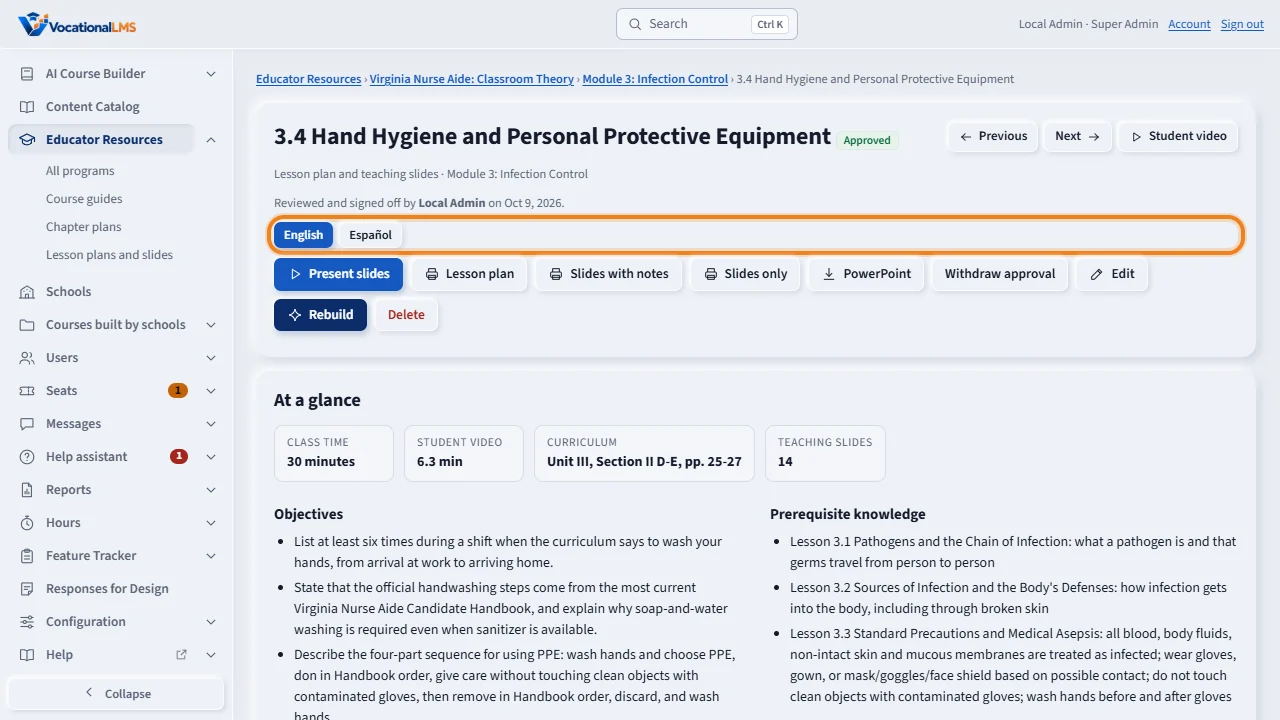
Once a resource is approved, Translate to Spanish writes a Spanish version as its own draft, approved separately from the English one. After it is approved, this English / Español switch is what schools and instructors see.
Open this in VocationalLMSEducator Resources > a program > Build educator resources
What it is for
For any course, Build educator resources writes a course teaching guide, a teaching plan for each chapter, and for each video lesson a lesson plan with classroom teaching slides. It is written only from the course's own lessons and curriculum. What the AI writes is a draft until a person approves it. Once a resource is approved, Translate to Spanish writes a Spanish version of it, as its own draft with its own approval.
Steps
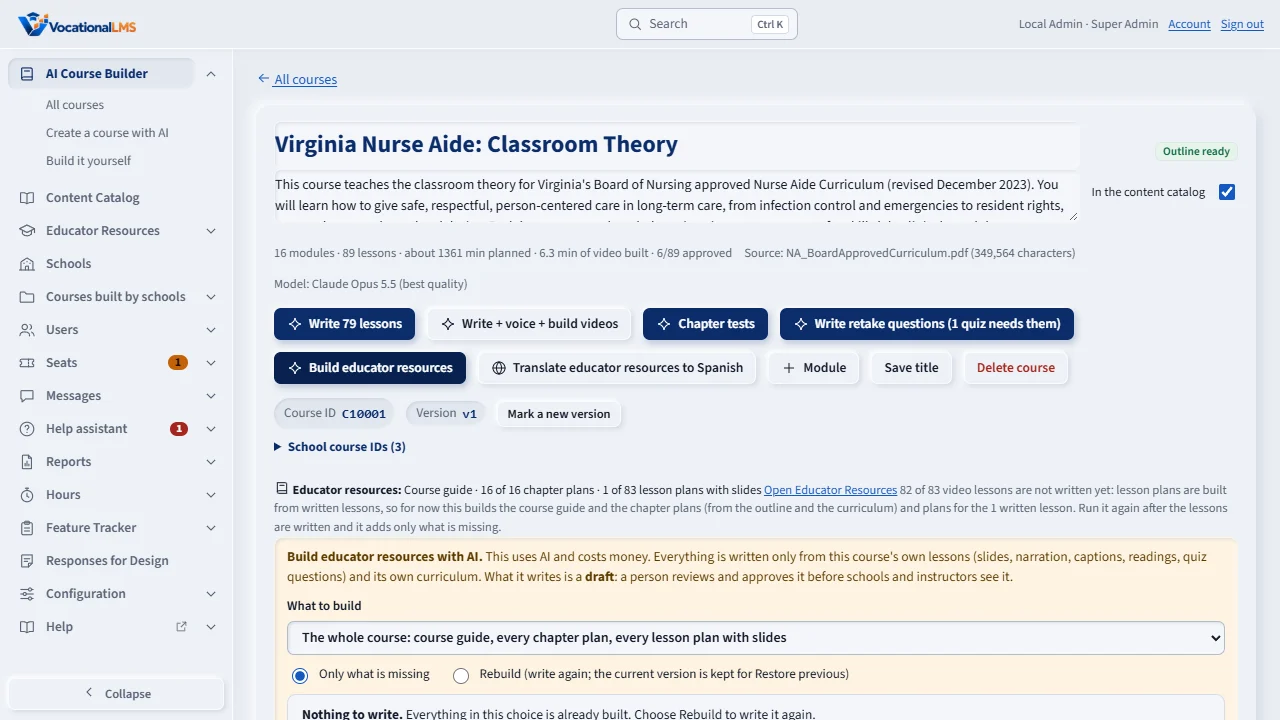
- Open the course in AI Course Builder. Next to Chapter tests click Build educator resources.
- Choose what to build: the whole course, one module, or one lesson. Leave Only what is missing selected, or choose Rebuild to write again (the current version is kept).
- Read the number of AI calls and the rough cost, then click Start. Progress shows under Activity, and View details lists each item. You can leave the page.
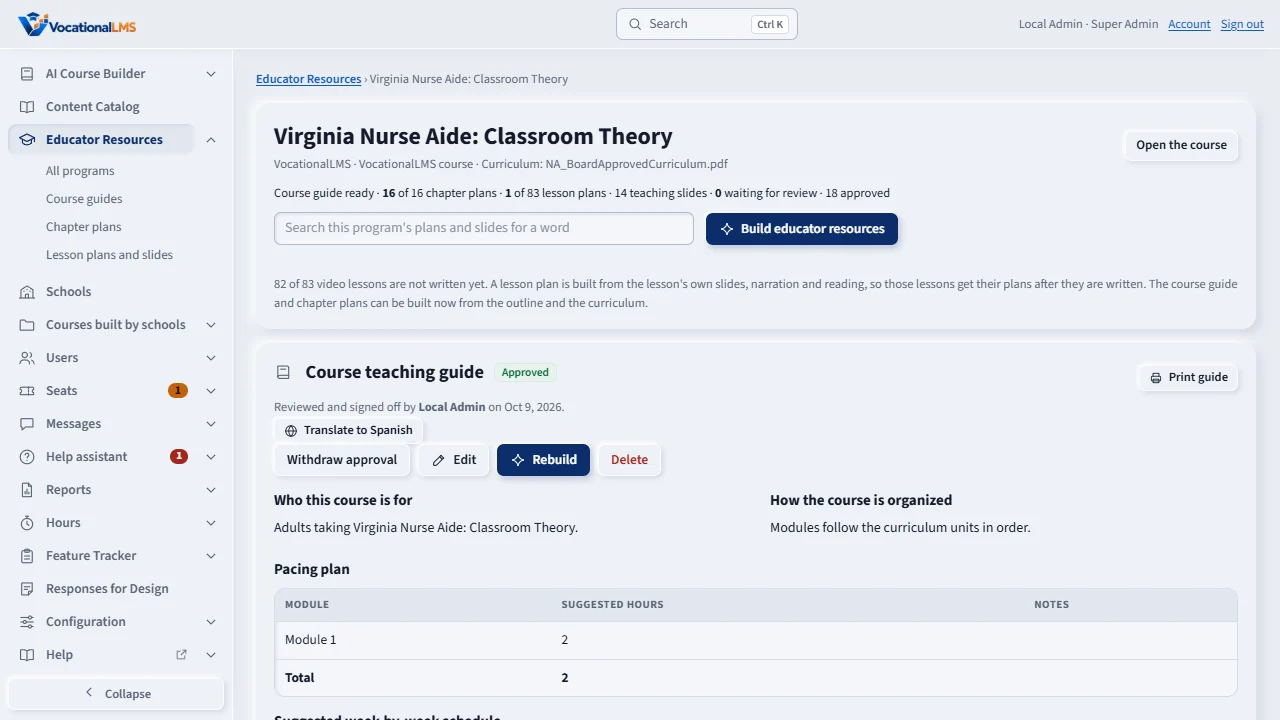
- Open Educator Resources in the menu on the left and open the course. Everything new is marked Draft: not reviewed.
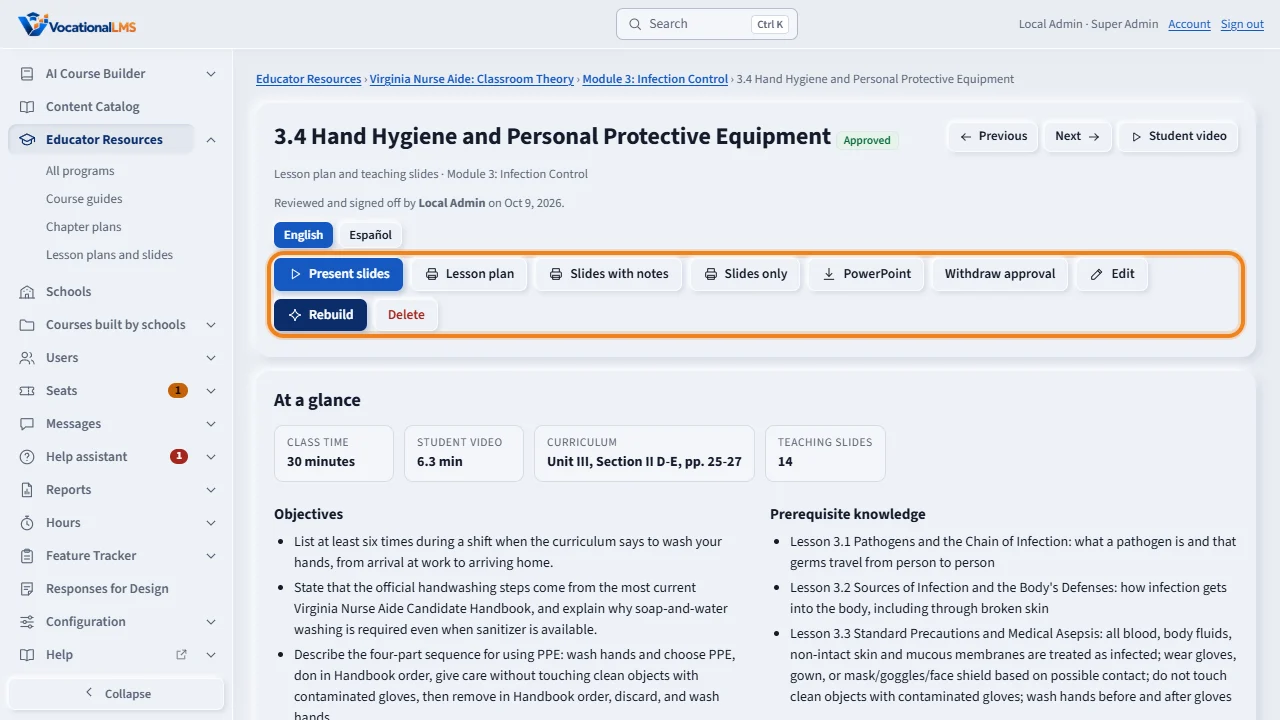
- Open a draft and read it. Click Edit to change any part, then Save changes.
- Click Approve (my sign-off). Your name and the date are kept as the reviewer. Schools and instructors see it from then on.
- To approve many at once, use Approve chapter or Approve all drafts in this course. Read them first; it is your sign-off on each.
- Once something is approved, click Translate to Spanish (next to one resource, or Translate educator resources to Spanish on the course page for several at once). Read the number of AI calls and the rough cost, then click Start — the same rule as the English writing: nothing is translated without you choosing it.
- Read the Spanish draft at Español and approve it the same way, separately from the English one. A school's instructor then sees an English / Español switch on that resource.
- Restore previous goes back to the earlier version after an edit, a rebuild or a retranslation, in each language. Withdraw approval hides a resource (or its Spanish version) from schools.
- For a new course, tick Also build Educator Resources on Create a course with AI. The course page then shows the Build button at the top.
What happens next
Each video lesson takes two AI answers (the plan, then the slides), about two minutes, and costs roughly fifty cents on the highest-quality model; a chapter plan and the course guide take one answer each. Translating one resource to Spanish is one more AI answer. A lesson that is not written yet is skipped and can be added later with Only what is missing. The job never starts by itself and is not resumed after a restart. A school's copy of a course takes the approved resources with it, in whichever languages were approved. Building and reviewing Educator Resources (English or Spanish) for VocationalLMS's own courses is never gated by the AI building budget (#269); the same AI work on a school's own course is.
Common problems
| # | Problem | What to do |
|---|---|---|
| 1 | The job says some items failed. | The others were saved. Run Build again with Only what is missing; it writes just the failed ones. |
| 2 | “Everything here is already built.” | Choose Rebuild to write it again; the current version is kept for Restore previous. |
| 3 | A school says it sees nothing. | Its resources are still drafts, or the course is not assigned to that school. |
| 4 | A plan says something the course does not teach. | Edit it or delete it and rebuild that lesson. Plans are drafts for exactly this reason. |
| 5 | There is no Translate to Spanish button. | The English version is not approved yet; only an approved resource can be translated. |
| 6 | “Everything here already has a Spanish version.” | Choose Retranslate in the dialog to translate it again from the current approved English wording. |