
A-60For School Admins and Directors
Ask VocationalLMS for a feature
Tell VocationalLMS what your school needs, in your own words, from your dashboard. See the status of each request and the reply.
How-to video A-60 · 1:04
Read the words of this video
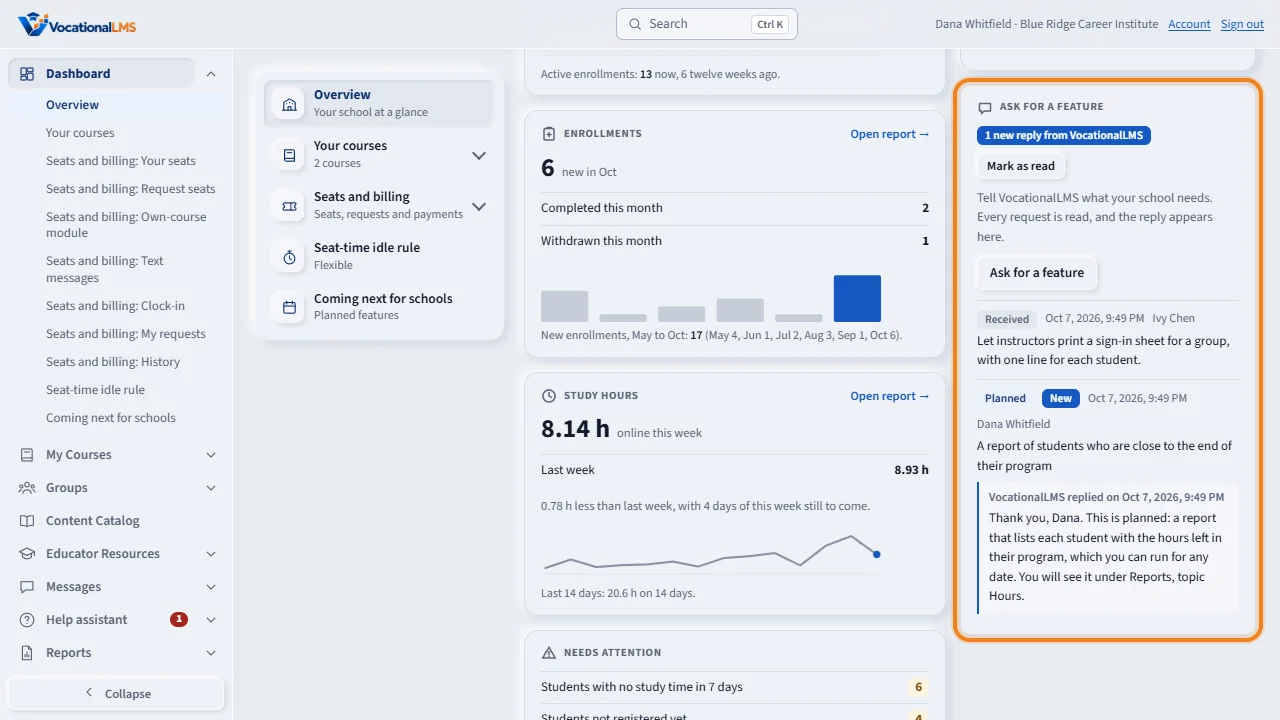
On your Dashboard, the tile Ask for a feature is where you tell VocationalLMS what would help your school: a report you miss, a button, a rule. It is on the right of Overview, under What's new. Every request is read.
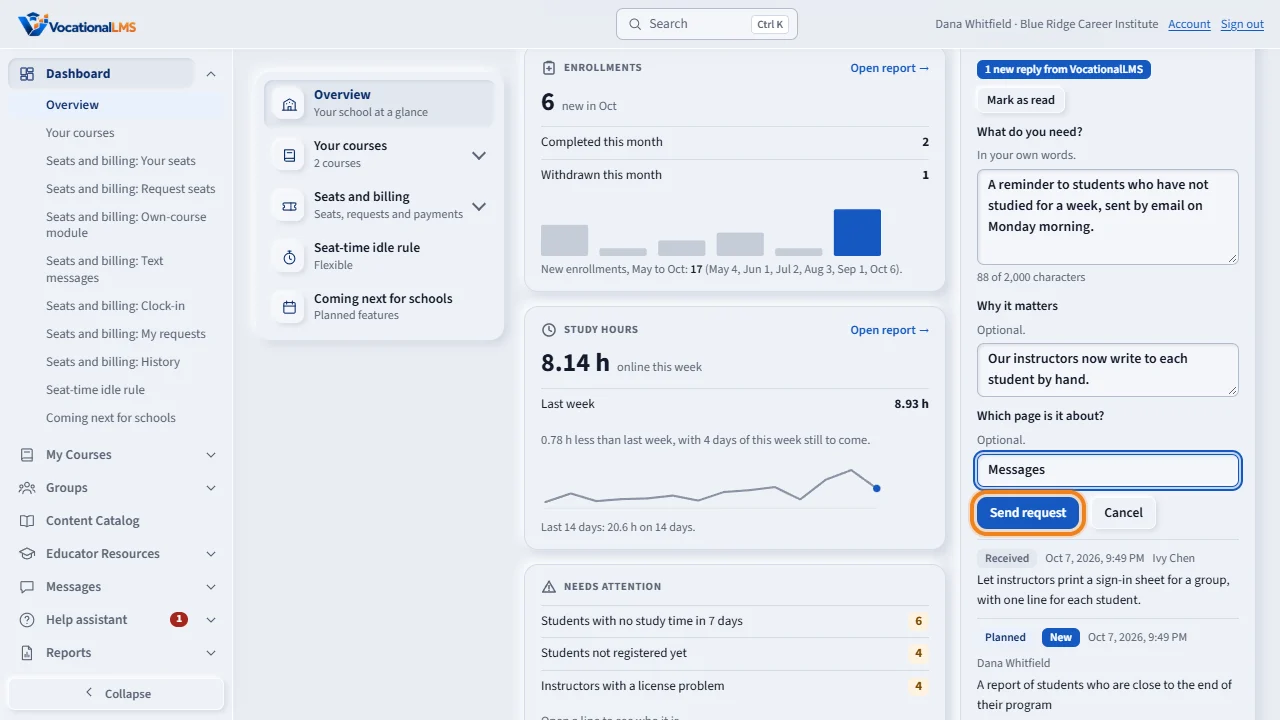
Click Ask for a feature. Under What do you need, type it in your own words. If you want, add why it matters and which page it is about. Then click Send request.
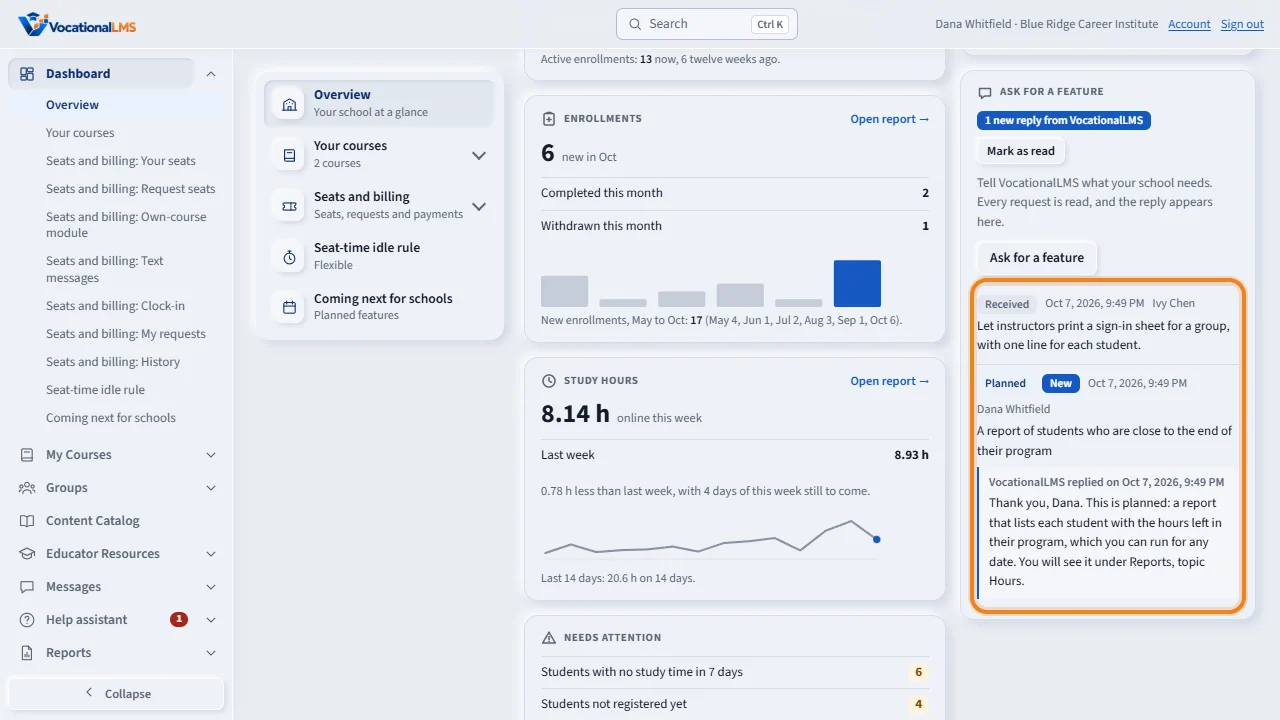
Your request appears in the list at once, with the status Received. When VocationalLMS answers, the tile says there is a new reply, the request is marked New, and the reply is shown under it. Click Mark as read when you have read it.
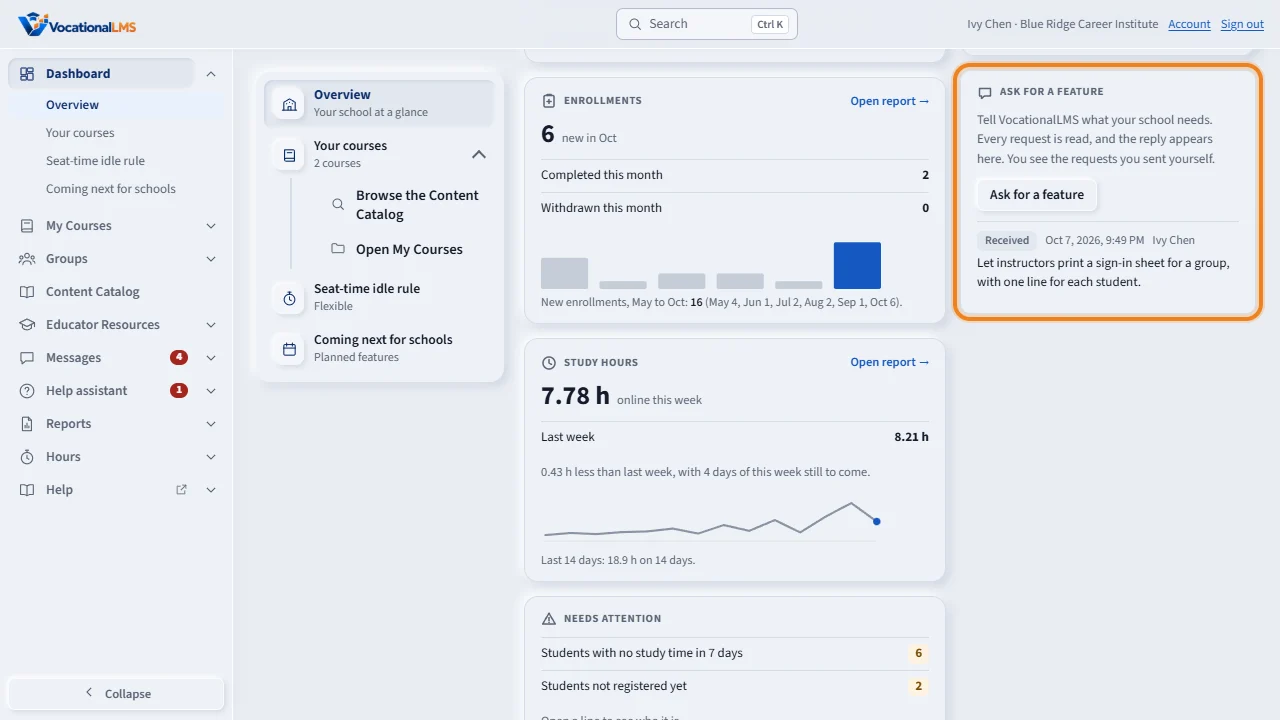
A School Admin, a Director or an instructor can send a request. The School Admin and the Director see every request of the school. An instructor sees only the ones she sent herself. Other schools never see your requests.
Open this in VocationalLMSDashboard > Overview > Ask for a feature
Who can do this: A School Admin, a Director or an instructor can send a request. The School Admin and the Director see every request of the school. An instructor sees only the requests she sent herself.
What it is for
On the Dashboard, the tile Ask for a feature is where you tell VocationalLMS what would help your school: a report you miss, a button, a rule. Every request is read. The tile keeps a list of your school's requests with the status of each one and the reply from VocationalLMS.
Steps
- Open the Dashboard. On Overview, find Ask for a feature on the right (on a phone it is below the tiles).
- Click Ask for a feature. Under What do you need? type it in your own words, up to 2,000 characters. The counter under the box shows how many you have used.
- If you want, fill in Why it matters and Which page is it about? They help VocationalLMS understand the request.
- Click Send request. The request appears at the top of the list at once, with the status Received.
- Come back later. When VocationalLMS answers, the tile says 1 new reply from VocationalLMS, the request is marked New, and the reply is shown under it. Click Mark as read when you have read it.
- With more than three requests, click Show all to see every one.
What happens next
A request has one of six statuses: Received (sent, not read yet), Under review, Planned, In progress, Done or Not planned. When VocationalLMS replies or changes the status, the person who sent the request gets an email, and so does the School Admin if that is somebody else. The email goes out through your school's own email settings; if email is not set up for your school, no email is sent and the reply still shows on the tile, so look at it now and then. Other schools never see your requests.
Common problems
| # | Problem | What to do |
|---|---|---|
| 1 | The Ask for a feature button is gray. | Your school has sent 10 requests today, the most for one day. Send the next one tomorrow. |
| 2 | “Your request is … characters long.” | A request can be up to 2,000 characters. Shorten it, or send the rest as a second request. |
| 3 | A reply is still marked New after you read it. | Click Mark as read. It is remembered on that computer or phone, so another device may still show New. |
| 4 | You are an instructor and do not see a request a colleague sent. | An instructor sees only her own requests. The School Admin and the Director see them all. |
| 5 | No email came when VocationalLMS replied. | Email is sent only when your school's email is set up (Configuration, Email). The reply is on the tile either way. |
| 6 | You typed bold text or a web link and it shows as plain text. | Requests and replies are plain text only. |