
A-41For School Admins and Directors
Instructors on a group
Put one or more instructors on a group with dates and shares, change the Lead, replace an instructor who left, and know who sees which students.
How-to video A-41 · 1:46
Read the words of this video
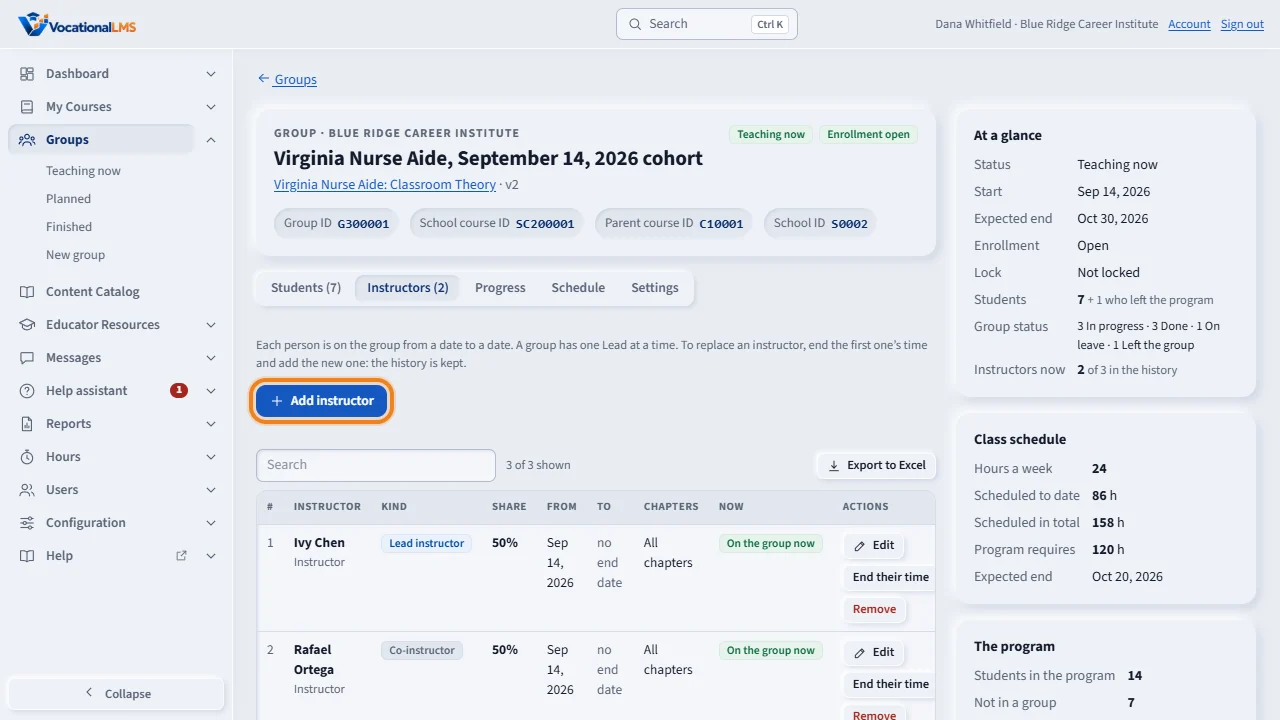
Instructors are put on a group. Everyone in the group is then their student. Open the group from Groups and click the Instructors tab. To put someone on the group, click Add instructor.
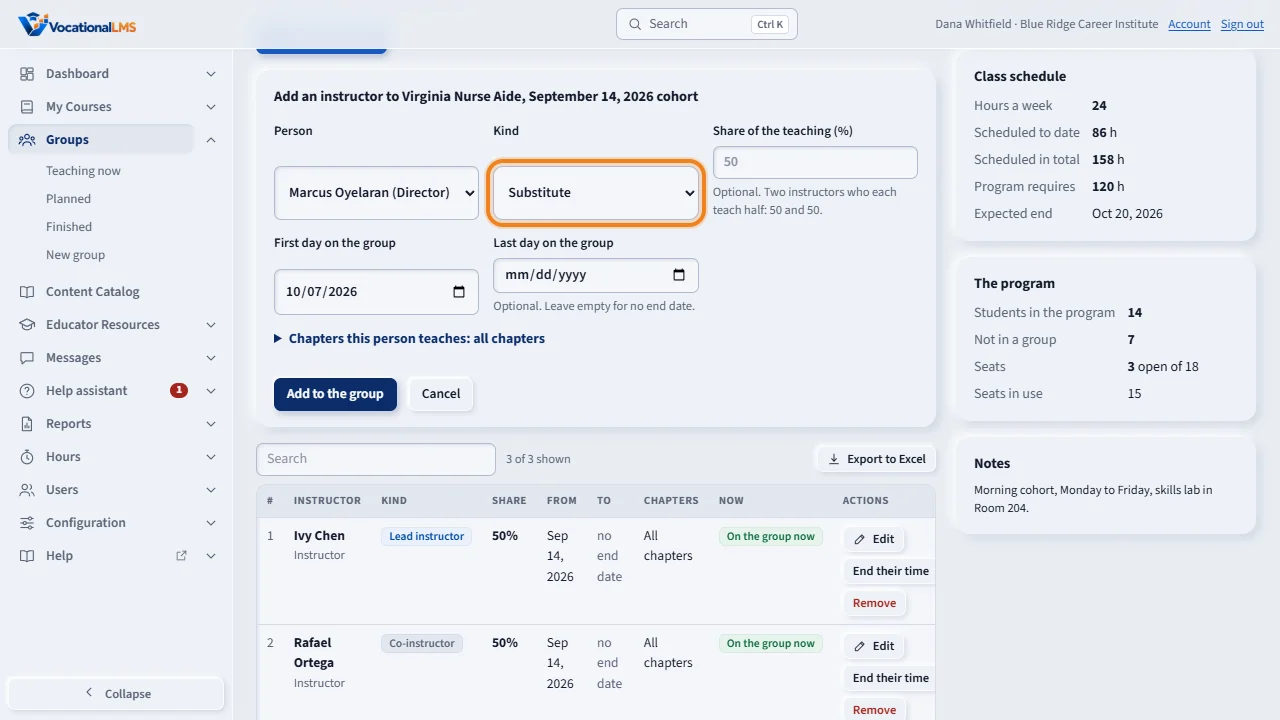
Choose the person and the kind. Students' questions go to the Lead instructor, who may also mark students Done. A group has one Lead at a time. A co-instructor shares the teaching, and a substitute covers for a day or a week.
If you divide the teaching, type each person's share. Two instructors who each teach half get 50 and 50. Set the first day on the group, and leave the last day empty if there is no end date. Then click Add to the group.
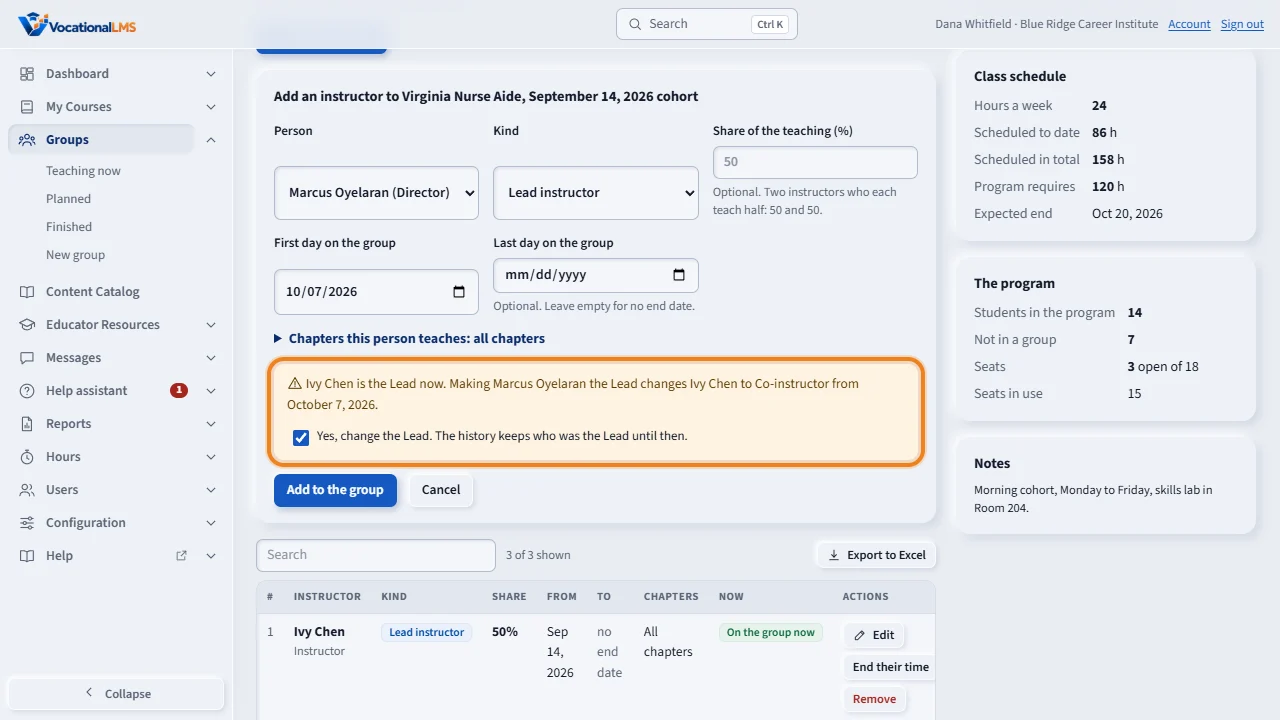
To change the Lead, choose Lead instructor for the new person. The form tells you who is the Lead now, and that saving changes that person to Co-instructor from the new Lead's first day. Tick Yes, change the Lead, and click Add to the group. Both changes are saved together.
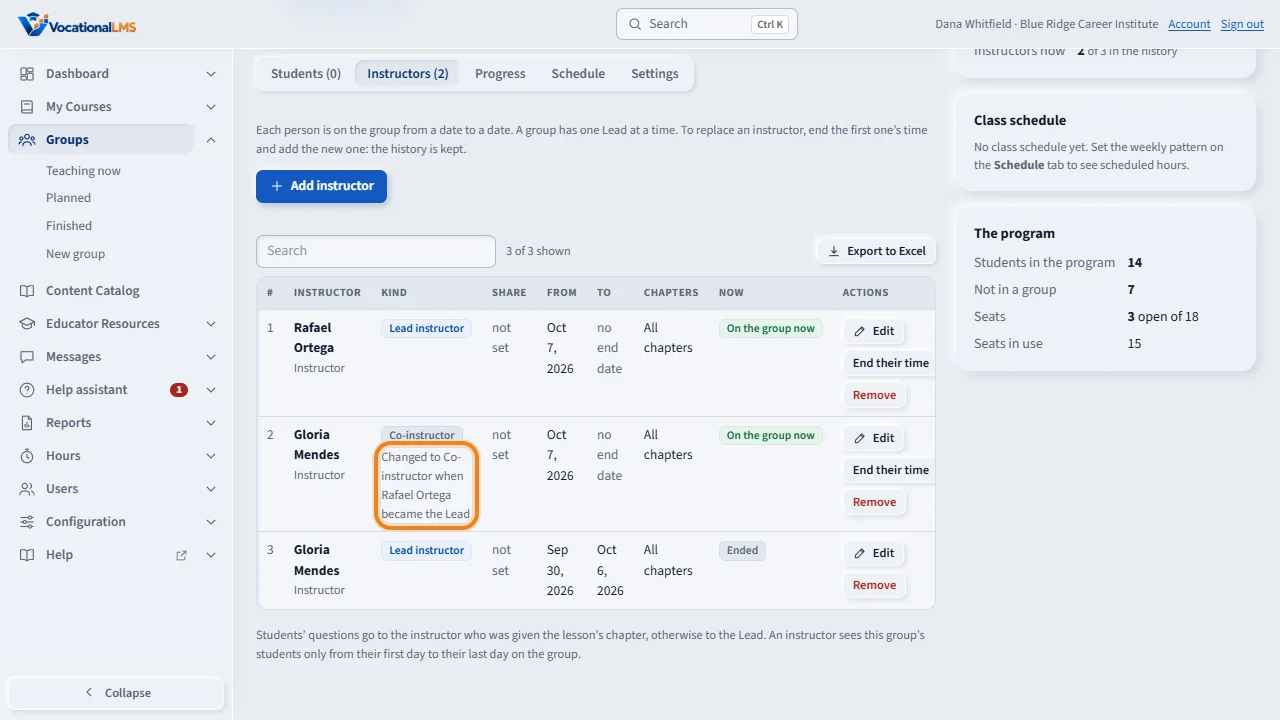
The history is kept. The first Lead's line ends the day before. A new line shows that person as Co-instructor, with a note that says why. When the first Lead already has a last day and the new Lead starts the day after, no tick is needed.
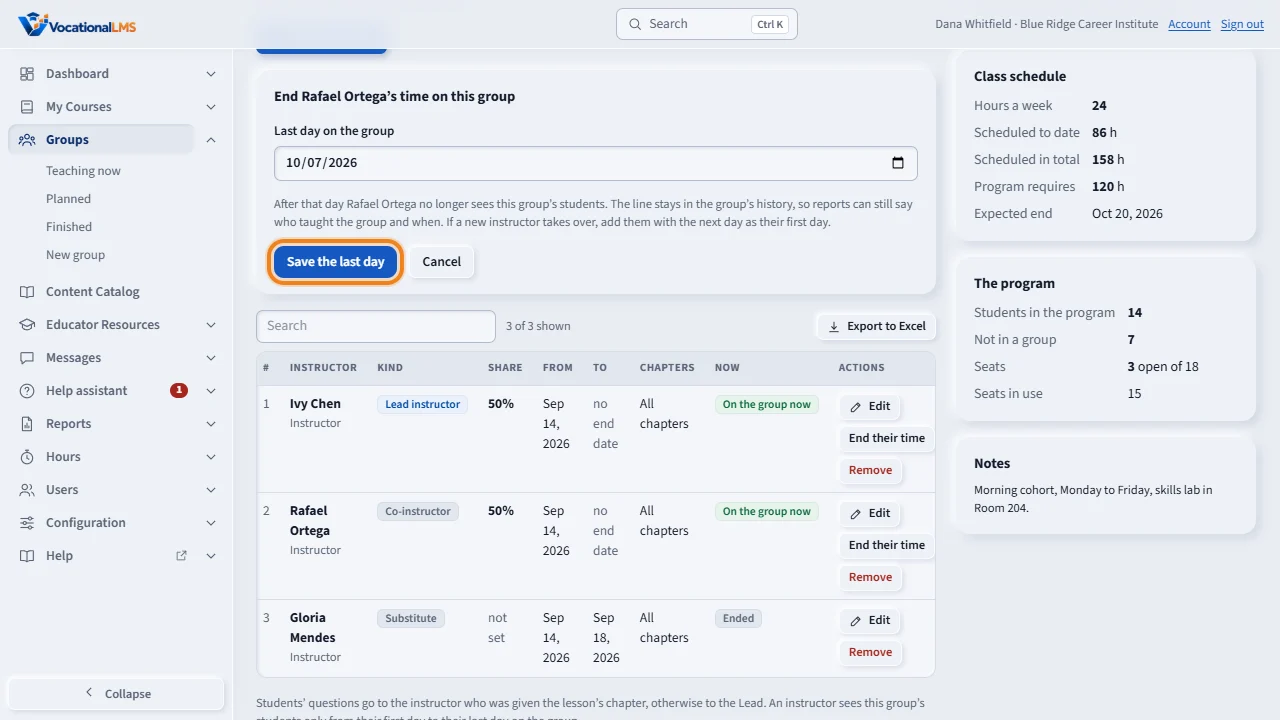
When an instructor leaves, click End their time on their row, choose their last day and click Save the last day. Then add the new instructor with the next day as their first day.
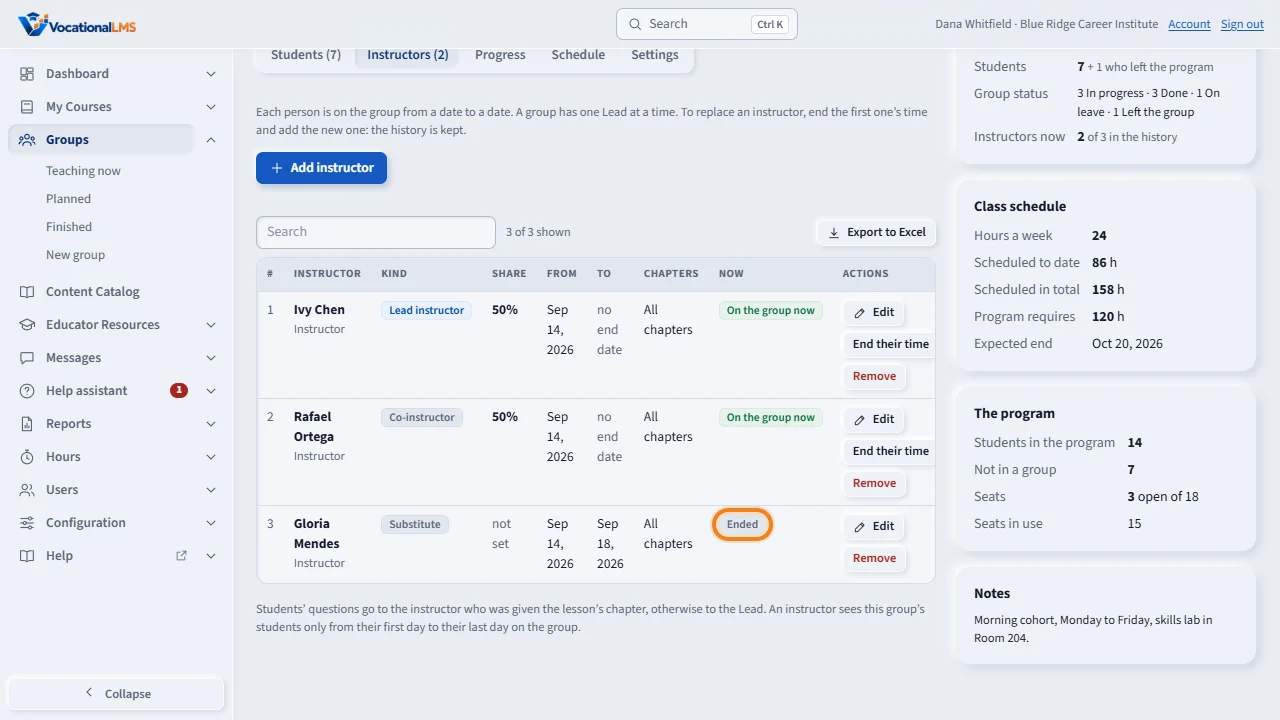
The first instructor's line stays in the list as Ended, so you can always see who taught the group and when. An instructor sees the group's students only from their first day to their last day on the group.
Open this in VocationalLMSGroups > a group > Instructors
What it is for
Instructors are put on a group. Everyone in the group is then their student. You can have several instructors on one group, give each a share of the teaching, and replace an instructor without losing the history. A group has one Lead at a time.
Steps
Put an instructor on a group
- Open the group from Groups and click the Instructors tab.
- Click + Add instructor and choose the Person.
- Choose the Kind: Lead instructor (students' questions go to this person, and this person may mark students Done in the group), Co-instructor, or Substitute. A group has one Lead at a time.
- Optional: type a Share of the teaching (%). Two instructors who each teach half get 50 and 50.
- Set the First day on the group. Leave Last day on the group empty if there is no end date.
- Optional: open Chapters this person teaches and tick chapters, when two instructors divide the course by chapter.
- Click Add to the group.
Change the Lead
- Click Add instructor and choose the new Lead, or click Edit on a person who is already on the group. Choose the Kind Lead instructor and the first day.
- If somebody else is the Lead on those dates, the form says so, for example: Ivy Chen is the Lead now. Making Marcus Oyelaran the Lead changes Ivy Chen to Co-instructor from October 12, 2026.
- Tick Yes, change the Lead and click Add to the group (or Save changes). Both changes are saved together.
- The history is kept: the first Lead's line ends the day before, and a new line shows that person as Co-instructor from the new Lead's first day, with the same share and chapters and a note that says why. If that person should leave the group instead, click End their time on the new line.
- A planned hand-over needs no tick: when the first Lead has a last day and the new Lead starts the day after, their dates do not overlap.
An instructor leaves and a new one takes over
- On the first instructor's row click End their time, choose their last day, and click Save the last day.
- Click + Add instructor and add the new instructor with the next day as their first day.
- The first instructor's line stays in the list as Ended, so you can always see who taught the group and when.
What happens next
An instructor sees a group's students only from their first day to their last day on the group, and never another group's students. That holds on every page: student records, messages, notes, module access and the Help assistant. A student's questions go to the instructor who was given the lesson's chapter, otherwise to the Lead. If nobody is on a group, its students' questions go to you, and the page says so in red. An instructor assigned to the whole program (A-10) still sees the students who are in no group.
Common problems
| # | Problem | What to do |
|---|---|---|
| 1 | A yellow line says the shares do not add up to 100%. | That is allowed. It is a reminder to check the numbers. |
| 2 | “Nobody on this group is marked Lead.” | Edit one instructor and choose Lead instructor, so students' questions go to the right person. |
| 3 | “… is the Lead now. Making … the Lead changes … to Co-instructor from …” | A group has one Lead at a time. To go on, tick Yes, change the Lead and save again. To keep the Lead as it is, choose Co-instructor or Substitute for the new person. |
| 4 | “Tick the box to confirm the change of Lead, then save again.” | The form is waiting for your tick under the yellow line. Nothing was saved yet. |
| 5 | A line says “Changed automatically: a group has one Lead”. | The group had two Leads from before this rule. The one who was added first stayed the Lead and the other became a Co-instructor. Change it with Edit if the other person should be the Lead. |
| 6 | “This person is already on the group for those dates.” | Change their dates with Edit, or end their time first and then add the new dates. |
| 7 | I added the wrong person. | Click Remove on that row. It works for one day after adding. After that, use End their time. |
| 8 | An instructor says they can't see their students. | Check their first day and last day on the group, and that their sign-in is on. |
| 9 | A person is not in the Person list. | Add them under Users with the role Instructor first. |