
S-17For students
Share your documents and links with classmates
Share one of your own files or websites by email address, see who has it, and stop sharing.
How-to video S-17 · 0:56
Read the words of this video
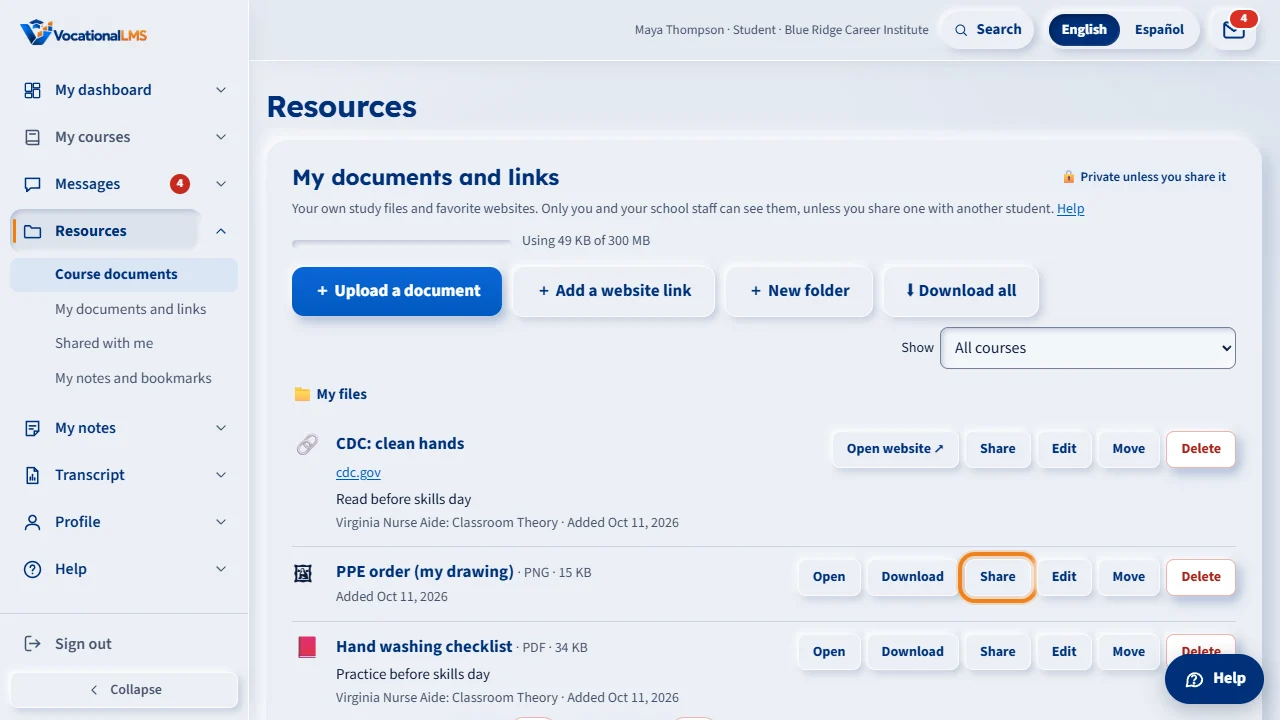
You can share one of your own documents or website links with other students of your school. Click Resources. Under My documents and links, click Share on the item.
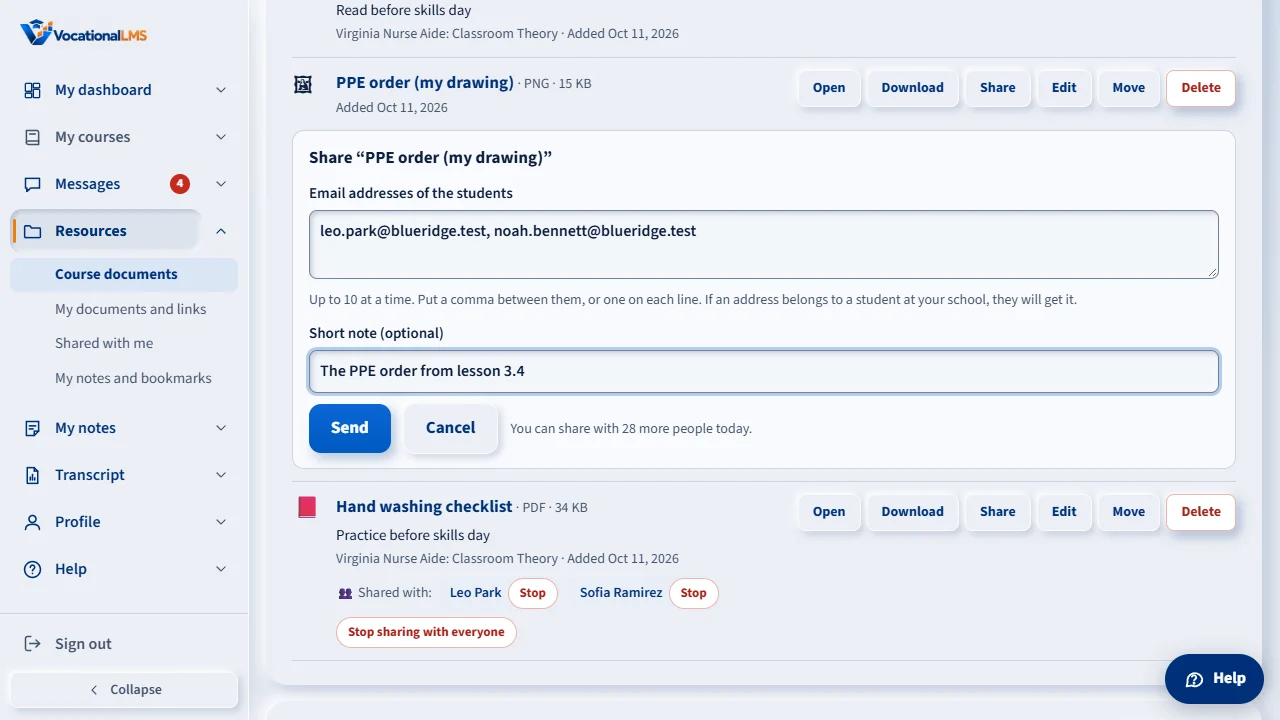
Type the email addresses of the students, up to ten at a time, with a comma between them. Add a short note if you like, and click Send. The page gives the same answer for every address, so nobody can find out who is enrolled.
Under the item you see who has it. Click Stop beside a name, or Stop sharing with everyone. You click twice to confirm. If you delete the item, every share ends.
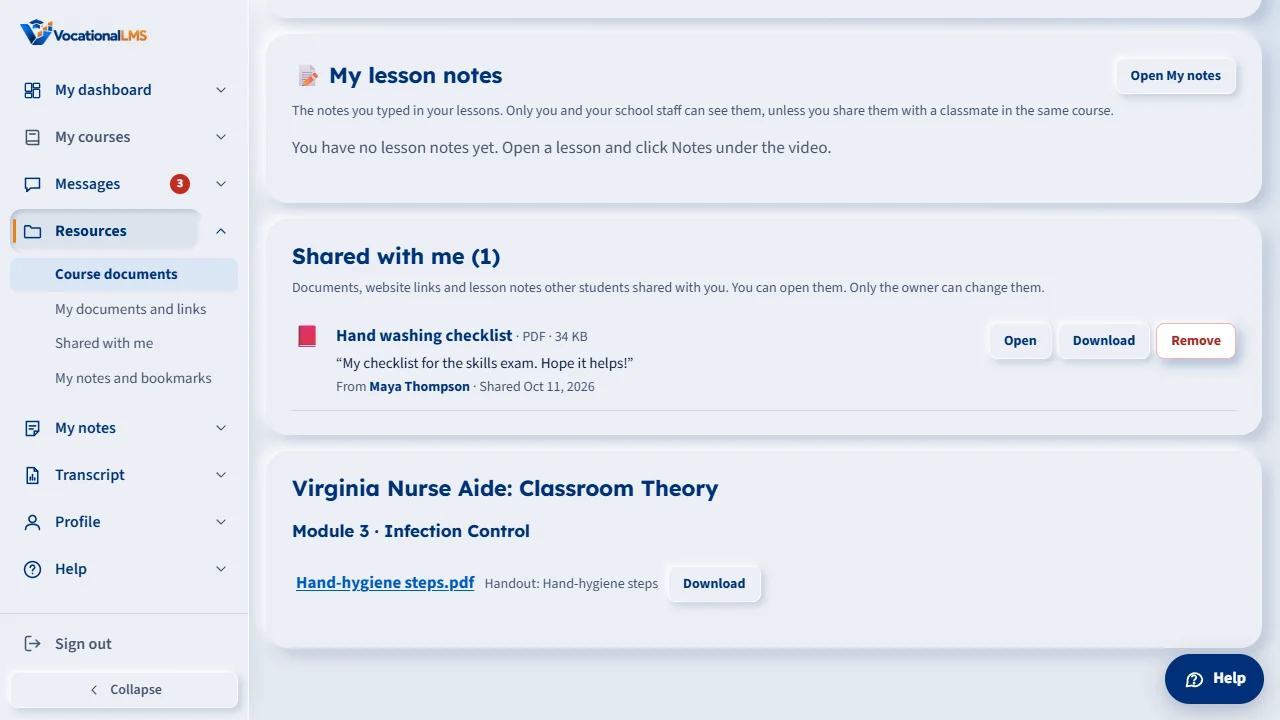
Your classmate gets a message under the mail icon and a short email. The email never contains the file. On their Resources page the item appears under Shared with me. They can open or download it, but they cannot change it.
Open this in VocationalLMSResources > Shared with me
What it is for
You can share an item from My documents and links with other students of your school. They can open or download it, but they cannot change it. You can stop sharing at any time.
Steps
Share an item
- Click Resources, find the item under My documents and links and click Share.
- Type the email addresses of the students, up to 10 at a time, with a comma between them or one on each line.
- Add a short note if you like and click Send.
See or stop a share
- Under the item you see who has it.
- Click Stop beside a name, or Stop sharing with everyone. You click twice to confirm.
Something shared with you
- Look under Shared with me on the Resources page. You also get a message under the mail icon and a short email.
- Click Open or Download. To take it off your list, remove it.
What happens next
The page always answers “If an address belongs to a student at your school, they will get it”, so nobody can use it to find out who is enrolled. A share is permission to read your original, not a copy: if you delete the item, every share ends.
Limits
| # | Rule | Limit |
|---|---|---|
| 1 | Addresses at a time | 10 |
| 2 | Addresses in one day | 30 for each student |
| 3 | People for one item | 50 |
| 4 | Who can receive | Active students of your own school |
The email never contains the file. Your school's staff can see what you shared and with whom. Sharing by text message is not turned on yet.
Common problems
| # | Problem | What to do |
|---|---|---|
| 1 | There is no Share button. | Your school turned sharing off. Ask your School Admin. |
| 2 | Your classmate did not get it. | Check the email address with them: it must be the one they sign in with, at your school. |
| 3 | You shared the wrong file. | Click Stop sharing with everyone under the item. |