
A-29For School Admins and Directors
Educator Resources for your instructors
What your instructors get for each program, and how to build resources for your school's own courses.
How-to video A-29 · 0:58
Read the words of this video
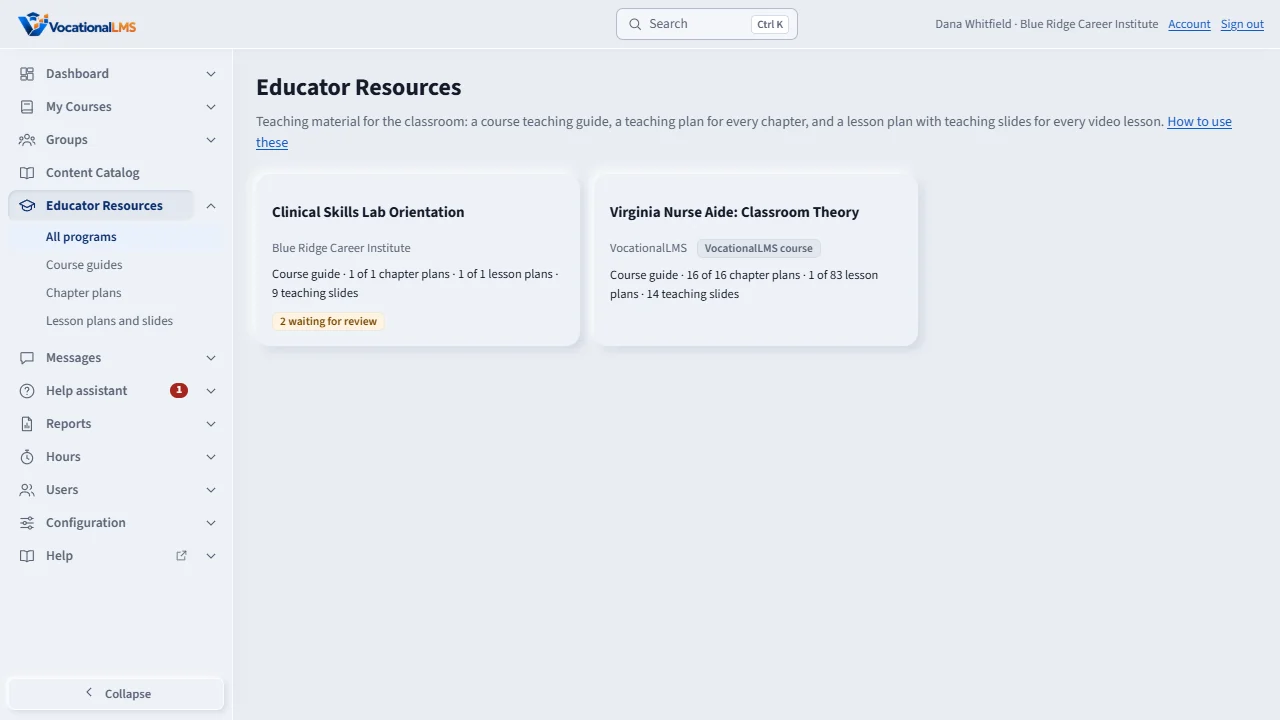
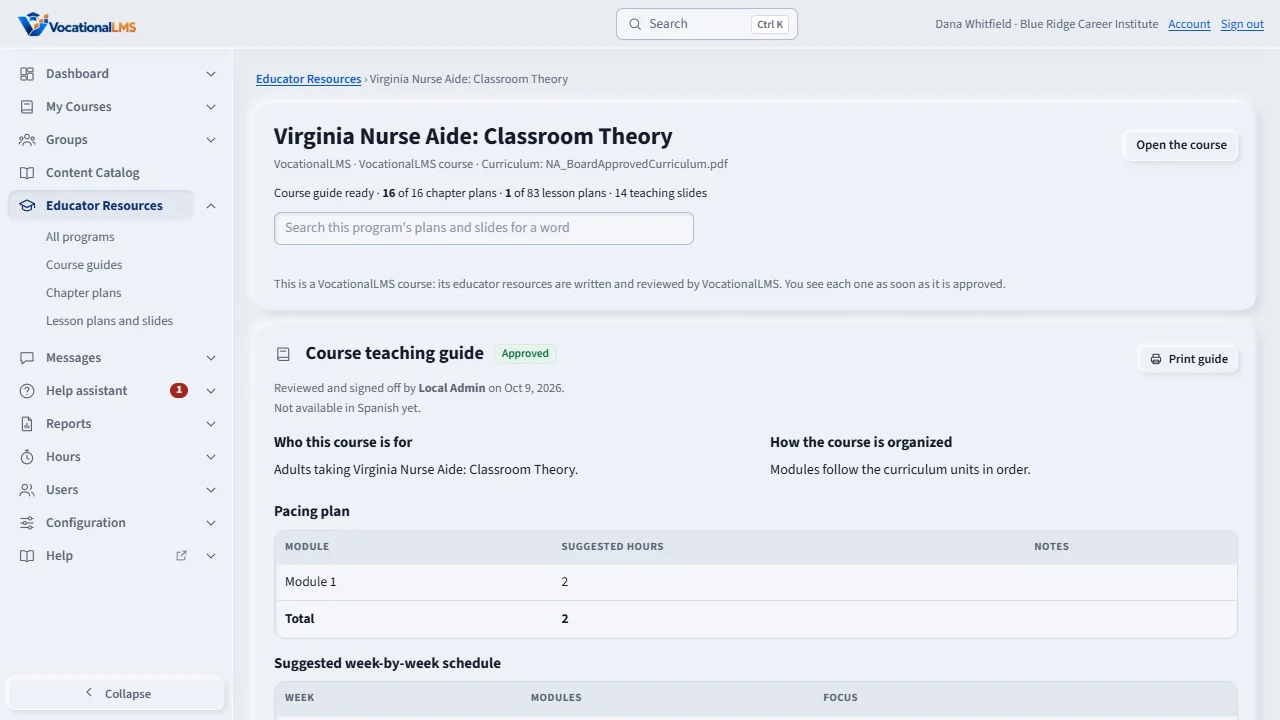
Educator Resources lists every program your school has. Your instructors see the programs they teach. For each program there is a course teaching guide, a teaching plan for each chapter, and a lesson plan with teaching slides for each video lesson.
For VocationalLMS courses you see each resource once it is approved. For your school's own courses, you build the resources from the course page, read and edit the drafts, and approve them. Your instructors see only what is approved, and students never see these pages.
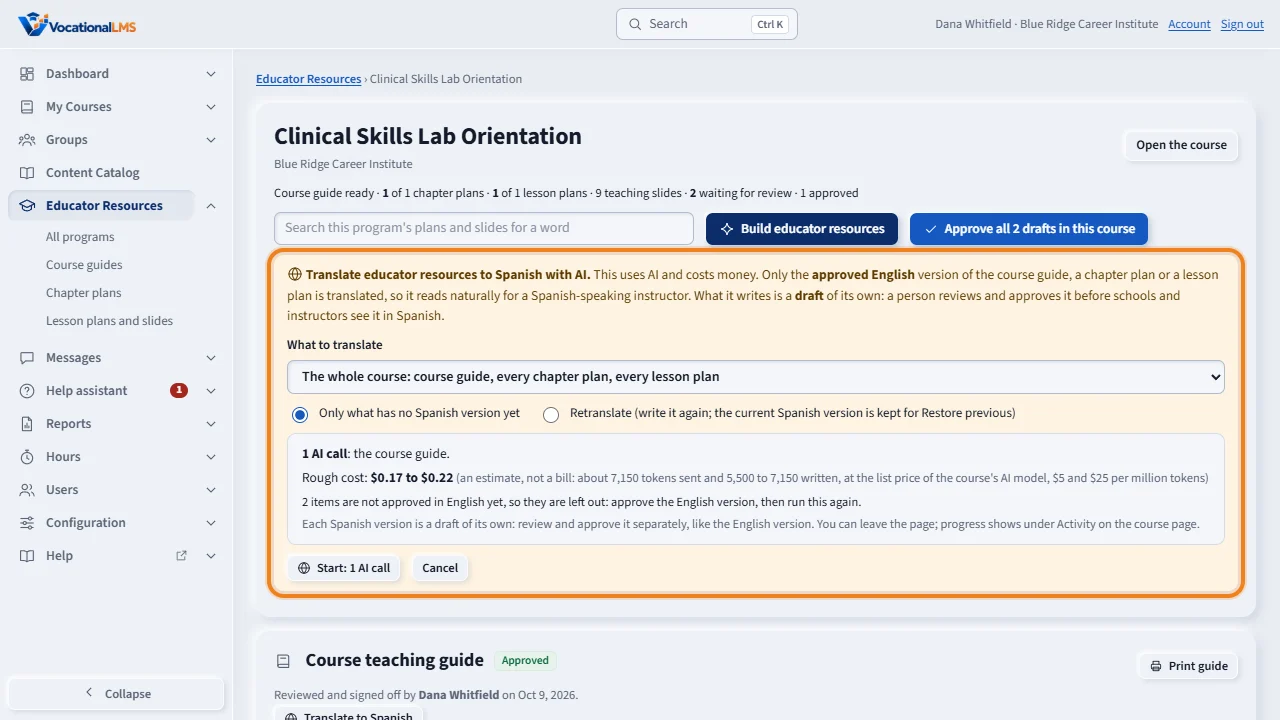
Once a resource is approved in English, click Translate to Spanish. This uses AI and costs money, so you see the number of AI calls and a rough cost before anything starts, the same as building the English version. The Spanish draft is approved separately, and instructors then see an English / Español switch.
Open this in VocationalLMSEducator Resources
What it is for
Educator Resources lists, for every program your school has, the course teaching guide, a teaching plan for each chapter, and a lesson plan with teaching slides for each video lesson. Your instructors see the programs they teach. Once an English resource is approved, you can have AI translate it to Spanish too, for instructors and staff who prefer Spanish; the Spanish version is its own draft that you approve separately.
Steps
- Click Educator Resources in the menu on the left. Every program your school has is listed.
- For VocationalLMS courses you see each resource once VocationalLMS approves it. You cannot change those.
- For your school's own courses, open the course in My Courses and click Build educator resources. Read the number of AI calls and the rough cost, then click Start.
- Open Educator Resources, read each draft, use Edit where needed, and click Approve (my sign-off). Your instructors see only what is approved.
- Once a resource is approved in English, click Translate to Spanish next to it (or Translate educator resources to Spanish on the course page, for several at once). Read the number of AI calls and the rough cost, then click Start; it uses AI and costs money, the same as building the English version.
- The Spanish draft appears at Español on the same page. Read it, edit it if needed, and click Approve (my sign-off) — this is a separate sign-off from the English one. Instructors then see an English / Español switch on that resource.
- Files your school uploaded with the Plan button appear on the same chapter and lesson pages.
- Set which programs an instructor teaches on the Users page (A-03); that decides what they see.
What happens next
Resources are written only from the course's own lessons and curriculum. Approval is your sign-off as the reviewer, with your name and the date, for each language separately. A Spanish translation is never made by itself: you always choose it and see the cost first, the same rule as the English AI writing. Students never see Educator Resources.
Common problems
| # | Problem | What to do |
|---|---|---|
| 1 | An instructor sees “Nothing is ready yet”. | The resources are still drafts. Approve them. |
| 2 | An instructor does not see a program. | They are not assigned to it. Set their programs on the Users page. |
| 3 | “This lesson is not written yet.” | A lesson plan is built from the lesson's slides, narration and reading. Write the lesson first, then build again. |
| 4 | There is no Translate to Spanish button. | The English version is not approved yet. Approve it first; only an approved resource can be translated. |
| 5 | “This course has no AI building budget yet.” | Translating a school's own course uses the same AI building budget as writing it (Dashboard > Seats and billing). VocationalLMS's own library courses never need one. |