
V-47For the VocationalLMS Super Admin
AI prices, the multiplier and AI spend
What each AI tool costs VocationalLMS, the multiplier schools pay (2 = double), the monthly cap per school, the measured averages the estimate is made from, and what was spent against what was charged.
How-to video V-47 · 1:42
Read the words of this video
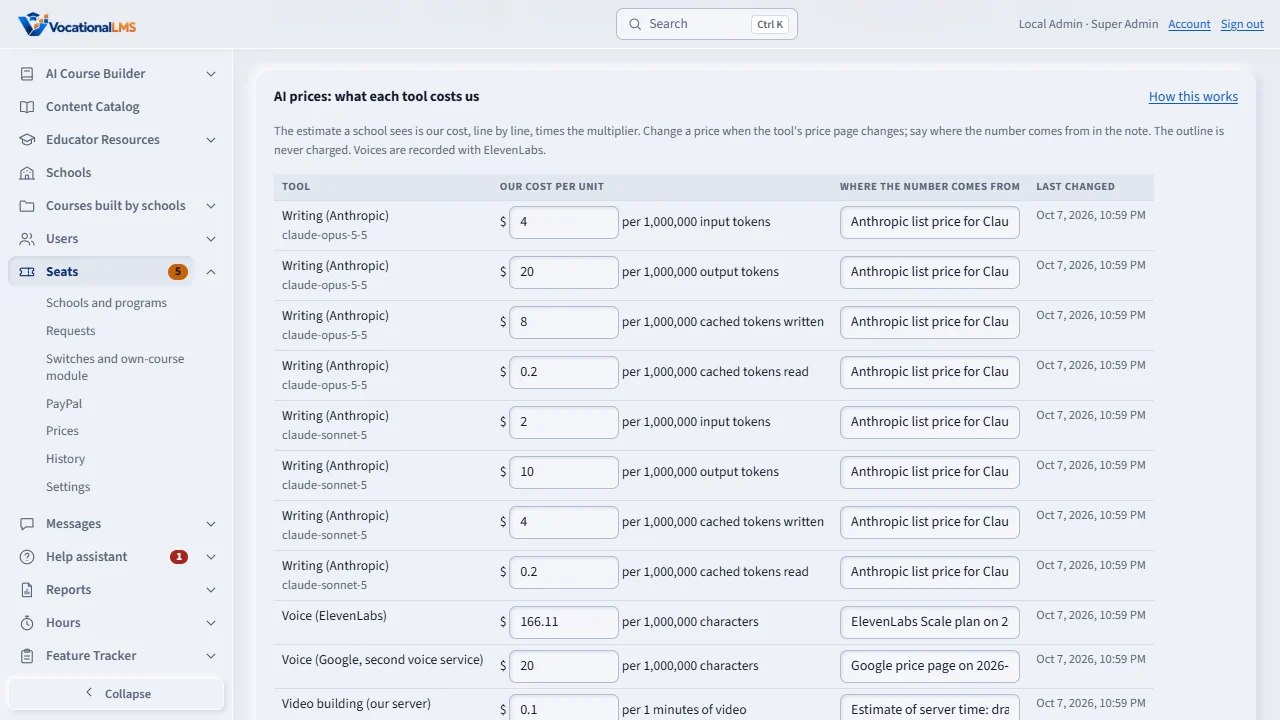
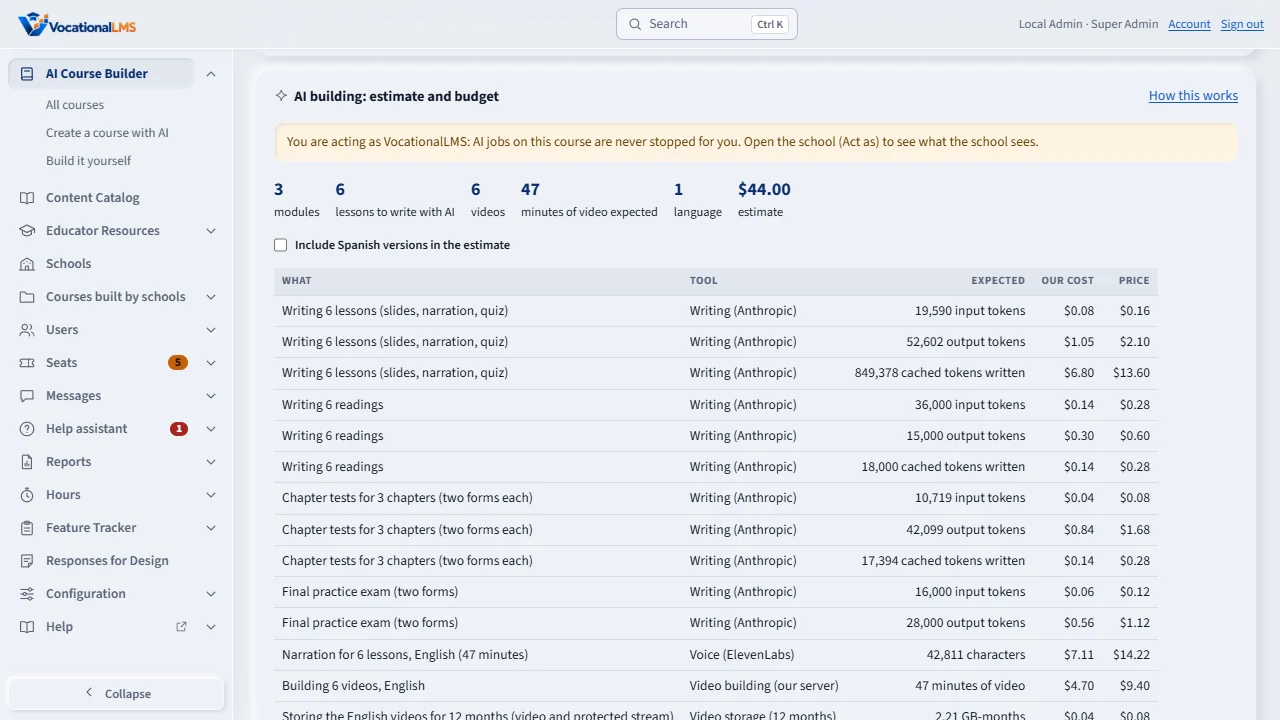
A school that builds a course with AI pays an estimate first: our cost for every tool, line by line, times the multiplier. Everything the estimate is made from is on Seats, then AI prices. Each line is one tool and unit, with our cost and a note that says where the number comes from.
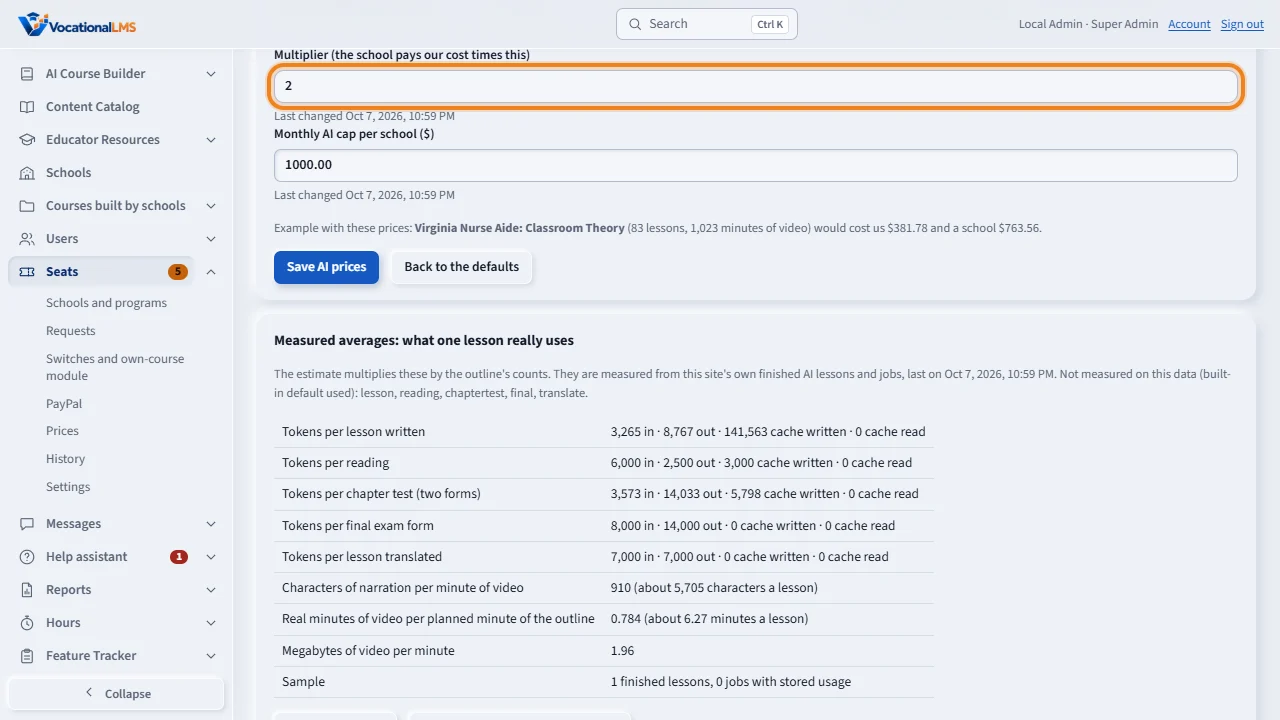
The multiplier is what the school pays our cost times: two means double. The monthly AI cap per school is the most a school's jobs may be charged in one month. Click Save AI prices; every change is written to the Seats history with your name.
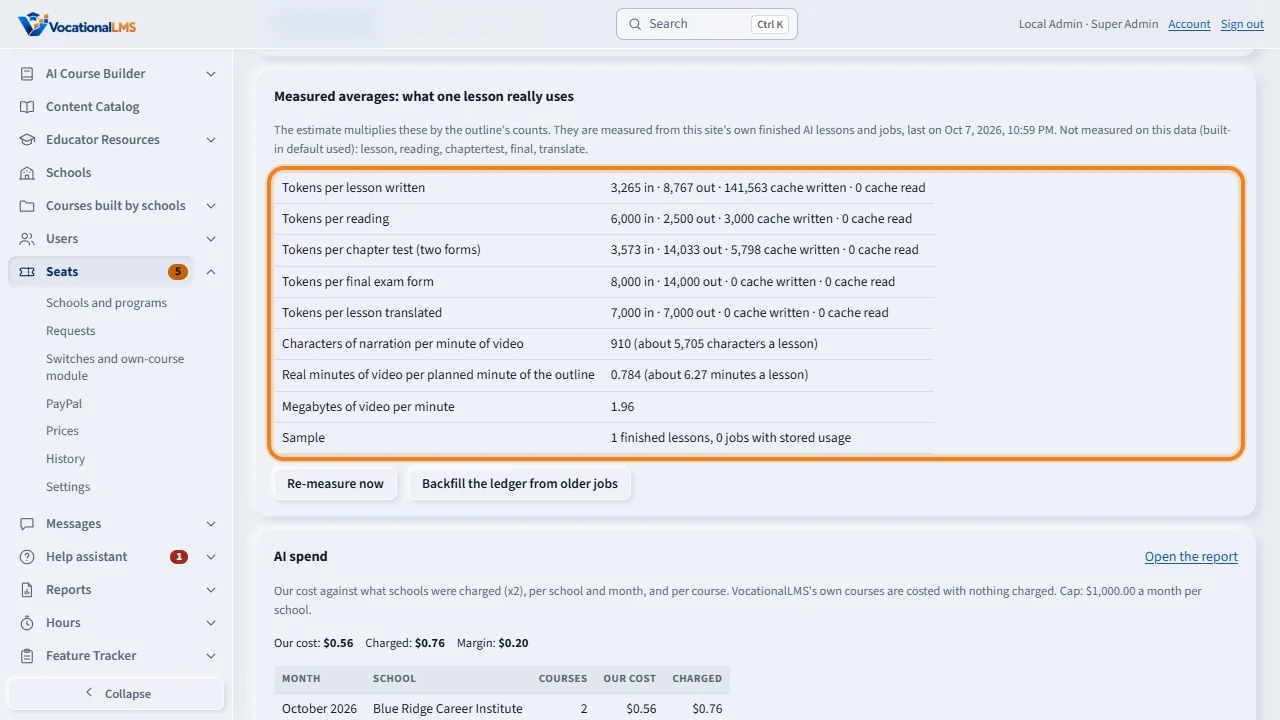
The measured averages say what one of our own finished lessons really used. The estimate multiplies them by the outline's counts. Click Re-measure now after new courses have been built, and Backfill the ledger once for the jobs made before the ledger existed.
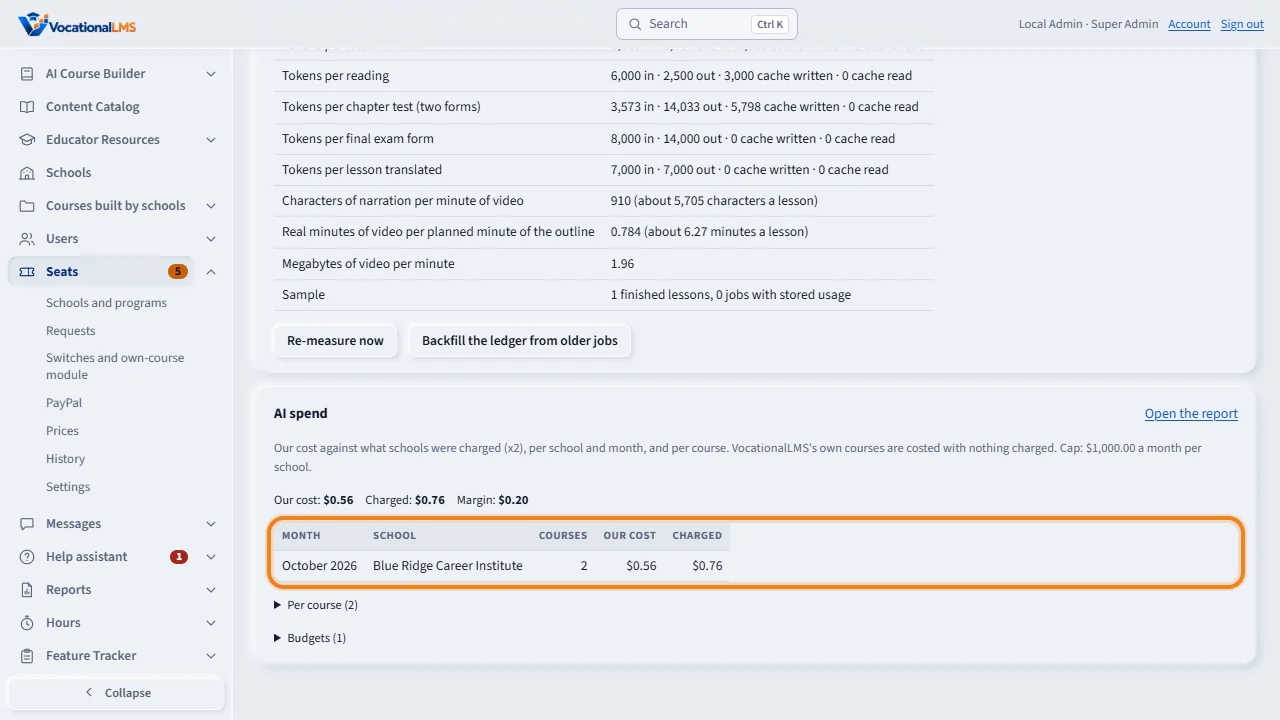
AI spend shows, per school and month, what the tools cost us and what the school was charged, then per course, and every course's budget. Our own courses are costed too, with nothing charged. The report AI spend, under Reports, Billing, has the same numbers with dates and Export to Excel.
On a school's course page you see the same panel the school sees, with our cost beside the price, and Grant budget without payment: an amount and a reason, kept in the history, for goodwill cases. A school's request is paid like every other: PayPal approves it by itself, a check you record under Seats, Requests.
Open this in VocationalLMSSeats > AI prices
What it is for
A school that builds a course with AI pays an estimate first (A-72): our cost for every tool, line by line, times the multiplier. Everything the estimate is made from is on Seats > AI prices: the price table (our cost per unit for Anthropic's models, ElevenLabs, the second voice service, building a video on our server and storing it, each with a note that says where the number comes from and when it was read), the multiplier (2.0 by default: the owner's rule, double), the monthly AI cap per school ($1,000.00 by default), and the measured averages: what one of our own finished lessons really used (tokens per lesson, characters of narration per minute of video, real minutes per planned minute, megabytes per minute). Below it, AI spend shows, per school and month and per course, what the tools cost us and what the school was charged, our own courses too (costed, never charged). Every AI job writes its cost to a ledger as it runs; a school's outline is costed and not charged, because every school may see an estimate before paying.
Steps
The price table
- Click Seats, then AI prices.
- Each line is one tool and unit: for example Writing (Anthropic), claude-opus-5-5, $4.00 per 1,000,000 input tokens. Change the dollars when the tool's price page changes, and say in the note where the number comes from and the date.
- The voice line that counts is the one of the voice service the server records with (ElevenLabs normally; the second voice service when the server was started with it).
- Multiplier: the school pays our cost times this number. 2 means double. Monthly AI cap per school: the most a school's AI jobs may be charged in one calendar month; a job that would pass it does not start.
- Click Save AI prices. Every change is written to the Seats history with your name. Back to the defaults puts the built-in numbers in the boxes (save to keep them).
The measured averages
- Under Measured averages read what one lesson really uses. The estimate multiplies these by the outline's counts.
- Click Re-measure now after new courses have been built: it reads this site's finished AI lessons and jobs and stores the new averages with the date. Until it has run, built-in defaults are used and the page says so.
- Click Backfill the ledger from older jobs once after this feature went live: it writes ledger rows, at today's prices, for the jobs, recordings and videos made before the ledger existed. What already has rows is skipped.
Requests, grants and what schools see
- A school's request is paid like every other: a PayPal payment approves it by itself; a check or bank transfer you record under Seats > Requests with Payment received and Approve. Approval credits the course's budget. The request is listed as AI building budget for the course.
- On a school's course page (open it from the school's My Courses while acting as the school, or from the AI spend list) you see the same panel the school sees, with our cost beside the price, and Grant budget without payment: an amount and a reason, kept in the history, for goodwill cases and trials.
- Acting as the school, you are gated exactly as the school is, so you can see every refusal the school sees. Acting as VocationalLMS you are never stopped, and a job you start on a school's course is costed and not charged to the school.
AI spend
- Under AI spend: per school and month, our cost against what was charged, then per course, then every course's budget (paid, used, left).
- The report AI spend (Reports > Billing) has the same numbers with dates, tools and units, and Export to Excel.
What happens next
The gate is only for a school's own courses built with AI. Building by hand (uploads) is never gated. VocationalLMS's own courses are costed in the same ledger with nothing charged, so you can see what each of our courses cost.
Common problems
| # | Problem | What to do |
|---|---|---|
| 1 | The estimate looks too low or too high. | Check the measured averages first (Re-measure now), then the price table. The multiplier changes every estimate at once; a school's paid budget stays what it paid. |
| 2 | A school says its job stopped. | Its budget was used up or it reached the monthly cap. The job stopped at a lesson boundary; what was written is kept. The school tops up from its course page, or you grant budget without payment. |
| 3 | A price page shows a new price. | Type it in the line's dollars box, write the source and date in the note, and save. Jobs already run keep the cost they were written with. |
| 4 | The AI spend list is empty for an old course. | Click Backfill the ledger from older jobs: it costs the jobs made before the ledger existed, at today's prices. |