
V-46For the VocationalLMS Super Admin
Courses built by schools: see them, use them, sell them
One module lists every course a school built, for all schools or one. Open any of them read-only, tick the rights check, choose whether to tell the school, and Use it: copy it into the VocationalLMS catalog to give to schools and sell. Terms accepted shows who accepted which version, and records an acceptance a school gave by phone or in writing.
How-to video V-46 · 2:59
Read the words of this video
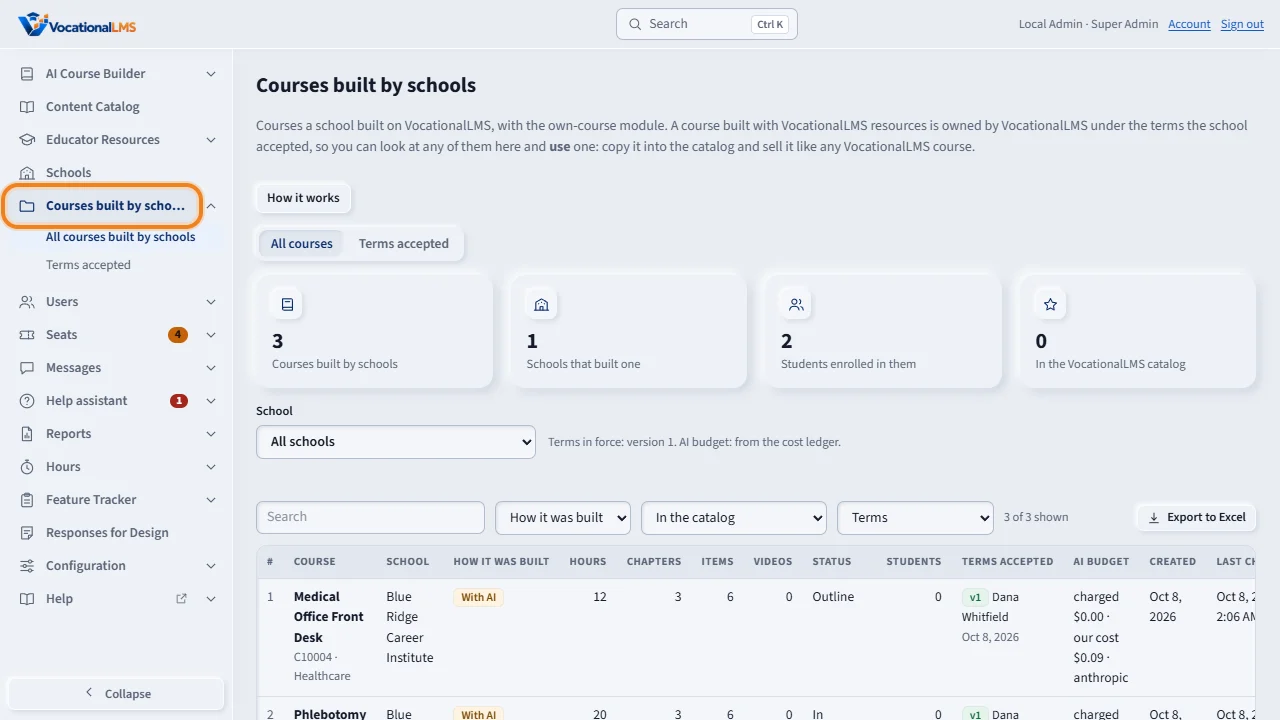
A course a school builds on VocationalLMS is developed by the school but owned by VocationalLMS, under the terms the school accepted. Courses built by schools, in the menu, lists every such course. The list box shows all schools, or one school.
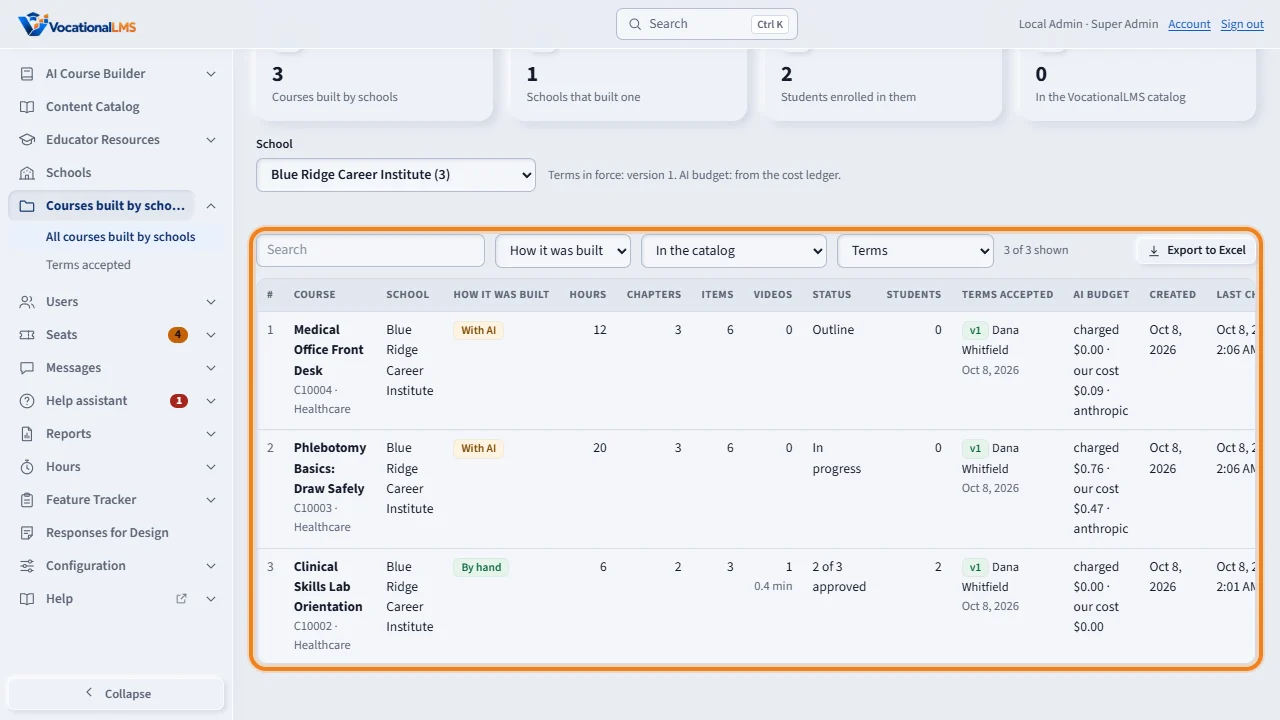
For each course you see how it was built, with AI or by hand, the hours, chapters, items and videos, the status, the students enrolled, the terms the school accepted, the last change, the AI budget, and whether it is already in the catalog. The table sorts, filters and exports to Excel.
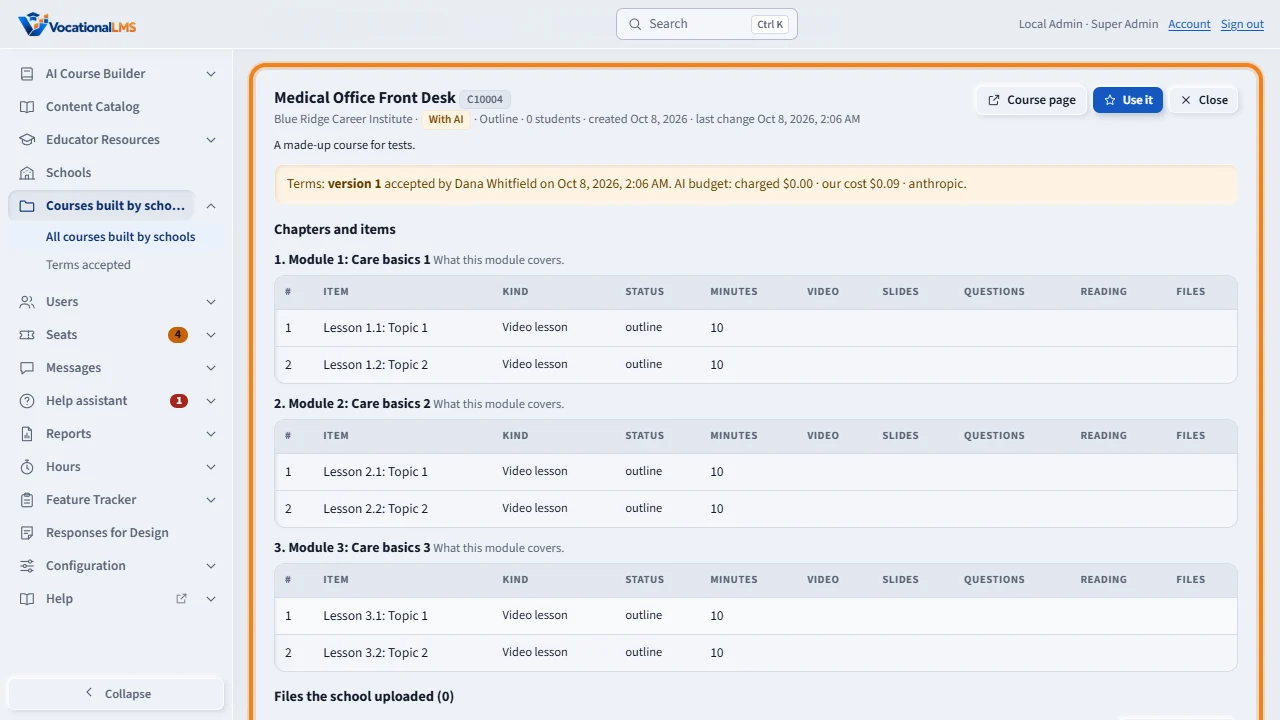
Open shows the course read-only, without acting as the school: its chapters and items, every file the school uploaded with the certification the school gave by accepting the terms, the jobs that ran, and the students.
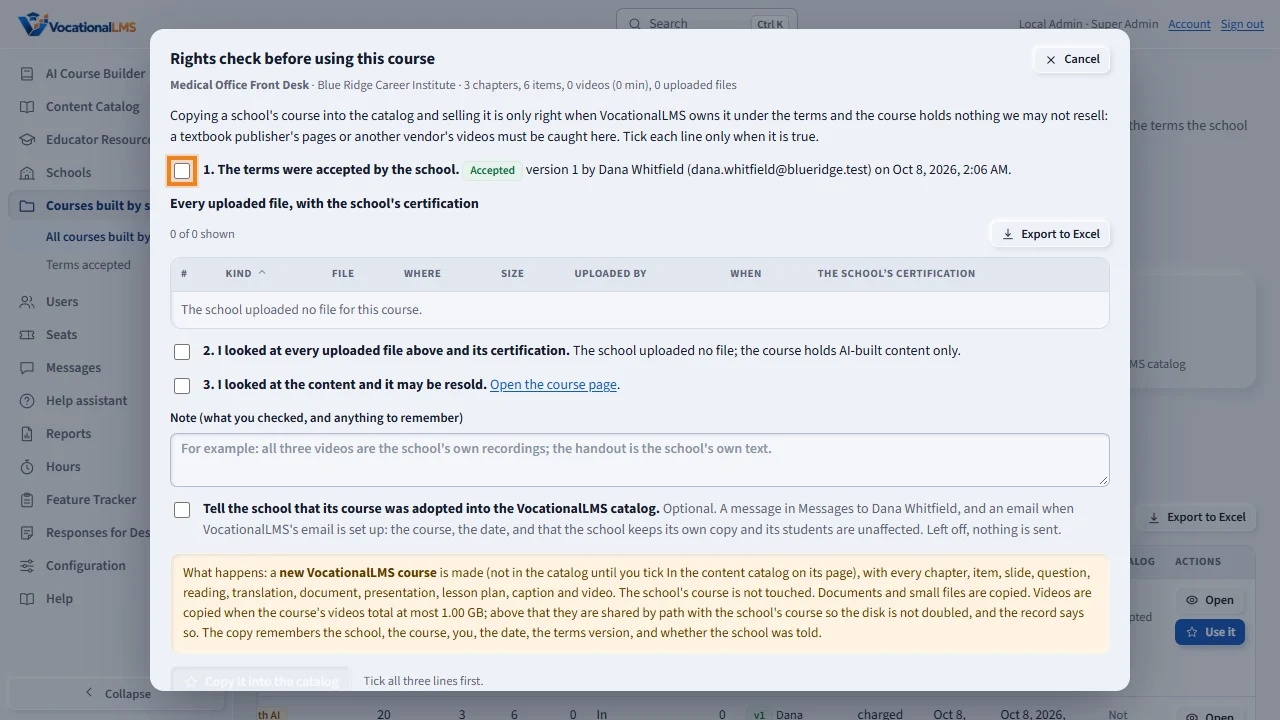
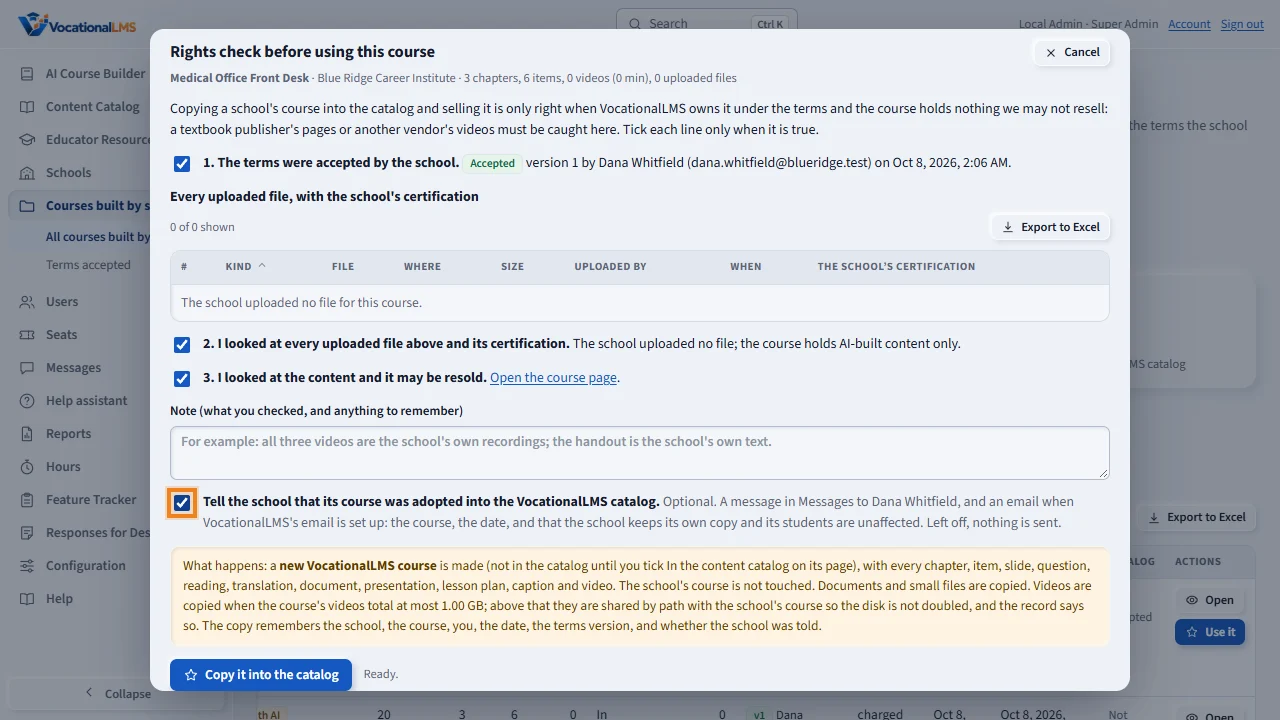
Use it opens the rights check. Tick that the terms were accepted by the school, that you looked at every uploaded file and its certification, and that you looked at the content and it may be resold. A textbook publisher's pages or another vendor's videos must be caught here. Write a note. Without all three ticks nothing is copied.
A fourth tick, Tell the school that its course was adopted into the VocationalLMS catalog, is off by default: leave it off and the school hears nothing. Tick it, and after the copy each School Admin of the school gets a message in Messages, and an email when VocationalLMS's email is set up: the course, the date, and that the school keeps its own copy and its students are unaffected. The record keeps who was told and when. Then click Copy it into the catalog.
The copy is a new VocationalLMS course with every chapter, item, file and video; the school's own course is not touched. Open it, tick In the content catalog, give it to schools and set its seat price, like any VocationalLMS course. Terms accepted shows, for every school, who accepted which version and when, and the version in force at the top.
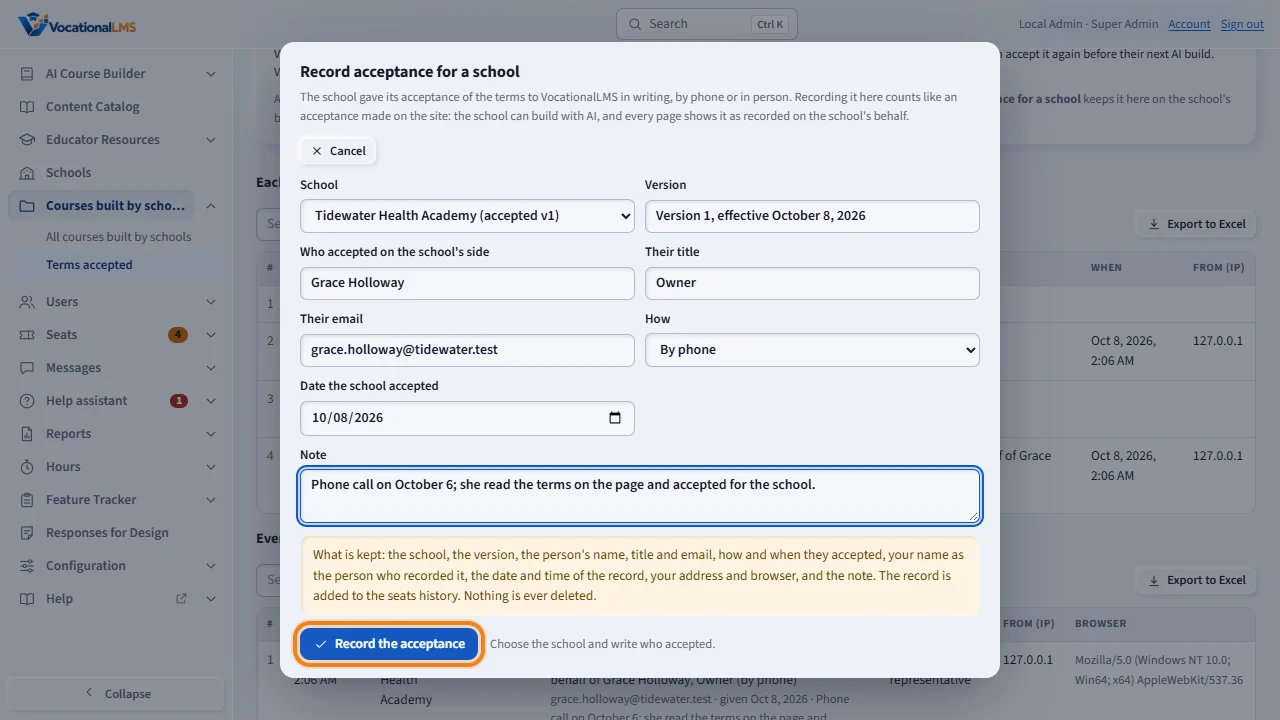
When a school gives its acceptance by phone, in a letter or in person instead of on the site, click Record acceptance for a school. Choose the school, write who accepted on the school's side, how, the date, and a note about where the letter is or what was said. Only the version in force can be recorded.
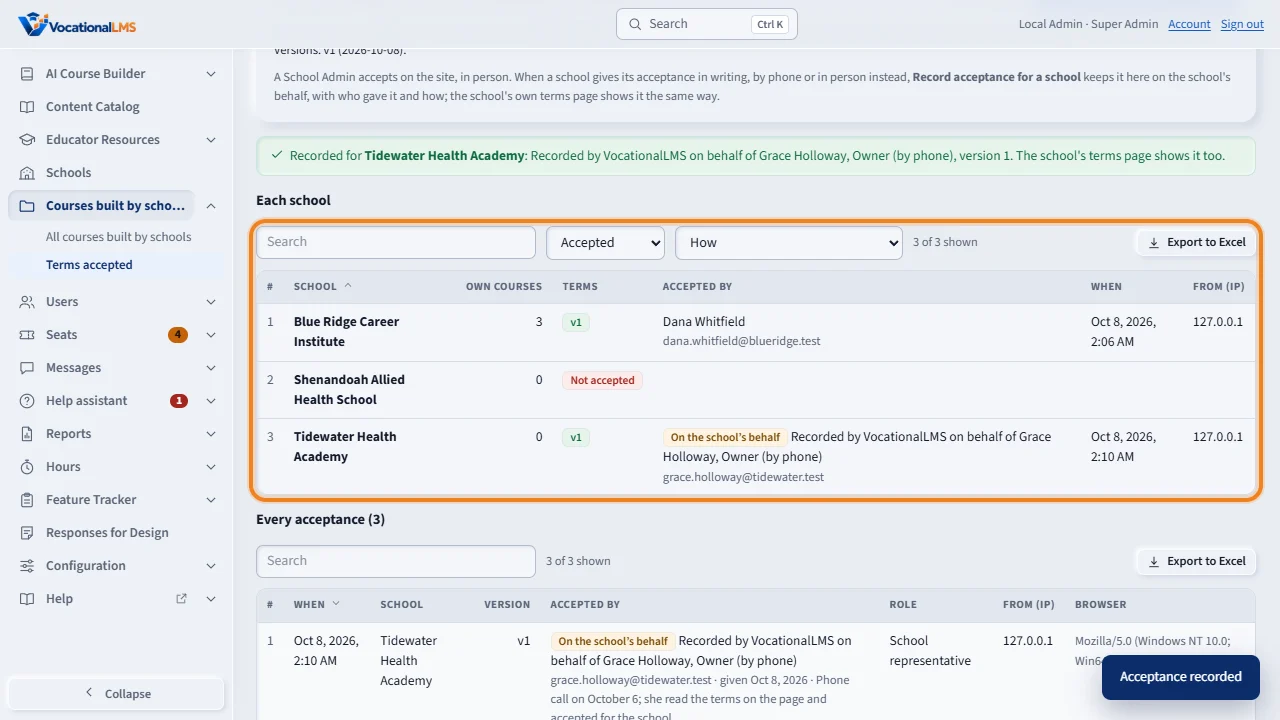
Click Record the acceptance. It counts like an acceptance made on the site: the school can build with AI, and every page shows it as recorded by VocationalLMS on behalf of the school, with the name and how it was given. The school's own terms page shows it the same way, and the seats history keeps the record.
Open this in VocationalLMSCourses built by schools
What it is for
A course a school builds on VocationalLMS is developed by the school but owned by VocationalLMS under the terms the school accepted (A-71). The module Courses built by schools in the menu lists every such course, with a list box to see all schools or one school. For each course: how it was built (With AI, By hand or both, from the AI jobs that ran and the files the school uploaded), hours, chapters, items, videos, status, students enrolled, the terms the school accepted (version, who, when), created, last change, the AI budget (from the cost ledger), and whether it is in the catalog and whether the school was told. Open shows the course read-only without acting as the school. Use it copies the course into the catalog after a rights check, with an optional tick to tell the school (off by default: the owner's choice). Terms accepted shows, for every school, who accepted which version when, and Record acceptance for a school keeps an acceptance a school gave VocationalLMS in writing, by phone or in person.
Steps
See the courses
- Click Courses built by schools in the menu on the left (under Schools).
- In the School list box choose All schools or one school. The table sorts by its headings, has a search box and filters (how it was built, in the catalog, terms), and Export to Excel.
- Click Open on a course: its chapters and items, every file the school uploaded with the school's certification, the jobs that ran, and the students. Course page opens the full course page as yourself; you never act as the school.
Use it: the rights check, then the copy
- Click Use it on a course. The rights check opens. Copying a school's course into the catalog and selling it is only right when VocationalLMS owns it under the terms and it holds nothing we may not resell: a textbook publisher's pages or another vendor's videos must be caught here.
- 1. The terms were accepted by the school. It shows the version, who accepted and when. If the school has not accepted, this line cannot be ticked and the course cannot be used: ask the school's School Admin to accept the terms.
- 2. I looked at every uploaded file and its certification. Every uploaded file is listed: kind, name, where it is used, size, who uploaded it and when, and the certification the school gave by accepting the terms. Look at them.
- 3. I looked at the content and it may be resold. Open the course page and look at the lessons.
- Write a note (what you checked).
- Tell the school that its course was adopted into the VocationalLMS catalog is a fourth tick, off by default. Leave it off and nothing is sent. Tick it and, after the copy, each School Admin of the school gets a message in Messages (and an email when VocationalLMS's email is set up) that names the course and the date and says the school keeps its own copy and its students are unaffected. The line names who would be told.
- Click Copy it into the catalog. Without all three rights-check ticks nothing is copied.
- A new VocationalLMS course is made, not yet in the catalog, with every chapter, item, slide, question, reading, translation, document, presentation, lesson plan, caption and video. The school's own course is not touched. Documents and small files are copied; videos are copied when the course's videos total at most 1 GB, and above that they are shared by path with the school's course so the disk is not doubled. The record says which, and remembers the school, the course, you, the date, the terms version, and whether the school was told (the Catalog column says School told on (date) or School not told).
- Open the new course: tick In the content catalog, give it to schools under Schools that have this course, and set its seat price under Seats > Prices. From there it is sold like any VocationalLMS course.
Hide from the catalog
- On the school's course, click Hide from the catalog (twice). The copy is kept and taken out of the catalog. Its assignments to schools are removed only when no school has a student enrolled in it; otherwise they are kept and the page says so.
Terms accepted
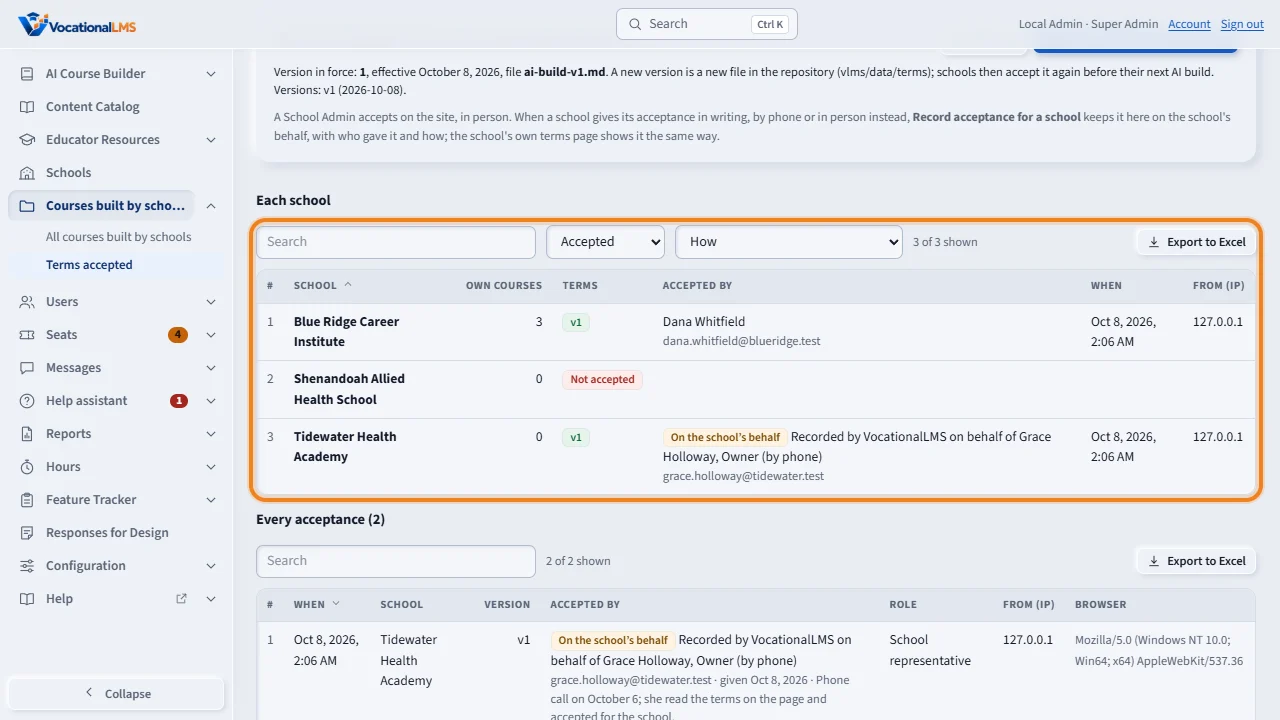
- Click Terms accepted. For every school: whether it accepted, which version, who, when and from which address; and every acceptance ever made. The version in force (Version 1, effective October 8, 2026) and its file are shown at the top. A new version is a new file in the repository (vlms/data/terms), never an edit of the old one.
- An acceptance made on the site shows the School Admin's name. One recorded by you shows On the school's behalf and Recorded by VocationalLMS on behalf of (name), (title) (by phone); the filter How separates the two.
Record acceptance for a school (the school accepted by phone, in a letter or in person)
- Click Record acceptance for a school on the Terms accepted tab. Only the Super Admin can do this, and only for the version in force.
- Choose the school. Write who accepted on the school's side (name; title and email are optional), choose how (In writing, By phone or In person), set the date the school accepted (today at most) and write a note: where the letter is, or what was said on the phone.
- Click Record the acceptance. It counts like an acceptance made on the site: the school can build with AI, its uploaded files carry the certification, and Use it accepts it. Everywhere an acceptance is shown it reads Recorded by VocationalLMS on behalf of (name) (how), on the school's own terms page too. The record keeps your name, the date and time, your address and browser, and goes into the seats history (Terms accepted on the school's behalf). Nothing is ever deleted; a second record adds a row.
What happens next
A copied course remembers where it came from, so a later question (whose video is this?) has an answer, and whether the school was told. A school never sees another school's courses, and schools never see this module. The AI budget column reads the cost ledger when it is on the site; until then it shows a dash.
Common problems
| # | Problem | What to do |
|---|---|---|
| 1 | Use it is refused: the school has not accepted the terms. | Ask the school's School Admin to open My Courses > Terms for building with AI and accept. If the school accepted by phone or in a letter, record it under Terms accepted > Record acceptance for a school. Then try again. |
| 2 | Use it says the course is already in the catalog. | Hide that copy first, or keep it: one school course needs only one catalog copy. |
| 3 | I ticked Tell the school, but the answer says no email was sent. | VocationalLMS's own email is not set up (Configuration > Email). The School Admins still got the site message in Messages. |
| 4 | A re-linked video stopped playing in the catalog copy. | The school put an older video back on its lesson, which packages it again with a fresh key. Open the catalog lesson and upload the video again, or use the course again. |
| 5 | The AI budget column shows a dash. | The cost ledger is not on this site yet, or the course never had a budget. |