
A-72For School Admins and Directors
Build a course with AI: the estimate, paying, and your budget
After the AI writes your outline, the course page shows what building it with AI costs. Pay the estimate (PayPal or check) and the AI jobs run from that budget.
How-to video A-72 · 1:44
Read the words of this video
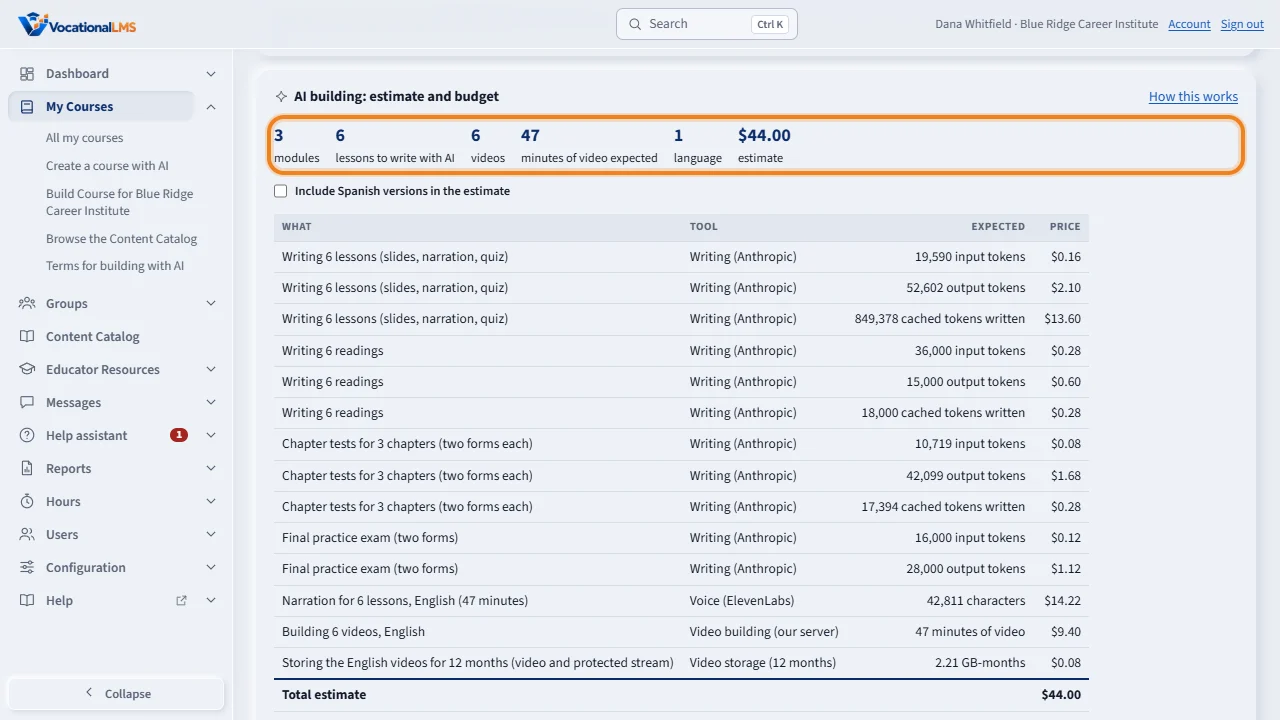
Building a course by hand needs only the own-course module. Building it with AI is paid for first. After the AI writes your outline, which is free, the course page shows the panel AI building: estimate and budget, with the lessons the AI will write, the videos and minutes of video to expect, and the price.
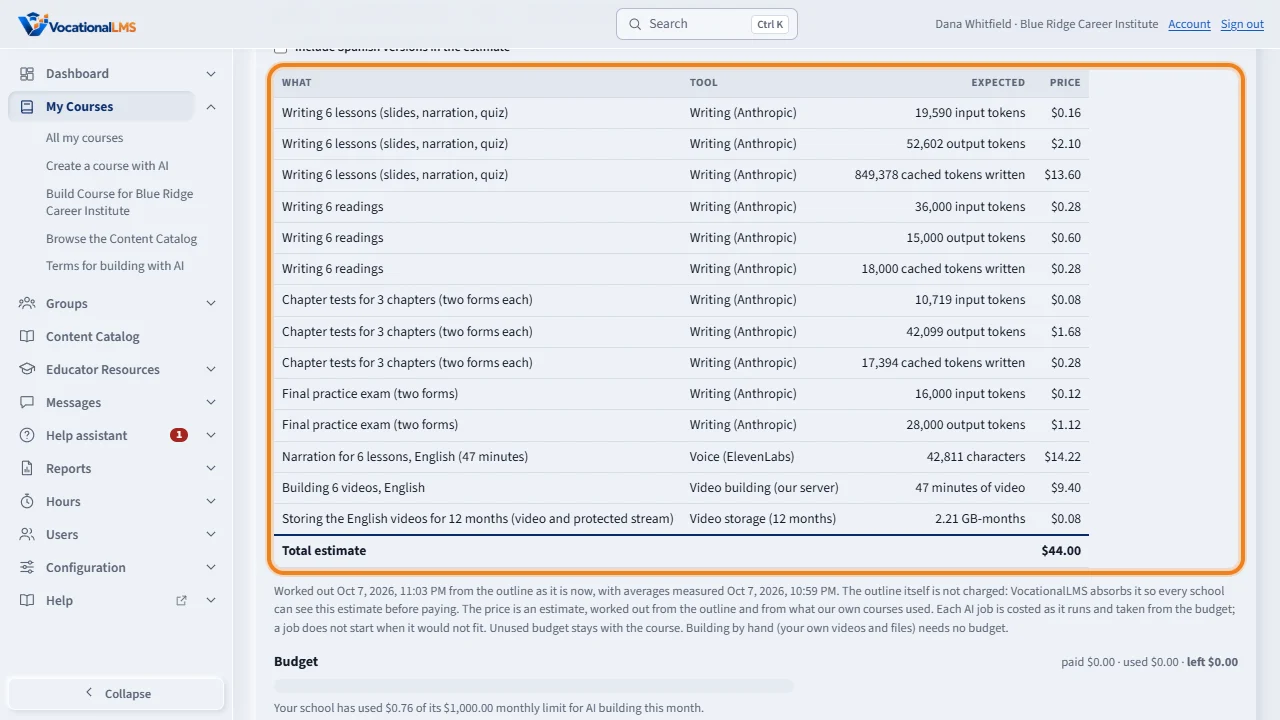
The table lists each line: writing the lessons, the readings, the chapter tests and the final exam, the narration, building the videos, and storing them for twelve months. The last row is the total. The price is an estimate, worked out from what VocationalLMS's own courses used. Tick Include Spanish versions to add a Spanish video for every lesson.
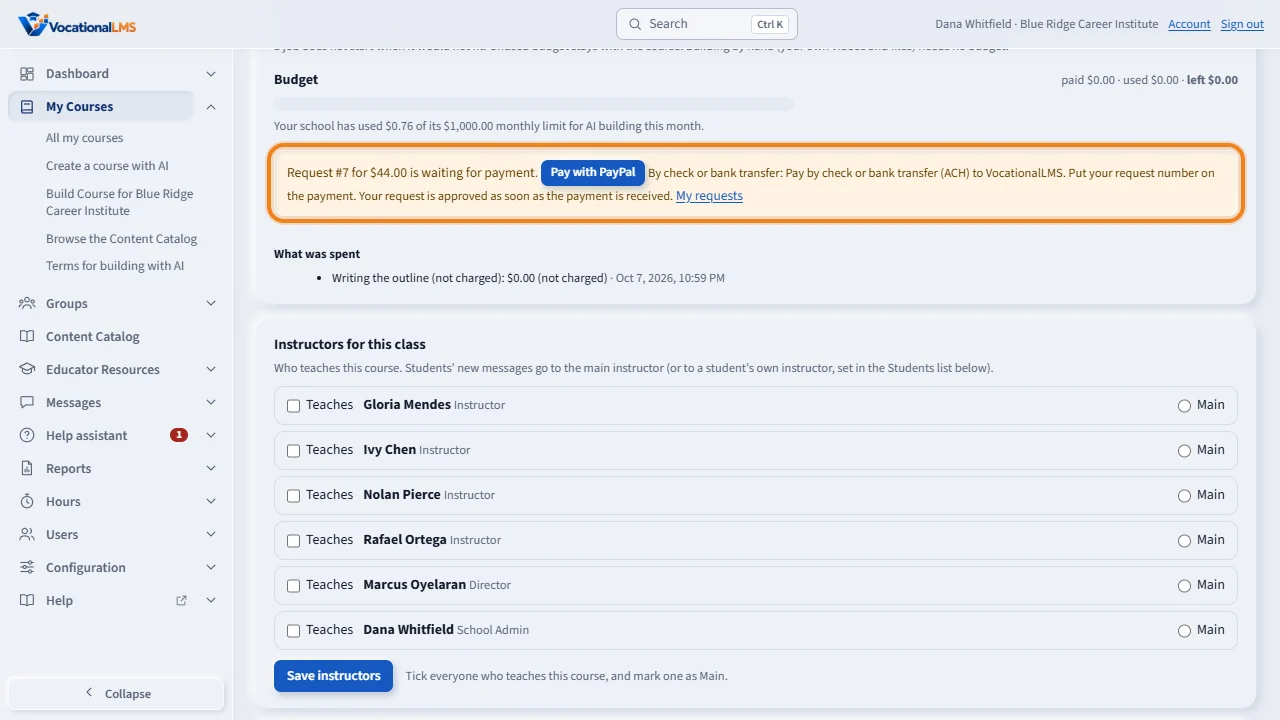
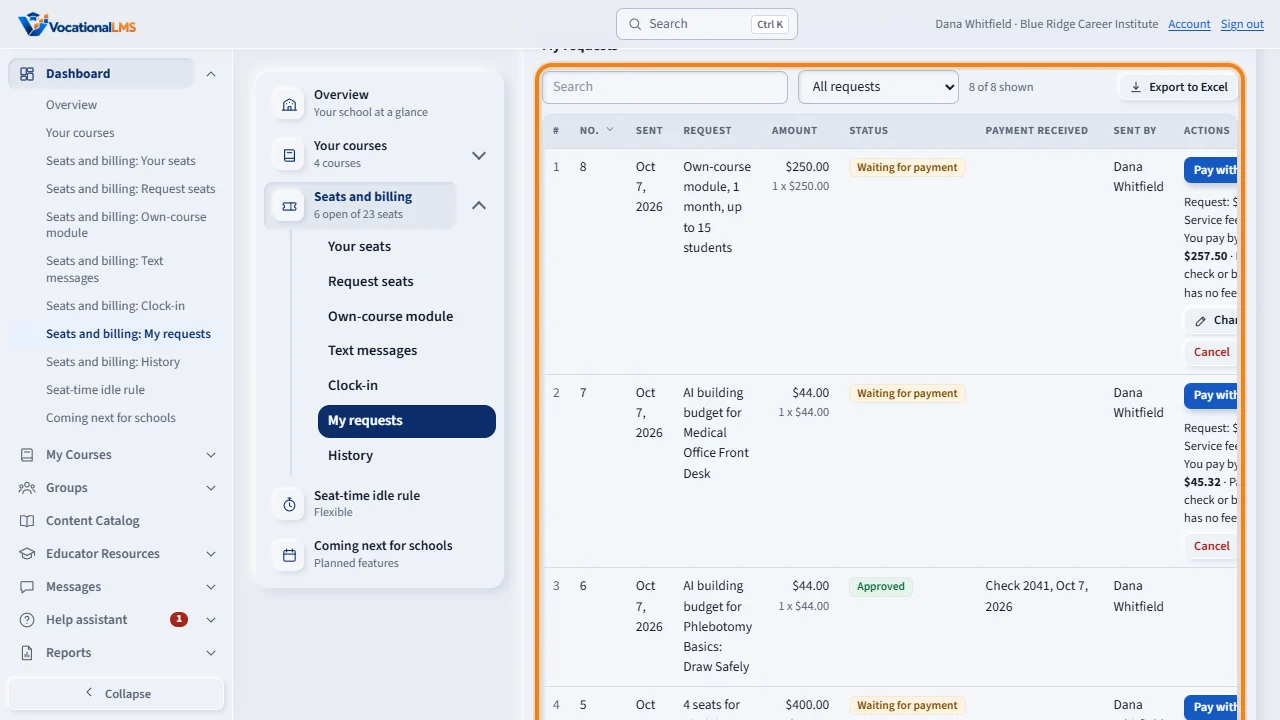
Click Pay with PayPal to send the request and pay it now; the budget is credited as soon as PayPal confirms. Or click Request to pay by check and pay as described under How to pay. The request is listed under Seats and billing, My requests, like every other request.
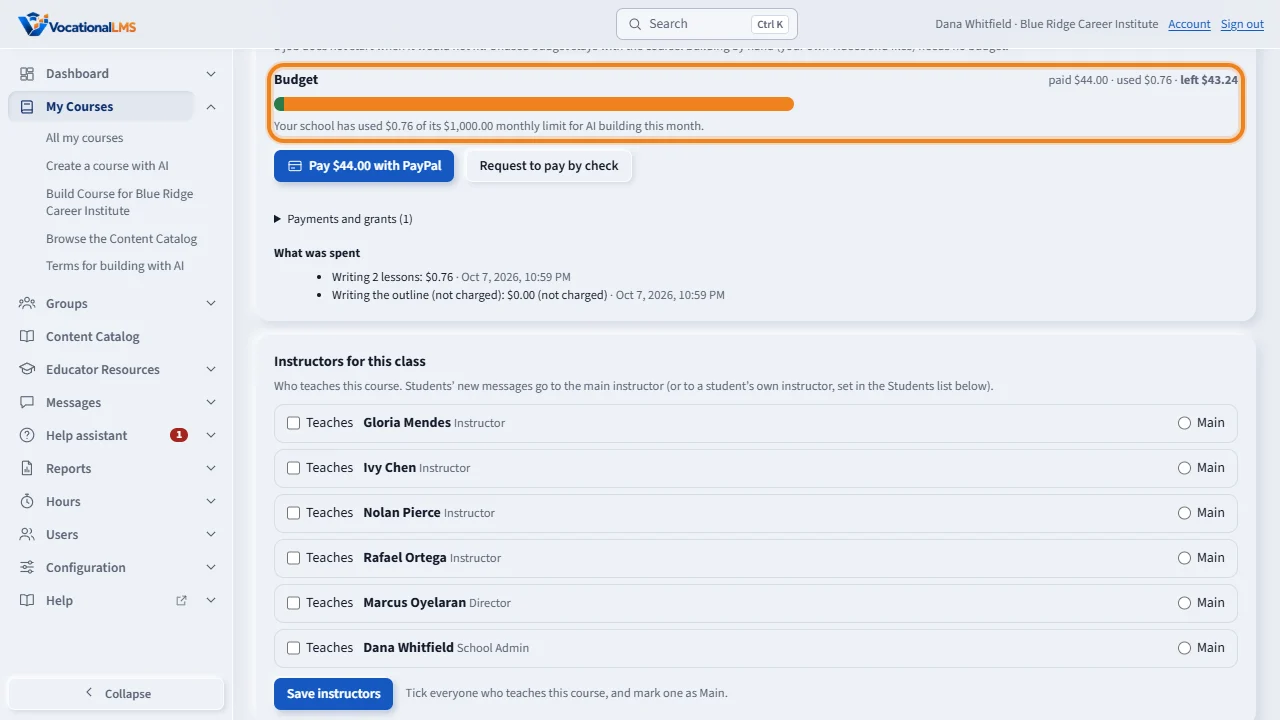
With a budget on the course, build as usual. The Budget bar shows paid, used and left, and What was spent lists each job in plain words with its cost. When what is left is not enough for a job, the button says the cost, what is left, and how to top up. Unused budget stays with the course.
Under Seats and billing, My requests, the AI building budget request shows its status and payment like every other request. A top-up is the same request again, and the new amount is added to the budget.
Open this in VocationalLMSMy Courses > your course > AI building: estimate and budget
Who can do this: A School Admin requests and pays. A Director and an instructor can see the panel.
What it is for
Building a course by hand (your own videos, presentations and files) needs only the own-course module (A-22). Building it with AI (the AI writes the lessons, records the narration and builds the videos) uses paid tools, so it is paid for first. Create course with AI still writes the outline for free: the modules, the lessons and their minutes. From that outline the course page shows AI building: estimate and budget: how many lessons the AI will write, how many videos and minutes of video to expect, and the price, line by line: writing the lessons, the readings, the chapter tests and the final exam, the narration, building the videos, and storing them for 12 months. A tick box adds Spanish versions. The price is an estimate: VocationalLMS works it out from what its own courses used, at double what the tools cost it. You pay the estimate; it becomes the course's budget. Each AI job is costed as it runs and taken from the budget; a job does not start when it would not fit; unused budget stays with the course.
Steps
See the estimate
- Open My Courses and click Create course with AI. Describe the course and add your curriculum as usual. The AI writes the outline; this part is not charged.
- Open the course. Under its title is the panel AI building: estimate and budget: modules, lessons to write with AI, videos, minutes of video expected, languages, and the estimate.
- Read the table: each line says what it is for (for example Writing 12 lessons, Narration for 12 lessons, English, Building 12 videos), the tool, how much is expected, and the price. The last row is the Total estimate.
- Tick Include Spanish versions in the estimate if you want a Spanish video for every lesson. The table and the total change at once.
- Edit the outline first if you want fewer lessons: delete or merge lessons, then look at the estimate again. It is worked out again every time the page opens, with the date shown under the table.
Pay the estimate
- Click Pay with PayPal (when VocationalLMS has PayPal on) to send the request and pay it now. You go to PayPal and come back to Seats and billing; the budget is credited as soon as PayPal confirms. The 3% service fee applies as on every PayPal payment (A-61).
- Or click Request to pay by check: the request is sent and waits for payment. Pay as described under How to pay; VocationalLMS approves it when the payment arrives, and the budget is credited.
- The request is listed under Dashboard > Seats and billing > My requests as AI building budget for your course, with its status, like every other request. A waiting request can be cancelled there.
Build, and watch the budget
- With a budget on the course, click Write + voice + build videos (or Write lessons, Finish videos, Write readings, Chapter tests, Make Spanish versions) as usual.
- The Budget bar shows paid, used and left. Under What was spent each job is listed in plain words with its cost: Writing 12 lessons: $9.40.
- When what is left is not enough for a job, the button answers with the cost of that job, what is left, and how to top up. Send the estimate again: a top-up is the same request, and the new amount is added to the budget.
- A job that is already running stops cleanly at the end of a lesson when the budget is used up: the lessons already written are kept, the others go back to waiting, and the job's message says so.
What happens next
Everything the AI builds goes through review and approval as before. Building by hand on the same course (uploading your own video on a lesson) never needs budget. VocationalLMS also keeps a monthly limit on AI building for each school; if your school reaches it, the job says so and can run next month.
Common problems
| # | Problem | What to do |
|---|---|---|
| 1 | There is no panel on the course page. | The panel is on your school's own courses only, and the estimate appears once the outline is ready. Courses VocationalLMS gave you are not built with AI by your school. |
| 2 | The buttons say the own-course module is locked. | Request or renew the module first (A-22); the AI budget comes after it. |
| 3 | The estimate changed since yesterday. | It is worked out again from the outline and the current prices every time. What you already paid stays on the course; a top-up is for the difference. |
| 4 | The job stopped half way. | The budget was used up or the monthly limit was reached. What was written is kept. Top up the budget from the panel and start the job again: it continues with the lessons that are still waiting. |
| 5 | Can I get the unused budget back? | Unused budget stays with the course and pays for the next job (readings, chapter tests, Spanish). Write to VocationalLMS for anything else. |