
V-50For the VocationalLMS Super Admin
Build a Student Work Book for a course
AI turns a course's own lessons and already-approved quiz questions into a printable, professionally designed study workbook students can read online like a book or download as a watermarked PDF.
How-to video V-50 · 0:55
Read the words of this video
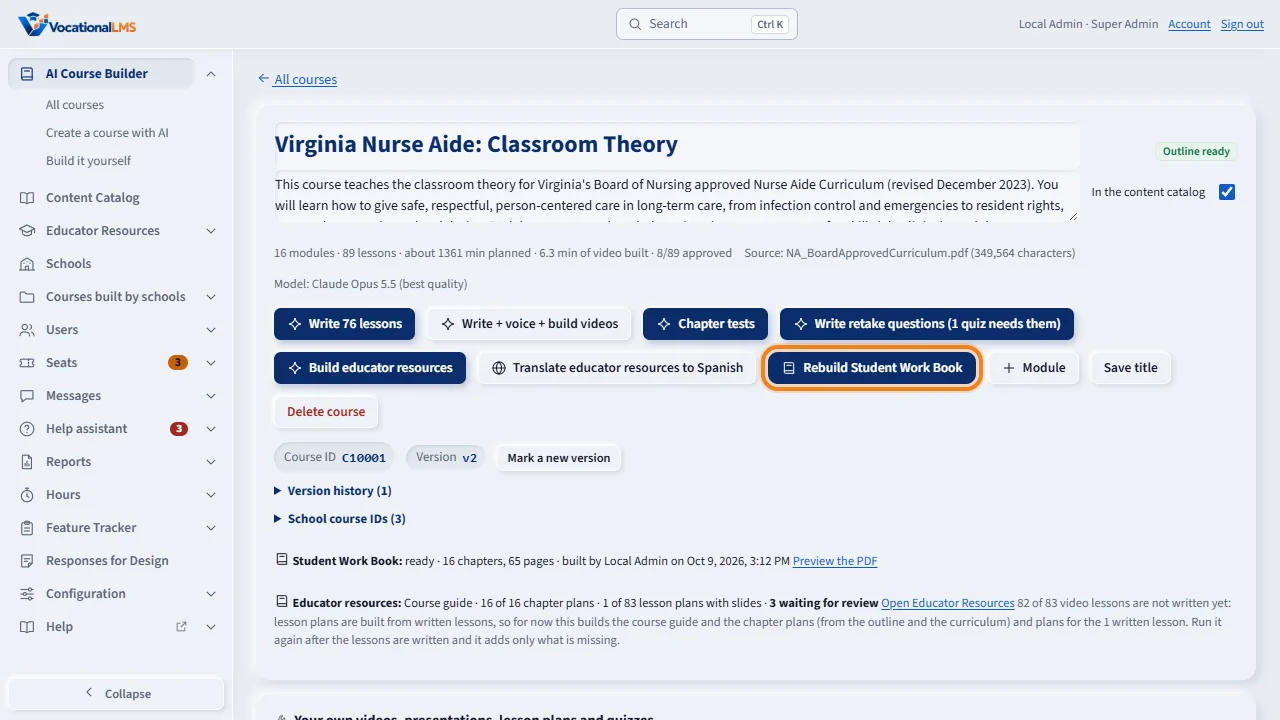
On a course's own page, next to Chapter tests, click Build Student Work Book. AI organizes this course's own lessons and already-approved quiz questions into a study workbook: nothing is invented from outside the course.
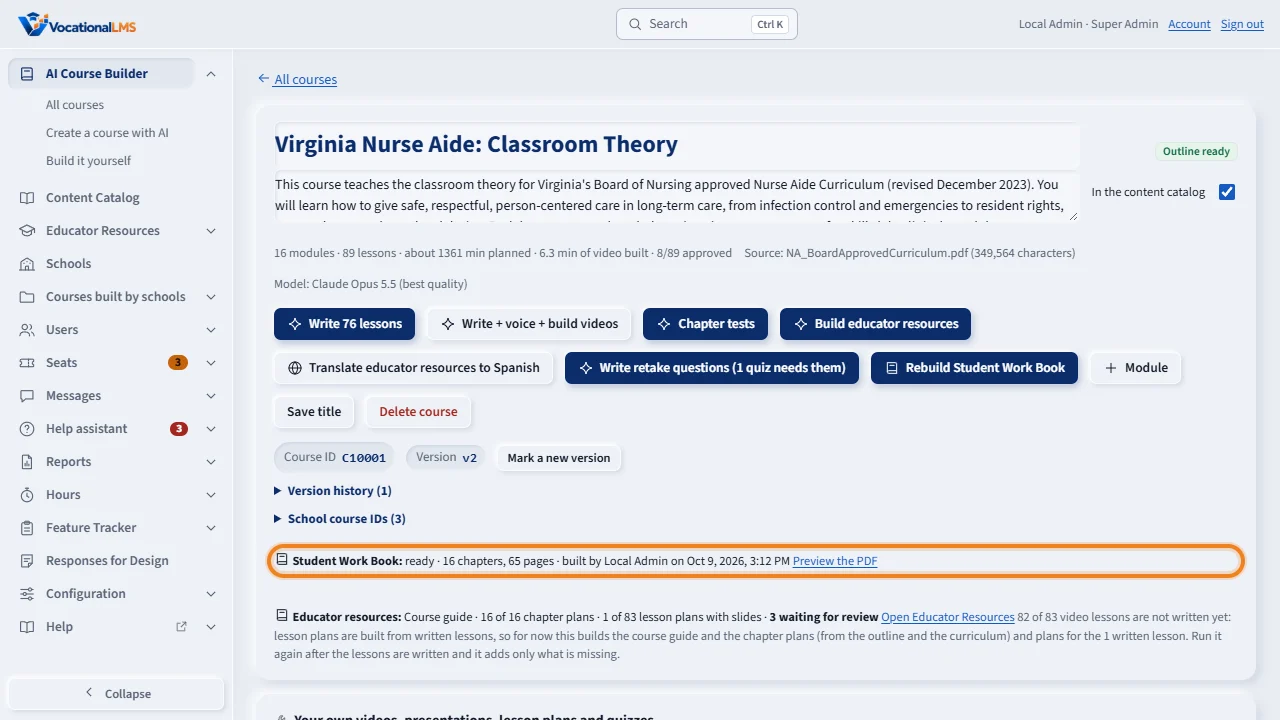
Click it again to confirm and it starts, one chapter at a time: Learning Activities, a Practice Test, and a Clinical Skills checklist where a chapter teaches a hands-on procedure. When it finishes, this line shows the chapter and page counts, who built it, and a link to preview the clean PDF.
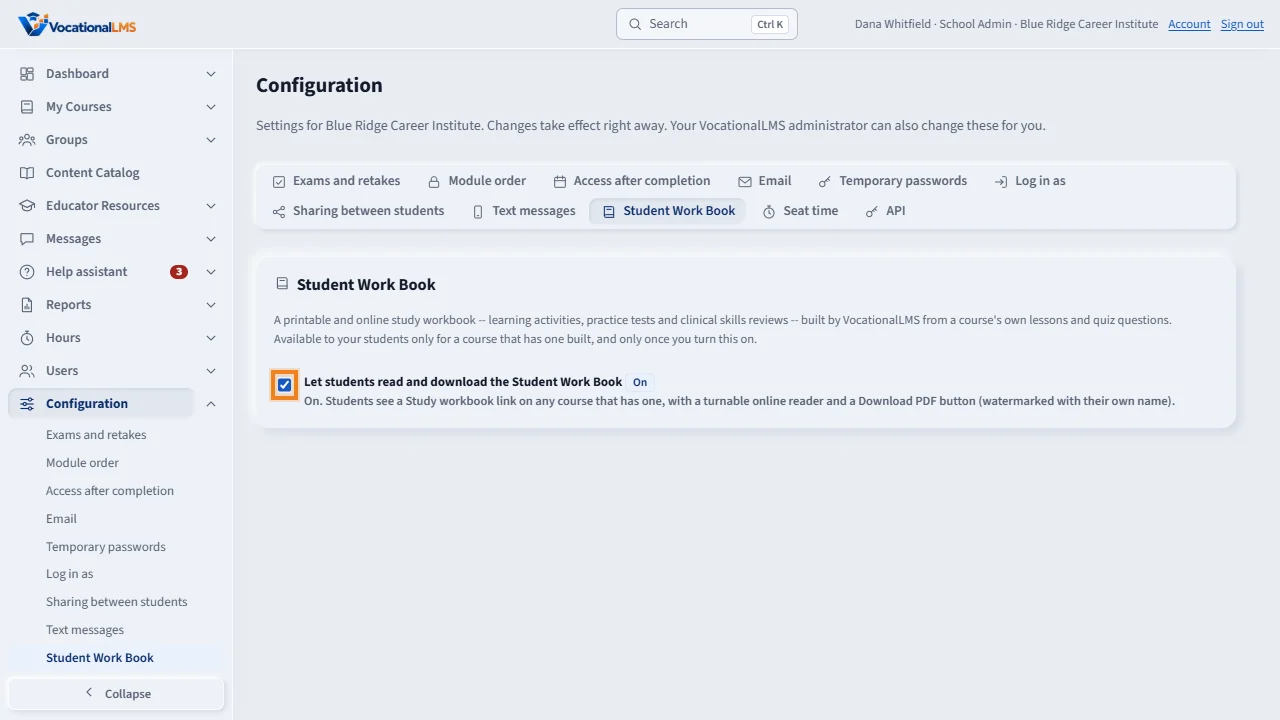
Building the book is not enough by itself: a school's own Configuration page has a Student Work Book switch, off by default. Once a School Admin turns it on, every enrolled student sees Study workbook under that course.
Open this in VocationalLMSAI Course Builder > a course > Build Student Work Book
Who can do this: The VocationalLMS Super Admin, on any course: a VocationalLMS master course or a school's own.
What it is for
Build Student Work Book, on a course's own page next to Chapter tests, has AI organize and expand that course's OWN already-written lessons and already-approved quiz and chapter-test questions into a workbook: a Learning Activities page, a Practice Test and, where a chapter teaches a hands-on procedure, a Clinical Skills checklist, one chapter at a time. Nothing is invented from any outside textbook or test bank. The finished book has a professionally designed cover page with the course's own title and the VocationalLMS logo, a table of contents with real page numbers, one section per chapter, and a copyright page. It works on whichever course you build it for: the title on the cover always says “{Course Title} Student Work Book,” never a hard-coded course name.
Steps
Build it
- Open the course's page in the AI Course Builder (it must already have chapters).
- Click Build Student Work Book (it reads Rebuild Student Work Book once one already exists), then click it again to confirm. On a school's own course this uses that course's AI building budget (#269), the same as Chapter tests; VocationalLMS's own courses are never charged.
- The page updates itself while it writes: one chapter at a time, with the step shown under the button. A 16-chapter course takes a few minutes.
- Once it finishes, the line under the button shows the chapter and page counts, who built it and when, with a Preview the PDF link to open the clean, unwatermarked book in a new tab.
Let students use it
- Building it is not enough by itself: a school's students only see it once their School Admin turns on Configuration > Student Work Book (off by default). Tell the school about the switch, or turn it on yourself while acting as that school.
- Once both are true, every enrolled student sees a Study workbook link under that course on their My courses page: a turnable online reader, and a Download PDF button that stamps their own name on their own copy.
What happens next
Rebuilding writes a new version and replaces the current book; the version number goes up, but nothing is kept to restore an older book today. The job is in the course's own AI ledger, under its own kind “workbook,” exactly like Readings and Chapter tests.
Common problems
| # | Problem | What to do |
|---|---|---|
| 1 | The button is gray. | Either another job is already running on this course, or it has no chapters yet (the outline must be ready first). |
| 2 | A school's own course refuses to build with a budget message. | That course needs its own AI building budget first (the same budget Chapter tests and Readings use) — pay the estimate or, for a goodwill case, Grant budget without payment. |
| 3 | A student says they don't see it. | Check that the school's Configuration > Student Work Book switch is on, and that the course's workbook actually finished building (open the course's page and look under Build Student Work Book). |